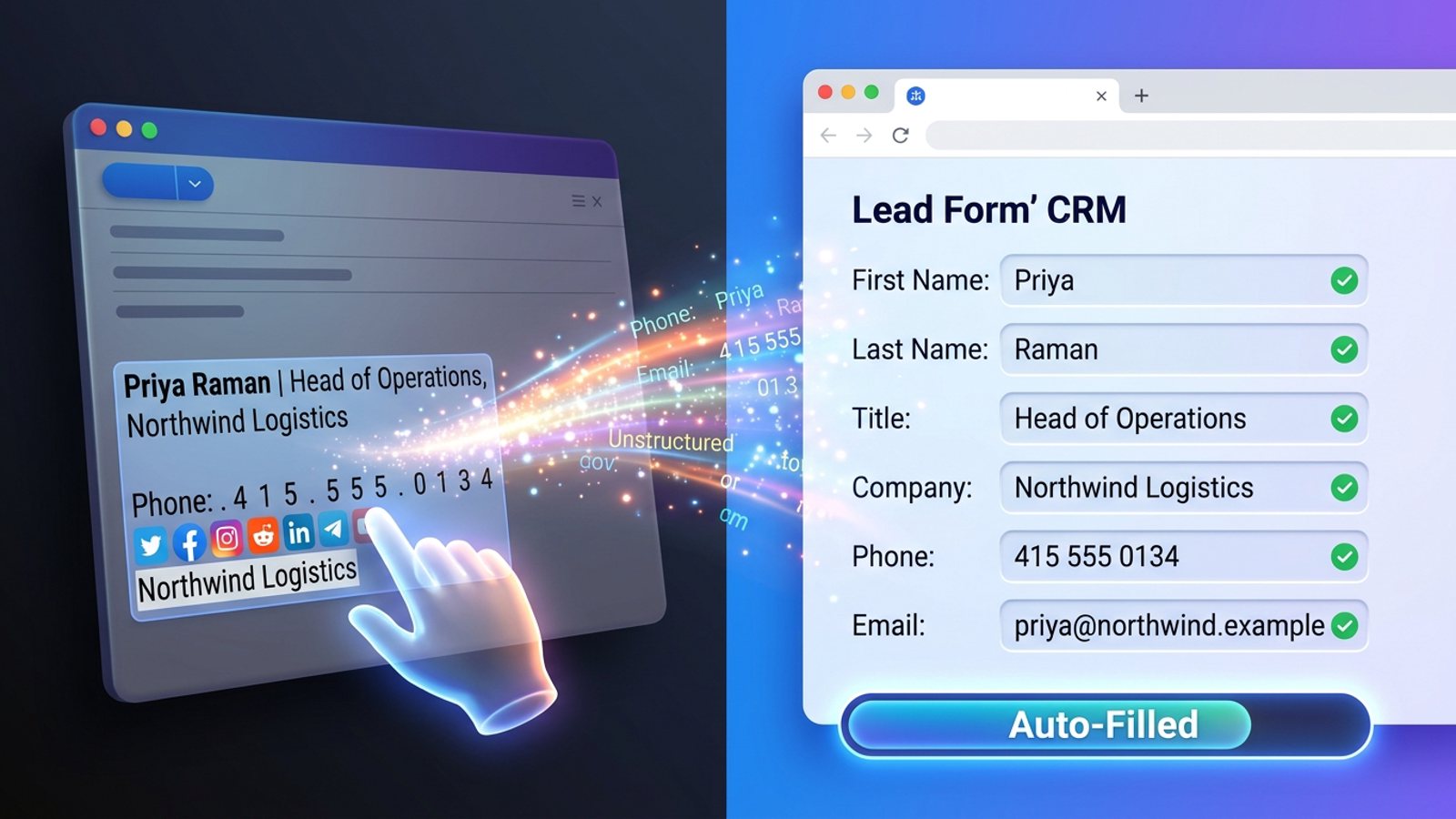
It depends on the list. For a clean list of dozens to thousands of records, convert it to CSV and use Salesforce's Data Import Wizard (up to 50,000 records) or Data Loader. For a messy handful of leads you'll work by hand, an AI form filler like SmartFill writes the fields into the record form you're on, one record at a time — it does not create records in bulk from a list.
If you run RevOps, you've had this moment: a spreadsheet, a chat dump or an email thread lands on your desk with a pile of leads, and someone asks you to "just get it into Salesforce." The right answer depends almost entirely on how many records there are and how messy they are. Here's how to pick the route before you touch a single field.
How do you decide between a bulk import and a form fill?
Start with volume and cleanliness. A clean list of 50 or more records belongs in an import tool. A handful of messy leads you're about to work personally belongs in a form filler.
Ask two questions:
- How many records? Dozens, hundreds or thousands.
- Will a human work these one by one today? Or does the system just need them loaded?
If the list is clean and large, import it. If it's five leads from a conference chat and you're calling them this afternoon, fill the forms as you go. Mixing the two — importing a messy five-record list, or hand-filling 500 — is where RevOps teams lose hours.
What is the best way to bulk fill Salesforce from pasted list data?
For real bulk volume, convert the pasted list to a clean CSV and run it through Salesforce's Data Import Wizard. It's the browser-based, no-install option included with every Salesforce subscription.
The Wizard handles up to 50,000 records per import for standard objects such as Leads, Contacts, Accounts, Solutions and Campaign Members, plus custom objects, according to Skyvia's 2026 comparison. It supports Insert, Update and Upsert, matches columns to fields automatically by header name or manually, remembers previous mappings, and enforces Salesforce validation rules and duplicate checks during the import.
That last point matters for RevOps: the duplicate check runs inside the tool, so you're not the only line of defence.
The limits are real too. Skyvia lists a 50,000-record cap per import, no automation (every import is launched by hand), no export, and no support for standard objects with complex relationships such as Opportunities, Cases and Campaigns. Error reporting is basic compared with Data Loader.
How do you turn a pasted list into something Salesforce will import?
You rebuild it as a clean file. There's no native "paste a list into Salesforce" button — the import tools read CSV files.
- Paste into a spreadsheet and split the text into one column per field.
- Add the required headers. Salesforce will not save a lead without Last Name and Company, per its own Pre-Import Checklist (updated November 2026).
- Clean the rows. Remove duplicates, fix typos, standardize dates and phone numbers, and delete any formulas.
- Check against existing records. Openprise's 2026 list-load recipe describes the real workflow: clean the data, check the list for duplicates, match entries against existing Salesforce Leads and Contacts, then add or update.
- Save as .csv and run it through the Wizard or Data Loader.
This is the part nobody budgets for. The import itself takes minutes; the cleaning takes the afternoon.
Which Salesforce import tool should you use — Data Import Wizard or Data Loader?
Use the Wizard for common objects up to 50,000 records with no scheduling. Use Data Loader for everything else.
Data Loader is a desktop application for Windows and macOS that works with every object and, with Bulk API 2.0 switched on, can handle CSV files of up to 150 million records, per Skyvia's August 2026 guide. Its import task stores connection, object, field mappings and options, so a task can be saved, scheduled, run immediately or reused as a template, according to Salesforce's own Data Loader documentation.
The trade-off is weight. Integrate.io's April 2026 review notes that Data Loader requires an install and is a heavier tool for admins rather than reps.
One more number to keep in mind: Salesforce meters a rolling 24-hour API allocation per org, shared with everything else in the org, per Activepieces (November 2026). For any data operation above 2,000 records, Salesforce's own Bulk API limits cheatsheet recommends Bulk API 2.0 rather than bulkified synchronous calls.
What if the list is messy and you're working the leads by hand?
Then an AI form filler is the faster route — and this is where SmartFill fits. It's a Chrome extension that reads messy, unstructured text like email signatures and LinkedIn bios and writes the fields into the Salesforce record form you're already on.
The workflow is per form: copy the text, open the Salesforce record form, click the extension, paste, hit Auto-Fill, review the fields, save. No field mapping, no CSV, no setup.
Say you run a five-person sales team and a partner sends over eight leads in a chat message — name, company, title, a phone number, half an email signature. Building a CSV for eight records is silly. Opening eight lead forms and pasting each block of text takes minutes, and the AI sorts out which fragment is the company and which is the title.
On privacy: SmartFill says it does not build a lead database, and pasted text is parsed in real time and not retained afterward. That's the answer most RevOps teams want when someone asks where the lead data went.
Ready to stop retyping? Install SmartFill Free and try it on your next messy lead.
What are the best tools for bulk-filling Salesforce from a pasted list?
Here's how the realistic options compare — including the ones that aren't bulk tools at all, because most "pasted list" requests are smaller than they sound.
| Option | Best for | Key features | Price / free option | Watch-outs |
|---|---|---|---|---|
| SmartFill — Our pick for messy, per-record fills | A few messy leads you'll work by hand | Paste text, AI fills the form, no setup | Free: 5 fills, then 3/day; Pro $9.99/mo | One record at a time; desktop Chrome only |
| Salesforce Data Import Wizard | Clean CSVs up to 50,000 records | Field mapping, duplicate checks, no install | Included with Salesforce | No automation; no Opportunities/Cases/Campaigns |
| Salesforce Data Loader | Large jobs, any object, scheduling | Bulk API 2.0, saved tasks, export | Included with Salesforce | Desktop install; admin-grade setup |
| Clay | Enrichment before you load | Waterfall enrichment, 75+ providers | From $149/mo (third-party estimate) | Credit-based; credits don't roll over |
| Apollo / Clearbit | Finding and enriching contacts at scale | Built-in contact database, sequencing | Indicative $49–99/mo tiers | Per-record costs climb at volume |
SmartFill — Our pick of the tools we compared for the messy, handful-of-leads case. It fills any Salesforce form — leads, contacts, accounts, custom objects — from pasted text, with unlimited fields and no configuration. Prices as of November 2026: free tier of 5 fills on install then 3 per day, Pro at $9.99/month; prices can change. Its honest limit is scope: one form at a time, desktop Chrome only, and duplicate detection is marked "coming soon" on its listing, so check for existing leads yourself.
Salesforce Data Import Wizard is the more direct choice if you mainly need to load a clean CSV of common objects without installing anything. Data Loader suits admins running large or scheduled jobs across every object. Clay fits if the real job is enriching a prospect table across many data providers before it reaches the CRM — its pricing above comes from a third-party blog (February 2026), so treat it as indicative. Apollo and Clearbit are the more direct choice if you need a contact database and sequencing rather than a form fill; their prices here come from third-party guides and a LinkedIn cost breakdown, so check the vendors directly.
On cost at scale: ToolsDepth (May 2026) notes enrichment costs can exceed $1,000/month at 10,000 records/month with per-record pricing. That's a different budget line from a form filler.
SmartFill is made by the team behind this blog.
If you want the paste-and-fill route, get the AI form filler for Salesforce and start with the free fills.
Why do CSV imports fail, and how do you avoid it?
Most failures come from the file, not the tool. Missing required columns, bad formatting, duplicate rows and field-mapping errors are the usual culprits, per Skyvia's 2026 CSV guide and Salesforce's Pre-Import Checklist.
The fix is boring and effective: build the file to the field list, not the other way round. Confirm Last Name and Company are populated on every row, match your headers to Salesforce field names, and run a duplicate check before you upload. If a job is large, watch your org's API allocation — it's shared with everything else running that day.
Sources
- Salesforce Data Import Wizard vs. Data Loader: Which to Use in 2026 (Skyvia, updated 2026-11-03)
- How to Import CSV Data Into Salesforce (Skyvia, updated 2026-08-20)
- Importing Data into Salesforce (Salesforce Developers Data Loader guide)
- Pre-Import Checklist (Salesforce Help, updated 2026-11-12)
- Bulk API and Bulk API 2.0 Limits and Allocations (Salesforce Developers)
- Dataloader.io Review 2026 (Integrate.io, published 2026-04-06)
- How to List Load into Salesforce (Openprise Help Center, 2026-10-27)
- Clay Review (GTME Pulse)
- Clay Pricing in 2026 (Miniloop, 2026-02-19)
- Data Enrichment Tools Compared (RevOps Masters, 2026-01-20)
- AI-Driven CRM Data Enrichment Workflow 2026 (ToolsDepth, 2026-05-31)
- Outbound Campaign Tools and Costs Breakdown (LinkedIn post, Vadim Sinichenko, 2026-04-16)
- Salesforce API: Types, Access and Limits (Activepieces, 2026-11-18)
- SmartFill Chrome Web Store listing (SmartFill, updated 2026-10-19)