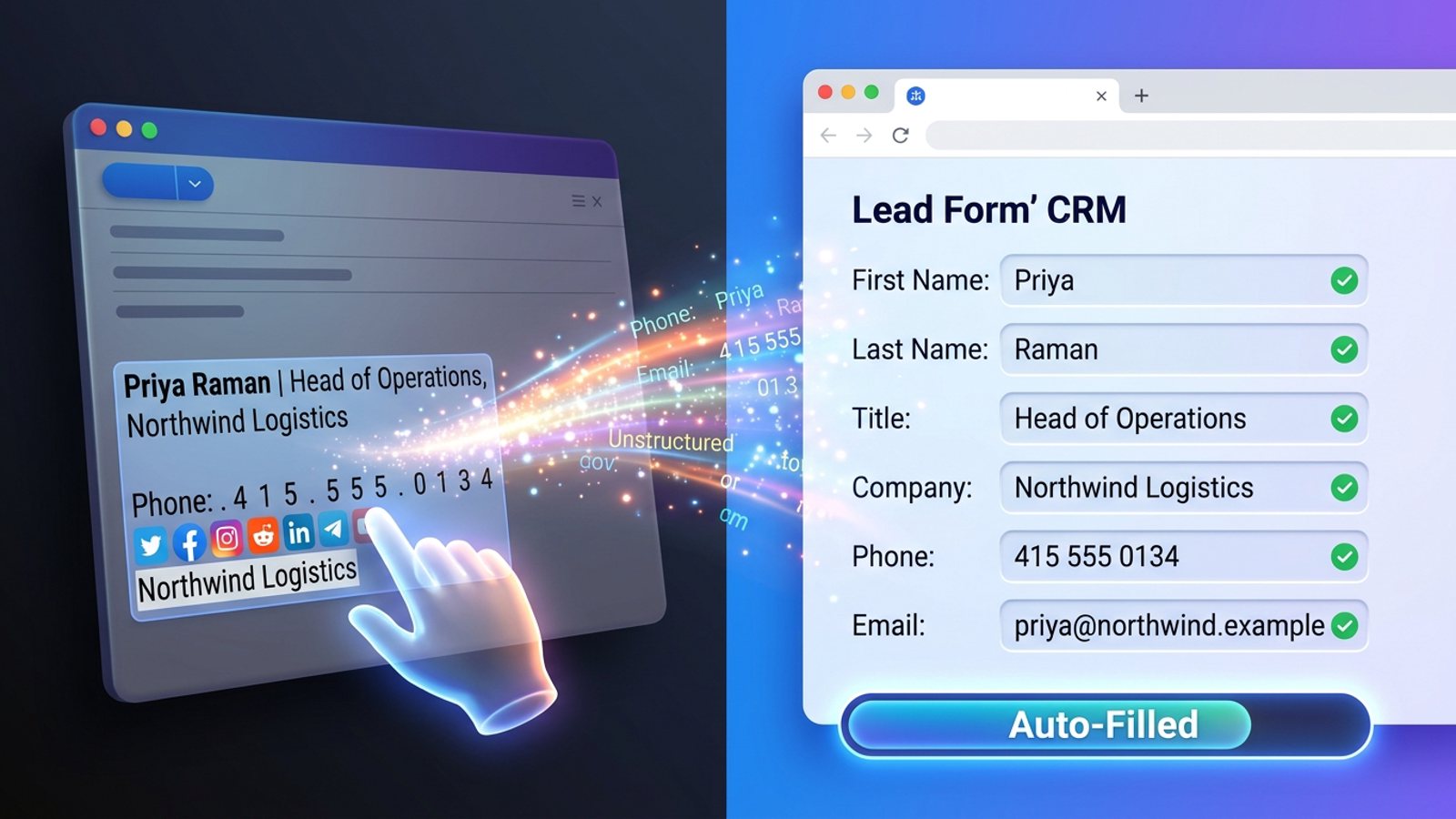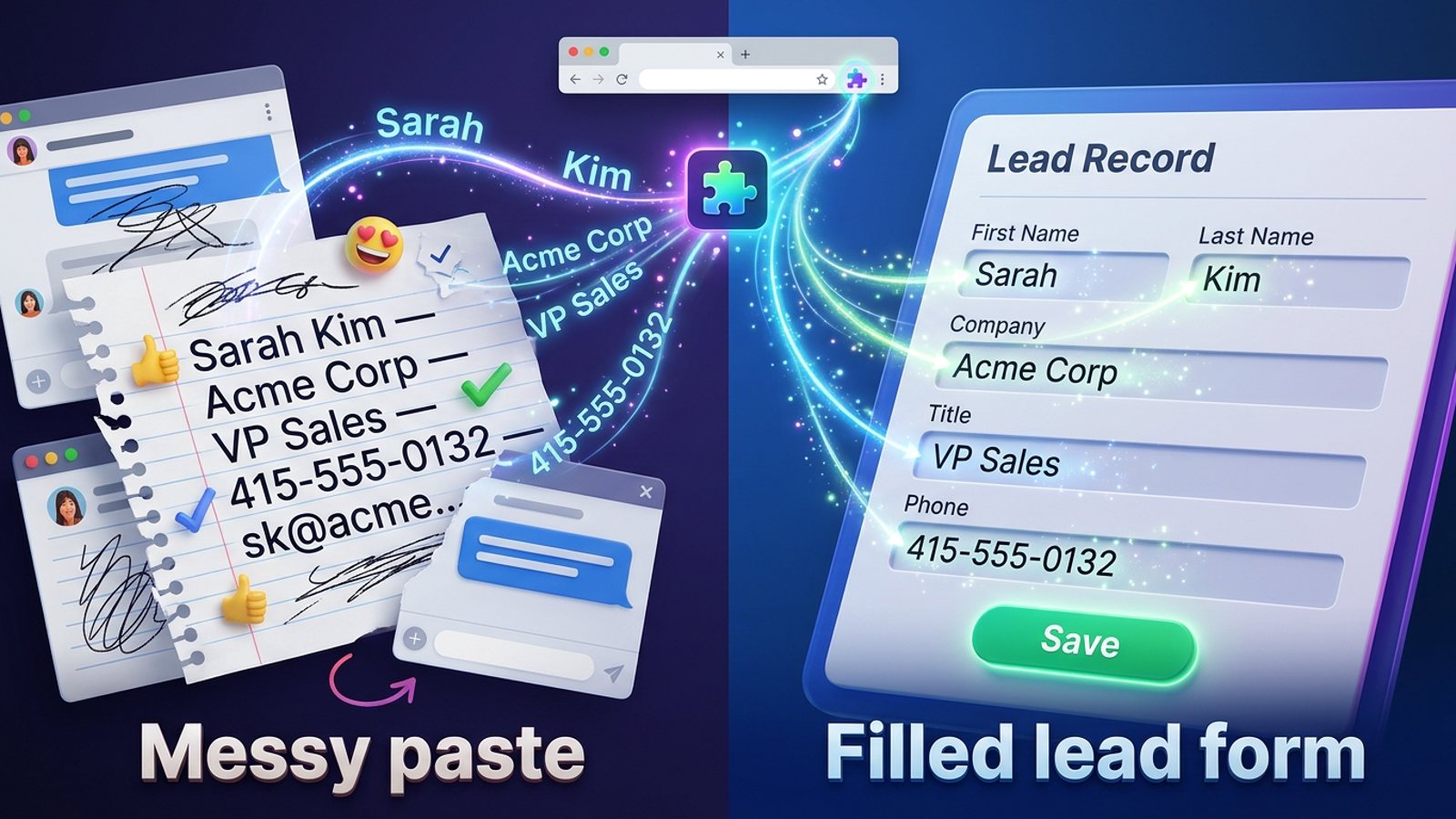
For most sales reps, the best way to fill Salesforce forms without typing is a Chrome extension that reads messy lead text and writes it straight into the record page you already have open — that is what SmartFill does, on desktop Chrome. Einstein Autofill and Titan AI Studio solve narrower jobs: OmniScript conversations and building new forms.
If your day is a browser tab with a lead's email signature on one side and a blank Salesforce record on the other, this guide is for you. It compares the five realistic routes and tells you which one fits which job.
Why is typing into Salesforce the wrong default?
Because the source data almost never arrives in a form Salesforce can read. A prospect's details show up as an email signature, a LinkedIn About section, a paragraph in a forwarded email, or a messy handoff note.
Manual typing is free and works everywhere, including mobile, and nothing leaves Salesforce. That is a real advantage for a one-off record from a clean source. The cost shows up at volume: every record is a field-by-field round trip, and every retyped phone number or job title is a chance to get it wrong.
Our recommendation: before you pick a tool, count how many single records you create in a week from unstructured text. If the answer is more than a handful, the typing is the problem worth fixing first.
The next question is which of the no-typing routes actually fits your job.
What are the ways to fill Salesforce forms without typing?
There are five practical routes as of November 2026: manual copy-paste, an in-house browser macro, Einstein Autofill, Titan AI Studio, and a Chrome extension like SmartFill. They are not interchangeable — each was built for a different job.
| Option | Best for | Key features | Price / free option | Watch-outs |
|---|---|---|---|---|
| SmartFill — Our pick | Single records from messy pasted text | AI fills any Salesforce form; no setup; no stored lead data | Free: 5 fills, then 3/day; Pro $9.99/mo | Desktop Chrome only |
| Manual typing / copy-paste | One-off records from a clean source | Zero setup; works on mobile | Free | Slow per record; error-prone on messy text |
| In-house macro or script | Teams with a developer and fixed layouts | Full control; no vendor | Free (developer time not costed) | Breaks when the Lightning UI changes |
| Einstein Autofill (Beta) | Service teams on OmniScripts taking live calls | AI suggestions from call/chat | No public list price; edition + add-on gated | Beta; OmniScript forms only |
| Titan AI Studio | Teams building new intake forms | Prompt-to-form; cross-object; no code | Included with Titan's platform | Builds forms, does not autofill yours |
The sections below explain what each one is actually good at, so you can match it to your situation rather than to a feature list.
Why does a Chrome extension win for messy lead data?
Because it works on the text you already have, in the tab you already have open. There is no import file to clean and no schema to map first.
SmartFill is a Chrome extension that uses AI to populate Salesforce forms from any pasted text. You copy a lead's details — an email signature, a LinkedIn bio, a paragraph from a handoff email — click the extension, and the form fills. It handles messy, unstructured data without you parsing it first.
It is made for the people who feel this pain most: SDRs, account executives, founders and RevOps teams doing hours of data entry. The pitch is simple — turn a four-minute form fill into a three-second click.
Three things make it practical rather than fussy:
- No setup. A 10-second install from the Chrome Web Store, no sign-up required.
- Any Salesforce form. Leads, contacts, accounts, custom objects — anything you can open in a Chrome browser, Classic or Lightning. There is no cap on how many fields it fills at once.
- Nothing stored. Text is processed in real time and not saved, so no lead database is built.
Ready to try the fastest route? Install SmartFill Free and fill your next lead from a pasted signature.
How do you fill a Salesforce form without typing, step by step?
The extension route takes about four steps, and the review at the end is the one people skip.
- Install the extension. Add SmartFill to Chrome in one click — no account needed.
- Open the record page. Go to the Salesforce form you want to fill and keep your source text in another tab.
- Copy the lead text. Grab the signature, bio or paragraph, messy or not.
- Trigger the fill. Click the SmartFill icon and watch the fields populate.
- Review every field before saving. Check picklists, dates and lookup fields in particular — an AI fill is a draft, not a final record.
- Save and check for duplicates. Confirm you did not create a second record for someone already in the system.
That is the whole workflow for one record. Bulk data is a different story.
What if you have hundreds of records, not one?
Then you want a bulk import tool, not a form filler. The two Salesforce-native options handle volume, and both expect a clean file.
According to a 2026 LinkedIn post by Fabian Warislohner, the Data Import Wizard handles up to 50,000 records per import for Contacts, Leads, Accounts, Campaign Members and custom objects. Data Loader is a desktop tool for Enterprise and higher orgs, handling 5,000 to 5,000,000 records with insert, update, upsert, delete and export.
The catch is in the name: these tools import structured CSVs. If your source is a folder of messy bios, you still have to turn that into clean columns first — which is exactly the work a form filler removes for single records.
Our recommendation: use the import tools for lists you already have in a spreadsheet, and the extension for the one-at-a-time records that arrive as text all day long.
Is Einstein Autofill the answer?
Not for general lead entry. Einstein Autofill (Beta) turns call and chat conversations into AI-driven form suggestions and integrates with OmniScripts, per Salesforce's Spring '25 release notes.
It is genuinely useful — if you are the right kind of team. Salesforce's help documentation (updated October 2026) says it applies to Lightning Experience in Enterprise and Unlimited editions of multiple Industries clouds, and requires the Industry Service Excellence Add-On plus permission sets for Salesforce Voice, Service Cloud Messaging Session, Einstein Prompt Builder and Omnistudio. Setup is a two-step toggle procedure plus full permission-set assignment, per a July 2026 Salesforce Dictionary how-to.
It is also a pilot/beta service under Salesforce's Beta Services Terms, and no public list price appears in the material reviewed. Most importantly for this question: it fills OmniScript forms from live conversation context. It is not a "paste lead text, fill any Salesforce form" tool.
If you mainly need AI suggestions during service calls inside OmniScripts, Einstein Autofill is the more direct choice. If you need a rep's blank Lead page filled from a signature, it is not built for that.
Does Titan AI Studio fill my existing forms?
No — it builds new ones. Titan AI Studio lets teams go from a prompt to a Salesforce-synced form in minutes, supporting multi-step, parent, child and cross-object forms with no code and no middleware, per Titan DXP's September 2025 announcement.
Titan says AI Studio is included at no extra cost with its platform, and that data stays inside Salesforce rather than being exported. A July 2026 Ranktracker blog (vendor content) notes the same strengths and adds two honest caveats: there is a learning curve, and costs stack up as you add modules beyond the base platform.
So the split is clean. Titan is for teams designing the intake forms and portals themselves. It is not an autofill layer over the record pages your reps already work in.
If you mainly need to design and publish new Salesforce-synced forms, Titan AI Studio is the more direct choice.
What about building your own macro?
It is possible, and it is fragile. An old Stack Overflow question from July 2020 asks about filling Salesforce Lightning forms with browser dev console commands or a script — evidence that in-house scripting of Lightning forms is a known, fiddly workaround rather than a solved problem.
A macro gives you full control and no vendor, and a developer can target exact fields. But it needs someone to build and maintain it, it breaks when the Lightning UI changes, and it still has to parse messy text before it can type anything. Treat it as a practitioner anecdote, not a documented how-to.
SmartFill is made by the team behind this blog. Of the tools we compared, it is our pick for the specific job in this article — a rep with messy lead text and a blank Salesforce form — because it needs no setup, fills any Salesforce form, and stores nothing. Its honest limit: it is a desktop Chrome extension, so it does not help on mobile.
Is it safe to paste lead data into a browser extension?
It can be, if the extension follows Chrome's user-data rules and you check its privacy disclosure. Google's Chrome Web Store policy (current policy, enforced since October 2019) requires extensions that handle user data to post a privacy policy, handle data securely including encrypting transmissions, and disclose collection even when processing happens only locally. It also requires explicit consent before collection and bans using browsing data for ad targeting.
SmartFill's stated position is that nothing sent to the AI is saved, so no lead database is built. That is the standard to hold any extension to: read the listing's privacy disclosure before you paste a real prospect's details, and check whether the tool stores anything.
Stop retyping signatures into Salesforce. Install SmartFill Free and fill your next record in one click.
Sources
- Boost Efficiency and Customer Satisfaction with Einstein Autofill (Beta) — Salesforce, undated
- Einstein Autofill Editions and Permissions (Beta) — Salesforce, updated 2026-10-22
- How to: Einstein Autofill Setup — Salesforce Dictionary, updated 2026-07-31
- Forms That Speak Salesforce — Titan DXP, 2025-09-22
- Best form builders for Salesforce integration (2026) — Ranktracker blog (vendor content), 2026-07-27
- Filling forms in Salesforce Lightning using console commands in Chrome — Stack Overflow, asked 2020-07-18
- User Data FAQ — Chrome for Developers, undated
- Salesforce data management post — Fabian Warislohner, LinkedIn, 2026-03-10