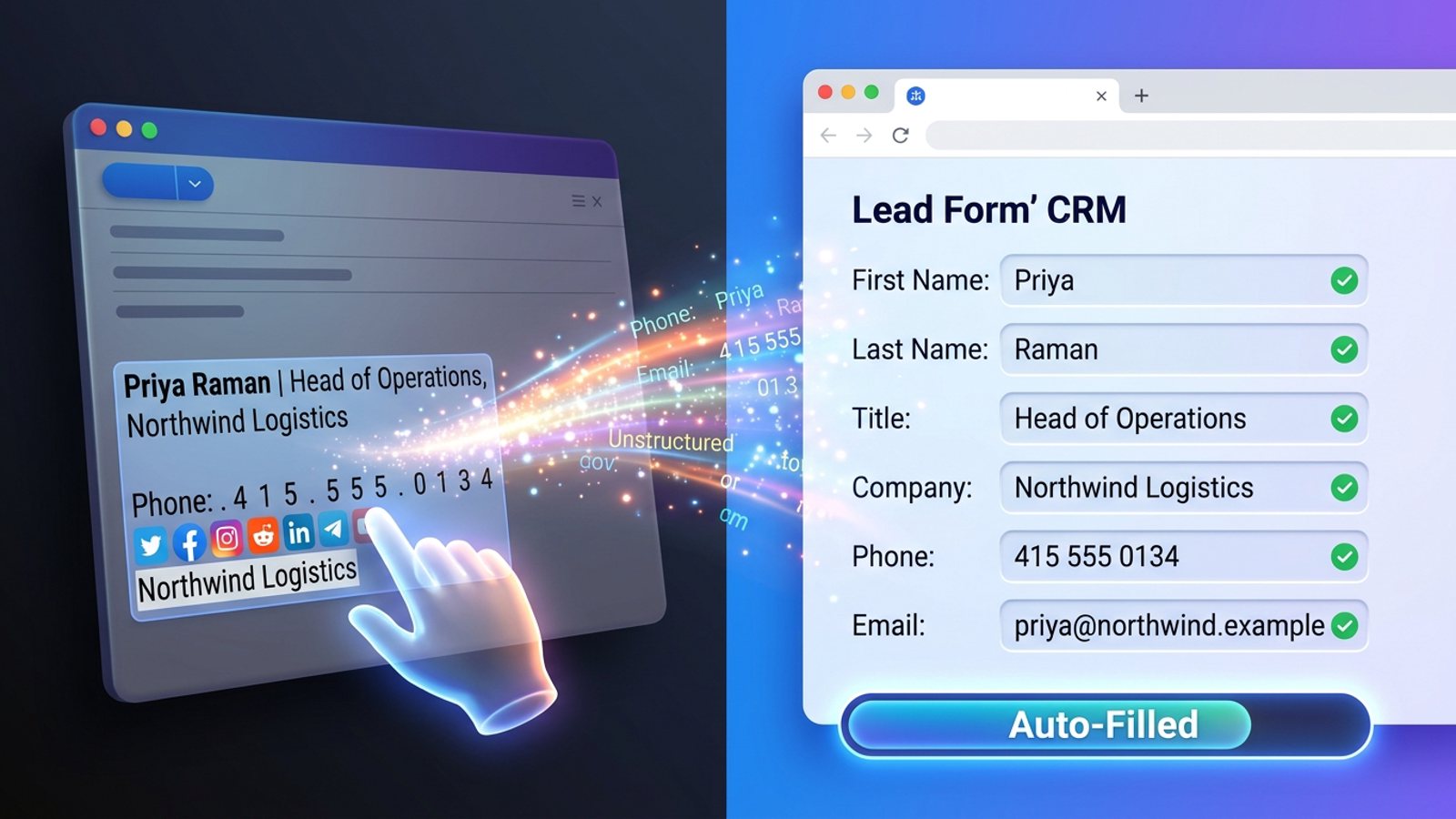
The fastest reliable way to fill Salesforce from email signature data is to paste the whole signature into an AI form filler that writes straight into the open Salesforce record form. Typing by hand is free but slow; field-by-field copy-paste still makes you match each value yourself. Salesforce's own intake tools don't build a Lead from a signature at all.
A signature is the most common messy source in a sales rep's day, and it's also the one with the highest hit rate: BulkSignature (2026) notes that signatures routinely carry full name, job title, company, phone, email and website — the exact Lead fields you need. Get it into the form in one move and you buy back minutes on every record. Install SmartFill Free and the next signature you copy can land in the form in one click.
Why is an email signature such a good source for Salesforce data?
Because it already contains the fields — in the wrong shape. A standard professional signature runs 4–7 lines, often inside an HTML table, sometimes with a logo, social icons and a call to action (BulkSignature, 2026). BulkSignature also notes formats drift role by role, so no two signatures arrive in the same layout.
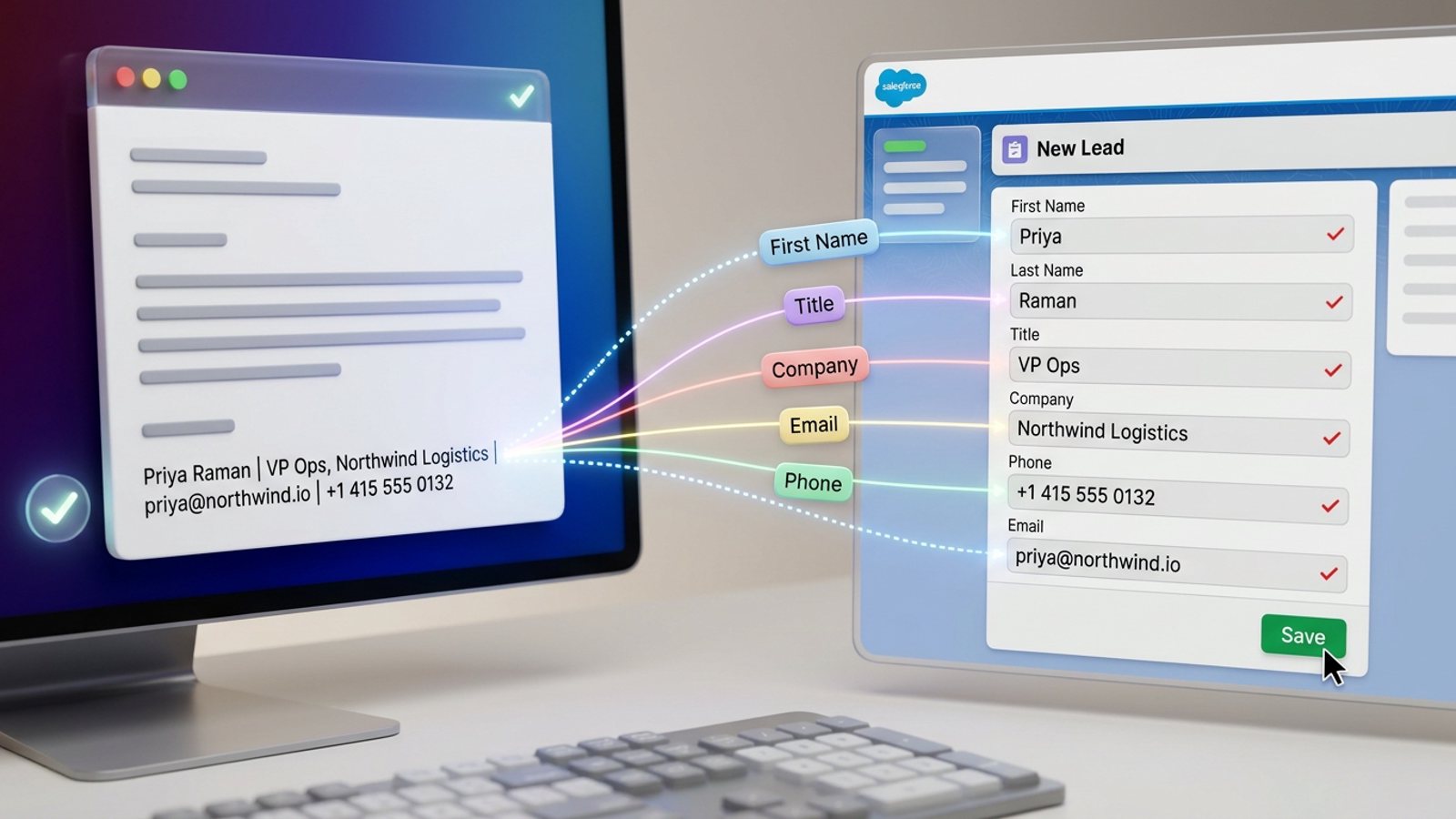
That inconsistency is the whole problem. One sender writes "Priya Raman | Head of Ops | Northwind Logistics" on one line. The next puts the title under the name, the company in bold, and the phone number with spaces, dots or dashes. Your job is to turn that into clean field values.
What are the realistic ways to get a signature into Salesforce?
There are four, and they differ mainly in who does the parsing.
- Type it by hand. You read the signature and type each value into the form.
- Copy-paste field by field. You copy the name, paste it, copy the title, paste it, and so on.
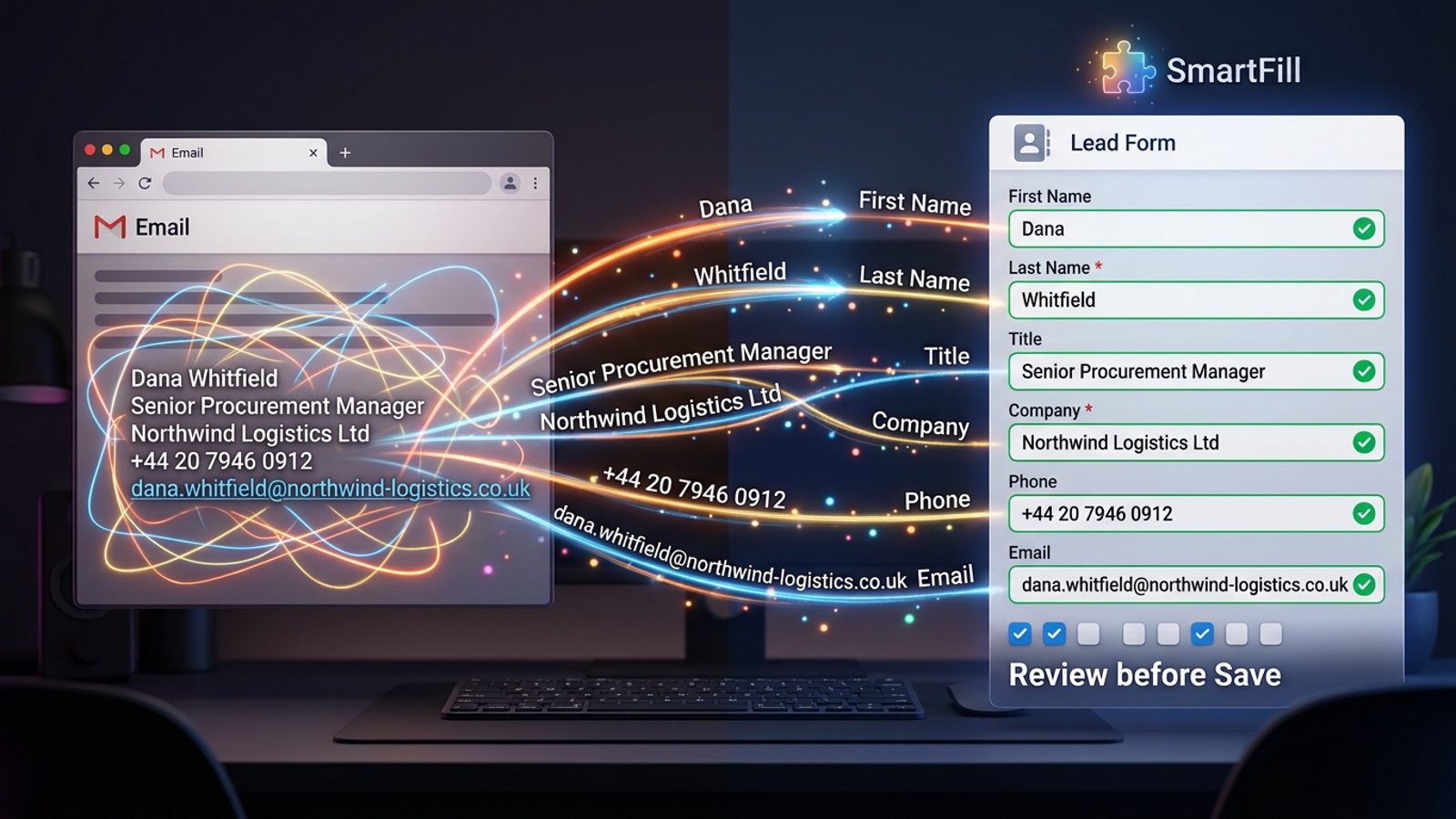
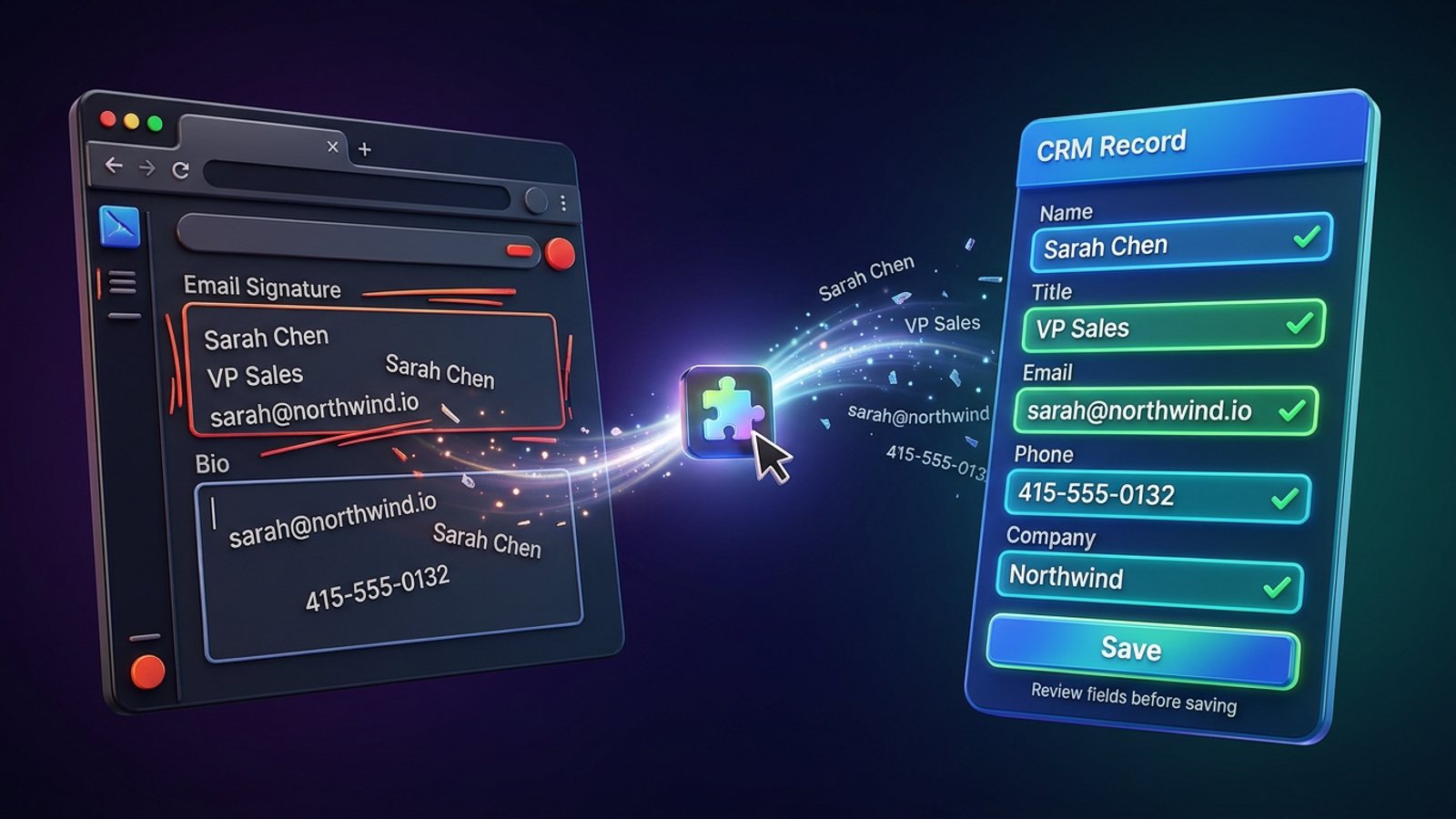
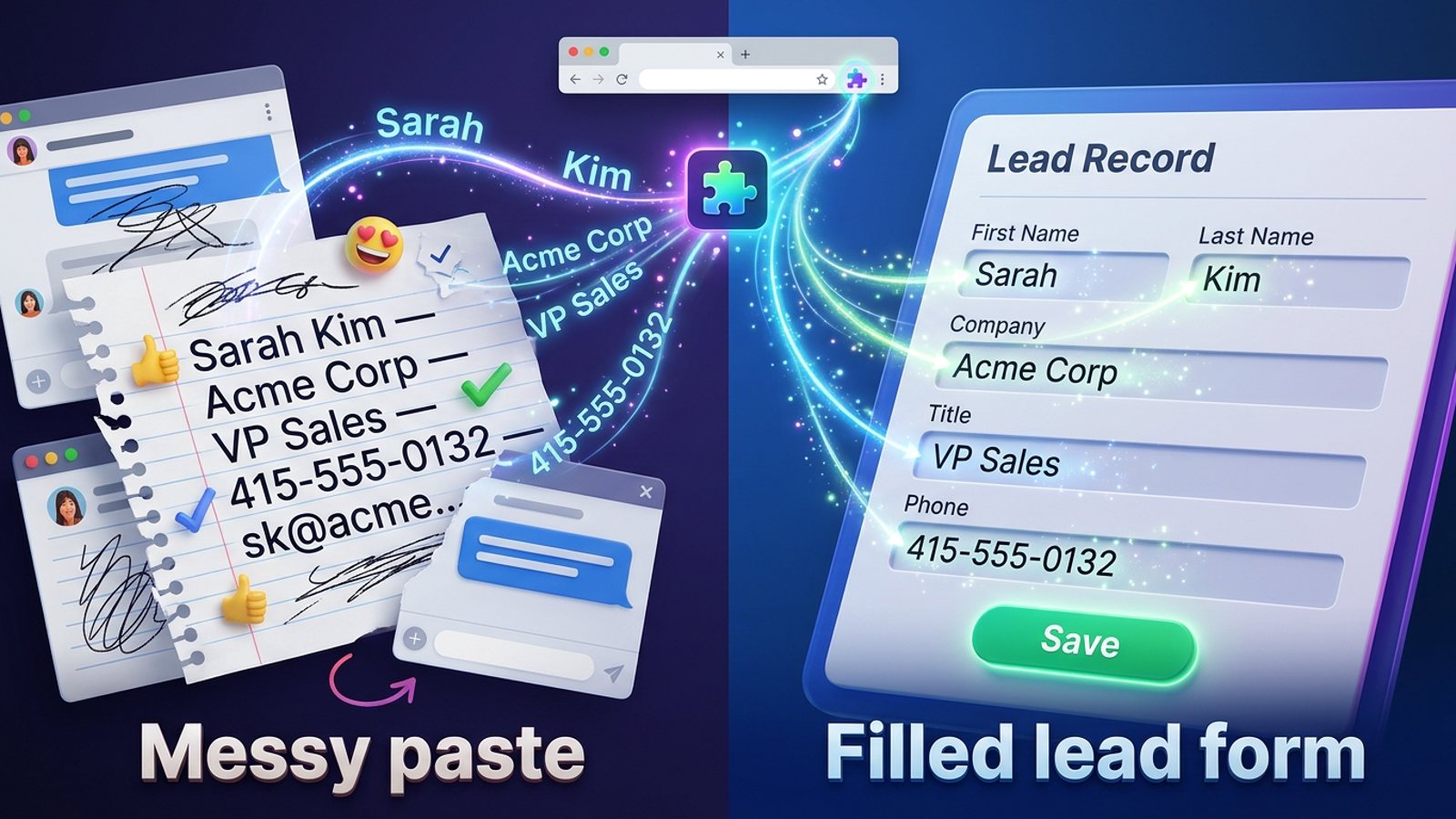
- Paste the whole signature into an AI form filler. The tool reads the messy text and populates the fields on the open record.
- Automate the inbox. A tool watches incoming email, parses the signature and creates or updates the record through the API.
Options 1 and 2 are free and give you full judgement on every value. Options 3 and 4 cost money or setup time but remove the parsing. Nanonets (2023) describes manual extraction and entry from hundreds of daily emails as time-consuming, error-prone and not scalable — which is why most teams end up somewhere in the middle.
The signature isn't the hard part; deciding which value belongs in which field, forty times a day, is.
How do you do it by hand or with field-by-field copy-paste?
Slowly, and with a duplicate check you must remember to run. Here is the honest version of the manual route:
- Open a new Lead form in Salesforce and confirm Last Name and Company are visible.
- Copy the signature out of the email.
- Paste each value into its field — name, title, company, phone, email, website.
- Search Salesforce for that email address before saving, to avoid a duplicate.
- Save.
Two things bite here. First, copying a formatted signature can drag its formatting with it — a long-standing Stack Overflow thread (2016) shows people copying rendered HTML rather than raw HTML to keep it intact. Second, the title-and-company split is a judgement call every single time. If you mainly need zero cost and total control, manual entry is the more direct choice.
How does an AI form filler handle a messy signature?
It reads the pasted text and writes the values into the open Salesforce form, so you review instead of type. SmartFill is a Chrome extension built for Salesforce that takes any copied text — an email signature, a LinkedIn section, a paragraph — and populates the record form. Its listing (Chrome Web Store, updated October 2026) says it separates job title from company name even when they sit on the same line, and needs no URL patterns or regex mapping to start.
Here is the whole workflow, from the same listing:
- Open the Salesforce record form for the Lead, Contact, Case or custom object you're creating.
- Copy the signature — or the whole email if it carries more context.
- Click the SmartFill icon, paste the text and hit Auto-Fill.
- Review each populated field, then save.
- Optionally save a Page Rule for that Salesforce page, so repeat fills pull from the clipboard on one click.
A worked example
Say a prospect signs off:
"Thanks — Priya Raman, Head of Operations, Northwind Logistics, +1 415 555 0134, priya@northwind.example"
Typed by hand that's six field entries and one title/company decision. Pasted into an AI filler, the name, title, company, phone and email land in their fields in one action, and you spend your attention checking them rather than keying them.
Which tool is best for filling Salesforce from an email signature?
Of the tools we compared, an AI form filler that writes into the on-screen Salesforce form is the best fit for one-off records, and SmartFill is our pick. It fills the form directly rather than creating a record elsewhere to sync, works on Leads, Contacts, Cases and custom objects, and requires no setup. Here's how the realistic options stack up.
| Option | Best for | Key features | Price / free option | Watch-outs |
|---|---|---|---|---|
| SmartFill — Our pick | One-off records from pasted signatures | Fills the open Salesforce form; splits title and company; no setup; Page Rules | Free: 5 fills, then 3/day; Pro $9.99/mo | Desktop Chrome only; duplicate detection coming soon |
| Manual copy-paste | Zero budget, high-value accounts | Full human judgement; nothing leaves the browser | Free | You parse and re-type every value |
| ChatGPT or another AI assistant | Cleaning a signature into a field list | Reads unstructured text well | Check OpenAI's pricing page | Output lands in a chat window; you still paste |
| Salesforce Web-to-Lead | Website forms visitors fill in themselves | Native; creates Leads; no code | Salesforce Setup feature; 500 submissions/24h | Captures form submissions, not signatures |
| Zapier + signature parsing | Automating a whole inbox | Trigger → filter → parse → create/update | Check zapier.com/pricing | Setup and filters required; API, not the form |
SmartFill is made by the team behind this blog.
SmartFill (our pick)
Our recommendation for the rep with a signature in the clipboard and a blank Lead form on screen. The product facts put Pro at $9.99/month, unlimited fills, with a free plan of 5 fills to start and then 3 per day forever — as of November 2026, prices can change. The honest limits: it's a desktop Chrome extension only, duplicate detection is listed as "coming soon" so you check for an existing lead yourself, and it works from text you paste rather than by reading your inbox. On privacy, the extension's listing states pasted text is parsed in real time and not retained afterward, and that data is not sold to third parties.
Manual copy-paste
Best if you have no budget or want to judge every field on a big account. Free, no setup, nothing leaves your browser. The cost is your time: signatures vary in length and layout (BulkSignature, 2026), so you re-type each value, and duplicate checking is entirely manual. If you mainly need absolute control, manual entry is the more direct choice.
ChatGPT or another AI assistant
Useful for turning a messy signature into a clean field list you then paste in yourself. One practitioner post (DEV Community, 2026) documents building ChatGPT into an email workflow, and the Email Signature Parser extension uses ChatGPT for extraction (LogicWeb, 2025). The limitation is the last step: output lands in a chat window, so the write into Salesforce is still yours. Pricing is on OpenAI's official pricing page.
Salesforce Web-to-Lead
The right tool for a different job: website forms where the visitor types their own details. It's generated in Setup, then the HTML and its "oid" value are copied and embedded (Microsoft Learn, 2025). It does not fill a record from a signature someone emailed you. Formstack (page dated 2026) describes setup as highly manual with no drag-and-drop or preview, and CloudAmp (undated) documents a cap of 500 submissions per 24 hours and no built-in dedupe.
Zapier with signature parsing
Best when you want the inbox handled without you. Zapier lists a "Parse Email Signature" action from SigParser (undated), and Integration Atlas (2026) walks through a Gmail signature-parsing recipe that warns you to filter the trigger — exclude sent mail, skip attachments, exclude your own domain — or you'll parse the wrong emails. It creates records through the CRM API rather than the on-screen form, and email-to-lead setups are known to produce junk from role addresses and forwarded signatures (Tomba, 2026). Pricing is on zapier.com/pricing.
What about Salesforce's own email and lead tools?
They solve adjacent problems, not this one. Web-to-Lead only captures what someone submits on a web form, and Email to Salesforce BCC logs email activity on records you already have. Neither builds a new Lead from a signature.
Email to Salesforce is worth knowing anyway. It's enabled org-wide under Setup > Email > Email to Salesforce, then each user takes their own BCC address from profile icon > Settings > Email > My Email to Salesforce (Superhuman Help, 2026; Salesforce Dictionary, 2026). Conga's documentation (2025) notes that BCC-based saving in its own tool works only for Leads, Contacts and Opportunities. Useful for logging, not for creating.
If you're weighing the native BCC route against manual work, our comparison of Salesforce email-to-lead vs copy-pasting from your inbox goes deeper.
How do you avoid duplicates and junk records?
Check for the email address before you save, every time. Neither SmartFill's duplicate detection (listed as coming soon) nor Web-to-Lead's form generation (CloudAmp, undated) will stop a duplicate for you — dedupe relies on Salesforce duplicate rules or another app.
Three habits that help:
- Search the email address first, not the company name.
- Skip role addresses. Tomba (2026) notes info@ and sales@ parse fine but rarely convert.
- Watch forwarded emails. Tomba also flags that a forwarded email can cause the rep's own signature to be captured as the lead.
Can you automate signatures at volume instead of one at a time?
Yes — but it's a different project with a different cost. A Zapier-style flow runs trigger → filter → AI or extraction step → create/update, so the lead data is copied into templates rather than written into the on-screen Salesforce form (Integration Atlas, 2026). Airparser, described in a directory entry (ToolAI.io, undated), extracts structured data from emails, texts, signatures and PDFs to JSON, Sheets or webhooks.
That's the right shape for an inbox of inbound enquiries. For the rep working a list of 20 named accounts, pasting each signature is faster than building and maintaining the flow. If you're deciding between the two, our post on the best AI tools to fill Salesforce leads from email signatures in 2026 compares them side by side.
Ready to stop retyping signatures? Install SmartFill Free — 5 fills to start, then 3 a day forever, and your next Lead form fills itself from the clipboard.
Sources
- SmartFill — The AI Form Filler (Chrome Web Store, updated 2026-10-19)
- Pre-Import Checklist (Salesforce Help, updated 2026-11-12)
- Email Signature Templates: Free Examples & Formats for Every Role (BulkSignature, 2026-01-14)
- Email Signature Examples to Help Create Your Own (Small Business Trends, 2025-02-18)
- Configure lead management for Salesforce (Microsoft Learn, 2025-05-27)
- 4 Notable Limitations of Salesforce Web-to-Lead Forms (Formstack, page dated 2026-05-14)
- CloudAmp's Ultimate Guide to Salesforce Web-to-Lead Forms (Salesforce AppExchange, undated)
- How to: Email to Salesforce (Salesforce Dictionary, 2026-05-19)
- Salesforce (Superhuman Help, 2026-01-28)
- Salesforce: Setting up BCC email for Opportunities (Conga Documentation, 2025-07-17)
- Email to lead in Salesforce (Nanonets, 2023-07-04)
- Email-to-lead junk records (Tomba, 2026-08-09)
- Zapier: Clean the Email With a Code Step Before ChatGPT Sees It (DEV Community, 2026-10-20)
- Parserr + SigParser integration (Zapier, undated)
- How to Parse Email Signatures… with Zapier (Integration Atlas, 2026-04-10)
- Email Signature Parser (LogicWeb, 2025-11-08)
- Airparser (ToolAI.io, undated)
- How do I add a well formatted HTML signature to Gmail? (Stack Overflow, 2016-05-23)