Email-to-lead wins when you own a dedicated sales inbox and want every inbound email to become a Lead automatically, routed by assignment rules. Copy-pasting wins on flexibility: it works with any source and any field, at zero cost. For one-off messy text — an email signature, a LinkedIn bio, call notes — a paste-and-fill AI extension is the practical middle ground.
What is the difference between salesforce email to lead and copy-pasting from your inbox?
Email-to-lead turns an inbound email into a Lead record automatically; copy-pasting means a rep reads the email and types the details into a Salesforce form by hand. One is a pipeline you build once, the other is a habit you repeat all day.
According to MassMailer's 2026 glossary entry, email-to-lead takes the sender as the contact, the subject as the description, captures the body, sets Lead Source to "Email" (or by which address received it), and then assignment rules route the Lead to a rep or a queue. Nobody touches a form.
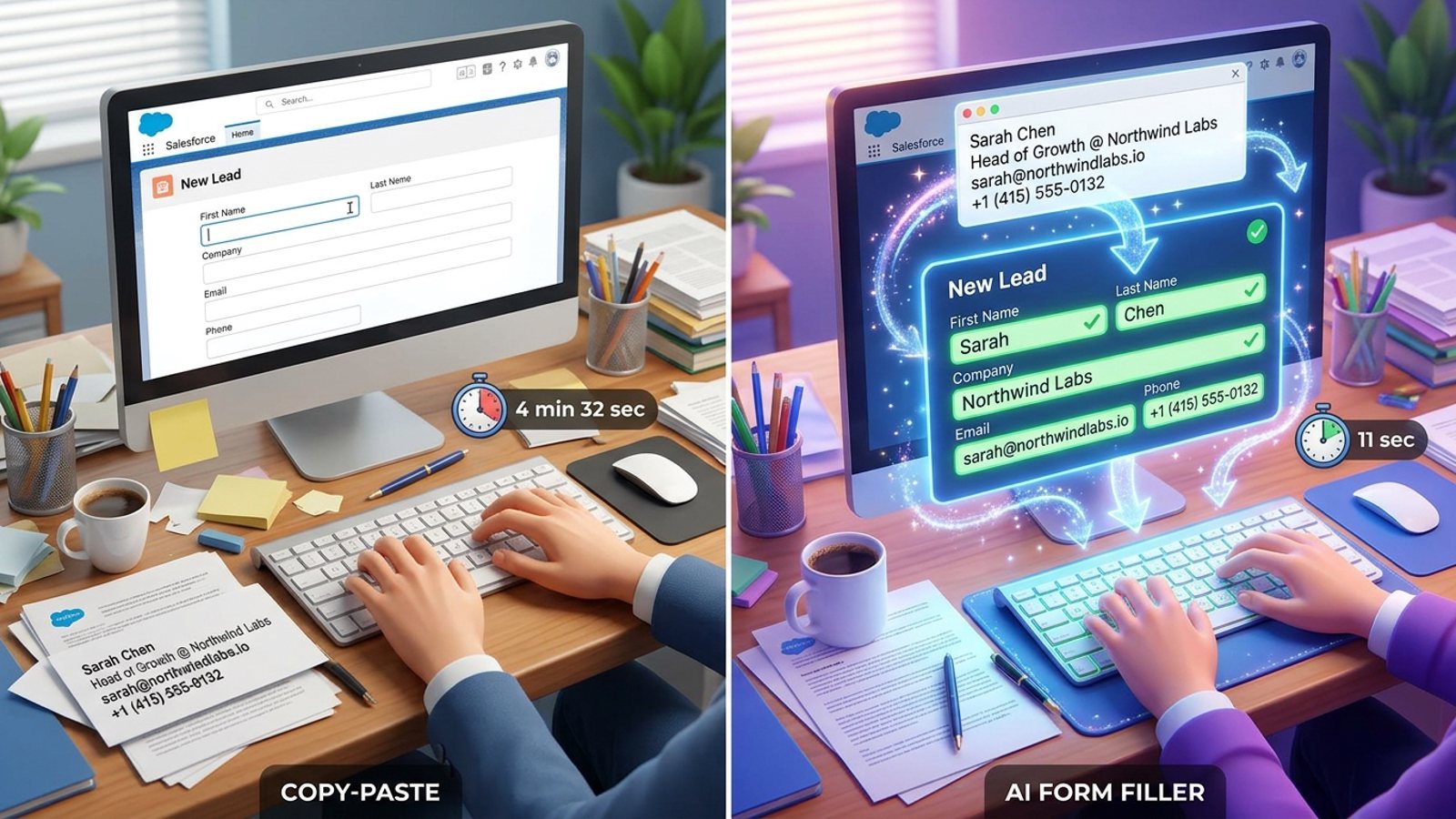
Copy-pasting does the same job with your hands. You open the email, find the signature, and retype name, title, company, phone and email into the Lead form. It works with anything — a signature, a LinkedIn bio, a call recap — but it costs minutes every time.
That trade-off is the whole decision.
How does email-to-lead actually work in Salesforce?
It works by routing inbound email to code or a tool that creates the Lead — not by flipping a switch on the Lead object. Two write-ups (SalesforceFAQs, 2025; SpiAI, 2026) both describe email-to-lead as something you build rather than a native feature for Leads, unlike Email-to-Case for Cases.
The common builds, per Tomba (2026) and Prospeo:
- Salesforce Email Services with an Apex handler — a developer implements the
Messaging.InboundEmailHandlerinterface so Salesforce routes inbound emails straight to code. - A third-party parser plus API — the email is parsed outside Salesforce and pushed in.
- A marketing-automation sync — Pardot or HubSpot creates the Lead.
- An automation tool — Zapier, Make or Pabbly Connect. Pabbly's 2025 vendor tutorial shows generating Salesforce leads from Gmail without code, with a free tier of 100 tasks for new users.
If you want to build it yourself, the setup steps the sources describe are:
- Confirm permissions. You need rights to change Setup and manage leads (LaptopJudge, 2026).
- Use a dedicated test mailbox and record a configuration baseline — address, field mappings, filters, time zone — so you can troubleshoot later (LaptopJudge, 2026).
- Make sure required custom fields exist on the Lead object before you map anything to them (CloudAmp's Web-to-Lead guide makes the same point about fields).
- Build the handler, whether that's Email Services plus Apex, a parser, a MAP sync or an automation tool.
- Test with a real email, then check that assignment rules fired and Lead Source landed correctly (MassMailer, 2026).
What are the limits of email-to-lead?
The main limits are that it only sees email sent to one configured address, and Salesforce's inbound email allocations put hard ceilings on volume and size. Salesforce Help (updated 19 November 2026) lists:
- Inbound Email Services messages per day: user licences × 1,000, capped at 1,000,000, on Enterprise, Unlimited, Performance and equivalent editions.
- Email body truncated at 32 KB.
- Maximum 50 email activities created per email received.
- Total maximum attachment size 25 MB.
There's a quality limit too. Tomba (2026) argues that regex-based parsing struggles with free-form, human-written replies, which is why most email-to-lead setups produce dirty data — and recommends a parser plus enrichment instead.
And there's a coverage limit. Email-to-lead only handles email. A prospect's LinkedIn bio, a call recap you typed in Notes, a signature forwarded by a colleague — none of those arrive at the configured address, so they fall back to manual entry or another tool.
When is copy-pasting from your inbox the better choice?
Copy-pasting is better when the source isn't email, when it's a one-off, or when you can't get Setup permissions or build time. It has no setup cost, no field mapping, and no permissions to request.
vCardify's tool page makes the case plainly: pasting an email signature to build a lead file works because a Lead needs nothing to exist beforehand. Any field, any source, any time.
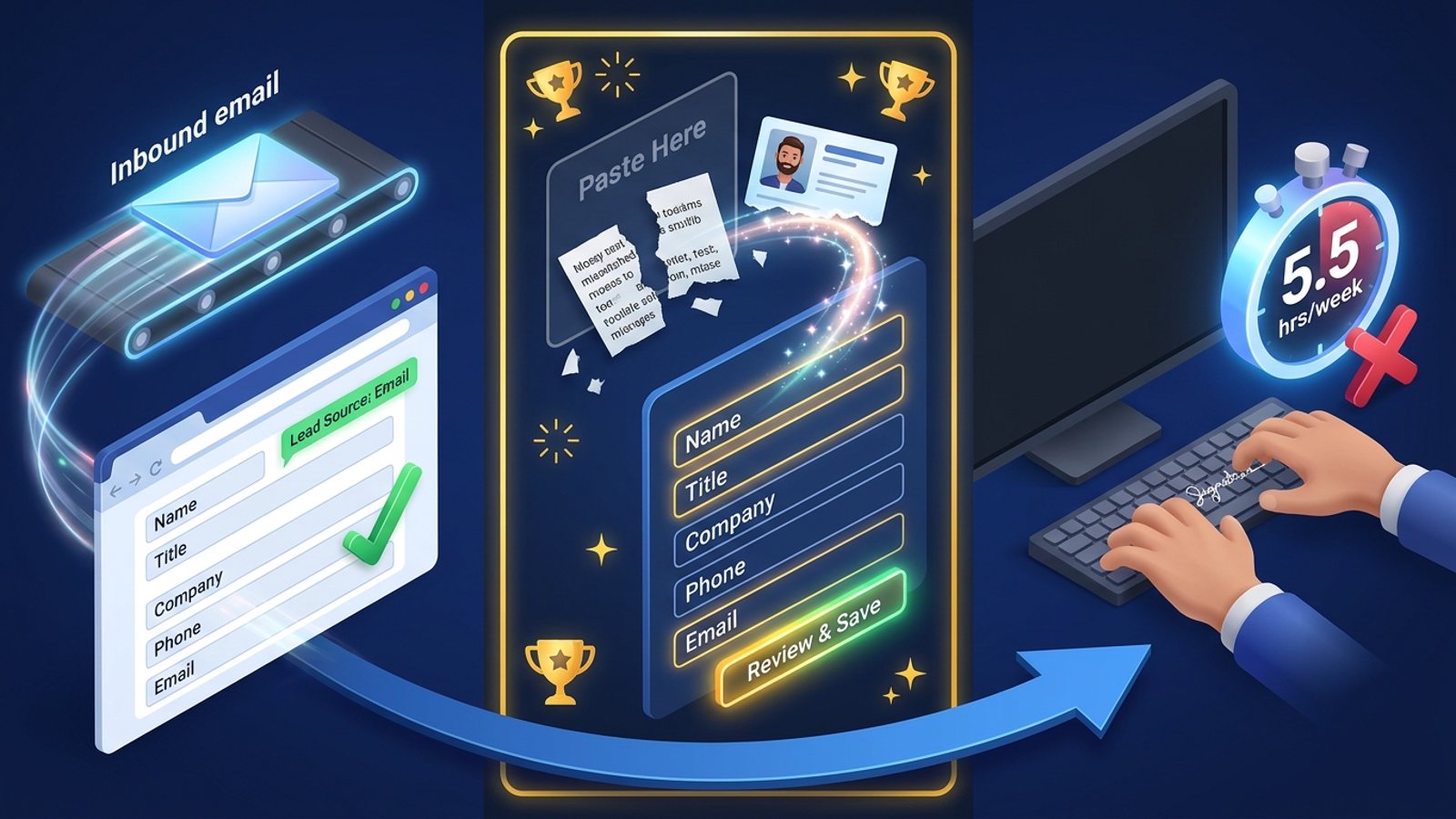
The cost is time. Lighthouse Intelligence (2026) attributes to Salesforce a 2025 figure of roughly 5.5–6 hours per rep per week on manual CRM data entry, and Spiich (2026) cites Salesforce's 2026 State of Sales (about 4,050 sales professionals) putting manual data entry at around 13% of the workweek.
5.5–6 hours a week is the price of typing what you already have on screen.
So: email-to-lead for the inbox you own, copy-paste for everything else — unless there's a third option.
What is the middle ground for messy, unstructured lead data?
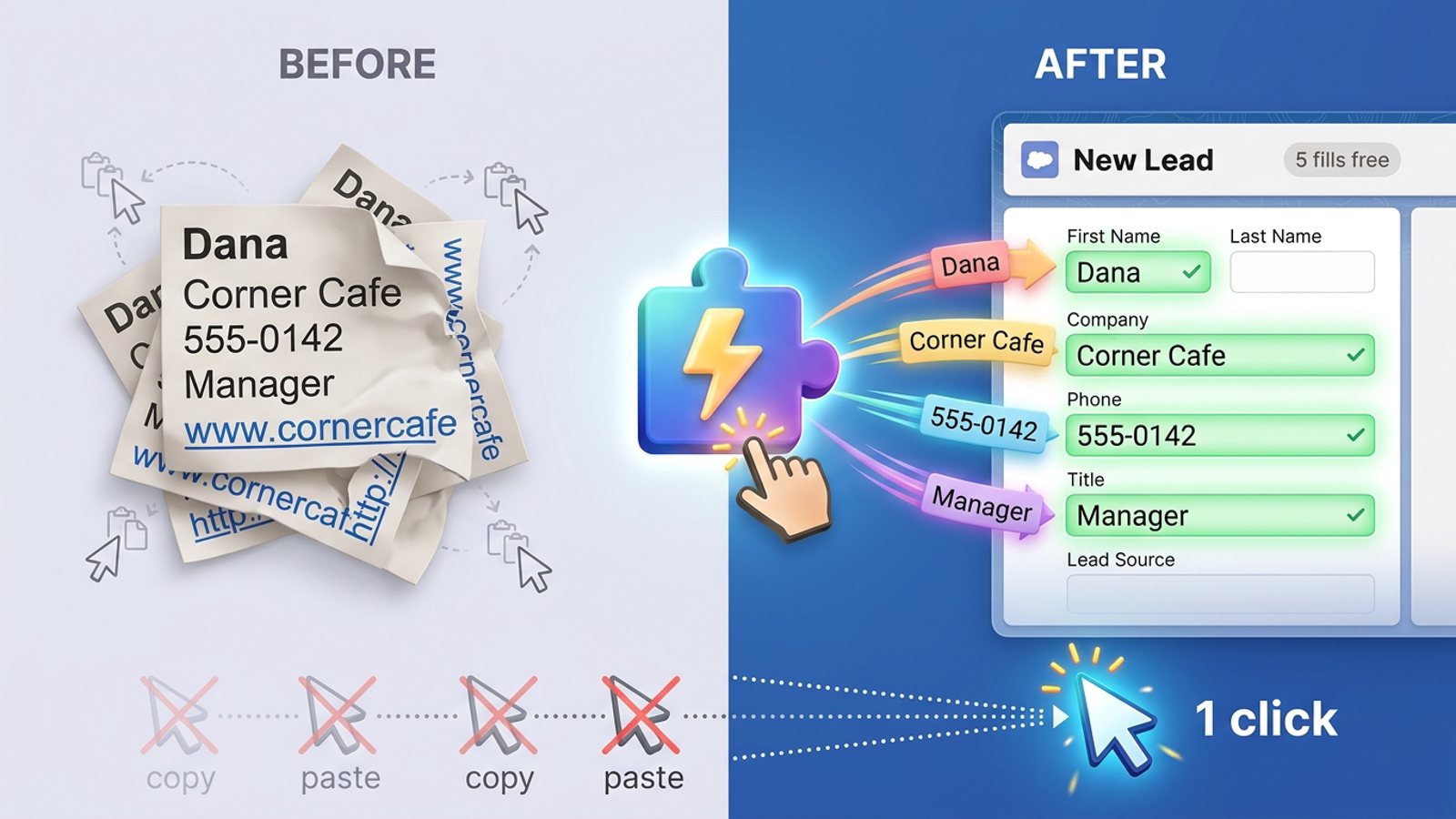
The middle ground is paste-and-fill: you copy any text — an email signature, a LinkedIn bio, call notes — paste it once, and an AI extension drafts the Salesforce fields for you to review and save. It handles the sources email-to-lead can't see, without the typing.
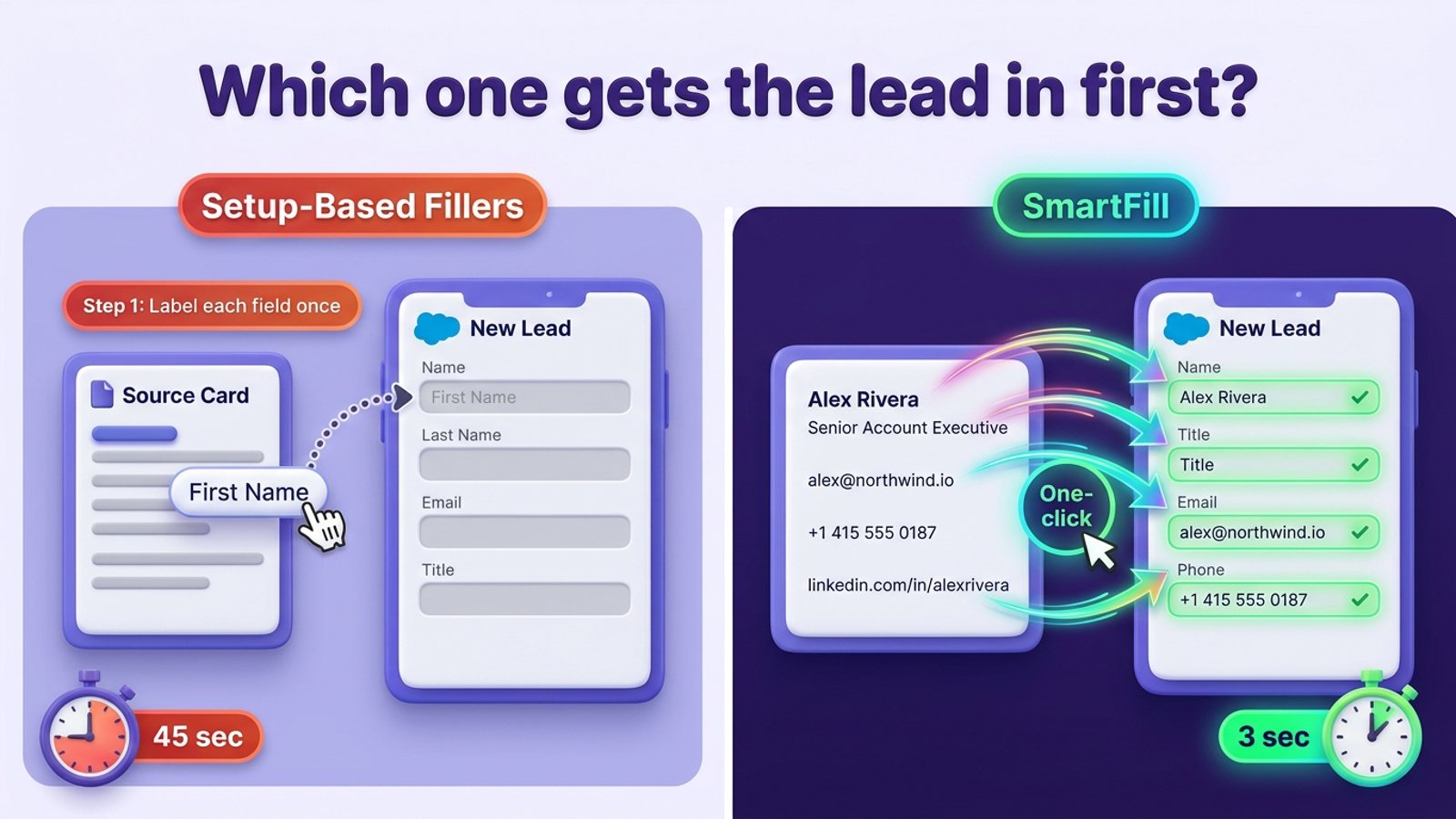
SmartFill is our pick of the tools we compared for this job. It's a Chrome extension that fills Salesforce forms from any pasted text, including messy, unstructured data like email signatures and LinkedIn bios. There's no setup or configuration, the install takes about 10 seconds with no sign-up, and the free plan gives you 5 fills to start, then 3 per day forever. Pro is unlimited fills for $9.99/month — as of November 2026, and prices can change.
It works on anything that runs in a Chrome browser, and the owner confirms it fills every Salesforce object — leads, contacts, accounts, all of them — with no limit on how many fields it fills at once. Text is processed in real time and not stored, and no lead database is built.
To be clear about what it is not: SmartFill does not read your inbox and does not run in the background. You paste; it fills. It's desktop Chrome only.
Install SmartFill Free and try it on the next signature you'd otherwise retype.
How do the options compare?
Here's how the four routes stack up for a rep or founder filling Salesforce lead records from inbound text.
| Option | Best for | Key features | Price / free option | Watch-outs |
|---|---|---|---|---|
| SmartFill (Our pick) | One-off messy text: signatures, bios, call notes | AI fills Salesforce forms from pasted text; all objects; unlimited fields; no setup | Free: 5 fills, then 3/day; Pro $9.99/mo (Nov 2026) | Desktop Chrome only; doesn't read your inbox |
| Salesforce Email-to-Lead | A dedicated sales inbox you own | Auto-creates Leads; assignment rules route them | No separate price; built on your edition | Not a native Lead toggle; email only |
| Manual copy-paste | Any source, any field, zero setup | Works with anything | Free (time only) | Slow and error-prone at volume |
| Magical | Repeatable template transfers across many sites | Text expander and autofill on 10,000,000+ sites including Salesforce | Self-serve pricing reportedly replaced by "Book a demo" as of 23 Oct 2026 — check getmagical.com | Savings depend on building templates first; data disclosure lists PII, location, web history and site content |
A word on each. Salesforce Email-to-Lead is the right build if every lead arrives at one address and you want zero rep involvement — but it's a project, and it stops at email. Manual copy-paste is unbeatable for flexibility and unbeatable for wasted time. Magical is a strong text expander; if you mainly need repeatable, template-driven transfers across many web apps, Magical is the more direct choice. Its Chrome Web Store listing (updated April 2026) states it works on 10,000,000+ sites without integrations or APIs.
If your inbox is the source of most leads, see what software fills Salesforce lead fields automatically from an email. If you're weighing a filler against doing it by hand, is a Salesforce form filler worth it vs copy-pasting lead data walks through the maths.
SmartFill is made by the team behind this blog.
Is a form-filling extension safe to install?
Safety comes down to permissions and what the extension does with your text. Chrome for Developers' privacy guidance says permission requests should be minimal and match the purpose — the less data an extension can access, the less it can leak — and notes that extension storage is not encrypted.
A useful detail: the activeTab permission grants temporary access only after you invoke the extension, ending when the tab navigates away or closes, and it shows no install warning (Safeguard, 2026; Level Access, 2025). That's the model a paste-and-fill tool should use — you click, it acts, it stops.
On the data itself: under Salesforce's shared-responsibility model the customer is the data controller and responsible for GDPR compliance of data in Salesforce, with Salesforce as processor (GDPR Local, updated November 2026). This is not legal advice, and rules vary by place — check with your own counsel on how lead data may be processed.
Sources
- Salesforce Email-to-Lead glossary (MassMailer, 2026-02-26)
- Email to Lead Salesforce: Setup, Limits & Fixes (Tomba, 2026-08-09)
- Email to Lead in Salesforce: 5 Methods (Prospeo, date not given)
- Create Lead Record From Email Using Salesforce Flow (SalesforceFAQs, 2025-08-12)
- Automatically Update Salesforce From Email (SpiAI, 2026-10-18)
- Salesforce Email To Lead Configuration (LaptopJudge, 2026-09-20)
- Email Allocations per Edition (Salesforce Help, 2026-11-19)
- CloudAmp's Ultimate Guide to Salesforce Web-to-Lead Forms (Salesforce AppExchange, date not given)
- Generate Salesforce Leads Directly from Emails (Pabbly, 2025-04-06)
- Email Signature to Salesforce (vCardify, date not given)
- User privacy (Chrome for Developers, date not given)
- What the activeTab permission means for extension safety (Safeguard blog, 2026-10-17)
- Why and how Access Assistant uses all_urls permissions (Level Access Help Center, 2025-10-09)
- Magical Chrome Web Store listing (Chrome Web Store, updated 2026-04-04)
- Magical alternative blog (Clipboard History Pro blog, checked 2026-10-23)
- CRM data entry hours (Lighthouse Intelligence, 2026-10-02)
- Why sales reps don't update the CRM (Spiich, 2026-09-26)
- GDPR implementation in Salesforce (GDPR Local, updated 2026-11-13)