Five honest routes, ranked by setup effort for a solo seller: an AI paste-to-fill extension (zero setup, reads messy text), Salesforce's own Create New and inline edit (free, already in your org), a clipboard manager (free), Chrome's saved autofill profiles (free, built for your own details), and typing by hand (highest time cost). If you want to stop copy pasting into Salesforce, only the first removes the per-field copying.
How do the five routes compare at a glance?
The AI extension wins on effort saved per lead, Salesforce native wins on cost, and the other three sit in between.
| Option | Best for | Key features | Price | Watch-outs |
|---|---|---|---|---|
| SmartFill (Our pick) | Messy lead text from any source | AI fills from pasted text, no setup | Free tier; Pro $9.99/mo | Desktop Chrome only |
| Salesforce Create New | One-off records | Native, keyboard shortcuts | Included in licence | Field-by-field typing |
| Clipboard manager | Reusing copied values | Search, tags, pin, shortcuts | Free tiers common | Still paste per field |
| Chrome autofill | Your own details | Syncs across devices | Free | Not built for leads |
| Manual typing | A single record now and then | No tool needed | Free | Highest time cost |
The rest of this article takes each in turn, with what it actually saves you and where it stops helping.
1. Use an AI paste-to-fill extension (zero setup)
SmartFill is our pick of the tools we compared because it is the only one on this list that turns a whole messy block of text into a filled Salesforce form in one click. You install the Chrome extension, open Salesforce and your source text in separate tabs, copy the lead details — an email signature, a LinkedIn bio, a paragraph of call notes — then click the SmartFill icon and watch the form populate.
There is no field mapping to build and no configuration step. It handles all types of Salesforce forms and fills as many fields as the record has. Text is processed in real time and not stored, and no lead database is built from what you paste — which matters when the text is a prospect's contact details.
Our recommendation: keep one tab with the raw source text and one with the Salesforce record. Copying the whole signature, header and all, works better than trimming it — the AI sorts out which line is the phone number.
The honest limit: it is a desktop Chrome extension, so it will not help you on a phone. And it works on the text you give it — it does not read your inbox or run in the background.
Install SmartFill free and fill your next lead in one click.
2. Use Salesforce's own Create New and inline edit (free)
Salesforce's built-in record creation is the free baseline: open the object, click New, pick a record type if your org uses them, and fill the fields (Salesforce Dictionary, 2026). Inline editing lets you change fields straight from a list view once you make the columns visible via the gear icon (Carly, 2026).
It is genuinely useful for quick single-field fixes and for one record at a time. Two limits matter for lead entry, though. Inline edit only saves fields you have permission for — Salesforce blocks the save with an insufficient-permissions error if field-level security or sharing forbids it, and inline editing is unavailable in accessibility mode (Salesforce Classic user guide). And since Spring '24, the Save & New button no longer appears when you create a record from a lookup field, which means fewer repeat-create loops (Salesforce Release Notes, 2024).
Lightning does have keyboard shortcuts that speed navigation: press ? on any screen to list them, g s jumps to Setup, and / focuses global search (motiondog, 2026).
3. Use a clipboard manager (free tiers are common)
A clipboard manager keeps a searchable stack of everything you have copied, so you stop re-copying the same email address three times. Copy History + saves copied text with search, tags, text shortcuts (5 free, unlimited on PRO) and optional encrypted cloud sync (Chrome Web Store, updated November 2026). MultiCopy stores unlimited copies with tags, pin, search and source-URL tracking (Chrome Web Store, updated February 2026).
What it does not do is fill the form. You still paste field by field, so the saving is in the copying, not the entry. Two cautions from the listings themselves: MultiCopy warns that locally stored copies can be lost to browser updates, cleared data, crashes or hardware failure and recommends separate backups, and Copy History + discloses that it handles personally identifiable information, staying local by default unless you turn on encrypted cloud sync.
4. Use Chrome's saved autofill profiles (free, but built for you)
Chrome autofill fills forms from saved info — names, addresses, payment details, passwords — and syncs changes across your signed-in devices (Google Help). It is free and needs no install.
The problem is whose data it holds. Chrome matches saved values to form fields by their name and id attributes, and different sites' forms don't share the same fields or order (web.dev). Chrome's own help notes it may fail to suggest saved info if a site's form can't be detected. That makes it a good fit for your own identity details and a poor fit for per-lead prospect data, where every record is different.
5. Keep typing it by hand (the baseline)
Manual entry is free and works with any source, which is why plenty of reps still do it for the odd record. At volume it is the most expensive option on this list. A CRM-input benchmark of 939 companies reports B2B reps spend an average of 2.3 hours a day — 11.5 hours a week — on CRM input, dropping to 1.4 hours a day after AI adoption, a stated 40% reduction (Optifai, updated February 2026).
Other estimates vary widely. Modern Distribution Management puts pure CRM data entry for an outside rep at roughly 2–4 hours a week and cautions against vendor blogs claiming 12 hours (MDM, August 2026). A separate blog cites SuperOffice research of 13 hours a week on manual data entry (LeadLx, October 2026) — figures differ by study, so treat any single number as an estimate.
Source: Optifai
Which of these actually stops the copy-pasting?
Only the AI paste-to-fill route stops it. The other four reduce clicks or protect what you copied; they still leave you moving data into fields yourself. If your leads arrive as email signatures, LinkedIn text or call notes, that difference is the whole job.
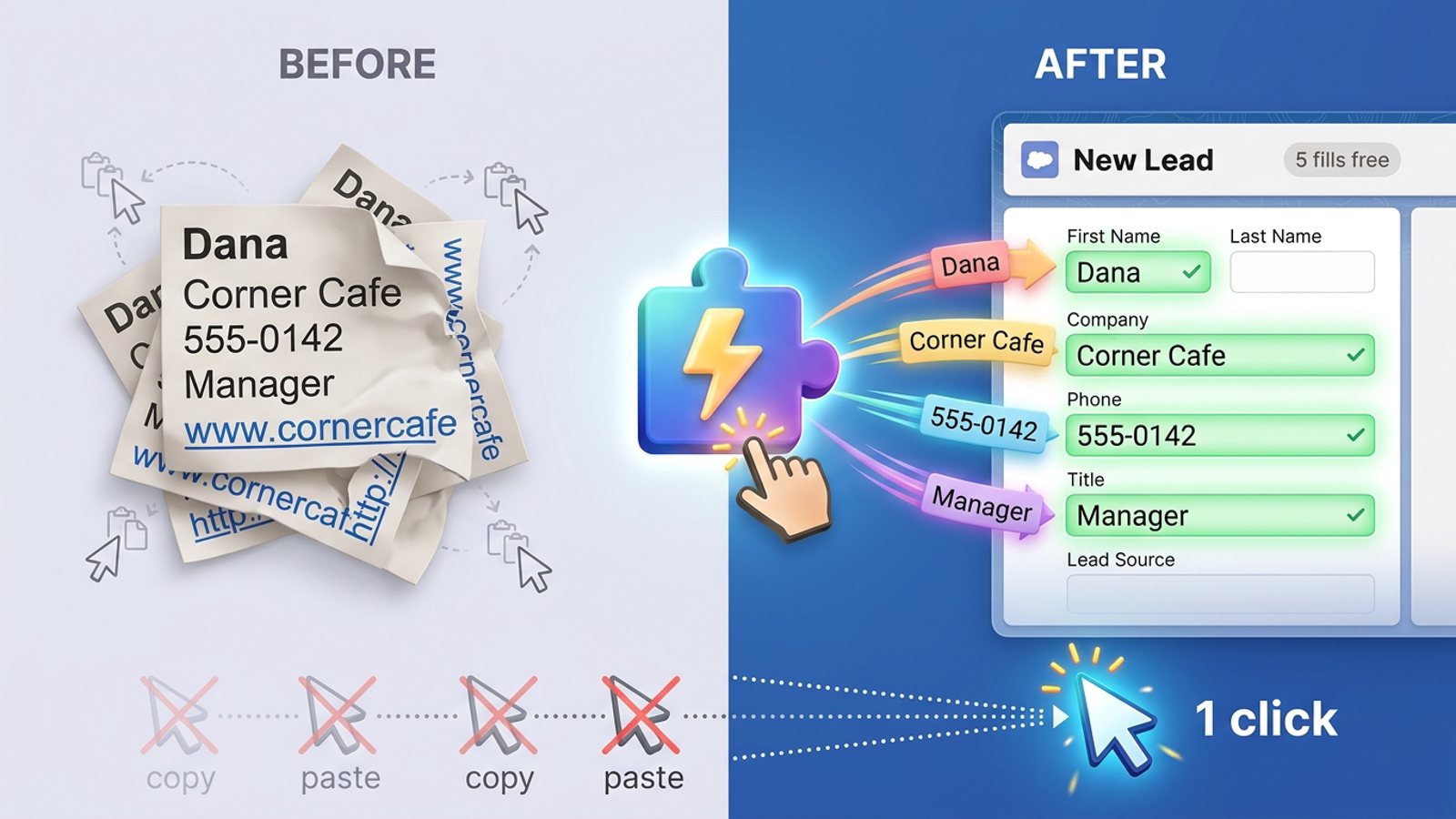
Here is how the AI route looks in practice. Say you run a bakery and a wholesale buyer emails you: "Hi, I'm Dana from Corner Cafe — reach me on 555-0142, we'd like pricing on 200 loaves a week." You copy that sentence, click SmartFill on the open Lead form, and the name, company, phone and product interest land in their fields. Before, that was four copy-pastes and a lookup; now it is one click.
The fastest way to stop copy-pasting into Salesforce is to stop handling the data field by field — let one paste fill the record.
What are the alternatives if SmartFill isn't the right fit?
Two other categories appear in the research and are worth knowing about. AutoFormAI is a Chrome AI form filler that builds a personal-information library from resumes, emails or notes and fills forms in one click, storing data on-device (Chrome Web Store, updated November 2025). It is general-purpose rather than Salesforce-specific — if you mainly need a filler for job applications and generic web forms, it is the more direct choice.
Salesforce's own Data Cloud Document AI can prefill application forms from uploaded documents, but it requires Enterprise, Performance, Unlimited or Developer editions, an OmniStudio for Public Sector add-on and a Data 360 licence (Salesforce Help). That is an enterprise, admin-led project, not a rep-side fix.
SmartFill is made by the team behind this blog. It is our pick of the tools we compared here because it is the only one built specifically to fill Salesforce forms from pasted, unstructured lead text with no setup — but if you need a general web-form filler or an enterprise document pipeline, the options above serve those jobs better.
How do you pick the right one for your week?
Start with where your lead data comes from. If it is varied and unstructured — inbox signatures, LinkedIn, call notes — go with the AI paste-to-fill extension. If you only fix the odd field on a list view, Salesforce's own inline edit is enough. If you keep re-copying the same values, a clipboard manager helps. If you mostly enter your own details, Chrome autofill covers it.
For a solo seller, the ranking by effort saved is: AI paste-to-fill first, Salesforce native second, clipboard manager third, Chrome autofill fourth, manual typing last. The first is the only one that changes the shape of the task rather than trimming it.
Try SmartFill free — 5 fills to start, then 3 a day.
Sources
- CRM Input Time Average (Optifai, 2026-02-16)
- Outside Sales is Still Retyping the Day (Modern Distribution Management, 2026-08-18)
- Manual CRM Data Entry: How Much Time It Costs SDRs (LeadLx, 2026-10-10)
- How to create a record in Lightning Experience (Salesforce Dictionary, 2026-06-15)
- How to Bulk Edit Records in Salesforce (Carly, 2026-05-09)
- Salesforce Classic user guide PDF (Salesforce via Huihoo, n.d.)
- 5 Salesforce Admin Shortcuts That Save Hours Every Week (motiondog, 2026-02-12)
- Create From Lookup Changes (Salesforce Release Notes, 2024-05-02)
- Copy History + (Chrome Web Store, 2026-11-17)
- MultiCopy Clipboard (Chrome Web Store, 2026-02-06)
- Fill out forms automatically in Chrome (Google Help, n.d.)
- Autofill (web.dev, n.d.)
- AutoFormAI (Chrome Web Store, 2025-11-15)
- Data Cloud Document AI prefill (Salesforce Help, n.d.)
- Chrome Web Store permission warnings (Google Help, n.d.)
- Are browser extensions safe (MEFMobile, 2026-10-04)