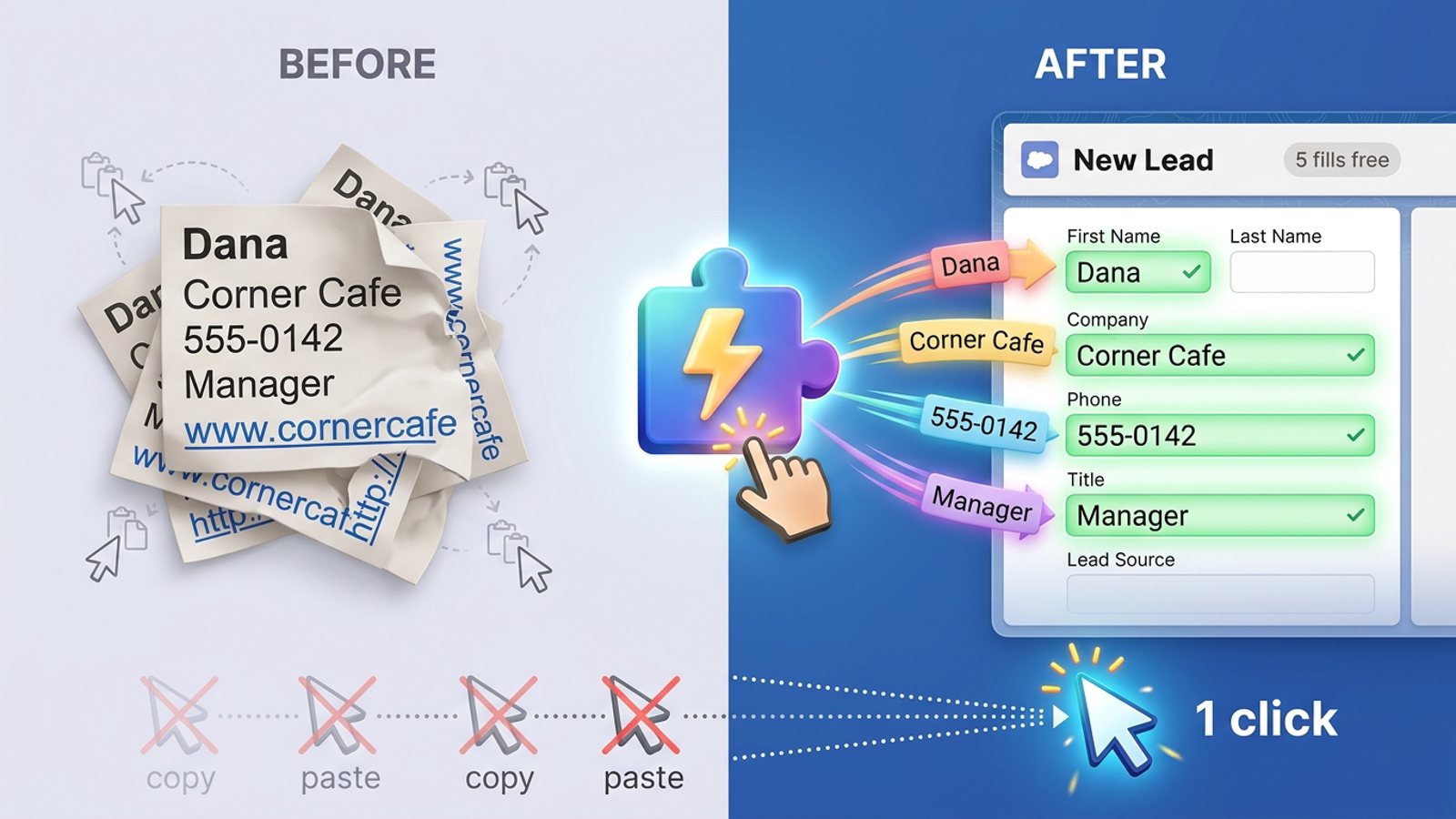
If you want to paste lead data into Salesforce — an email signature, a LinkedIn bio, call notes — five options fit: SmartFill (an AI form filler that reads the pasted text and fills the record), Magical (text-expander templates), generic AI chat pasted back by hand, Zapier or Make automations, and Salesforce's own Web-to-Lead and Data Import Wizard for clean, structured input. Only the first is built for the paste-messy-text-into-a-record job.
Install SmartFill Free and paste your next messy lead instead of typing it.
How do you paste lead data into Salesforce without typing it all?
You copy the messy source text, open the Salesforce record, and let a tool map the text to fields. That's the whole technique — the difference between tools is what does the mapping.
Say a prospect emails you and signs off with a block like: "Priya Raman, VP Ops, Northwind Logistics, +1 415 555 0134, priya@northwind.example, based in Oakland." That one paragraph holds a first name, last name, title, company, phone, email and city. Typing it field by field takes minutes and invites typos. The right tool turns it into one paste.
Our recommendation: before you shop for tools, list the fields you actually need on your Lead layout. Salesforce's standard Lead object requires Last Name and Company to save, according to The Salesforce Trainers (2026), and extra required fields are possible but trainers advise caution on the Lead object.
What is the best AI tool for pasting messy lead data into Salesforce in 2027?
Of the tools we compared, SmartFill is the most direct fit for the paste-from-anywhere job. It's a Chrome extension that uses AI to populate Salesforce forms from any pasted text — email signatures, LinkedIn bios, dashed-off notes — with no setup, no configuration and no sign-up.
SmartFill is made by the team behind this blog, so treat that as our pick with a disclosure attached. The reasons are in the product facts: it fills Salesforce forms from copied text, works with unstructured data, installs in about 10 seconds, and processes text in real time without storing it. The owner confirms it fills every Salesforce object — leads, contacts, accounts, custom objects — and has no limit on how many fields it fills at once.
It's desktop only, since it's a Chrome extension. If your team works entirely on mobile, that's a real constraint.
Which five tools should you compare for this job?
Here are the five, ranked for the specific job of pasting unstructured text into a Salesforce record.
| Option | Best for | Key features | Price | Watch-outs |
|---|---|---|---|---|
| SmartFill (Our pick) | Pasting messy text into any Salesforce form | AI field mapping, any object, no setup | Free tier, Pro $9.99/mo | Desktop Chrome only |
| Magical | Repeated, pre-built inserts | Templates, text expansion | Demo/contact sales (Oct 2026) | Needs templates built first |
| Generic AI chat | One-off parsing, zero budget | Flexible text parsing | Free tier | No CRM access, manual copy-back |
| Zapier / Make | Trigger-based flows | Email-in → lead-out workflows | Varies; Pabbly free 100 tasks/mo | Needs a workflow built |
| Web-to-Lead | Website form submissions | Native, instant lead creation | Included with Sales/Service Cloud | No paste workflow, 500/24h cap |
The table compresses a lot, so here's what each row means in practice. Install SmartFill Free if the paste job is the one that's costing you time.
SmartFill: the paste-and-fill option
SmartFill's flow is four steps: install the extension, open Salesforce and your source text in separate tabs, copy the lead details even if messy, then click the icon and watch the form fill. It works on other forms too, but Salesforce is the focus. The free plan gives 5 fills to start, then 3 per day forever; Pro is unlimited at $9.99/month as of November 2026, and prices can change.
Magical: the template option
Magical is a Chrome and Edge text expander by HeyAutoFill Inc. that works on 10,000,000+ sites including Salesforce, per its Chrome Web Store listing (updated April 2026). Its help docs (2024) describe saving templates triggered by // or a shortcut — so the saving comes from repeated, pre-defined inserts, not from parsing arbitrary pasted text. If you mainly need the same block of text inserted again and again, Magical is the more direct choice. Its Chrome listing discloses processing of personally identifiable information, location, web history and user activity.
Generic AI chat: the free option
Copying a messy paragraph into ChatGPT and pasting the cleaned result back into Salesforce costs nothing and needs no admin, per eesel AI's blog (September 2026). The catch is in the same source: the chat tool has no access to the CRM record, so it can't see existing context, and you still move results in field by field.
Zapier and Make: the automation option
Zapier publishes a template workflow that analyses an email signature and updates the lead back in Salesforce. Pabbly Connect offers a free account with 100 automation tasks per month and can automate "new email → create Salesforce Lead" without code, per its site (2025). These suit recurring, trigger-based flows. They are not a "paste one paragraph right now" tool — you build and maintain a workflow first.
Web-to-Lead and the Data Import Wizard: the native options
Web-to-Lead is included with Sales Cloud and Service Cloud subscriptions and turns website form submissions into leads with no manual entry, per CloudAmp's Web-to-Lead guide on AppExchange (date not given). The same guide lists the limits: raw HTML that's harder to set up without a developer, weaker branding, no built-in matching to existing records for deduplication, and a cap of 500 leads per 24-hour period before queuing.
The Data Import Wizard and Data Loader both require a CSV and a field-mapping step, per RavenApps (September 2026), so neither helps with a pasted email signature or call note.
"The tool that wins is the one that does the mapping for you — everything else just moves the typing somewhere else."
Do you need an admin to install a Salesforce form-filler extension?
Usually not. A Chrome extension installs in the browser, not in Salesforce setup, so it doesn't need admin rights the way a new Salesforce field or a Web-to-Lead form does. SmartFill installs in about 10 seconds with no sign-up.
Web-to-Lead is the opposite: you build the form in Setup and place generated HTML on your site, which CloudAmp's guide flags as harder without a developer. Custom fields can be added via Setup under Object Manager → Lead → Fields, then Web-to-Lead setup, per Salesforce Help (September 2026).
Which tools work on custom Salesforce objects, not just Leads?
SmartFill does — the owner confirms it fills everything, including custom objects. That matters more than it sounds: a deal desk might log partner referrals on a custom object, and a filler that only knows Lead layouts would be useless there.
For the native tools, Web-to-Lead is built around the Lead object by design. The import wizard can load other objects from a CSV, but you're back to the mapping step.
Are these tools safe with lead data?
Safety depends on what each tool collects, and Chrome's rules require disclosure. Extensions handling user data must post a privacy policy and transmit data over secure connections, with disclosure required even for local-only processing, per Chrome for Developers (enforced since October 2019).
On SmartFill, the owner confirms none of the information sent to the AI is saved — it's processed in real time. Magical's listing discloses PII, location, web history and user activity. AI Cowork for Salesforce, a smaller Salesforce-focused extension updated June 2026, requires your own OpenAI or Google Gemini API key and discloses PII, authentication information, location, user activity and website content.
Is a free option good enough for a few leads a day?
Often, yes. SmartFill's free plan covers 5 fills to start and then 3 per day forever, which suits a founder or a rep testing the workflow. Generic AI chat is free but costs you the copy-back time. Pabbly's free tier gives 100 automation tasks per month.
If you're an SDR pasting ten or twenty leads a day, the free allowance runs out fast and Pro at $9.99/month is the straightforward upgrade — as of November 2026, and prices can change.
How do you bulk-import a spreadsheet of leads instead?
Use the Data Import Wizard: export or paste your rows into a CSV, map the columns, run the import, then dedupe with Salesforce duplicate rules. For a wider look at that route, see our comparison of the Data Import Wizard vs hiring a freelancer to clean leads.
One caveat from Salesforce Help (June 2026): Web-to-Lead submissions can be blocked by duplicate rules set to "Allow and Alert," returning an error to the submitter instead of creating a duplicate.
Install SmartFill Free and turn your next messy paste into a filled Salesforce form in seconds.
SmartFill is made by the team behind this blog.
Sources
- SmartFill: The AI Form Filler for Salesforce (Chrome Web Store)
- AI Cowork for Salesforce (Chrome Web Store, updated 2026-06-09)
- CloudAmp's Ultimate Guide to Salesforce Web-to-Lead Forms (AppExchange PDF)
- Web-to-Lead guide (Salesforce)
- How to Import Data into Salesforce from Excel Without Data Loader (RavenApps, 2026-09-25)
- ChatGPT for Salesforce Service Cloud (eesel AI blog, 2026-09-03)
- Update lead information from Salesforce (Zapier template)
- Pabbly Connect
- Magical Help Center (2024-10-20)
- Magical Chrome listing (Chrome Web Store, 2026-04-04)
- Chrome for Developers user-data policy (enforced since 2019-10-15)
- Salesforce Help Web-to-Lead custom fields (2026-09-21)
- Salesforce Help duplicate rules (2026-06-19)
- The Salesforce Trainers lead setup (2026-09-20)
- Salesforce Dictionary: how to convert leads (2026-05-19)
- Contact Capture post (CloudMyBiz)