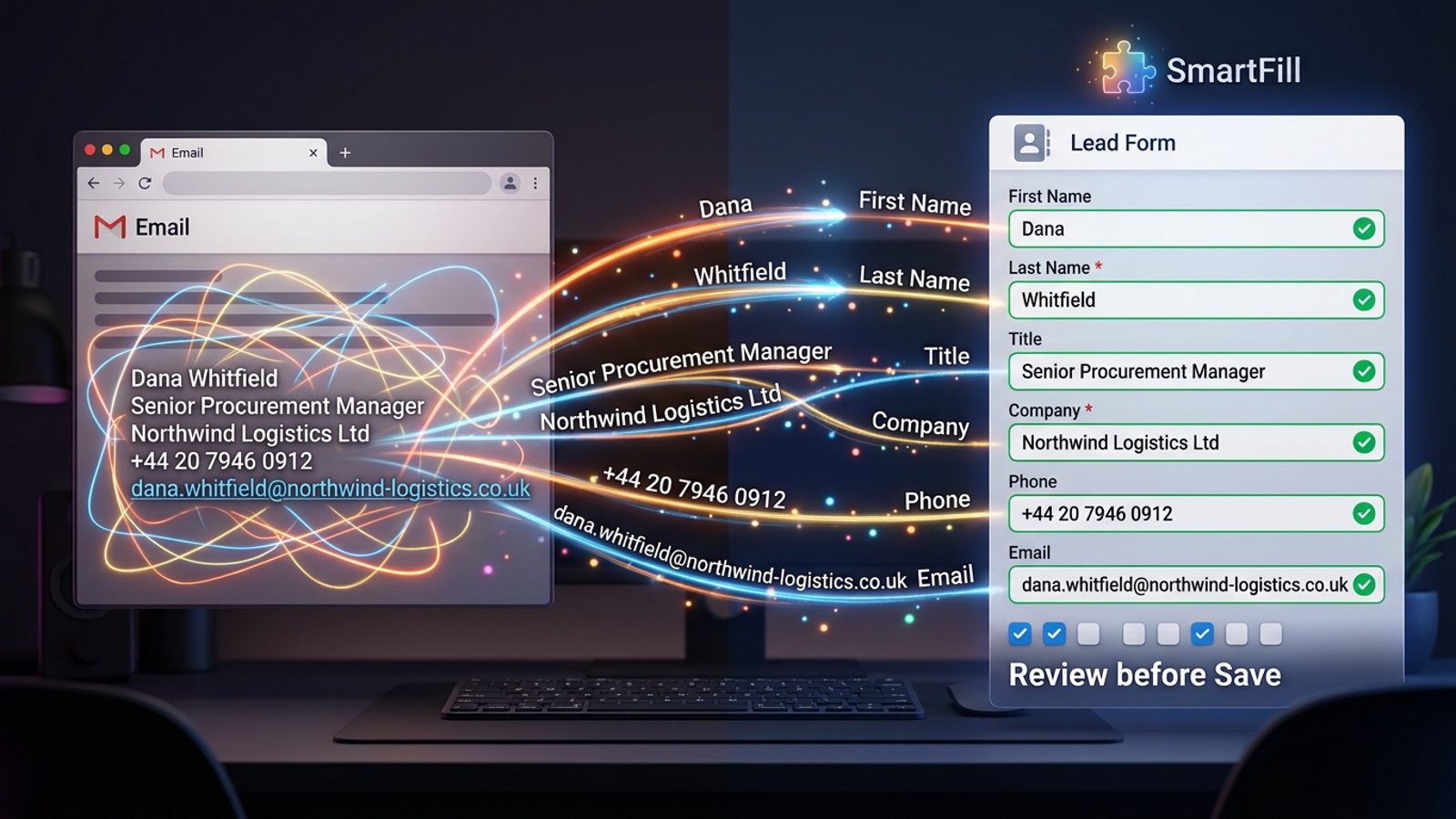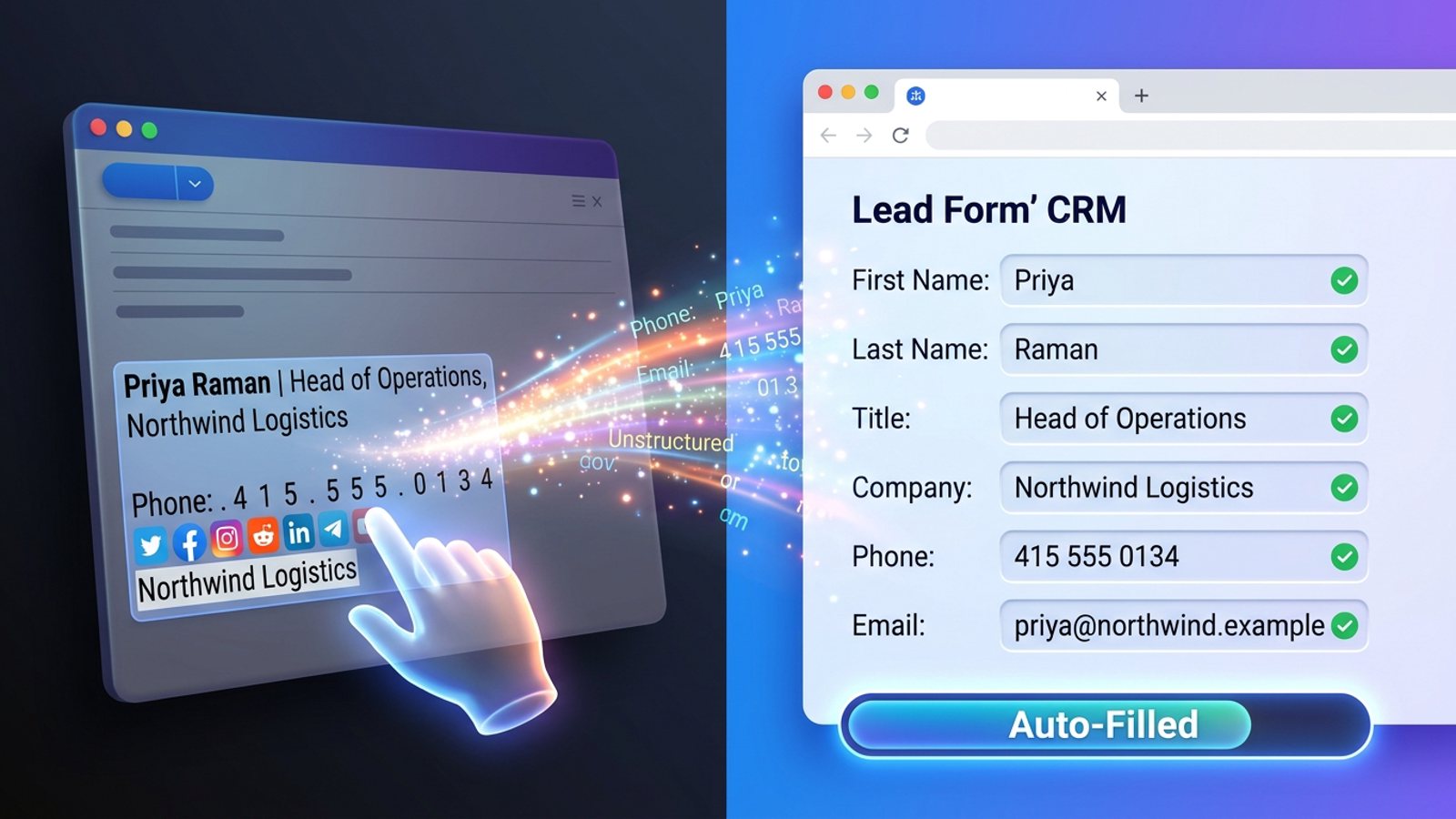
You have two realistic paths. For a messy, human-written email you just received, a paste-the-text AI form filler is fastest: copy the body, paste it into the extension, and the Lead fields populate in seconds. For repeatable, templated inbound, use Salesforce Web-to-Lead or a Zapier-based parser workflow.
Install SmartFill free and fill your next Lead from the email body in about ten seconds — Install SmartFill Free.
What is the fastest way to auto fill Salesforce lead fields from a messy email?
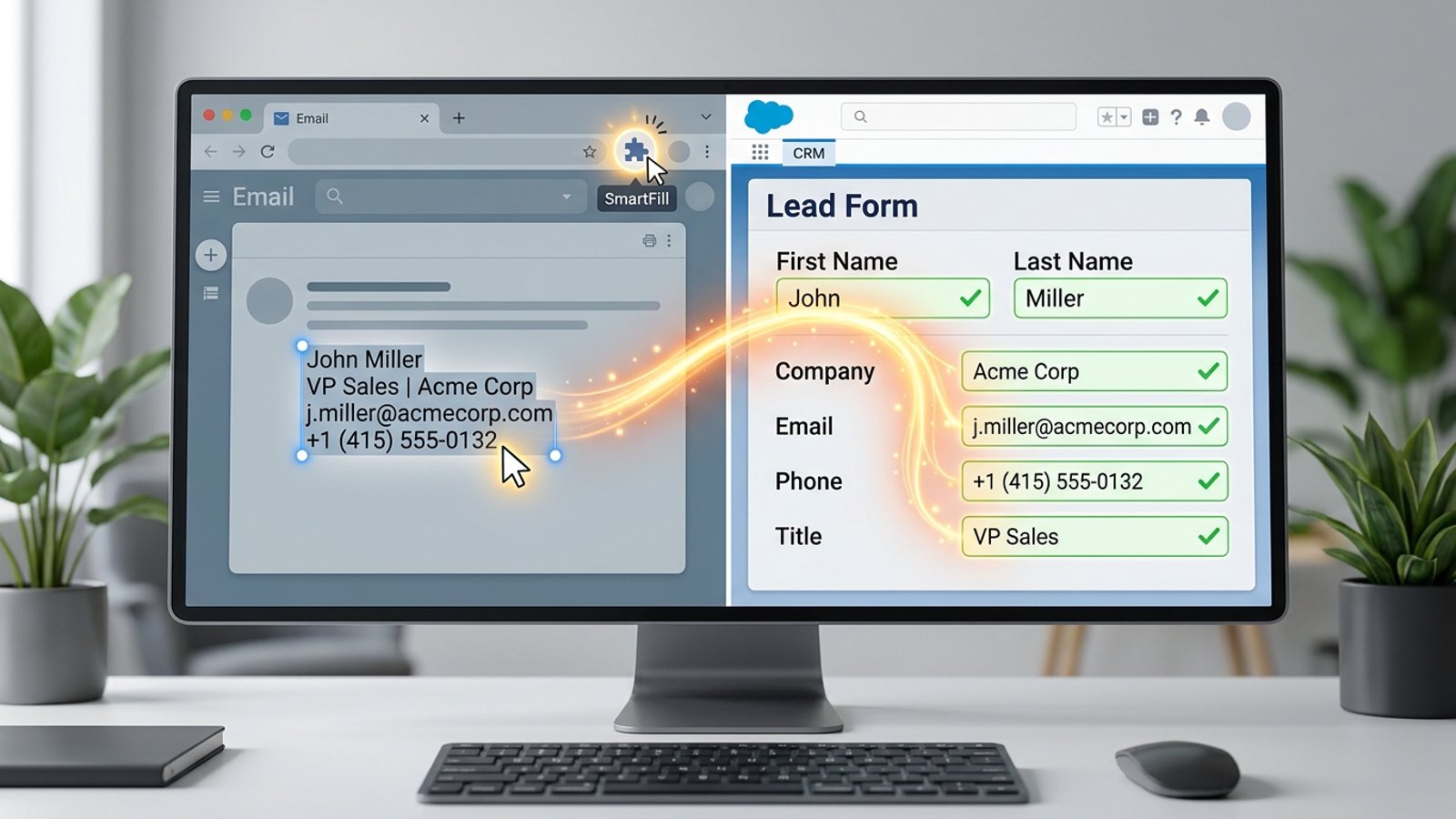
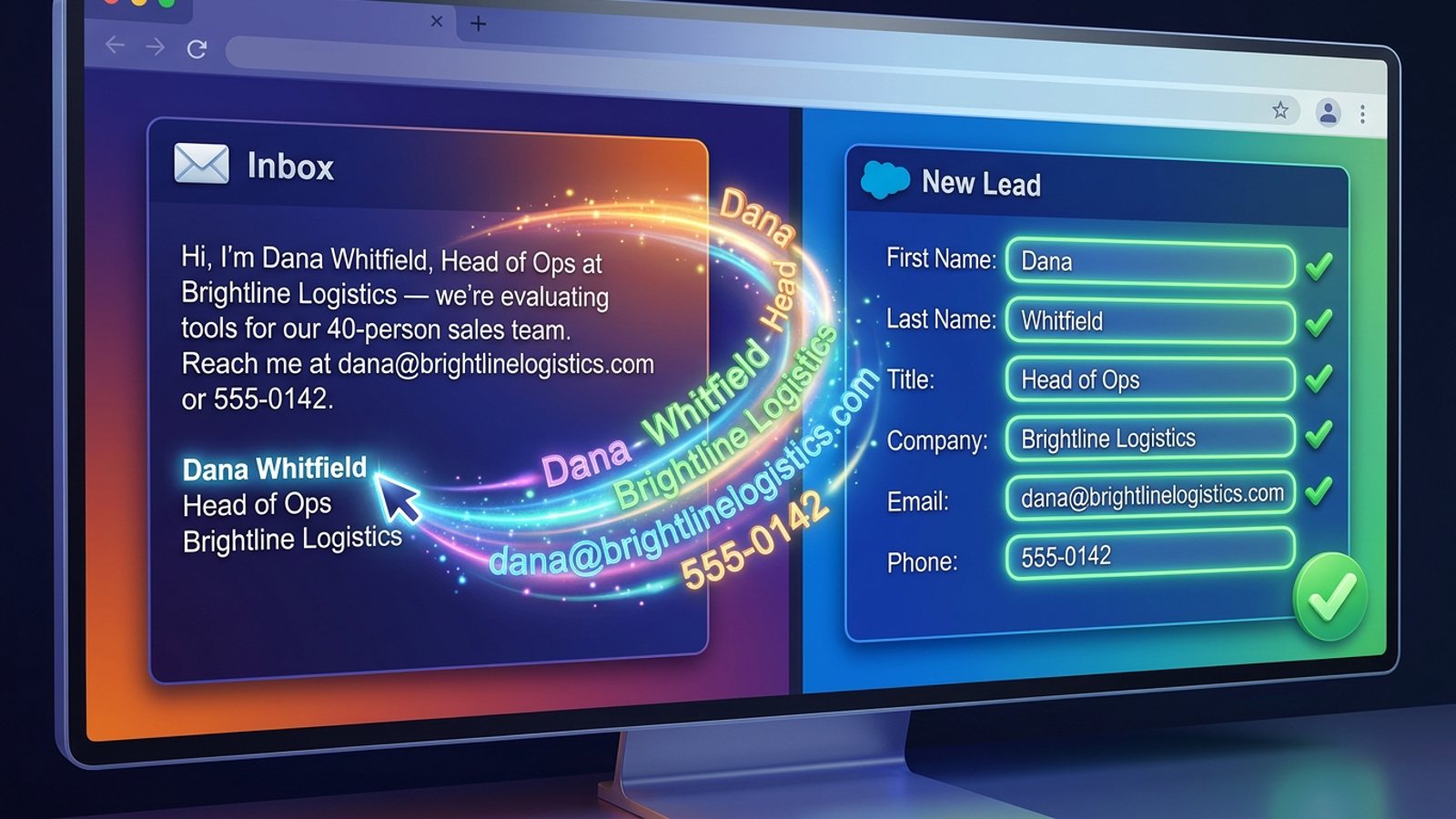
The fastest path for a single, human-written email is a paste-and-fill Chrome extension. You copy the email body, open the new Lead form in Salesforce, click the extension, paste, and the fields populate.
Say an SDR gets this: "Hi, I'm Dana Whitfield, Head of Ops at Brightline Logistics — we're evaluating tools for our 40-person sales team. Reach me at dana@brightlinelogistics.com or 555-0142." A paste-and-fill tool separates the name, title, company, email and phone into the right Lead fields without you parsing anything by hand.
SmartFill's Chrome Web Store listing (updated 19 October 2026) says it uses AI to parse messy, unstructured text — an email signature, a LinkedIn About section, a paragraph — and map it to the right fields, including splitting job title from company name on one line. It requires zero setup to start.
Why doesn't Salesforce fill Lead fields from an email by itself?
Salesforce's native tools are built for structured, repeatable inbound — not for the one email sitting in your inbox. Each does a different job:
- Web-to-Lead creates Leads from information submitted on a website form. Your admin adds fields by creating Lead custom fields and regenerating the HTML (Salesforce Help, 22 September 2026). It is not an email reader.
- Email-to-Lead / Email Services works well when inbound is templated — form notifications, partner feeds — handled with a tight Apex handler. Human-written replies parse badly; as the Tomba blog put it on 9 August 2026, "No regex survives contact with 'hey, can you send that over to my colleague Dana instead?'"
- Einstein Activity Capture syncs email and calendar data onto related records (Titan DXP, 18 December 2025). Activity sync is not the same as creating Lead fields from an email body.
How does SmartFill fill a Salesforce Lead from an email?
Four steps, no configuration:
- Install the extension — one click from the Chrome Web Store, no sign-up required.
- Open two tabs — Salesforce on the new Lead form, the email in the other.
- Copy the email body — messy is fine; signatures and bios are the point.
- Click SmartFill and paste — the form fills automatically, then you review and save.
SmartFill fills Lead, Contact, Case and custom object forms, and the owner confirms it handles any Salesforce form that runs in a Chrome browser, with no limit on how many fields it fills at once. It's a Chrome extension, so it's desktop only.
Which software should you pick? The options compared
Here's how the realistic options stack up for the SDR who just got a messy intro email.
| Option | Best for | Key features | Price / free option | Watch-outs |
|---|---|---|---|---|
| SmartFill (Our pick) | One-off, messy emails | AI parses pasted text; any Salesforce form; no setup | Free: 5 fills, then 3/day; Pro $9.99/mo | Desktop Chrome only |
| Salesforce Web-to-Lead | Website forms | Native Setup feature; HTML embed | Not stated in sources | Not email; needs HTML work |
| Zapier + parser (Parseur, Pabbly) | Templated inbound at scale | No-code Gmail→Salesforce | Zapier free tier; template Premium | Needs 2–3 tools and setup |
| Mixmax | Auto-creating Leads from sent email | Creates Lead/Contact on send | Salesforce sync on paid plans | Not for pasted text |
| Manual copy-paste | Full control | None | Free | Slow, error-prone |
SmartFill is our pick of the tools we compared for the pasted-text job, because it's the only one in this list built around copying an email body and having the form fill itself. SmartFill is made by the team behind this blog.
If you mainly need website form capture, Salesforce Web-to-Lead is the more direct choice — it's native and official, with documented setup steps. If you mainly need repeatable, templated inbound routed automatically, a Zapier workflow (optionally with Parseur for parsing) is the better fit — though Parseur's own guide notes you need a Parseur account, a Salesforce account and a Zapier account, and Pabbly's tutorial (6 April 2025) shows a 100-free-task credit model as a cheaper alternative.
Mixmax can auto-create a Salesforce Lead or Contact when you email someone with no record (Mixmax Help Center, 6 November 2025), with the Salesforce integration on all paid plans — useful if your trigger is sending email, not receiving a messy one.
Compare the full set of options in our roundup of the top AI form fillers for Salesforce lead records.
Does a Zapier or parser workflow make sense for my team?
Only if your inbound is predictable. Zapier's Gmail + Salesforce page (undated) offers a "Create Salesforce leads from new Gmail emails" template marked Premium, and the page positions Zapier as enterprise-grade with SOC 2 and GDPR claims.
The catch is fit, not quality. A parser workflow shines when the same form notification arrives 200 times a day. It struggles with the one-off reply from a prospect who writes in prose. Task-credit billing can also add up on high volumes.
Can I fill a Lead from a messy email signature or LinkedIn text?
Yes — that's exactly the input these tools are built for. SmartFill's listing specifically calls out email signatures and LinkedIn bios as the messy sources it parses.
For the privacy-minded: SmartFill states it does not build a database of leads and that pasted text isn't retained after the form is filled, and its store listing declares personally identifiable information is not sold to third parties. The owner confirms nothing sent to the AI is saved. Our recommendation: still check your own company's data policy before pasting customer details into any tool.
There's no perfect tool for every email — there's the right tool for the kind of email in front of you.
How do I stop duplicates when auto-creating Leads?
Search before you save. With paste-and-fill, the Lead isn't created until you click save, so a quick email search in Salesforce catches most repeats. With Zapier or parser workflows, build a dedupe step into the automation before the record is created.
SmartFill's duplicate detection is listed as coming soon (Chrome Web Store, 19 October 2026), so it isn't live yet — plan around that.
Is there a free way to auto fill Salesforce lead fields?
Yes. SmartFill's free tier gives 5 fills on install, then 3 free fills per day forever. Pro is $9.99/month with unlimited fills and AI/API costs included, no API key needed — as of November 2026, and prices can change.
Manual copy-paste is also free, but it's the slow, error-prone option these tools exist to replace. For a closer look at whether the switch pays off, see is a Salesforce form filler worth it vs copy-pasting lead data?.
Ready to stop retyping email bodies? Install SmartFill Free and fill your next Lead from the email in front of you.
Sources
- SmartFill: The AI Form Filler for Salesforce (Chrome Web Store, updated 19 Oct 2026)
- Email to Lead: Create Salesforce records from parsed emails (Parseur, 28 Apr 2025)
- Gmail + Salesforce integration (Zapier, undated)
- How to add fields to a Web-to-Lead form (Salesforce Help, pub. 22 Sep 2026)
- Troubleshooting a non-functional Web-to-Lead form (Salesforce Help, pub. 28 Sep 2026)
- Configure lead management for Salesforce (Microsoft Learn, 27 May 2025)
- Web-to-lead and web-to-case integration (StoreConnect Help, 8 Oct 2026)
- Email to Lead Salesforce: Setup, Limits & Fixes (Tomba blog, 9 Aug 2026)
- Extend Sales Cloud with Einstein Activity Capture (Titan DXP, 18 Dec 2025)
- Einstein Activity Capture (Salesforce Winter '26 Release Notes, undated)
- Generate Salesforce Leads directly from emails using Pabbly Connect (Pabbly, 6 Apr 2025)
- Automatically create new Leads or Contacts in Salesforce (Mixmax Help Center, 6 Nov 2025)