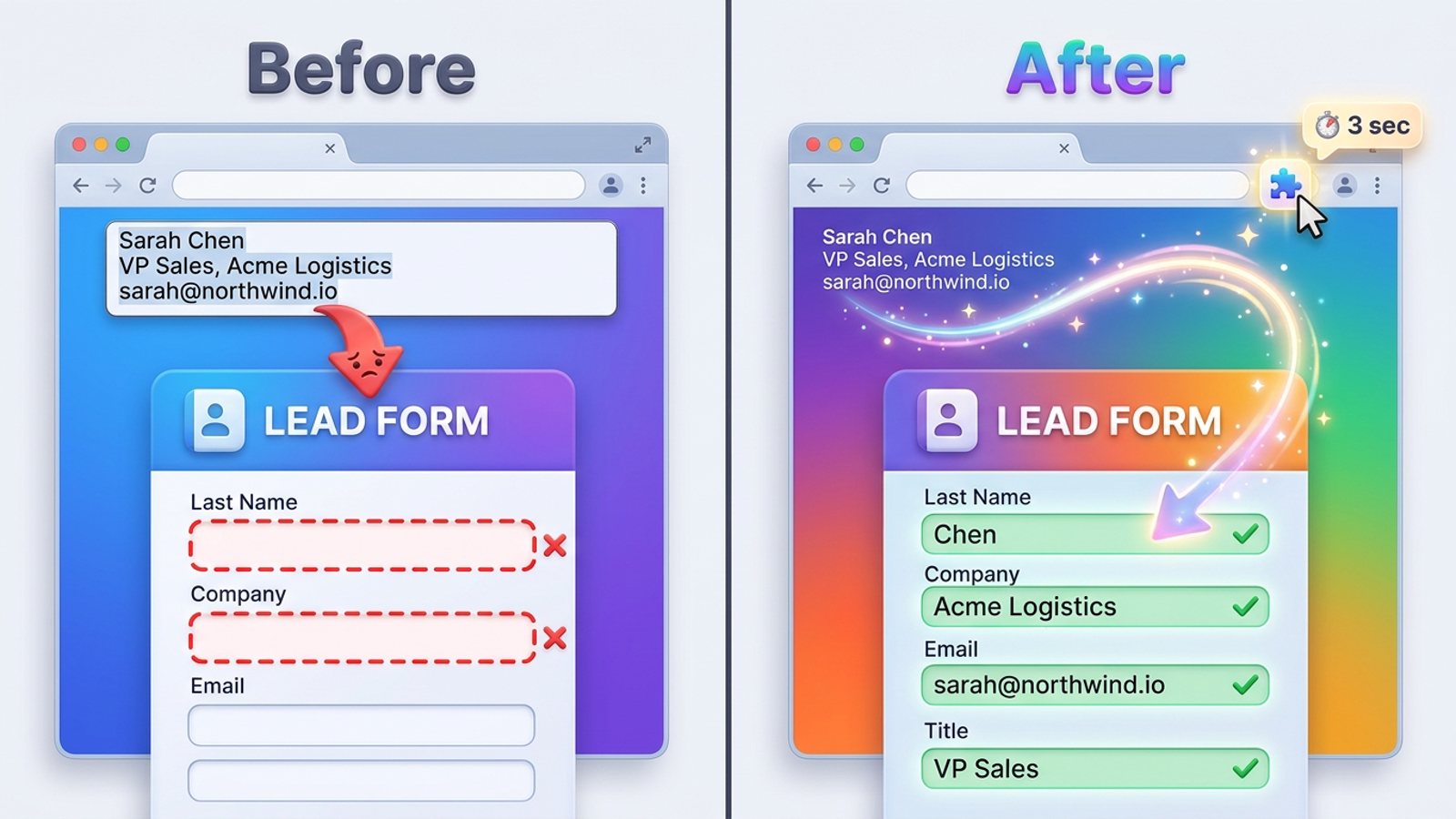
There is no single best AI form filler for Salesforce leads — the right pick depends on where your lead data comes from. For pasting messy lead text straight into a Lead record, SmartFill is the fastest zero-setup option of the tools we compared: 5 free fills on install, then 3 a day as of November 2026, and prices can change.
Ready to stop retyping inbound leads? Install SmartFill Free and fill your next Salesforce Lead in about three seconds.
What are the top 5 AI form fillers for Salesforce lead records?
Here are the five options we compared, with SmartFill first because it is built specifically for Salesforce Lead and other object forms and needs no configuration:
- SmartFill — paste any messy lead text, one click, form filled. Our pick for Salesforce.
- Salesforce Web-to-Lead — free with your Salesforce subscription, captures website form submissions only.
- Manual copy-paste — free, full control, and the slowest option on this list.
- Generic Chrome AI form fillers (e.g. Zipifil) — fill forms on any site, not Salesforce-specific.
- Zapier / Make / Pabbly / Parseur — automation pipelines that create leads from inbound email.
The rest of this article explains who each one suits, what it costs, and where it falls short.
Which AI form filler is fastest for a new inbound Salesforce lead?
For a single new lead that arrives as text — a signature block, a LinkedIn About section, a paragraph in an email — SmartFill is the fastest of the tools we compared. You copy the text, click the extension, and the Salesforce form fills automatically. The product facts describe it as turning a four-minute form fill into a three-second click.
The reason speed matters here is volume. SDRs and account executives handle a steady stream of one-off leads from email, LinkedIn and referral introductions. None of those arrive as a tidy website form, so each one is a small data-entry task. Multiply that by twenty a day and the hour disappears.
How does SmartFill fill a Salesforce Lead form?
SmartFill is a Chrome extension that uses AI to populate Salesforce forms from any pasted text. Here is the whole workflow:
- Install the extension in one click — 10 seconds, no sign-up required.
- Open Salesforce and your source text in separate tabs.
- Copy the lead details, even if they are messy — an email signature, a LinkedIn bio, a paragraph.
- Click the SmartFill icon and watch the Salesforce form fill automatically.
Then review the populated fields and save. The Lead object needs Last Name and Company to save a record, per The Salesforce Trainers (2026) — check those two first, then the rest.
Does it work on every Salesforce object and every field?
Per the product owner, SmartFill fills every Salesforce object — leads, contacts, accounts and custom objects — and there is no limit to how many fields it can fill at once. It works from any Chrome browser, which covers Salesforce Classic and Lightning alike. It is desktop only, since it is a Chrome extension.
Where does the lead data go?
The product facts state that text is processed in real time and not stored, and that no lead database is built. That matters because Chrome Web Store policy requires extensions that handle user data to post a privacy policy and transmit data over secure connections, with disclosure required even when data is processed locally (Chrome for Developers, enforced since 2019-10-15).
What does SmartFill cost, and is there a free plan?
SmartFill has a free plan and a paid plan, as of November 2026, and prices can change:
- Free: 5 fills on install, then 3 free fills per day forever.
- Pro: unlimited fills for $9.99/month.
For an SDR handling a handful of pasted leads a day, the free tier may cover you indefinitely. For anyone living in Salesforce all day, Pro removes the ceiling.
How do the other options compare?
| Option | Best for | Key features | Price / free option | Watch-outs |
|---|---|---|---|---|
| SmartFill (Our pick) | Pasting messy lead text into any Salesforce form | AI fill from any text, all objects, no setup | Free: 5 fills, then 3/day; Pro $9.99/mo | Desktop Chrome only |
| Salesforce Web-to-Lead | Website form capture | Native, custom fields addable | Included in Salesforce | Website forms only; duplicate rules can block |
| Manual copy-paste | Occasional leads, zero budget | Nothing to install | Free | Slow, error-prone |
| Generic Chrome fillers (Zipifil) | Forms on many different sites | Saved per-site rules, dropdowns | Free: 5 + 3/day | Not Salesforce-specific |
| Zapier / Make / Pabbly / Parseur | High-volume inbound email | Auto-create leads from email | Pabbly: 100 tasks/mo free | Setup, accounts, task limits |
SmartFill is made by the team behind this blog. Here is the honest read on each alternative.
Salesforce Web-to-Lead
Web-to-Lead creates leads from your website forms, and you can add custom fields to the form in Setup (Object Manager → Lead → Fields, then Web-to-Lead setup), per Salesforce Help (2026). It is free with your subscription. But it is website-form driven — it will not help you fill a Lead from a pasted email or LinkedIn profile. One trap: duplicate rules set to "Allow and Alert" can block a submission and return an error to the submitter instead of creating the lead (Salesforce Help, 2026-06-19).
Manual copy-paste
Free, nothing to install, full control. It is also the slowest option, and CRM data-quality writing warns that when entry is a burden, required fields get bypassed with placeholder data (Gangly, 2026). MailParser (2026-07-25) describes email-to-record entry as time-consuming, error-prone and difficult to scale. If you mainly need zero cost and handle a handful of leads a week, manual entry is the more direct choice.
Generic Chrome AI form fillers (Zipifil)
Zipifil's Chrome Web Store listing (updated 2026-11-26) describes a general-purpose filler: per-site saved rules, dropdown and multi-page handling, and pasting messy client text. Its free tier is 5 welcome fills plus 3 free AI fills daily, with a paid unlimited upgrade whose price is not shown on the listing. The listing's disclosure states it handles PII, web history, user activity and website content, and it uses Google's AI. If you mainly need one filler for forms across many different websites, Zipifil is the more direct choice; for Salesforce Lead records specifically, it has no object focus.
Zapier, Make, Pabbly and Parseur
These build automatic "new email → create Salesforce Lead" pipelines. Pabbly Connect offers a free account with 100 automation tasks per month (Pabbly, 2025-05-11), and Parseur parses emails and PDFs and connects to Salesforce via Zapier — a Zapier account is required (Parseur, 2025-04-28). Zapier and Make's own Salesforce pricing is not in our material. If your leads arrive in bulk by email every day, an automation is the more direct choice. For one-off leads from LinkedIn or a website, it is overkill.
How do you fill a Salesforce Lead step by step?
Whether you use a tool or not, the sequence is the same:
- Open Salesforce and click New Lead. Last Name and Company are required to save (The Salesforce Trainers, 2026).
- Copy the messy source text — signature, bio, paragraph.
- Fill the fields — with SmartFill, click the extension icon and let it populate.
- Review and fix anything mis-assigned, then save.
- Audit your conversion mapping later: Lead conversion maps fields to Account, Contact and Opportunity, and unmapped custom fields lose their data (Salesforce Dictionary, 2026-05-19).
Duplicate management is the other thing to plan for. Salesforce has native matching and duplicate rules, but merging leads and converting them to contacts and accounts stays manual unless you automate it with extra tools (Distribution Engine, 2026-10-28).
If you want a deeper look at the Salesforce-specific options, see our guide to the best Salesforce form filler extension for Chrome and the best AI Salesforce form filler for SDRs.
The pattern is simple: the tool should fit the way the lead actually reached you. When it does, the entry work disappears and you are back to selling.
The fastest lead entry is the one you never type — pick the tool that matches how the lead arrived, not the one with the longest feature list.
Ready to try it on your next lead? Install SmartFill Free — 5 fills on install, no sign-up.
Sources
- AI Form Filler Chrome Extension | Zipifil (Chrome Web Store, updated 2026-11-26)
- Chrome Web Store User Data FAQ (Chrome for Developers, enforced since 2019-10-15)
- Salesforce Duplicate Matching Rules Blocking Web-to-Lead Submissions (Salesforce Help, 2026-06-19)
- Web-to-Lead: How to add new fields (Salesforce Help, 2026-09-21)
- Lead Setup (The Salesforce Trainers, 2026-09-20)
- Lead record attributes reference (Ping Identity, 2026-09-10)
- How to configure and use Lead Conversion (Salesforce Dictionary, 2026-05-19)
- Salesforce Duplicate Leads: Merging, Matching and Auto-Conversion (Distribution Engine, 2026-10-28)
- Automatically Add New Leads from Emails to Salesforce Using Pabbly Connect (Pabbly, 2025-05-11)
- Email to Lead: Create Salesforce records from parsed emails (Parseur, 2025-04-28)
- How to Send Email Data to Marketing Cloud Account Engagement (MailParser, 2026-07-25)
- Best Practices for Data Privacy on Salesforce (Salesforce, no date)
- GDPR Implementation in Salesforce (GDPR Local, 2025-07-02)
- CRM Fields Sales Teams Need (Gangly, 2026-05-28)
- AI Form Fills vs. Magical (Aiformfills, vendor blog, 2026-09-01)