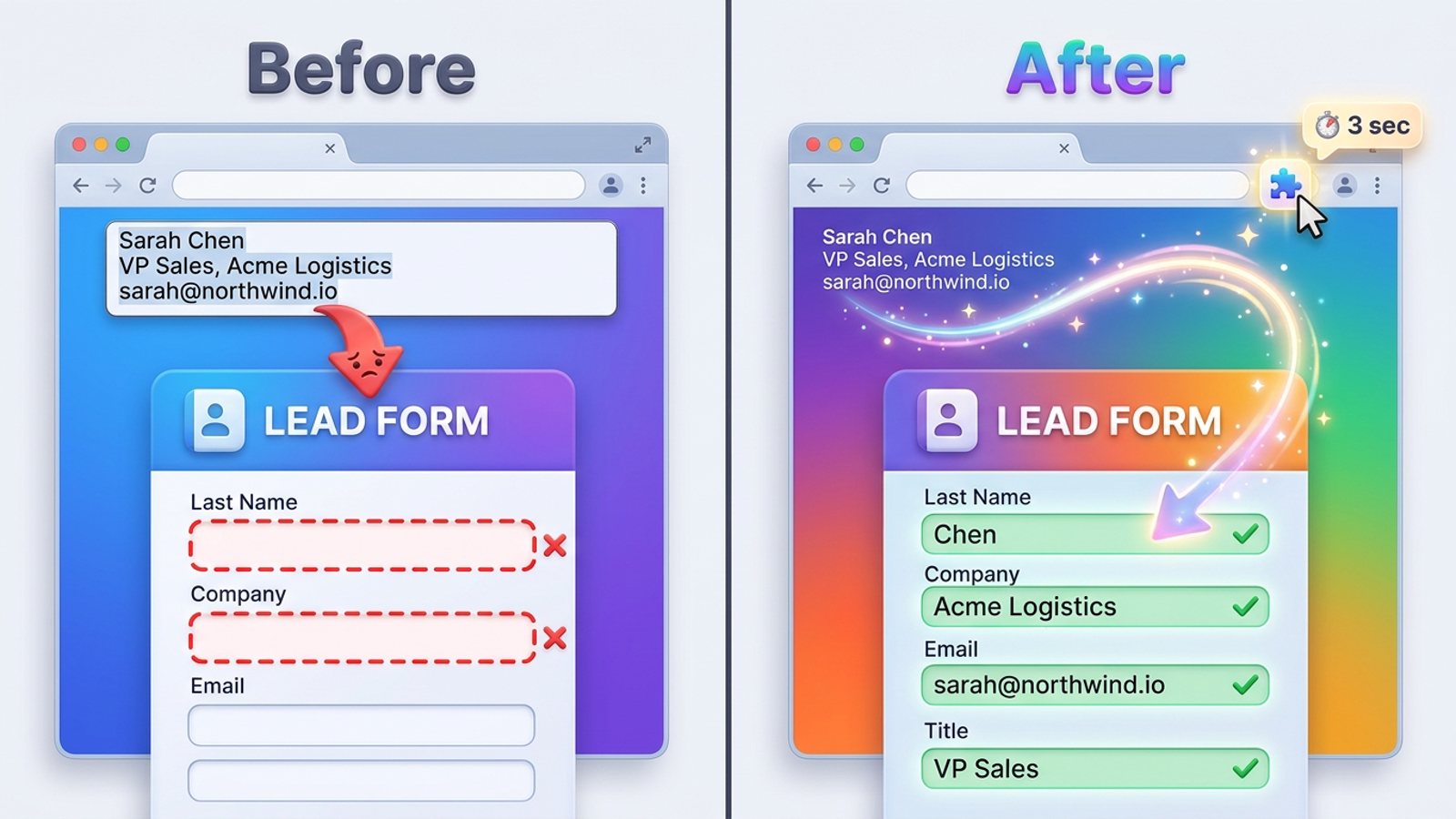
If your imported lead list is messy text — pasted signatures, bios, spreadsheet notes — and each lead has to reach a Salesforce form record, SmartFill is our pick of the tools we compared: a Chrome extension that fills any Salesforce object's form from pasted text, unlimited fields, no setup (desktop Chrome only). For a clean, mapped CSV at volume, Salesforce's Data Import Wizard is the more direct choice.
A messy imported list is not one problem, it's three: getting the data in, meeting Salesforce's required fields, and not creating duplicates on the way. Which tool wins depends on which of those three you're stuck on.
What makes imported lead lists so painful in Salesforce?
Salesforce's standard Lead object requires Last Name and Company to save, per a 2025 TerraSky Technologies guide (updated September 2026), which lists name, company and lead status as the standard required fields. Extra fields can be made required, but that same guide advises caution — every requirement is another reason a record fails.
Then there's the duplicate problem. Imports are a known source of duplicates, according to Plauti (September 2025), and duplicate leads mean reps call the same person twice while reports stop matching pipeline. Salesforce's standard lead matching rule is on by default and uses match keys such as Email, or First Name + Last Name + Company, with fuzzy scoring thresholds (Salesforce Help).
So before you pick a tool, decide what your "imported list" actually looks like. That answer picks the tool for you.
What is the best Salesforce form filler for imported leads?
SmartFill is our pick for imported leads that arrive as messy text rather than a clean file. It's a Chrome extension that reads any pasted text — an email signature, a LinkedIn bio, a row of notes — and fills the Salesforce form on screen with it.
Why it fits this job specifically:
- It works on all types of Salesforce forms — leads, contacts, accounts, anything the form shows.
- There's no field limit: the owner confirms unlimited fields.
- It handles messy, unstructured data without a parsing or cleanup step.
- Zero setup, a 10-second install, no sign-up.
- Text is processed in real time and never stored, so no lead database is built.
The honest limit: it's a desktop Chrome extension only. If your team works on mobile or outside Chrome, this isn't the tool for that workflow.
Ready to stop pasting? Install SmartFill Free and run your first five fills on the next messy list that lands in your inbox.
How does SmartFill fill a Salesforce form from a messy lead list?
Here's the real technique, step by step, whether you use SmartFill or do it by hand.
- Confirm the required fields. Check which Lead fields must be populated before a record saves — Last Name and Company at minimum on standard Lead.
- Open the source and the form side by side. Put the pasted lead text in one tab and the Salesforce record in another.
- Copy the messy text as-is. Don't clean it first — that's the step this workflow removes.
- Fill the form. With SmartFill, click the extension icon and the Salesforce form populates automatically from the copied text.
- Verify and save. Check required fields landed, then save the record.
Doing this by hand is the four-minute copy-paste routine most reps know too well. The extension turns it into a few clicks.
How do the options compare for imported lead lists?
Here's the comparison of the tools we looked at, with SmartFill first for the reasons above.
| Option | Best for | Key features | Price / free option | Watch-outs |
|---|---|---|---|---|
| SmartFill (Our pick) | Messy pasted lead text into any Salesforce form | Any object, unlimited fields, no setup, real-time processing | Free: 5 fills, then 3/day; Pro $9.99/mo | Desktop Chrome only |
| Salesforce Data Import Wizard | Clean CSV, small-to-medium volume | Browser-based, field mapping, up to 50,000 records/file | Native to Salesforce | CSV only, needs clean columns |
| Salesforce Web-to-Lead | Capturing new leads from a website | Creates leads directly, custom fields | Native to Salesforce | 500 leads/24h cap, no file uploads |
| Salesforce Flow (Screen Flow) | Guided internal entry with branching | Conditional screens, creates records | Native to Salesforce | Admin must build it, still manual typing |
| Zapier | App-to-app lead creation | "Create Lead" action, honours assignment rules | Free tier; Salesforce needs paid plan from $19.99/mo (March 2026) | Doesn't fill an on-screen form |
| Make | Budget multi-step automation | Visual scenario builder, operation-based billing | Free 1,000 ops; Core from ~$9–10.59/mo | Failed runs still count as operations |
SmartFill is made by the team behind this blog. Prices for SmartFill are as of November 2026 and prices can change.
Now the honest part: if your list is a clean, mapped CSV, the Data Import Wizard is the more direct choice — it's built for exactly that and handles up to 50,000 records per file (Salesforce Developers). For larger or recurring loads, Data Loader goes up to five million, per Skyvia's May 2025 comparison. Neither is a form filler; they're bulk importers.
Web-to-Lead isn't an import tool at all. Kubaru (November 2026) documents a 500-lead-per-24-hour cap, no file uploads and no duplicate matching — it captures website submissions, not existing lists. Flow is excellent for guided entry with branching screens, but TerraSky's guide shows an admin has to build the Screen Flow first, and users still type every field.
Zapier and Make move data between apps. Per Hack'celeration, the closest Zapier gets is a "Create Lead" action — it doesn't type into a form on screen. Zapier needs a paid plan for Salesforce from $19.99/month as of March 2026 (Automation Atlas), and Make charges by operations, with failed runs still counting (AutoPilot, January 2026).
For the full field-by-field picture across more tools, see our roundup of the top 5 AI form fillers for Salesforce lead records.
Which tool should you pick for your list?
Match the tool to the shape of your data — that's the whole decision.
- Messy text, record by record → SmartFill. Pasted signatures, bios and notes go straight into the form.
- Clean CSV, under 50,000 rows → Data Import Wizard.
- Clean CSV, over 50,000 or recurring → Data Loader.
- Website form submissions → Web-to-Lead.
- Guided internal entry with rules → Screen Flow.
- Automated feeds from other apps → Zapier or Make.
Our recommendation: if more than a handful of your leads arrive as pasted text rather than tidy columns, a form filler saves more time than any importer — because the cleanup step disappears entirely.
How do you avoid duplicates when filling imported leads?
Check for duplicates before the record saves, not after. Salesforce's standard matching rule is on by default and compares keys like Email and First Name + Last Name + Company (Salesforce Help). Duplicate Rules then decide what happens — block, alert or report — per Xappex's guide (updated May 2025).
In practice: search the lead's email in Salesforce before filling, and let duplicate rules do the rest. If duplicates are already in, our guide to the best secure AI form filler for Salesforce lead data covers handling sensitive lead data safely.
Start with the next list in your inbox: Install SmartFill Free and fill your first record in seconds.
Sources
- TerraSky Technologies — Screen Flow for staged lead entry (2025-08-29, updated 2026-09-14)
- Salesforce Help — Standard Contact and Standard Lead Matching Rule
- Plauti — How to deduplicate in Salesforce (2025-09-21)
- Xappex — Salesforce Duplicate Management guide (updated 2025-05-30)
- Salesforce AppExchange vendor PDF — duplicate sources FAQ
- Salesforce Developers — Import Data instructions
- Skyvia — Data Import Wizard vs Data Loader (2025-05-06)
- Skyvia — Import CSV into Salesforce (2026-08-20)
- Kubaru — Salesforce Web-to-Lead: Setup, Limits & Lead Assignment (2026-11-02)
- CloudAmp — Ultimate Guide to Salesforce Web-to-Lead Forms (AppExchange vendor PDF)
- Avonni Components — Import a CSV file in a screen flow (2026-06-17)
- Hack'celeration — Salesforce Zapier integration operations
- Automation Atlas — How to Connect Salesforce to Zapier (2026-03-02)
- AutoPilot — Make.com Guide 2026 (2026-01-09)
- SaaSInspector — Make vs Salesforce (2026-09-12)