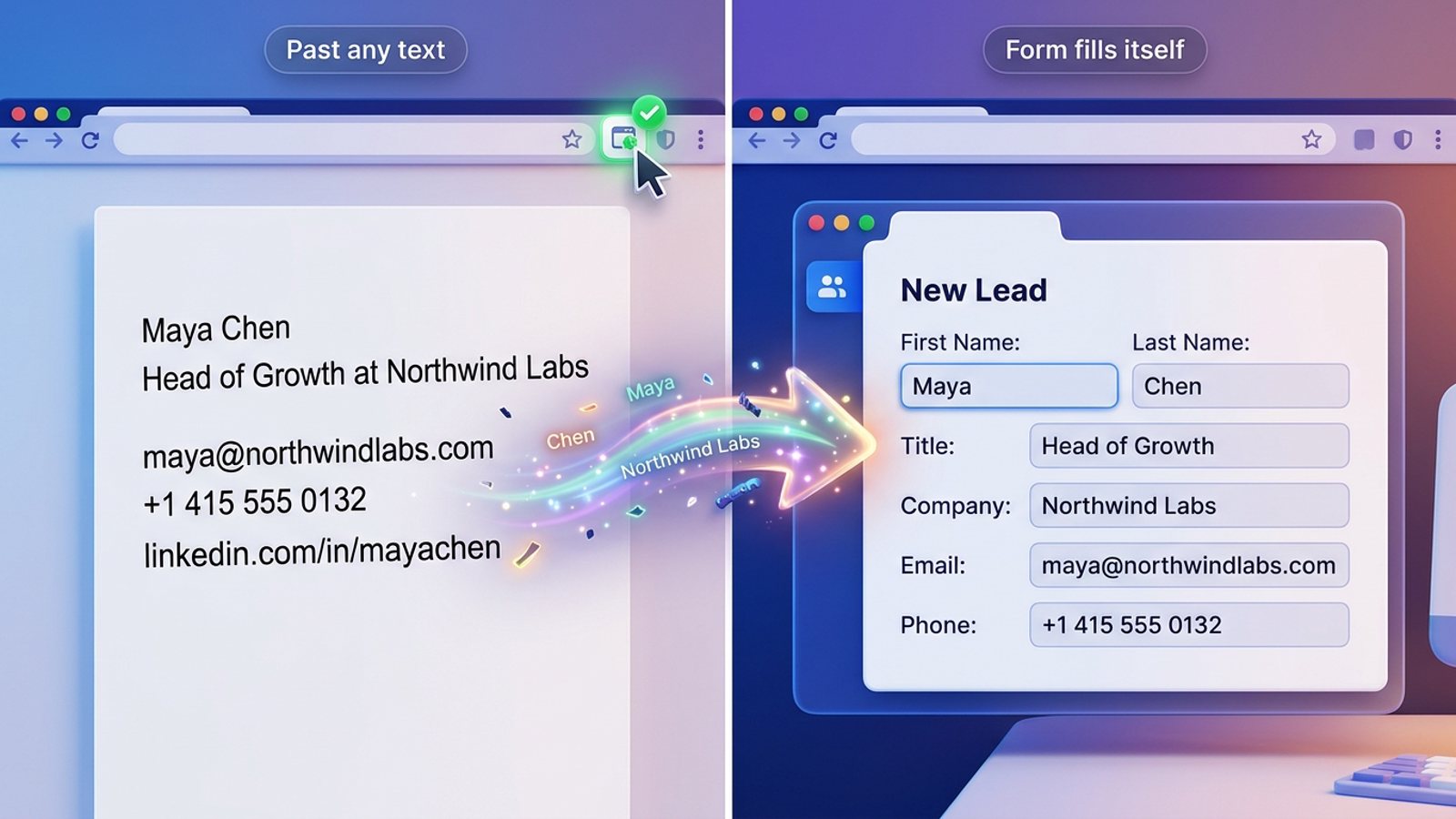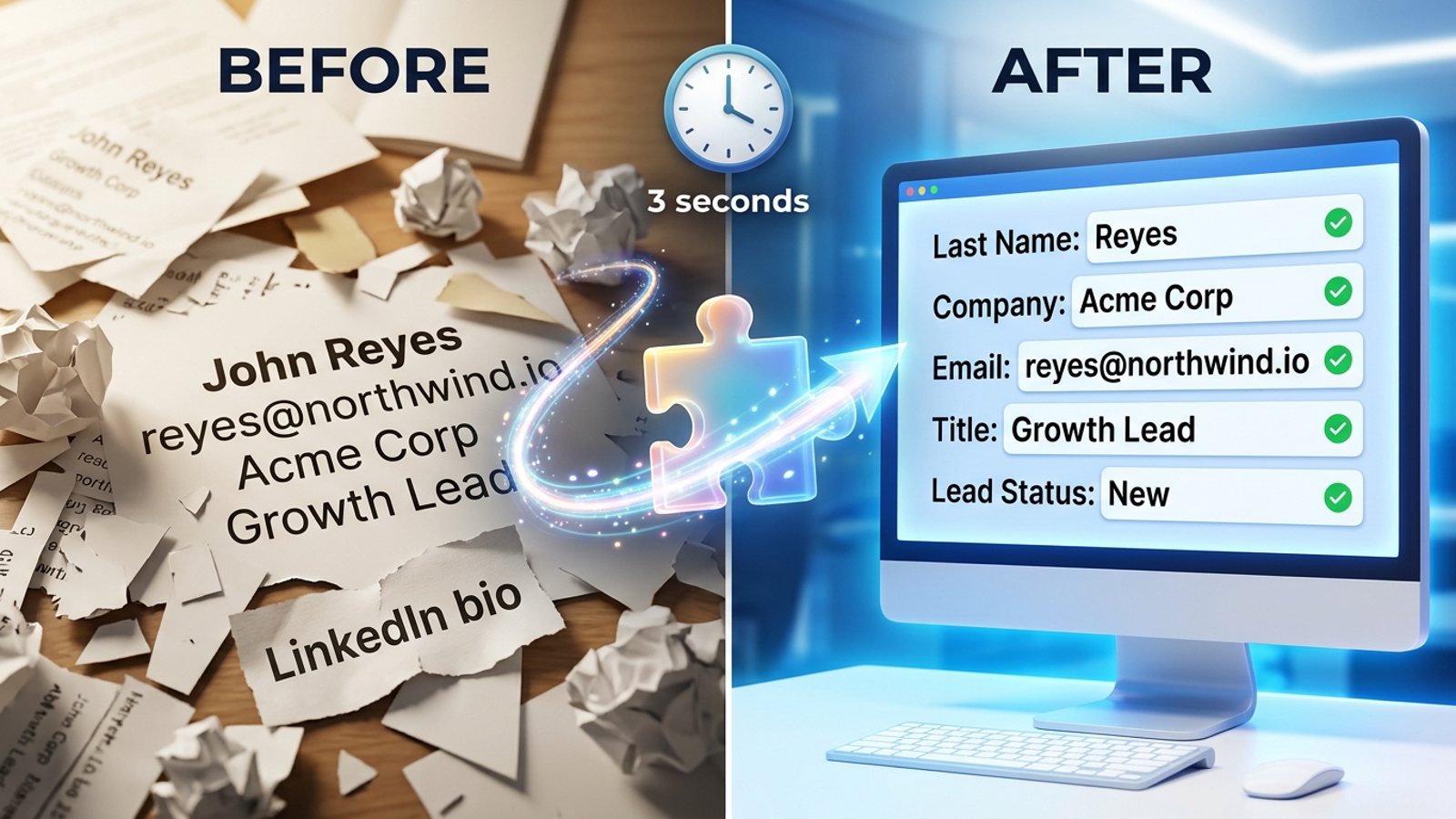
For a solo founder, the best salesforce form filler solo founders need is one that needs no admin, no CSV and no setup. Of the tools we compared, SmartFill is our pick: paste an email signature or LinkedIn bio into its Chrome extension and it fills the Salesforce form for you. The honest limit: desktop Chrome only.
Install SmartFill free and your next lead record takes one paste instead of one form.
Why is a form filler different for a solo founder?
Because there is no ops admin to hand the job to. Lead records in Salesforce can be created by manual UI entry, Web-to-Lead forms, the Data Import Wizard or Data Loader, or API integrations — several routes, but nobody on staff to run them (Prezi presentation transcript, 2025).
So the test is not "which tool has the most features." It's "which tool a one-person sales team can run between calls, with no setup and no one to ask."
A Lead needs three fields to save: Last Name, Company and Lead Status. Email and Phone are also worth adding, because duplicate rules and Einstein Lead Scoring read them (Salesforce Dictionary, updated 2026). That's a small form. The cost is the typing around it.
What are the best Salesforce form fillers for solo founders in 2026?
Here are the five routes we compared, ranked by how little setup they demand from a one-person team.
| Option | Best for | Key features | Price | Watch-outs |
|---|---|---|---|---|
| SmartFill (Our pick) | Messy pasted text → filled record | AI fills any Salesforce form | Free tier; Pro $9.99/mo | Desktop Chrome only |
| Manual copy-paste | One clean lead, a few fields | Native, nothing to install | Free with your edition | Every field typed by hand |
| Salesforce Web-to-Lead | Inbound leads from your site | Built-in, no middleware | Free with your edition | 500/day cap; Leads only |
| Data Import Wizard | Bulk CSV loads | Up to 50,000 records | Free with your edition | CSV must be pre-cleaned |
| Text Blaze | Reusable snippets | Templates across apps | Free tier; Pro $2.99/mo | Doesn't parse a paste |
| Magical | Text expansion + autofill | Broad app coverage | Free tier; paid unclear | Pricing not published |
1. SmartFill — our pick for a one-person sales team
SmartFill is a Chrome extension that uses AI to fill Salesforce forms from any pasted text. You copy the messy source — an email signature, a LinkedIn bio, a call note — click the icon, and the form fills itself. The owner's stated aim is turning a 4-minute form fill into a 3-second click, and that figure is the product's own claim, not an independently tested benchmark.
What makes it fit a solo founder specifically:
- No setup and no configuration. Install in about 10 seconds, no sign-up required.
- Works on all types of Salesforce forms. Leads, contacts, accounts — the owner confirms it fills everything, with no field limit.
- Handles unstructured text. You don't clean anything first; the mess is the input.
- Private by design. Text is processed in real time and not stored, and no lead database is built.
The honest limit: it's desktop Chrome only, and it doesn't integrate with other CRMs. If you sell entirely from your phone, this isn't your tool.
2. Manual copy-paste — free, and fine for one clean lead
Creating a record in Lightning Experience means opening the object, clicking New, choosing a record type if your org uses them, then filling fields and saving — every field by hand (Salesforce Dictionary, updated 2026).
It costs nothing, needs no install, and nothing new to learn. For a single lead with three clean fields, it's genuinely the fastest option. The trouble starts when the details are scattered across a bio, an email and notes. One vendor blog puts a long Lightning form with 10–30 fields at 5–10 minutes by hand (QuickForm, 2026) — a vendor claim, but the field-by-field process matches Salesforce's own documentation.
Two easy mistakes: forgetting Lead Source before the first save (it feeds attribution reporting), and tripping a duplicate rule at save time.
3. Salesforce Web-to-Lead — for inbound from your own website
Web-to-Lead is built in: Setup generates an HTML snippet with hidden oid and retURL fields to paste on your site, with no Apex or middleware (CRM Curator, 2026).
It fires Lead Assignment rules and an optional auto-response, which is useful when you're the only person who'll ever check the inbox. But it's the wrong tool for a lead you met at a coffee shop. It writes only to the Lead object, and FormAssembly's vendor blog (2023) lists no file uploads, no field validation and no deduplication. Salesforce's own Lead documentation notes a 500-per-day cap on auto-generated leads (Salesforce Help, 2026). Understory Agency (2026) warns that validation and duplicate rules can silently block Lead creation.
It also needs someone with Web-to-Lead permissions to set it up (Kubaru, 2026) — the first thing on this list that isn't quite zero-admin.
4. Data Import Wizard — for a batch, not a lead
The Wizard runs inside Setup, needs no elevated admin rights, and handles up to 50,000 records per import with a 100 MB file cap (TechTouch, updated 2026). Supported standard objects include Leads, Accounts and Contacts; Opportunities are not supported.
The catch for a solo founder is the prep. You clean the CSV, match headers to Salesforce field names, remove duplicates and blanks, and fix formats before importing (Trailhead guide). TechTouch notes that columns whose headers don't match Salesforce labels show as "unmapped" and are silently dropped. Lookups need an external ID column (Skyvia, 2026).
Great for a conference list you exported. Overkill for one lead.
5. Text Blaze — snippets, not parsing
Text Blaze is a text expander: you write a template once and insert it with a shortcut. It works across Gmail, Salesforce, HubSpot and other apps (vendor blog, 2026), and the free plan is genuinely usable for a solo — 20 snippets, 2,500 characters each, solo users only (SaaSworthy, 2026).
The mismatch is the job. A snippet inserts text you already wrote; it doesn't read a messy paragraph and split it into First Name, Company and Title. The free plan also caps "Pro commands" at 5 uses per day (Text Blaze Community, 2026), and MEFMobile notes no mobile support.
If you mainly need boilerplate follow-up emails, Text Blaze is the more direct choice.
6. Magical — broad autofill, unclear pricing
Magical combines text expansion with form autofill from contact and CRM data, and its vendor listing claims coverage of 10,000,000+ apps including Salesforce (Microsoft Edge Add-ons, 2026). A free tier covers core expansion.
The watch-out is price transparency. Third-party reviews report starting prices from about $6.50 to $7.50/month, while other sources show "on request" (MacMyths; Everything Xiaomi, both checked 2026) — confirm inside the extension before you commit. A 2025 security review of broad-permission autofill extensions flagged that category as medium-risk (Koidex, 2025), which is worth knowing for any tool you paste lead data into.
SmartFill is made by the team behind this blog.
Which Salesforce form filler needs no admin?
SmartFill and the Data Import Wizard both avoid elevated admin rights. SmartFill needs no configuration at all; TechTouch (updated 2026) notes the Wizard doesn't require elevated admin permission either. Web-to-Lead is the one that does need someone with the right permissions to set it up (Kubaru, 2026).
For a founder who is the admin, the rep and the closer, "no setup" beats "powerful but needs configuring" every time.
Can a form filler handle messy lead data, or do I still need a clean CSV?
Only the AI route skips the cleaning. The Data Import Wizard gives no AI parsing — you clean the CSV and match headers by hand before importing (Trailhead guide). SmartFill takes the opposite approach: paste the email signature or LinkedIn bio as it arrived, mess included, and it fills the form.
Say you run a two-person consultancy and get this from a prospect:
"Thanks for the call — Priya Raman, Head of Ops at Northwind Logistics, priya@northwind.example, +44 …"
Manual entry means reading that line and typing six fields. A snippet means writing the template in advance. A paste-and-fill tool means one click.
The solo founder's real bottleneck isn't Salesforce — it's the four minutes between the call ending and the record existing, which is exactly when the next call starts.
Is it safe to paste lead data into a browser extension?
It depends on the extension's data handling, and you can check it before installing. SmartFill's stated approach is that text is processed in real time and not stored, and no lead database is built. The Chrome Web Store listing shows each extension's data disclosure, which is where to confirm data isn't sold to third parties or used outside core functionality.
The broader caution: a 2025 security review of browser extensions requesting broad host permissions plus code execution flagged them as medium-risk (Koidex, 2025). That applies to the category, not one brand — read the disclosure for whichever tool you choose.
What does a Salesforce form filler cost for one person?
The free routes are free: manual entry, Web-to-Lead and the Data Import Wizard all come with your Salesforce edition. Text Blaze and Magical both have free tiers.
SmartFill's free plan gives 5 fills to start, then 3 per day forever. Pro is $9.99/month as of November 2026, and prices can change. For a solo founder doing a handful of leads a day, the free tier may be all you need.
How do you fill a Salesforce form without typing?
Numbered, and shorter than you'd expect:
- Install the extension — one click in Chrome, no sign-up.
- Open Salesforce and your source text in two tabs.
- Copy the lead details, however messy.
- Click the SmartFill icon and watch the form populate.
- Check Lead Source and save — duplicate rules will warn you if the record already exists.
Install SmartFill free and step 4 becomes the only step you think about.
If you want the wider comparison across team sizes, see our roundup of the best AI Salesforce form fillers for sales teams in 2026, or the Chrome-specific breakdown in the best Salesforce form filler extension for Chrome. Wondering whether it pays for itself at all? Read is a Salesforce form filler worth it vs copy-pasting lead data.
Sources
- Prezi — Lead management in Sales Cloud transcript (2025)
- Salesforce Dictionary — Create and convert a Lead in Lightning (updated 2026)
- Salesforce Dictionary — How to create a record in Lightning (updated 2026)
- Salesforce Dictionary — Web-to-Lead (2026)
- Trailhead — Duplicate management
- Trailhead — Use the Data Import Wizard
- TechTouch — Data Import Wizard basics (updated 2026)
- TerraSky Technologies — Data Import Wizard guide (updated 2026)
- Skyvia — Import CSV into Salesforce (2026)
- Kubaru — Salesforce Web-to-Lead setup (2026)
- Understory Agency — Web-to-Lead forms guide (2026)
- CRM Curator — What is Web-to-Lead (2026)
- FormAssembly — Salesforce forms blog (vendor blog, 2023)
- Salesforce Help — About Leads (2026)
- QuickForm — Autofill Salesforce Chrome extension (vendor blog, 2026)
- SaaSworthy — Text Blaze pricing (2026)
- Text Blaze — Text expander blog (vendor blog, 2026)
- Text Blaze Community — Snippet limits on Basic vs Pro (2026)
- TextExpander — Text Blaze vs TextExpander (vendor blog, 2026)
- MEFMobile — Text Blaze price/platforms
- Microsoft Edge Add-ons — Magical listing (vendor listing, 2026)
- MacMyths — Magical pricing (checked 2026)
- Everything Xiaomi — Magical pricing (checked 2026)
- Clipboard Extension — Clipboard History Pro vs Text Blaze vs Magical
- Koidex security report — FillApp (2025)
- Chrome Web Store — SmartFill listing data disclosure