For a founder with no ops team, the best Salesforce form filler is one you install and use the same day — no rules, field mappings or admin settings. SmartFill is built for that case: paste messy lead text and it fills the open Salesforce form, with no setup and nothing stored. It runs on desktop Chrome only, so phone-first founders need another path.
A founder wearing the sales hat doesn't have a RevOps person to build field mappings, wire up rules or babysit a Setup wizard. So the question behind salesforce form filler no ops team isn't "which tool has the most features" — it's "which one works before I've configured anything."
That's the test this article applies. If you want to skip straight to installing, you can install SmartFill free and try it on your next lead.
What should a founder with no ops team look for in a Salesforce form filler?
Look for three things: zero configuration, no admin access required, and coverage of every form type you actually fill. Everything else is a bonus.
- Zero configuration. Rule-based tools need you to define what goes where first. Lightning Autofill's own documentation states it "does not magically autofill form fields for you" (Lightning Autofill Docs, 2026) — you build the rules. That's fine for a team with an admin. It's a second job for a founder.
- No admin access. Some native options live inside Salesforce Setup. If you're not the org owner or you don't want to touch Setup, they're effectively closed to you.
- Form coverage. A tool that only handles Lead records leaves you typing Contacts, Cases and custom objects by hand. Ask which objects you fill in a normal week before you commit.
Why doesn't Chrome's own autofill just work on Salesforce forms?
Because Chrome autofill was designed for static HTML forms, and Salesforce Lightning fields are rendered and managed by JavaScript it wasn't built for.
Salesforce's own help documentation says browser autofill behaviour is controlled by the browser, not by Salesforce, and can surface in text, email and phone fields — turning it off is a per-browser setting (Salesforce Help, 2024). A community report from 2022 describes a record failing to save when Lightning input fields were populated from Chrome's saved address (Salesforce Stack Exchange, 2022). A vendor blog goes further, claiming Chrome autofill fails on Lightning because those inputs need JavaScript events rather than the direct DOM writes Chrome fires — treat that as a vendor claim, not a Salesforce-confirmed statement (QuickForm, 2026).
The practical upshot: Chrome autofill is free and zero-install, but it isn't a reliable way to fill a Salesforce Lightning form field by field. The same vendor blog estimates a 10–30-field Lightning workflow still takes 5–10 minutes manually even with saved data (QuickForm, 2026).
How does SmartFill fill a Salesforce form from messy lead data?
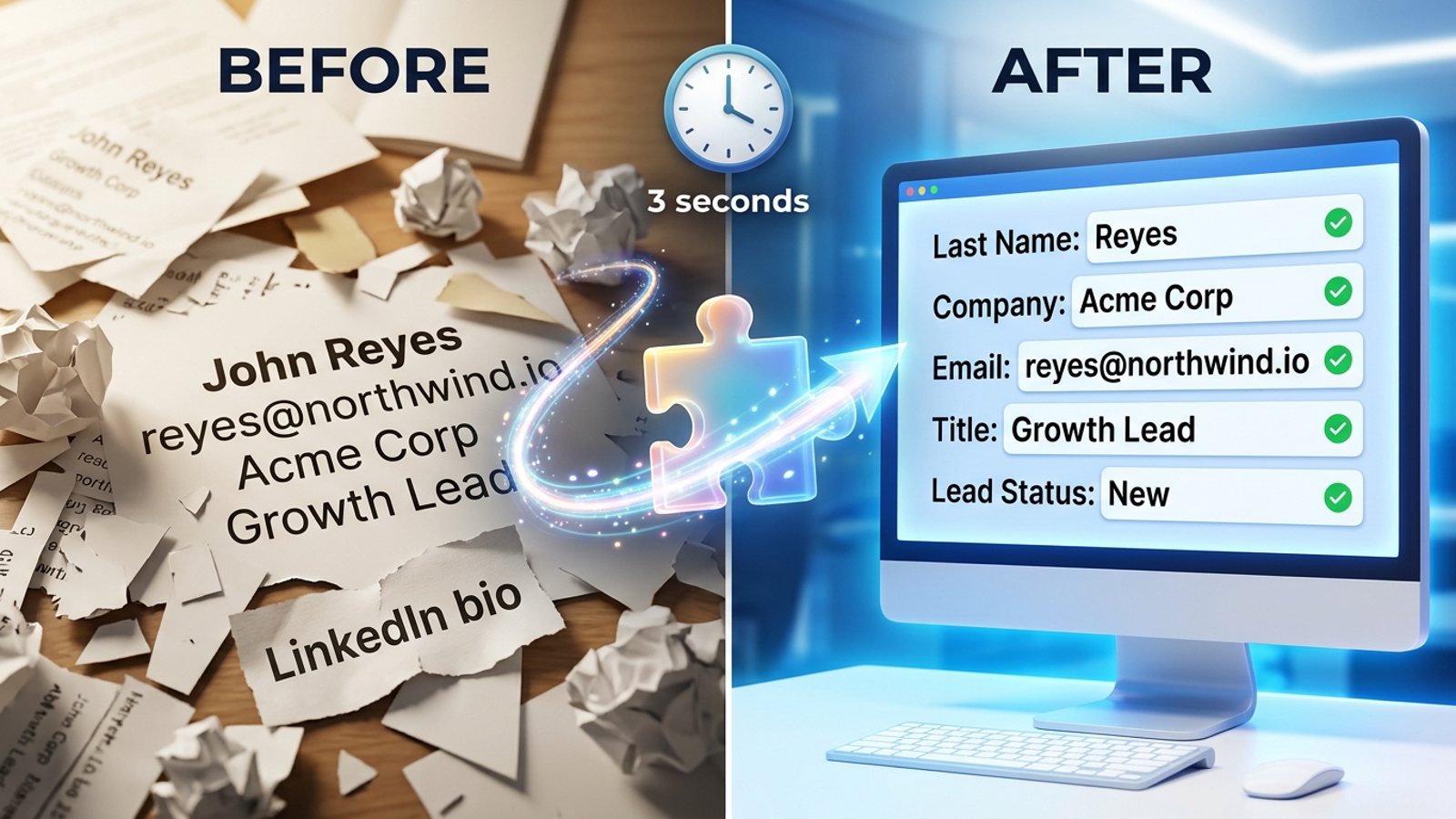
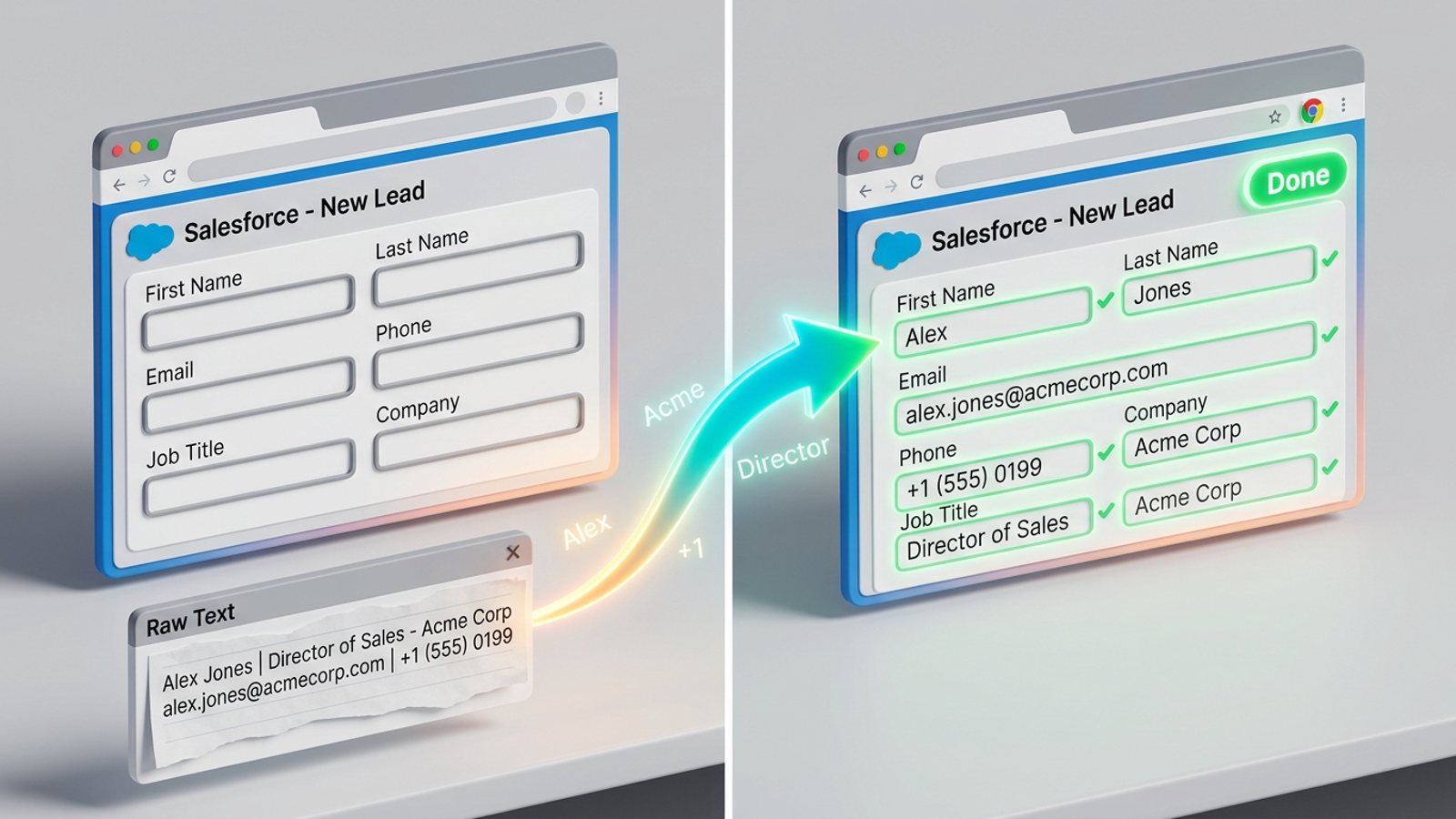
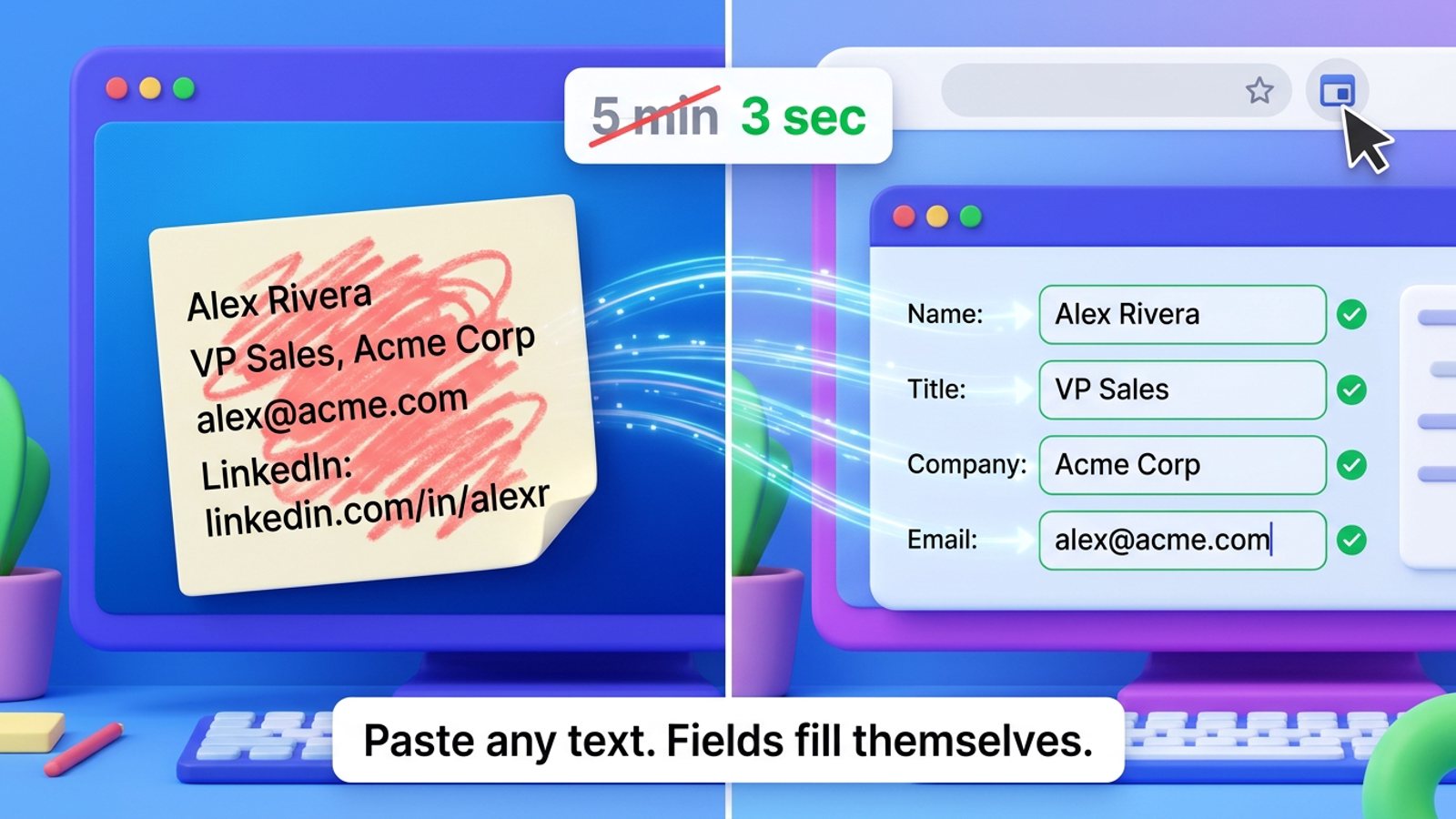
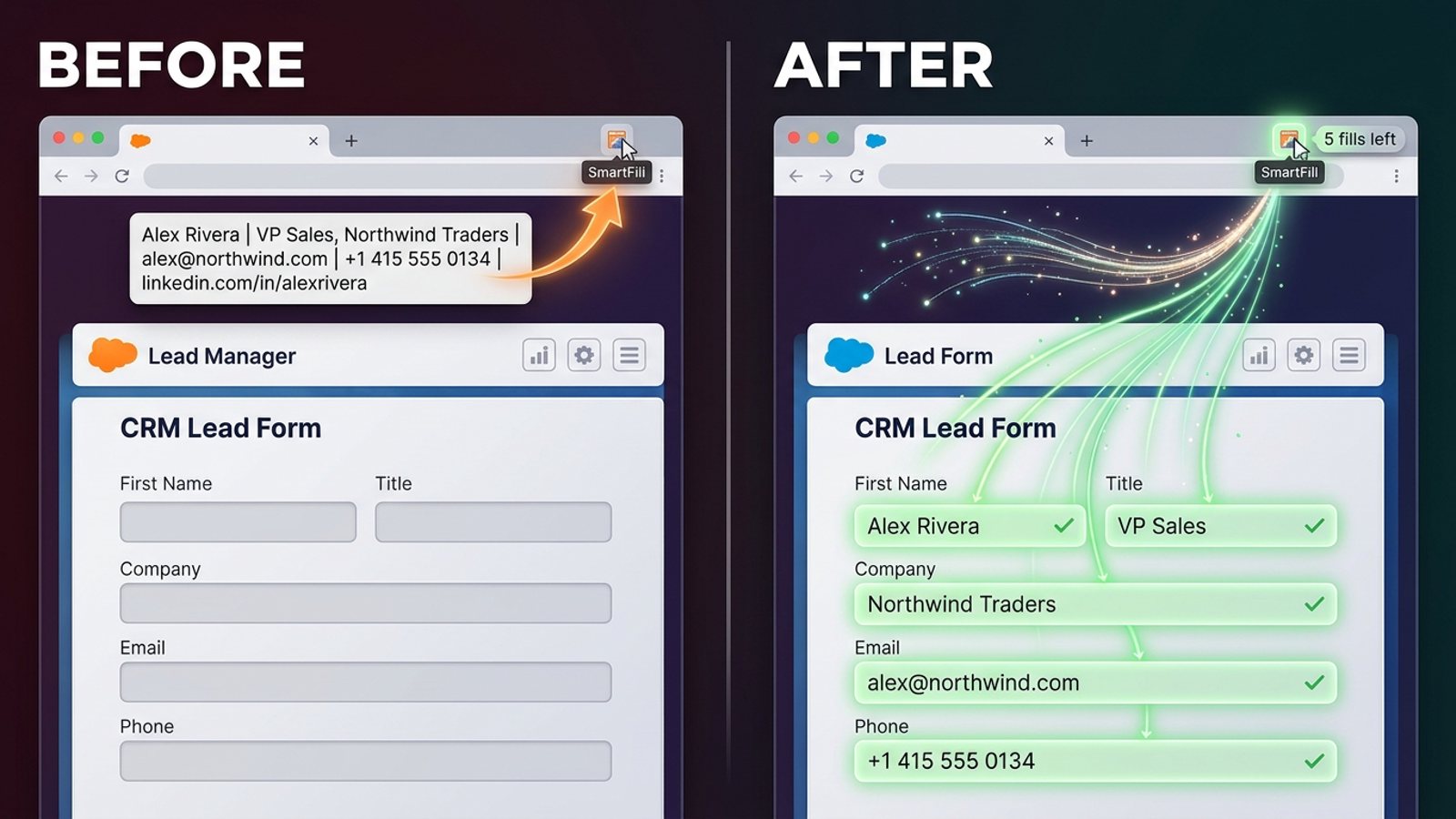
You paste the text, click the icon, and the open Salesforce form fills itself — no parsing, no mapping, no field-by-field typing.
- Install the extension in one click from the Chrome Web Store. No sign-up required.
- Open Salesforce in one tab and your source text in another.
- Copy the lead details — an email signature, a LinkedIn bio, a forwarded intro, even a messy note.
- Click the SmartFill icon and watch the form populate.
SmartFill is an AI form filler for Salesforce that handles unstructured data without you cleaning it up first. It fills any Salesforce form — Leads, Contacts, Accounts, Cases, custom objects — and there's no cap on how many fields it fills at once. Because the AI reads the text rather than replaying a saved snippet, a fresh lead's signature works the first time.
On privacy: text is processed in real time and not stored, and no lead database is built. If you want the detail on that, see our guide to the best secure AI form filler for Salesforce lead data.
Pricing: Free gives you 5 fills to start, then 3 per day forever. Pro is unlimited fills for $9.99/month as of November 2026 — prices can change.
The fastest form filler for a founder is the one that asks nothing of you before the first fill.
How do the options compare for a founder with no ops team?
Here's the comparison of the tools we looked at, with SmartFill first because it's the one built for this exact constraint.
| Option | Best for | Key features | Price / free option | Watch-outs |
|---|---|---|---|---|
| SmartFill (Our pick) | Pasting messy lead text into any Salesforce form | AI fills from any text, no setup, all form types, nothing stored | Free: 5 fills then 3/day; Pro $9.99/mo | Desktop Chrome only |
| Chrome built-in autofill | Your own details on simple forms | Zero install, zero cost | Free with Chrome | Built for static HTML, not Lightning |
| Salesforce Web-to-Lead | Inbound website enquiries | Native, triggers assignment rules, reCAPTCHA | Included in Sales/Service Cloud | Needs admin + site HTML; Leads only |
| Salesforce Quick Create | Fast record creation inside Salesforce | Native, no install, short required fields | Not stated in our sources | Still manual typing |
| Text Blaze | Reusable boilerplate text | Snippets, Gmail/Salesforce integrations | Free tier; Pro from $2.99/user/mo (third-party, 2026) | Replays saved text, doesn't parse new leads |
| Magical | Text expansion plus autofill across apps | Works across many web apps, no API setup | Free tier; paid pricing unclear | Broad privacy disclosure; pricing conflicting |
SmartFill is made by the team behind this blog.
Why SmartFill is our pick of the tools we compared: it's the only one on this list whose value doesn't depend on you configuring something first. No rules, no mappings, no Setup access, no snippet library to maintain. You paste, it fills, you save. If you're weighing whether that's worth paying for, our post on whether a Salesforce form filler is worth it vs copy-pasting lead data runs the numbers on the time you get back.
Where the others win — honestly:
- If you mainly need inbound website leads captured automatically, Web-to-Lead is the more direct choice. It's native, included in Sales Cloud and Service Cloud subscriptions at no extra cost (CloudAmp guide, AppExchange), and has shipped for more than 20 years. But it needs someone with Setup access to enable it, generate the HTML and embed it on your site (Geniee's library, 2025). It writes to the Lead object only — not Contacts, Opportunities, Cases or custom objects (FormAssembly, 2023). The same CloudAmp guide notes a 500-lead-per-24-hour cap before requests queue and no native deduplication, and Synergy Marketing (2025) notes duplicate rules set to "allow + alert" can block submissions.
- If you mainly need boilerplate — follow-up emails, canned notes, standard replies — Text Blaze is cheaper and simpler. It markets a free-forever tier for core text expansion and integrates with Gmail, Salesforce, HubSpot, ChatGPT and Zendesk (Text Blaze, 2026). A third-party read puts the free tier at up to 20 snippets at 2,500 characters, with Pro at $2.99/user/month billed annually (SaaSworthy, 2026) — that's a third-party figure and may be out of date. The limit that matters: text expansion replays text you've already saved. It doesn't read a new lead's email signature and decide which field each detail belongs in (Text Blaze, 2026).
- If you mainly need autofill across lots of different web apps, not just Salesforce, Magical covers more ground. It says it works across 10,000,000+ apps including Salesforce with no integrations or APIs required (Microsoft Edge Add-ons listing, 2026), and offers a free plan with unlimited templates and limited daily expansions. Two things to weigh: its Chrome Web Store privacy disclosure lists handling of personally identifiable information, location, web history, user activity and website content (Magical, undated), and its paid pricing is genuinely unclear — one tracker lists $6.50–$10/user/month (MoreAI.tools, 2026) while another says quote-only (Clipboard Extension, undated). Treat Magical's pricing as unverified.
- Chrome autofill is the free fallback for simple forms and your own details. It just isn't built for Lightning.
- Salesforce Quick Create is native and needs no install, but it's still manual typing. Building a custom "quick lead" layout is admin and component work, not something a founder sets up alone (Avonni Components, undated). Our sources didn't state its plan entitlement or field limits.
How do you vet a form-filler extension without an ops team?
Open its Chrome Web Store privacy disclosure and read it before you install — that's the one check that replaces an ops review.
Chrome Web Store policy requires extensions to collect and use only the data needed for their single disclosed purpose, and collecting browsing activity outside a prominently disclosed user-facing feature isn't allowed (Chrome for Developers, undated). So the disclosure is where a tool tells you what it touches. Read it for every extension you shortlist, not just the one you're leaning toward.
Our recommendation: after that, install one tool, paste a real messy lead note, and check every field it filled before you save the record. Duplicate rules and validation rules still apply in Salesforce, so a fast fill doesn't replace a quick glance.
What if your "desk" is your phone?
Then SmartFill isn't your tool yet — it's a desktop Chrome extension, and that's its stated limit. A founder working from a phone needs a different path, such as Web-to-Lead for inbound enquiries or entering the record in the Salesforce mobile app and filling details later at a desk.
If you're mostly at a laptop, the constraint rarely bites. If you're mostly not, be honest with yourself before you pay for anything.
Ready to stop typing? Install SmartFill free and run it against your messiest lead note — 5 fills to start, then 3 a day forever.
Sources
- Salesforce Web-to-リード使い方を徹底解説 (Synergy Marketing, 2025-06-26)
- SalesforceのWEB-to-リードの設定方法 (Geniee's library, updated 2025-10-30)
- CloudAmp's Ultimate Guide to Salesforce Web-to-Lead Forms (CloudAmp, hosted on Salesforce AppExchange, undated)
- How to autofill Salesforce records and forms in Chrome (QuickForm, 2026-06-09)
- Disable Browser Autofill / Auto-Completion for Fields in Salesforce (Salesforce Help, 2024-11-13/14)
- Cannot create record when LWC input fields populated from Google Chrome save address (Salesforce Stack Exchange, 2022-11-14)
- Chrome Web Store Program Policies — Limited Use (Chrome for Developers, undated)
- 5 Best Free Text Expanders for Chrome in 2026 (Text Blaze, 2026-04-27)
- Text Blaze plans (Text Blaze, undated)
- Text Blaze pricing/plan detail (SaaSworthy, 2026-10-07)
- Magical: Text Expander & Autofill (Microsoft Edge Add-ons, 2026-04-06)
- Magical auto form filler (Magical, undated)
- Magical pricing (MoreAI.tools, 2026-05-21)
- Clipboard History Pro vs Text Blaze vs Magical (clipboardextension.com, undated)
- Build a Quick Lead entry form (Avonni Components, undated)
- Lightning Autofill Quickstart (Lightning Autofill Docs, 2026-09-17)
- How to set up a Salesforce Web-to-Lead integration form (Thunderbit, updated 2026-07-13)
- Salesforce forms overview (FormAssembly, 2023-11-18)