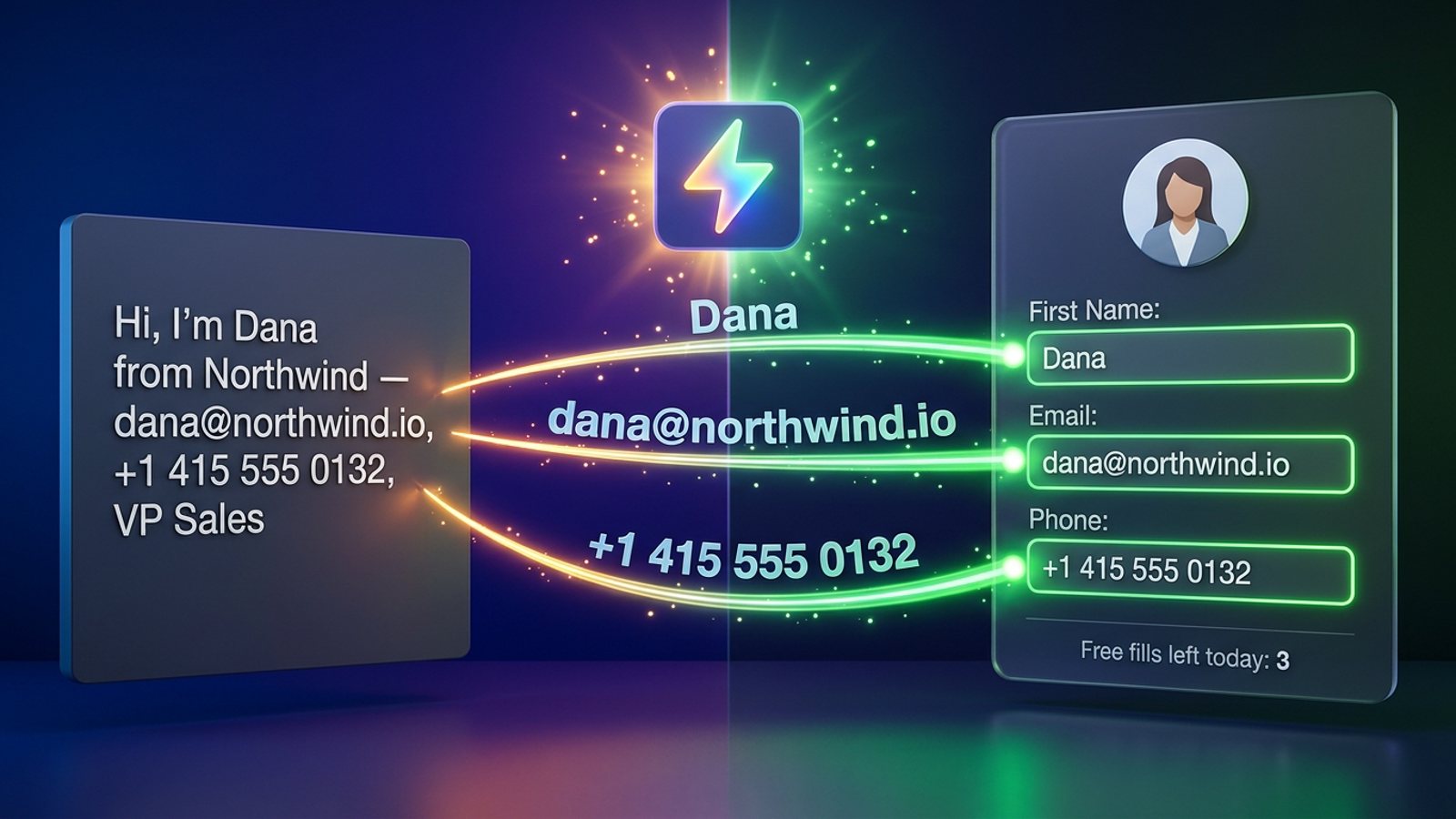
If you want to fill a Salesforce form seconds after installing something, the shortest route is a Chrome extension that skips the account step. As of November 2026, SmartFill installs in one click, gives you 5 fills straight away and then 3 free fills every day, with no sign-up, no credit card and no setup — and it fills any Salesforce form, from Lead to custom object.
Install SmartFill free and your first Salesforce form can be filled from pasted text in about ten seconds.
Why is a no-sign-up AI form filler for Salesforce hard to find?
Because most tools are built as accounts first and form-filling second. A typical autofill tool wants you to register, build a data library, or have an admin configure something before it does anything useful.
Salesforce adds a second obstacle. Salesforce's own help documentation (published 29 January 2026) explains that it sets autocomplete="off" on internal record text fields describing external contacts, accounts or support information. Two reasons are given: data integrity, so a rep's own name and email can't land on a customer record, and security, so browser caches don't expose sensitive record data. Salesforce's guidance for simple fields like Phone and Email is to enter or paste the customer's data manually.
So the browser's built-in autofill is out, and manual copy-paste is the default. An ai form filler salesforce no signup search is really a search for something that sits between those two: smarter than pasting, faster than an account.
What is the best AI form filler for Salesforce with no sign-up?
SmartFill is the most direct fit of the tools we compared, because it removes both barriers at once: no account, and no setup before the first fill.
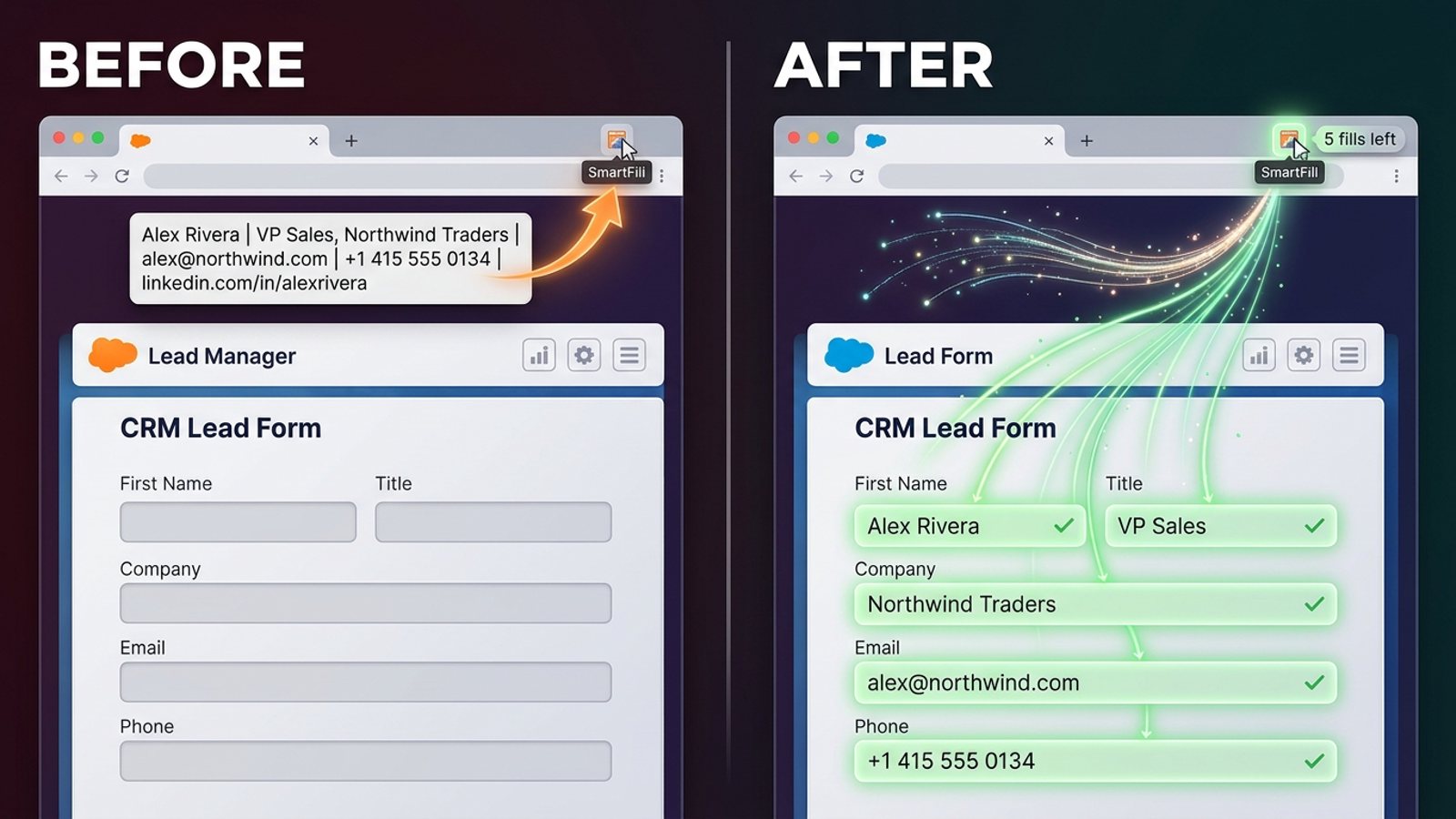
Here's what that looks like in practice. Say you're an SDR who just got a reply from a prospect. The signature is a jumble: name, title, company and phone crammed into four lines, plus a LinkedIn URL. You open the Lead form in Salesforce, copy the signature, click the SmartFill icon. The AI separates Job Title from Company Name even when they sit on one line — the Chrome Web Store listing (updated 19 October 2026) describes exactly this "messy data" case — and drops each piece into the right field.
Before → after: four minutes of tab-switching and typing becomes one paste and one click.
The listing also states there are no URL patterns or regex mappings required to get going, and that the extension works on any Salesforce form. Optional Page Rules let power users save a rule for a specific Salesforce page so it fills from whatever is on the clipboard on future clicks.
On price, the product facts are clear: the free tier is 5 fills on install, then 3 free fills every day "forever", no signup and no credit card. Pro is unlimited fills for $9.99/month, with all AI and API costs included — as of November 2026, prices can change.
The trade-offs are worth stating plainly. It runs as a Chrome extension, so it's desktop browser only. It doesn't integrate with CRMs other than Salesforce. Duplicate Detection is listed as "Coming soon" on the listing, so check for existing records yourself for now. And the listing showed 38 users and a 5.0 rating from 5 ratings at that date — a small base, so treat the rating as early signal rather than proof.
How do the options compare on setup friction and time to first fill?
Here's the comparison across the four options in the research, ranked by how fast you can fill your first real Salesforce form.
| Option | Best for | Key features | Price (Nov 2026) | Watch-outs |
|---|---|---|---|---|
| SmartFill (Our pick) | Pasting messy lead text into any Salesforce form | AI field mapping, no setup, no account | Free: 5 fills then 3/day · Pro $9.99/mo | Desktop Chrome only; Salesforce only |
| Magical | Text expansion across many apps | Shortcut libraries, autofill across 10M+ apps | Free tier; paid from ~$6.50–$10/user/mo (third-party) | You build libraries first |
| Salesforce browser autofill | Your own details on generic web forms | Nothing to install | Free with your Salesforce login | Disabled on record fields |
| Manual copy-paste | Simple fields, one at a time | No software at all | Free | Every field by hand |
SmartFill — Our pick of the tools we compared, for the specific job of getting a Salesforce form filled without an account. Its strengths come straight from the listing: it separates jumbled fields, needs no URL or regex setup, and parses text in real time without retaining it.
Magical is the stronger choice if you mainly need text expansion across many apps rather than Salesforce alone. Its vendor page says it works on 10,000,000+ apps including Salesforce, HubSpot and Zoho, and it overlays existing web apps without API setup. The catch is the model: you build and maintain shortcut or autofill libraries before they save you time. Its Chrome Web Store privacy disclosure covers personally identifiable information, location, web history, user activity and website content. Pricing is reported inconsistently by third parties — one review lists Free, Core $10/user/mo and Business $25/user/mo, another lists Free, Solo $6.50 and Team $10, and a third says "starting from $7.50/mo" — so check the vendor's own page before you buy. The vendor's Chrome Web Store listing shows 200K users and a 3.1 rating from 3.5K ratings, last updated 4 April 2026.
Salesforce's built-in browser autofill is free and needs nothing installed, but it can't do this job. Because Salesforce sets autocomplete="off" on the record fields that hold customer data, the browser won't fill a Lead or Contact with someone else's details. Lookup fields (Contact, Account, Business Hours) also need the Lookup/Combobox search to confirm a validated record ID rather than plain text. A vendor blog from QuickForm (9 June 2026) further claims Chrome's autofill fails on Lightning Web Component inputs because those components need JavaScript events rather than direct DOM writes — a vendor claim, not a Salesforce statement.
Manual copy-paste is the fallback Salesforce itself recommends for simple fields, and it's free. It's also the slowest: the same QuickForm vendor blog puts a 10–30-field workflow at 5–10 minutes even with saved data.
SmartFill is made by the team behind this blog.
How do you fill a Salesforce form with no account, step by step?
Follow the same sequence any no-sign-up extension should let you do. This is the SmartFill flow, and it's a fair checklist for evaluating alternatives too.
- Install the extension from its Chrome Web Store listing. For SmartFill this is a Chrome browser extension with a one-click install and no sign-up.
- Skip the account step. No signup, no credit card, and no URL patterns or regex mapping to configure.
- Open the Salesforce form you want to fill — Lead, Contact, Case, or a custom object.
- Copy the messy lead text — an email signature, a LinkedIn About section, a dashed-off paragraph.
- Click the SmartFill icon. The AI splits each piece into the right field, including Job Title versus Company Name on a single line.
- Optionally save a Page Rule for a specific Salesforce page so future clicks fill from the clipboard automatically.
- Check Lookup fields yourself. Account, Contact and Business Hours need the Salesforce lookup search to confirm a record.
- Watch the free allowance. 5 fills on install, then 3 per day; Pro removes the cap.
What happens to the lead data you paste in?
SmartFill's listing states that it doesn't build a database of your leads: text is parsed in real time to fill the form in front of you and isn't retained by SmartFill afterward. The owner confirms that none of the information sent to the AI is saved.
That matters because lead data is exactly the kind of information Chrome Web Store policy protects. The store's Limited Use policy prohibits selling user data to data brokers or ad platforms, and restricts humans from reading user data without explicit consent or a security need (Chrome for Developers policy text). The store also requires listing privacy fields to be accurate and not to contradict the extension's behaviour (program policies, 21 May 2025).
A policy update announced 1 July 2026 tightens this further: disclosure must cover all data collection whether or not it's closely tied to the single purpose, developers must disclose changes in data practice after install, and enforcement begins 1 August 2026. If you're evaluating any extension, read its Chrome Web Store privacy disclosure before you paste your first lead.
The fastest form fill is worthless if it costs you a data incident — check the privacy disclosure before the feature list.
Does a no-sign-up filler work on Salesforce Classic and Lightning?
For SmartFill, yes on both in practice, because it works from the Chrome browser as an extension — anything you can open in Chrome is fair game. The owner confirms this directly.
The friction you'll meet is Salesforce-side, not extension-side. On lightning:input components, a vendor document from ClosePlan reports that the autocomplete attribute is ignored entirely, suggestion lists can cover controls, and selecting a suggestion can throw a Salesforce internal error — attributed to a Salesforce bug and the LockerService proxy. A Salesforce Stack Exchange thread shows developers finding autocomplete="off" behaves differently on lightning-input-field than on lightning-input.
Our recommendation: test on the exact page layout your team uses before rolling anything out. Menus and component behaviour change often, so what you see at the time of writing may differ from what a colleague sees next quarter.
If Lightning specifically is your concern, the deeper walkthrough lives in is there an AI form filler that works on Salesforce Lightning?
Which Salesforce objects and field types can it fill?
The owner confirms SmartFill fills every Salesforce object — Leads, Contacts, Accounts, Cases and custom objects — and that there's no limit to how many fields it fills at once.
The honest caveat is field type, not object. Text-style fields are where AI extraction shines: name, title, company, email, phone, LinkedIn URL, notes. Lookup fields are a different mechanism, and Salesforce's documentation says they need the search to confirm a validated record ID.
Is Chrome-only a problem?
It depends on your team's setup. SmartFill runs as a Chrome browser extension, and that's a stated limit — desktop only. If your reps work in Safari, Firefox or on mobile, this isn't the tool for them.
The same constraint appears elsewhere in this category. A third-party review of Magical notes that being Chrome-only limits non-Chrome users. So the question isn't unique to one product — it's a category trait of extension-based fillers.
Our recommendation: if your team is standardized on Chrome, this costs you nothing. If it isn't, decide whether the browser standard is worth changing before you standardize the tool.
Ready to skip the account step? Install SmartFill free and fill your next Salesforce form from a single paste.
Sources
- SmartFill — Chrome Web Store listing, updated 19 Oct 2026
- Salesforce Help — browser autocomplete behaviour on record fields, published 29 Jan 2026
- Chrome for Developers — Limited Use policy
- Chrome for Developers — disclosure requirements
- Chrome for Developers — program policies, 2025-05-21
- Chrome for Developers blog — policy updates 2026, published 2026-07-01
- Magical — auto form filler feature page (vendor)
- bestautomationtools.ai — Magical review (third-party)
- MoreAI.tools — Magical listing, pricing verified 21 Jun 2026
- TheSynLab — Magical review (third-party)
- Single Tab Browser — Magical listing, 2026-08-31
- QuickForm — vendor blog, 2026-06-09
- ClosePlan Guide — vendor doc on lightning:input autocomplete
- Salesforce Stack Exchange — autocomplete on lightning-input-field