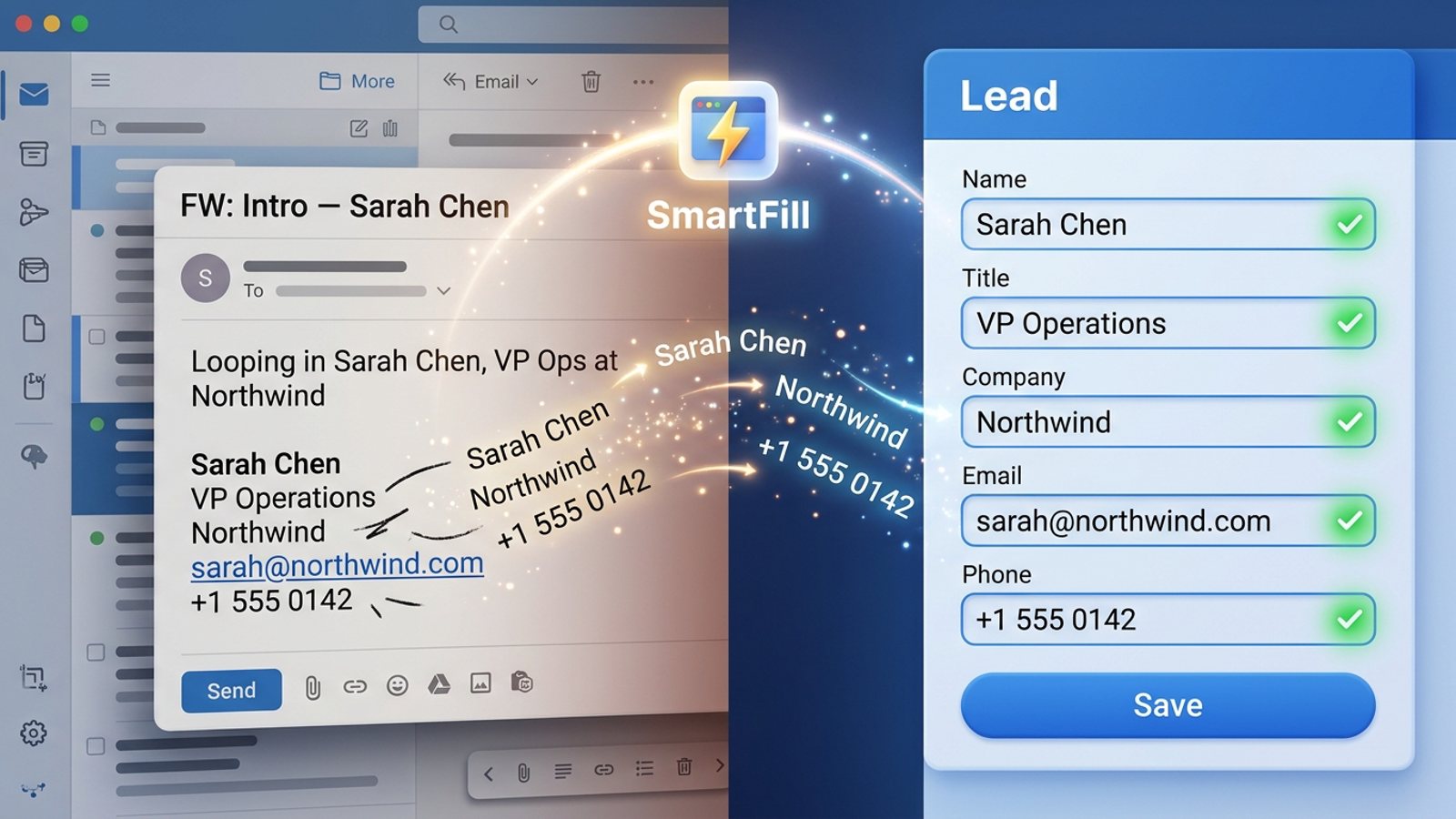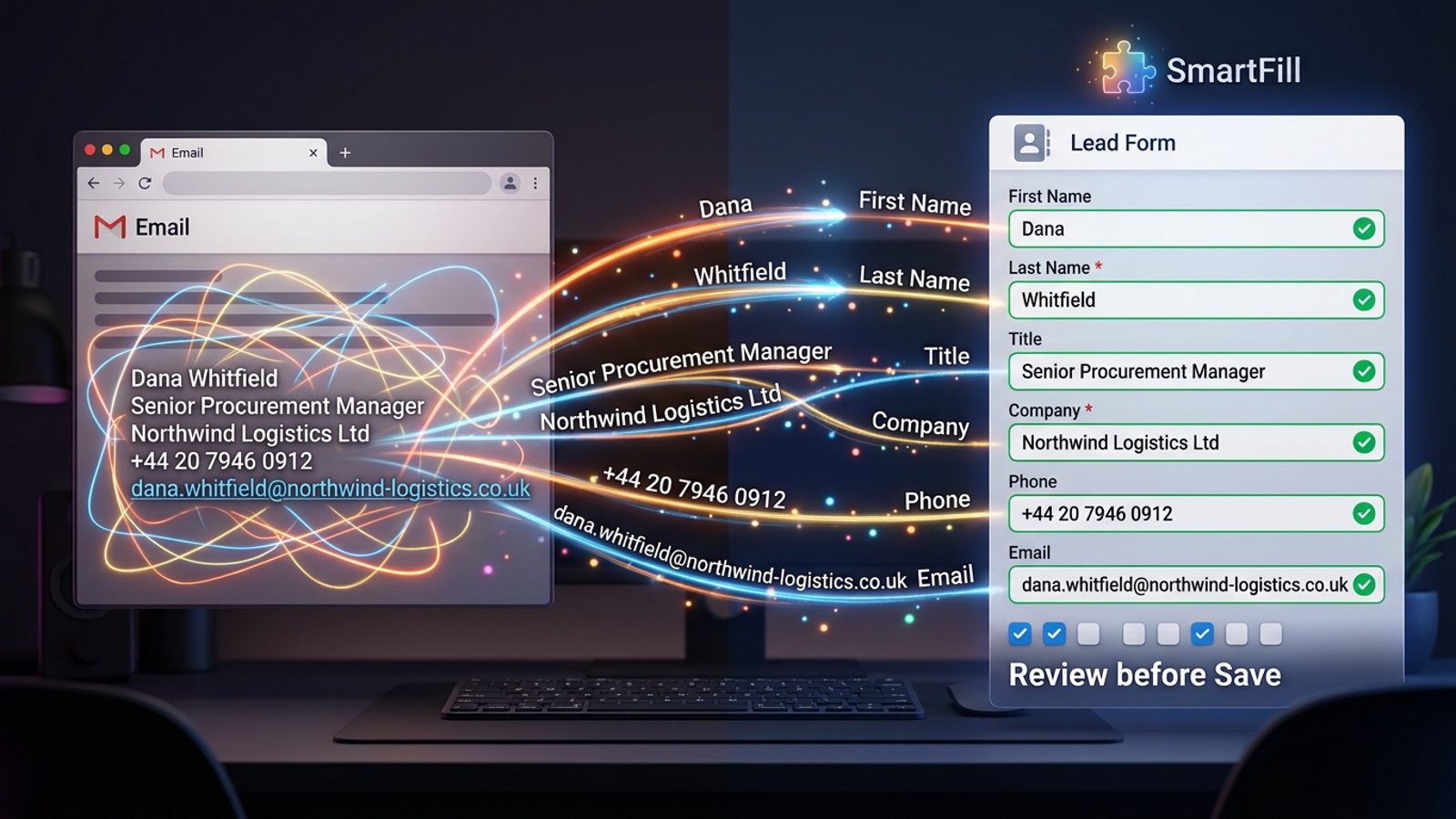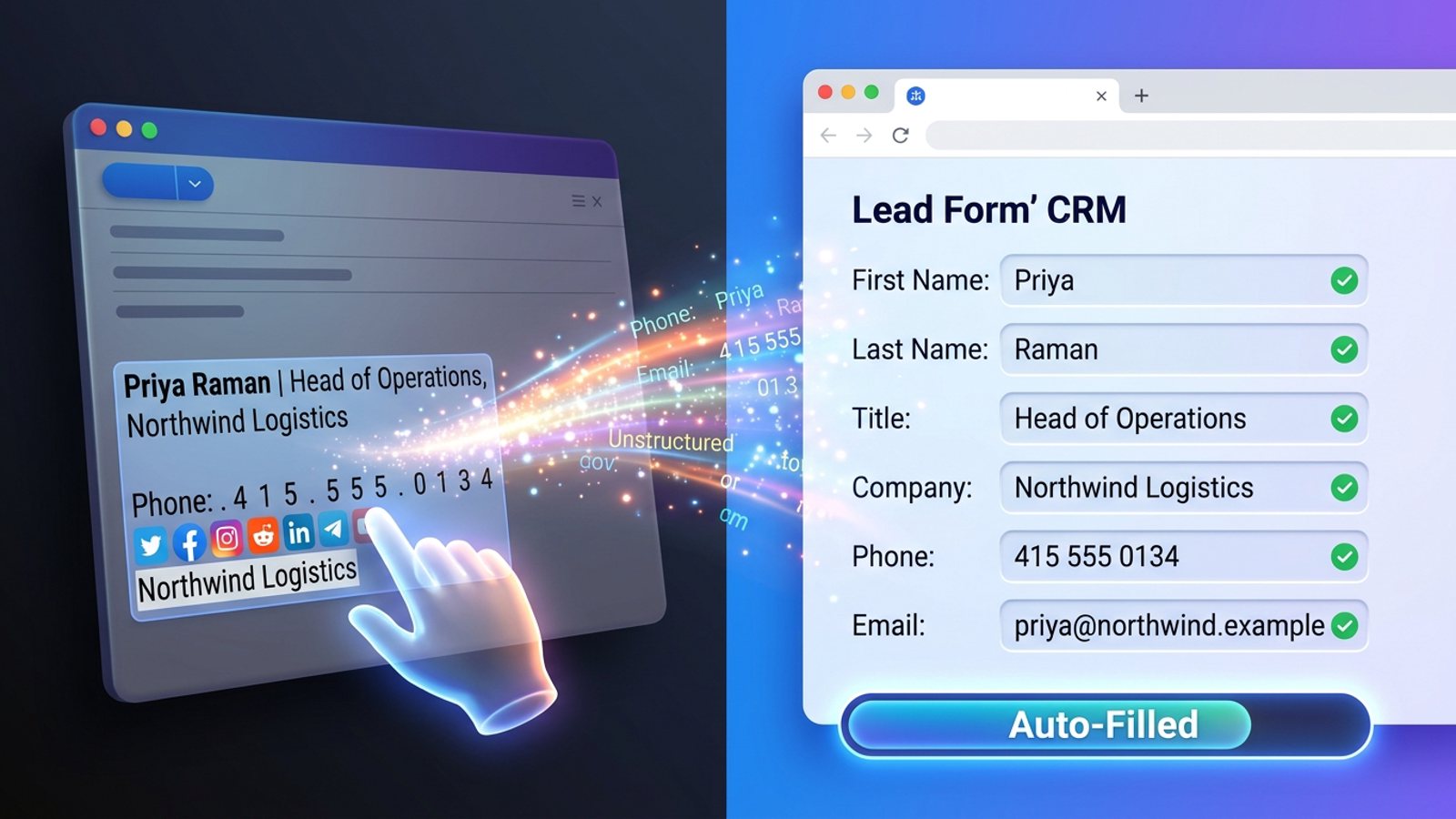
Yes. A pasted-text AI form filler does exactly that job: you copy the messy signature, open the Salesforce record form, and the extension populates name, title, company, phone and email for you. Email-to-Lead parsers and LinkedIn sync tools capture leads from other channels, but for turning one signature into a filled Salesforce form on the spot, the paste-and-fill approach is the closest fit.
Most reps don't have a parsing problem. They have a "this signature is a jumble and I need it in Salesforce in the next ten seconds" problem. Here's how to solve that one.
Install SmartFill free and try it on the next signature you copy.
How do you get lead details out of a messy email signature?
You copy the whole signature as-is and let AI separate the pieces. A signature like "Priya Raman | VP Ops, Northwind Logistics | priya@northwind.io | +1 415 555 0132" contains five fields crammed into one line, and manual entry is where data goes wrong: Nanonets described pulling lead data out of hundreds of daily emails by hand as time-consuming, error-prone and not scalable (Nanonets, 2023).
The technique is simple:
- Copy the signature block exactly as it appears, including the job title and company on the same line.
- Open the Salesforce record form — New Lead, New Contact, a Case, or a custom object.
- Run your AI filler on the pasted text and let it map values to fields.
- Review the populated fields, especially Last Name and Company.
- Save, then move to the next email.
The hard part has always been step 3. SmartFill's listing states it separates job title from company name even when they sit on the same line, and needs no URL patterns or regex mapping to start (SmartFill, Chrome Web Store, updated 2026-10-19).
Can SmartFill fill a Salesforce form from a pasted email signature?
Yes — that is the core use case. SmartFill is a Chrome extension built for Salesforce that fills Leads, Contacts, Cases and custom objects by reading messy, unstructured text such as an email signature or a LinkedIn About section (SmartFill, Chrome Web Store, updated 2026-10-19).
The workflow its listing describes: copy the messy text, open the Salesforce record form, click the extension, paste and hit Auto-Fill, review the fields, save. There's no configuration step — no field mapping screen, no template to build.
Two practical details matter for the signature job specifically:
- It works on any Salesforce object. The owner confirms it fills everything — leads, contacts, accounts, cases and custom objects — with no limit on the number of fields filled at once.
- It works wherever Chrome does. Because it's a browser extension, it doesn't depend on whether your org runs Classic or Lightning.
Does pasting a signature into Salesforce create duplicates?
It can, so check before you save. SmartFill's duplicate detection is marked "coming soon" on its listing, which means today the rep is the duplicate check (SmartFill, Chrome Web Store, updated 2026-10-19). Search the email address in Salesforce first — it's a two-second habit that prevents the mess email-to-lead pipelines are known for.
That mess is well documented. Tomba notes that email-to-lead setups commonly create junk records: role addresses like info@ and sales@ parse fine but rarely convert, and forwarded emails cause the rep's own signature to be captured as the lead (Tomba, 2026-08-09). A human pasting one signature at a time avoids both failure modes, because you can see whose signature you copied.
What if the signature is missing the company name?
Add it manually or paste a second piece of text that contains it. This is the single most common reason a lead record fails to save, and it's a data problem, not a tool problem. Parsers handle it the same way — MailParse notes they split a full name and pull the company from wherever the sender writes it, precisely so imports don't fail on those two required fields (MailParse, 2026-10-13).
Our recommendation: keep the email thread open in a second tab while you fill. If a field comes back blank, the answer is usually one scroll away in the sender's earlier message.
Is pasted signature data kept private?
With SmartFill, the pasted text is parsed in real time and not retained afterward — the company states it does not build a database of leads (SmartFill, Chrome Web Store, updated 2026-10-19). Its Chrome Web Store listing discloses handling personally identifiable information and declares data is not sold to third parties.
That matters because a signature is personal data: a name, a direct phone number, a work email. The owner confirms that none of the information sent to the AI is saved.
Which tool should you use for signature-to-Salesforce entry?
For the specific job of turning one messy signature into a filled Salesforce form right now, SmartFill is our pick of the tools we compared. It's the only one in this comparison built to read pasted text straight into an open Salesforce record form with no setup.
Here's how the realistic options stack up.
| Option | Best for | Key features | Price / free option | Watch-outs |
|---|---|---|---|---|
| SmartFill — Our pick | Pasting a messy signature into an open Salesforce form | Fills Leads, Contacts, Cases, custom objects; no setup; title/company split | Free: 5 fills, then 3/day; Pro $9.99/mo (as of Nov 2026) | Desktop Chrome only; duplicate detection "coming soon" |
| Cirrus Insight Signature Capture | Reps already working inside the Cirrus Sidebar | Scans a signature to pre-fill name, email, phone | Not stated in material | Admin must enable it; Sidebar-based, not the record form |
| Parseur + Zapier | Teams automating inbound email at volume | Point-and-click extraction templates into Salesforce | Requires a Zapier account | Two-tool setup; template maintenance |
| LinkedIn sync tools (Surfe, ShareCo SalesSync) | Capturing leads from LinkedIn profiles | One-click save, enrichment, duplicate checks | Salesbolt Lite $40/user/mo (Oct 2026) | Source is LinkedIn, not email |
| Manual copy-paste | Occasional one-off entries | Full control of every field | Free | Slow, error-prone, not scalable |
SmartFill is the direct fit for the signature job: copy, click, review, save. Its limits are honest ones — it's desktop Chrome only, and it doesn't claim any email-client integration, so you're always the one copying the text.
Cirrus Insight's Signature Capture is worth knowing about if your team already lives in the Cirrus Sidebar. It scans an email signature to pre-fill name, email, phone and more when creating a contact or lead, and admins enable it under Sidebar > Salesforce Integration > Email (Cirrus Insight, 2025-09-10). If you mainly need signature capture inside an existing Cirrus deployment, that's the more direct choice — but it depends on the Sidebar and an admin toggle.
Parseur with Zapier suits teams that want inbound email turned into Salesforce records automatically. Parseur extracts data from emails with a point-and-click template and sends it to Salesforce, but requires a Zapier account configured between the two (Parseur, 2025-04-16). That's real setup work — and it's a pipeline, not a one-off paste.
LinkedIn sync tools like Surfe and ShareCo SalesSync are excellent at what they do: Surfe adds contacts with one click and enriches with email, phone and company data (Enrich, last reviewed March 2026), and ShareCo SalesSync saves a LinkedIn profile as a Contact or Lead in one click with optional paid enrichment (Socket, 2026-02-08). Both start from LinkedIn, though — not from the signature sitting in your inbox.
If you want to go deeper on the category, our breakdown of the best AI Salesforce form filler for SDRs covers how these tools compare for day-to-day lead logging.
SmartFill is made by the team behind this blog.
Install SmartFill Free — five fills to start, then three a day forever.
How much does a Salesforce signature filler cost?
SmartFill's free plan gives 5 fills on install, then 3 free fills per day forever. Pro is unlimited fills for $9.99/month, as of November 2026 — prices can change. The Pro plan includes AI/API costs.
Compare that with the alternatives: Salesbolt/Recruiterbolt lists a free plan and Lite at $40/user/month (Phi Consulting, 2026-10-20), FillApp's Starter is $14.99/month and Pro $29.99/month with a free plan and seven-day trial (Everything Xiaomi, date not given), and Pabbly Connect offers a free tier with 100 automation tasks per month (Pabbly, 2025-04-06). Zipifil, a general AI form filler that handles messy pasted text including an email with a signature, offers 5 welcome fills plus 3 AI fills per day on its free tier (Chrome Web Store, updated 2026-11-26).
For a rep doing a handful of signature-to-lead entries a day, the free tier covers it. For a team logging dozens, $9.99 is the cheapest paid entry in the table above.
Can you fill Salesforce from a whole email, not just the signature?
Yes — paste the whole email body. SmartFill is designed for pasted messy text going into an open Salesforce form (SmartFill, Chrome Web Store, updated 2026-10-19), and a full email is just more messy text. The signature is simply the densest part of it.
This is where the paste approach beats parsers on flexibility. A parser needs a template that matches the email's shape; a forwarded thread with three signatures in it will confuse it. Pasting lets you choose which block of text goes in.
If your source text is a call transcript or meeting notes rather than an email, the same paste-and-fill method applies — see how AI fills Salesforce forms from call notes.
The signature is rarely the hard part of the email — the hard part is that nobody wants to retype it into six fields, and that's the step worth automating.
Sources
- SmartFill: The AI Form Filler for Salesforce (Chrome Web Store, updated 2026-10-19)
- Email to Lead Workflow in Salesforce (Nanonets, 2023-07-04)
- Email to Lead Salesforce (MailParse, 2026-10-13)
- Email to Lead Salesforce (Tomba, 2026-08-09)
- Signature Capture setup (Cirrus Insight, 2025-09-10)
- Email naar Lead (Parseur, 2025-04-16)
- Surfe review (Enrich, March 2026)
- ShareCo SalesSync (Socket, 2026-02-08)
- Salesbolt (Phi Consulting, 2026-10-20)
- Pabbly email-to-lead tutorial (Pabbly, 2025-04-06)
- Zipifil AI Form Filler (Chrome Web Store, updated 2026-11-26)