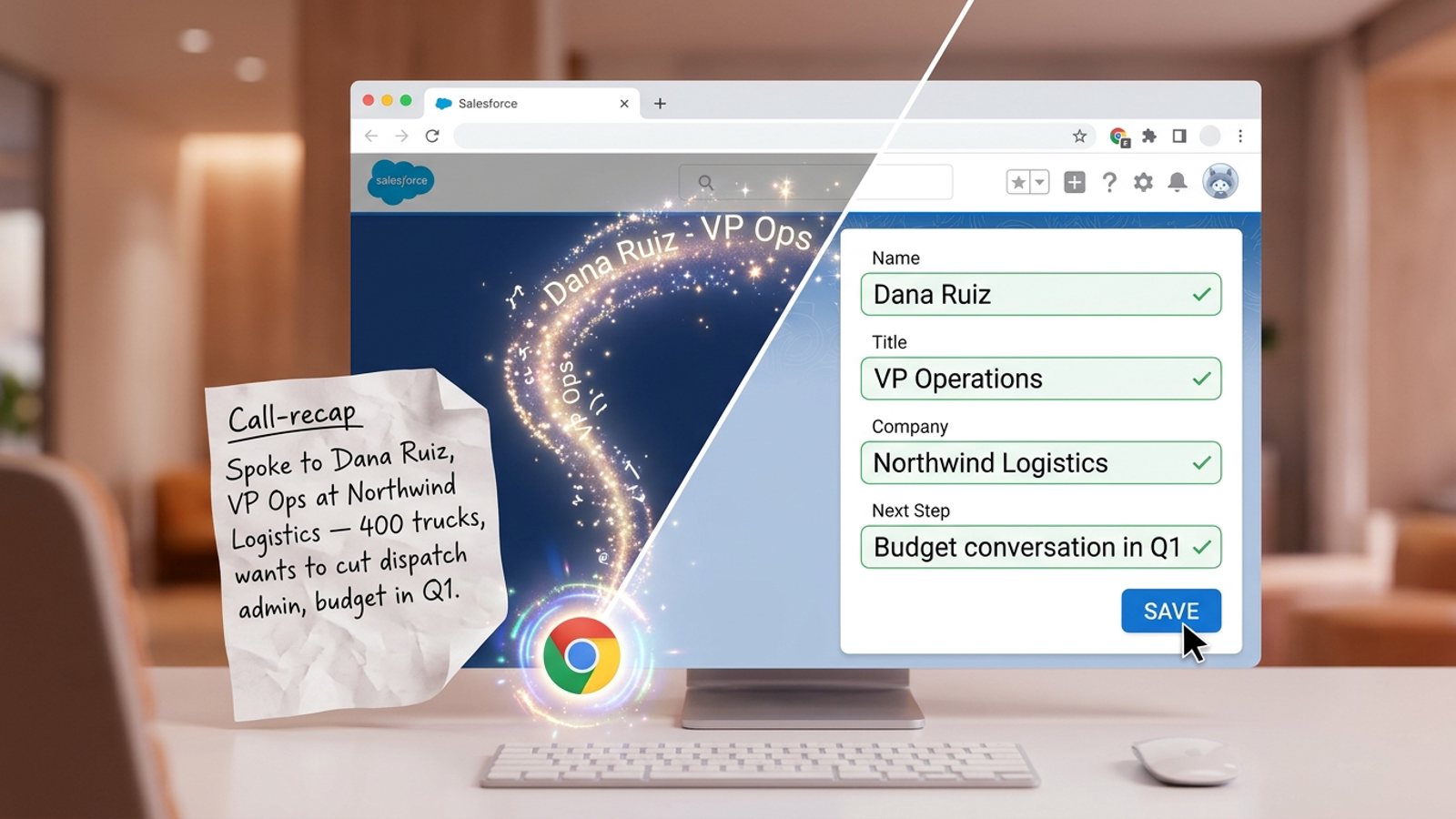
Yes. An AI form filler can take the messy text you already have after a call — an Otter.ai transcript, Google Meet notes, or your own scribbles — and turn it into filled Salesforce fields. The recording and summarising happens in a separate meeting tool first; the filler handles the last mile into the record.
You finish a 30-minute discovery call, the transcript lands in your inbox, and now someone has to turn "budget approved in Q1, wants the enterprise tier, decision-maker is Priya" into a clean Lead or Opportunity record. That gap — between a transcript and a filled form — is what this article is about.
Install SmartFill free and paste your next call summary straight into the record instead of retyping it.
Can AI really turn a messy call transcript into Salesforce field values?
Yes, with one condition: you review the values before you save. The AI For Your Task guide on turning call notes into CRM updates (2026) says the job saves typing but every field must be checked, because a wrong date or amount in the CRM misleads everyone who reads it later — it rates the risk medium because call notes contain customer details.
Here's what that looks like in practice. Say you run a two-person sales team selling packaging to mid-market food brands. Your AE finishes a call and pastes this into a filler:
"Spoke to Marco at Bellini Foods. Wants 50k units by March. Currently on a competitor, unhappy with lead times. Budget roughly €40k. Next step: send samples Friday."
A paste-and-fill tool reads that and proposes Company = Bellini Foods, Contact = Marco, Quantity = 50,000, Close Date = March, Amount = €40,000, Next Step = send samples Friday. You scan the proposals, fix anything wrong, and save. That's the whole loop.
Why doesn't Chrome just autofill the Salesforce form for me?
Because Chrome's autofill was designed for static HTML forms, and Salesforce runs on Lightning Web Components whose inputs are rendered and managed by JavaScript that Chrome's scanner wasn't built to handle. QuickForm (2026, vendor blog) notes that a 10–30-field Salesforce workflow can still take 5–10 minutes even with your Chrome data already saved.
That's the core frustration. You have the data — it's sitting in the transcript — and you have the form. What's missing is something that reads one and writes the other, with the field types Salesforce actually uses.
How do you fill Salesforce from a call transcript, step by step?
Follow this sequence and you keep the speed without losing accuracy.
- Capture the call. Let a dedicated tool transcribe it: Otter joins the meeting automatically, or use Gemini's note-taking inside Meet. SmartFill doesn't record or transcribe calls — that's this step's job.
- Open the record. Pull up the Lead, Contact, Opportunity or custom object in Salesforce and click into the first field you need.
- Paste the text. Drop the transcript or your own notes in as plain text and have the filler propose a value for each field. AutoFiller by Utilery (Chrome Web Store, updated 2026) and Jev Form Fill (GitHub, 2026) both work on this paste-and-match pattern.
- Review every proposal. Check dates, amounts, and especially picklist and lookup fields before you apply anything.
- Save the record yourself. Then confirm the activity is linked to the right lookups, so it shows up where your manager actually looks.
That last point matters more than it sounds. Craqly (2026) points out that Salesforce stores a logged call as an Activity hanging off two lookups — the person and the record it was about — while HubSpot stores a call as its own record. A note can save perfectly and still be invisible on the opportunity.
What are the best tools for filling Salesforce from call notes?
Here's how the options compare, with SmartFill first because it's the one built for this exact job.
| Option | Best for | Key features | Price / free option | Watch-outs |
|---|---|---|---|---|
| SmartFill (Our pick) | Pasting call notes into any Salesforce form | Fills from any pasted text, handles messy data, no setup, all objects | Free: 5 fills, then 3/day; Pro $9.99/mo | Desktop Chrome only |
| Otter.ai | Getting the transcript in the first place | Auto-joins Zoom/Teams/Meet, summaries, action items | Free Basic tier; paid Pro/Business/Enterprise | Free tier caps; Salesforce field mapping depth not confirmed |
| Google Gemini in Workspace | Teams already on paid Workspace | Transcription, summaries, drafts inside Gmail/Docs/Meet | Included in paid Workspace plans | Output is text, not Salesforce fields |
| Chrome built-in autofill | Name, address, email on plain forms | Free, already installed | Free | Doesn't handle Lightning Web Components |
| Manual typing | Full control, no tool risk | You judge every field | No licence cost, but slow | Error-prone; 5–10 min per form |
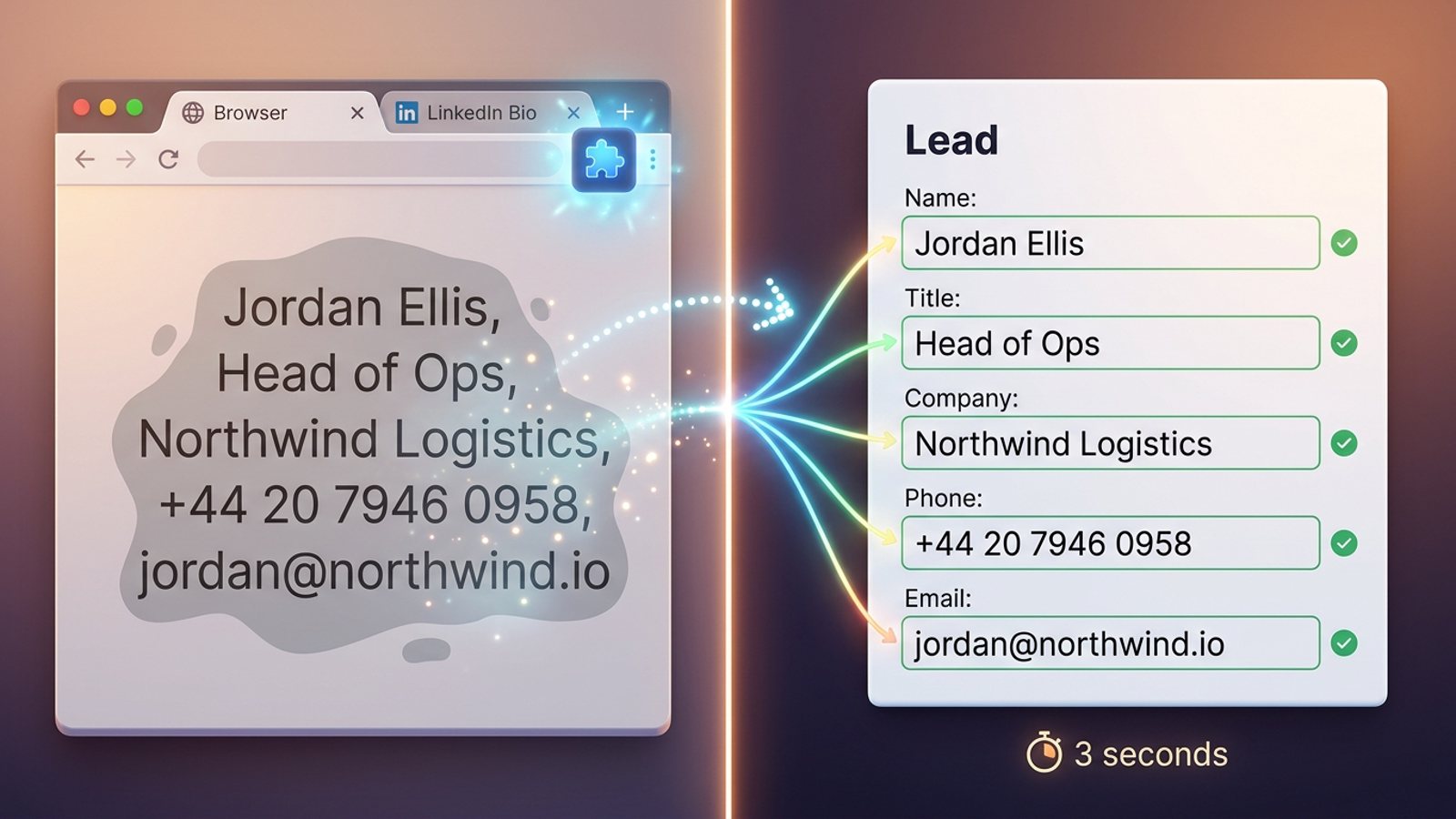
SmartFill is our pick of the tools we compared because it does the one thing the others leave to you: it takes pasted text — email signatures, LinkedIn bios, call summaries, whatever shape it's in — and fills the Salesforce form from it. There's no setup or configuration, the install takes about 10 seconds with no sign-up, and it works on any Salesforce object, with no limit on how many fields it fills at once. Text is processed in real time and not stored, and no lead database is built. SmartFill is made by the team behind this blog.
The honest limit: it's a desktop Chrome extension. If your team works on mobile or in another CRM, it isn't the tool for that job.
Otter.ai is the strongest option here for step one — getting a clean transcript out of a Zoom, Teams or Meet call without anyone taking notes. Its free Basic plan includes 300 transcription minutes a month with real-time transcription, speaker identification and AI summaries, according to a third-party comparison (undated), and file imports are capped at 3 for the lifetime of the account. Otter lists CRM sync as a feature (The AI Agent Index, 2026), though the depth of its Salesforce field mapping wasn't confirmed in the material we reviewed. If you mainly need transcripts and summaries, Otter is the more direct choice.
Google Gemini in Workspace suits teams already paying for Workspace Business or Enterprise, where Google announced the AI features without a separate add-on (ANTARA News, 2025 — an older source). It transcribes meetings and drafts and summarises inside the apps you already use, with data covered by Google's enterprise agreement (Exabytes.SG, 2026, partner blog). But its output is text — summaries, emails, docs — and no source in our material confirms Gemini writes into Salesforce record fields directly.
Chrome built-in autofill is free and already there. It's fine for identity fields on ordinary static forms, but QuickForm's 2026 analysis is that it doesn't fire the JavaScript events Salesforce's Lightning inputs need.
Manual typing gives you full control and no tool risk, and the AI For Your Task guide insists every field needs checking anyway. It's just slow, and a wrong date typed in a hurry misleads the next person who reads the record.
Is it safe to paste call notes into an AI form filler?
It can be, if you know how the tool handles your text. Call notes contain customer details, which is why the AI For Your Task guide rates the job medium risk. Chrome's User Data Policy applies even when data is processed or stored only locally — extensions must disclose how they handle user data whether or not it leaves the device (Chrome for Developers, undated).
Two things to check before you paste anything:
- Does it store what you paste? Chrome's own privacy guidance notes that extension storage isn't encrypted on the client side, so sensitive user data shouldn't be kept there.
- Does it ask for more access than it needs? Chrome recommends the
activeTabpermission as a less invasive alternative to broad host permissions — access is only granted when you invoke the extension and is cut off when you navigate away or close the tab.
SmartFill's position is that none of the information sent to the AI is saved, and no lead database is built. Our recommendation: still treat every pasted transcript as containing customer data, and don't paste anything you wouldn't put in an email.
The transcript is the easy part; the value is in getting it into the record correctly, with a human eye on every field before it's saved.
What does SmartFill actually do with your call notes?
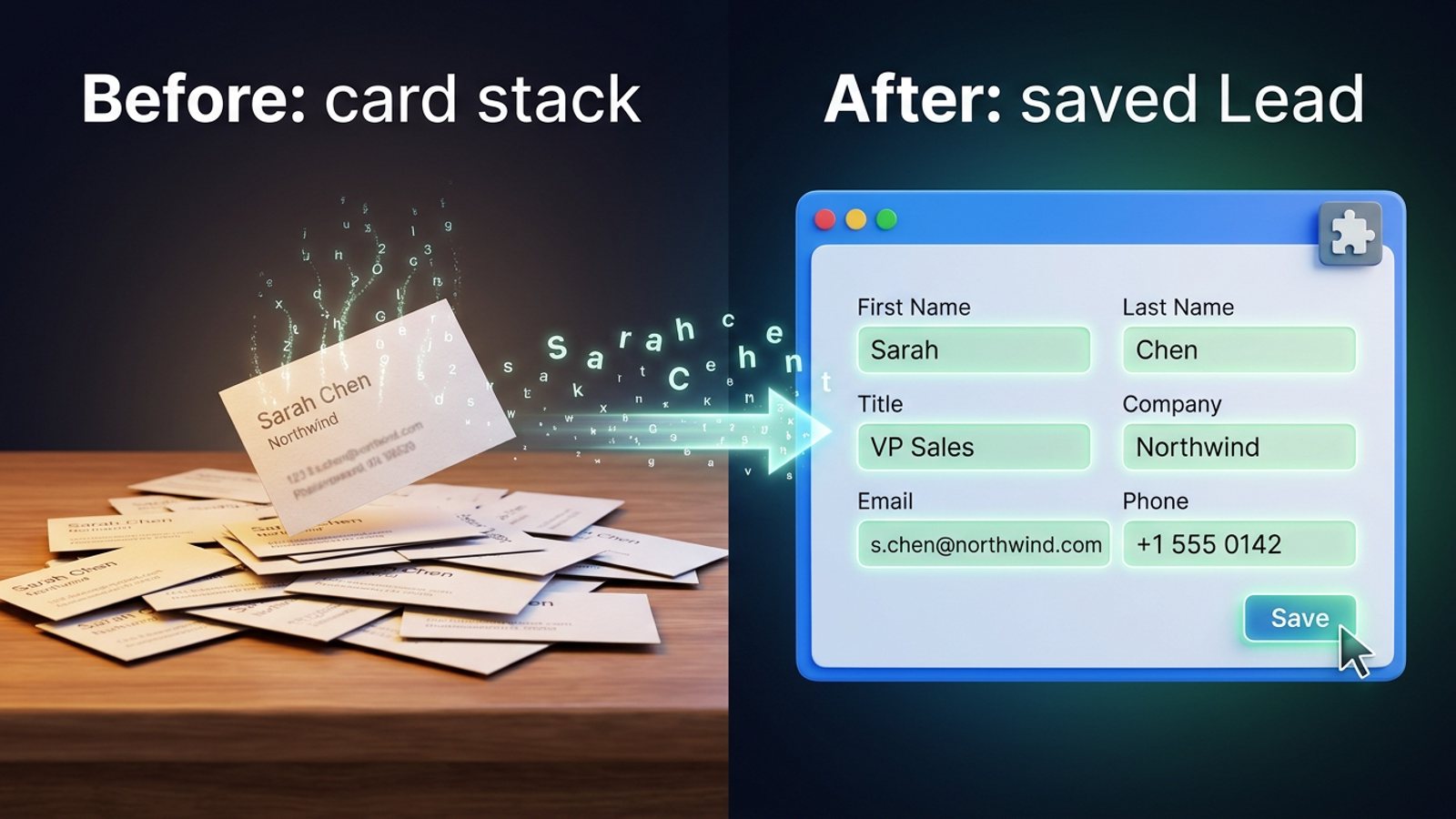
It reads the pasted text and fills the Salesforce form for you — no mapping, no templates, no field-by-field clicking. You copy your notes or transcript, open the Salesforce record, click the SmartFill icon, and watch the form populate. It works on Leads, Contacts, Accounts, Opportunities and custom objects — anything that works from a Chrome browser, whether that's Salesforce Classic or Lightning.
Because it handles messy, unstructured data, you don't need to tidy the transcript first. Email signatures, half-sentences, a bio copied from LinkedIn — it all goes in the same way. There's a free plan with 5 fills to start and 3 per day forever, or unlimited fills on Pro at $9.99/month, as of November 2026 — prices can change.
If you want to see how this compares for your specific record type, read our guide to the best AI tool to fill all Salesforce fields from pasted text, or check the best Salesforce form filler extension for Chrome if you're still weighing up extensions.
Ready to stop retyping call notes? Install SmartFill free and paste your next transcript straight into the record.
Sources
- Otter.ai Pricing (Otter.ai, updated 2026-10-27)
- Otter.ai Review 2026 (The AI Agent Index, updated 2026-11-11)
- Otter 免费套餐额度与付费对比 (third-party GitHub gist, undated)
- Google Workspace & Gemini AI: Features for Singapore Businesses (Exabytes.SG, 2026-10-20)
- Google hadirkan fitur AI di Workspace Business dan Enterprise (ANTARA News, 2025-01-16)
- Google Gen AI for Sales (Digicloud Africa, 2025-10-09)
- Best Chrome Extension to Autofill Salesforce Forms (QuickForm, 2026-06-09)
- How to Share Call Notes With Your CRM the Right Way (Craqly, 2026-09-01)
- Call notes to CRM update with AI (AI For Your Task, 2026-10-23)
- Lead Source not populating in to Salesforce (WordPress.org forum, 2018-07-18)
- User Data FAQ (Chrome for Developers, undated)
- Extension user privacy guidance (Chrome for Developers, undated)
- takasek/jev-form-fill (GitHub, 2026-10-02)
- AutoFiller by Utilery (Chrome Web Store, updated 2026-08-06)
- AI Cowork for Salesforce (Socket.dev, 2026-06-08)