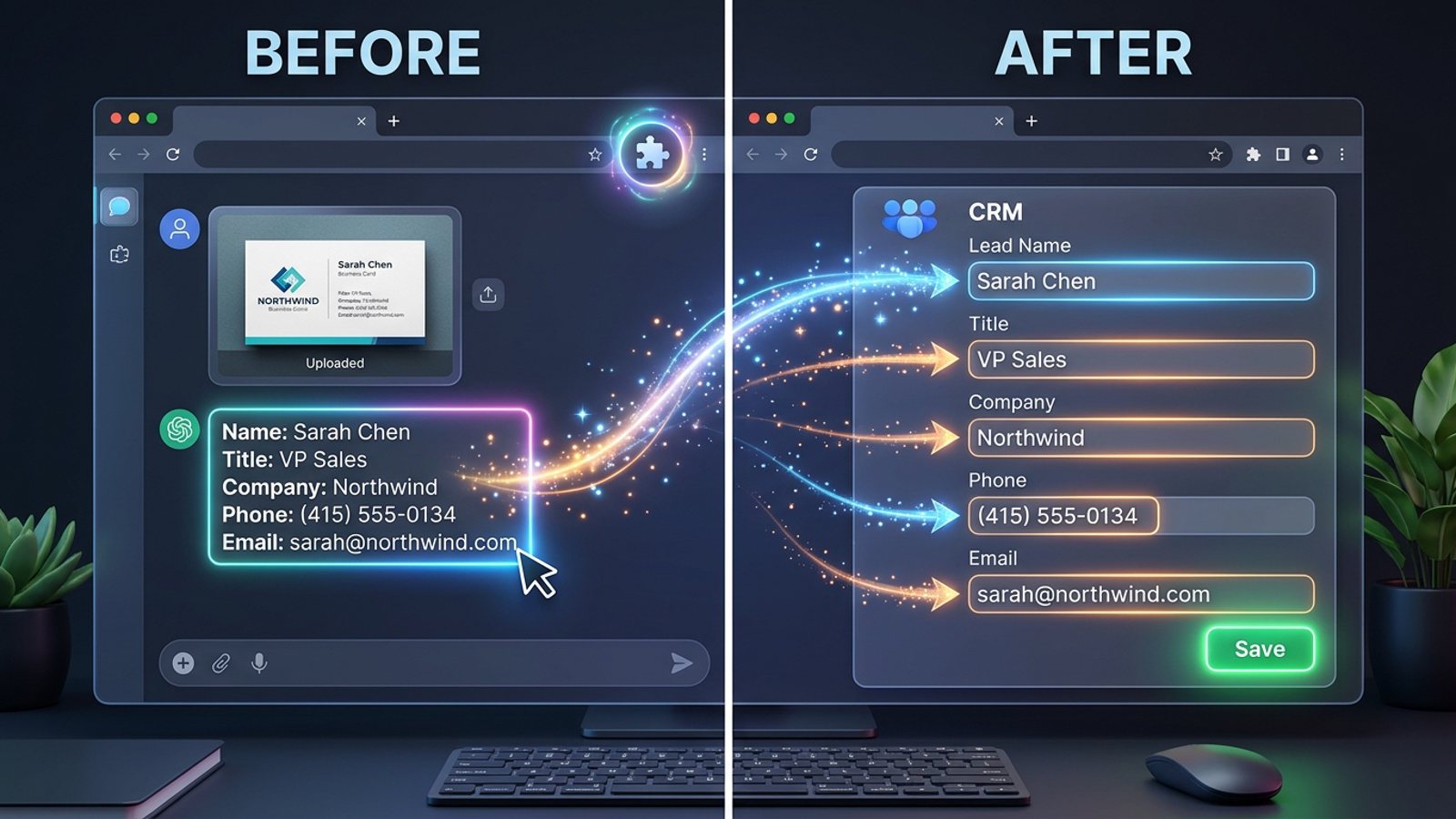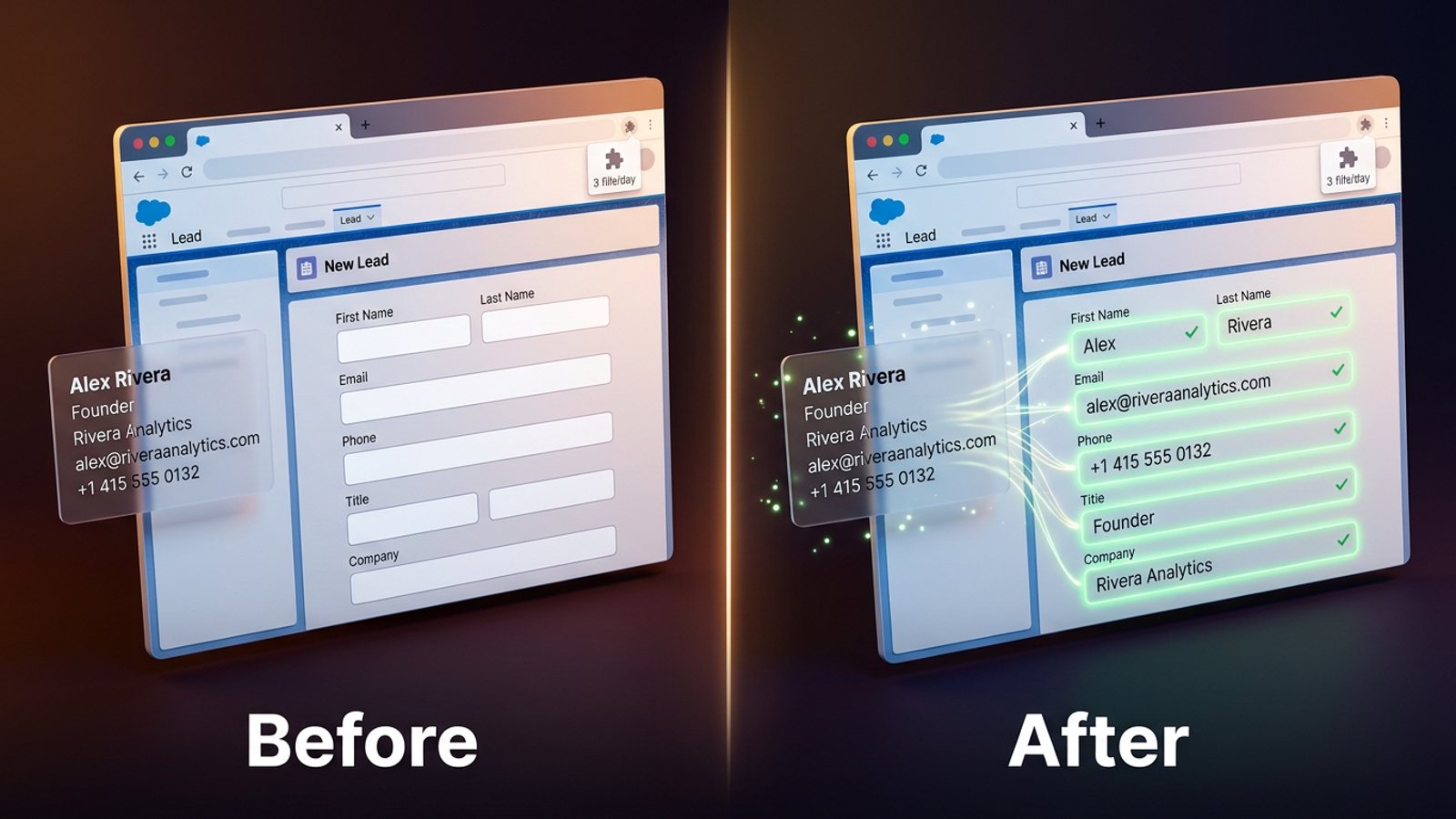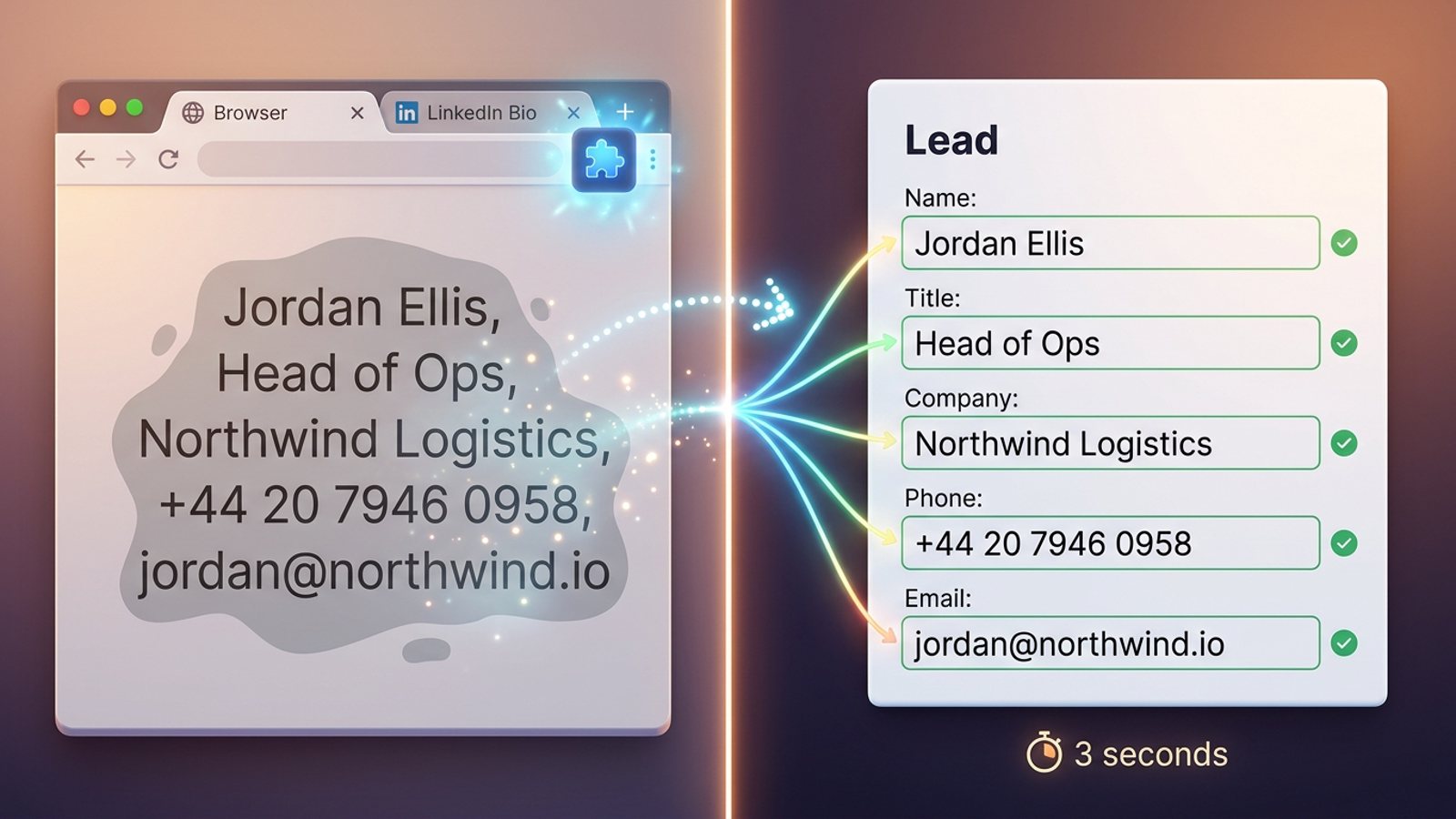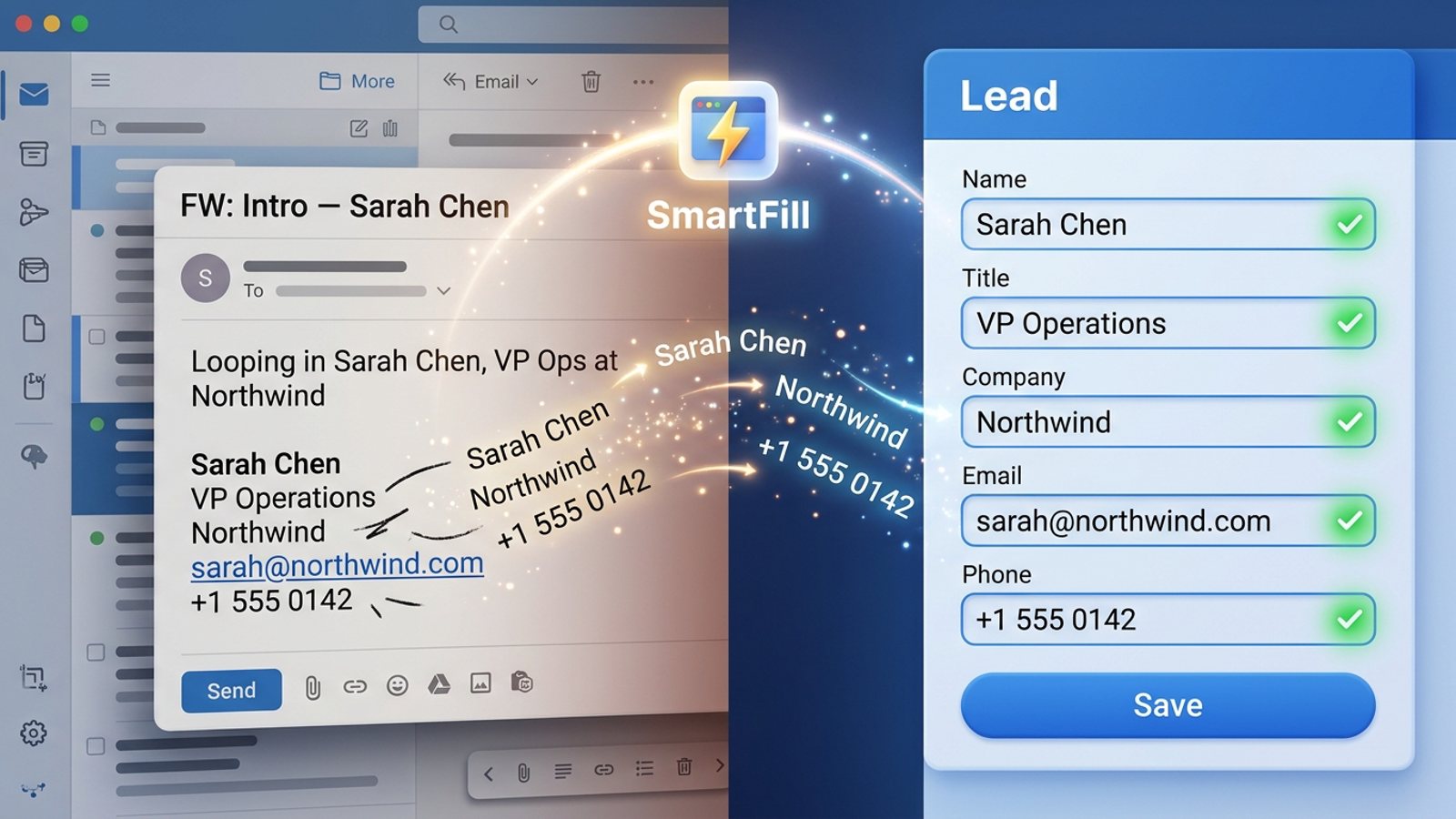
Yes. SmartFill is a Chrome extension that fills Salesforce forms from pasted text — copy the details off a card (or from an email signature or LinkedIn profile) and the AI populates the fields for you. It does not scan card images: you supply the text, and it handles the typing. Business card scanner apps are the other route, and they OCR the card with a phone camera.
Ready to clear that stack of cards? Install SmartFill Free and turn the next card into a saved Lead in seconds.
How does an AI form filler work from a business card?
You give it the text, and it maps that text onto the fields. SmartFill reads messy, unstructured input — an email signature, a LinkedIn About section, a paragraph — and separates things like Job Title from Company Name even when they sit on the same line. Nothing is configured: install the extension, open the Salesforce record in Chrome, paste, and the form fills.
That is the whole technique, and it is worth understanding even if you use another tool. The hard part of logging a card was never the typing speed — it is the parsing. A card gives you a name, a title, a company, an email and a phone, in no particular order and with no labels the CRM recognises. An AI filler's job is to work out which string is which.
Is there an AI that fills Salesforce forms from a business card?
Yes — and the honest answer is that there are two different jobs being done. One is capturing the card: turning a piece of cardboard into text. The other is filling the form: turning text into a clean Salesforce record. SmartFill does the second one, which is where the manual time actually goes.
Here is the flow with SmartFill:
- Capture the text — type the name, title, company, email and phone into a note, or copy the person's email signature or LinkedIn text if that is quicker.
- Install the extension — one click from the Chrome Web Store, no sign-up.
- Open the record — start a new Lead, Contact, Case or custom object record in Salesforce, in Chrome.
- Paste and Auto-Fill — click the SmartFill icon, paste the text, hit Auto-Fill.
- Check and save — confirm the required fields, then save.
If you are doing this repeatedly on the same Salesforce page, optional Page Rules let you save a rule for that page so the icon click fills from whatever is on your clipboard — no pasting step.
Which tool should you use for a stack of business cards?
It depends on whether you have the card in your hand or the text on your screen. If you are standing at a booth with a pocket full of cards and no laptop, a scanner app is the more direct choice. If you are back at your desk with the cards beside you and Salesforce open, pasting the text into SmartFill is faster than photographing each card and checking the OCR.
The options, compared
| Option | Best for | Key features | Price | Watch-outs |
|---|---|---|---|---|
| SmartFill (Our pick) | Desk work: card text → filled Salesforce form | Pasted text, any Salesforce form, no setup | Free: 5 fills, then 3/day; Pro $9.99/mo | No card scanning; Chrome desktop only |
| ScanBizCards | Phone-first capture with CRM export | Card and badge scanning, direct export | Ninja plan $100/user/yr (Sept 2026) | Free plan has no CRM export |
| Vision-e | OCR inside Salesforce | Scans cards and badges | OCR tier $49.99/user/mo (Sept 2026) | OCR only, no enrichment |
| CamCard for Salesforce | Existing CamCard users | iOS card scanning | $7.99/user/mo (Sept 2026) | Last updated November 2019 |
| CSV + Data Import Wizard | Bulk, after the event | One import, matched on email | Included in Salesforce | Needs a CSV source first |
Prices for other tools are as of September 2026, from a Vendelux roundup, and prices can change. SmartFill's Pro plan is $9.99/month as of November 2026, and prices can change.
SmartFill is made by the team behind this blog. Of the tools we compared, it is our pick for the desk-side job because it needs no setup, works on any Salesforce form you can open in Chrome, and keeps no lead database. Its limits are real: it does not scan cards, duplicate detection is listed as coming soon rather than live, and it is a Chrome extension, so desktop only.
If you mainly need to photograph cards at a booth and have them land in Salesforce without a laptop, ScanBizCards or Vision-e are the more direct choice. If you are importing 50 cards at once after a conference, Salesforce's own Data Import Wizard handles that in a single run — Salesforce Help (June 2026) gives exactly that example, and Vendelux (September 2026) notes it can match on email and add campaign members in the same pass, up to 50,000 records per run.
Want the desk-side route? Install SmartFill Free — it is our pick of the tools we compared for filling Salesforce forms from pasted card details.
Does Salesforce have its own business card scanner?
No. Salesforce Help (published June 2026) states Salesforce has no built-in support for scanning business cards, and instead points to importing card data as Contacts, Leads or Accounts from a CSV using Data Import Wizard or Data Loader.
So whatever you choose, you are adding something: an AppExchange scanner, a third-party app, or a paste-and-fill tool like SmartFill. Teams commonly add scanning through AppExchange apps such as Vision-e, ScanBizCards or Blackthorn Smart Capture, or capture with another app and import a CSV into a campaign (Vendelux, September 2026).
What are the most common mistakes when logging cards into Salesforce?
The biggest one is creating a new Lead for every card without checking whether the person already exists. Duplicates enter Salesforce from web forms, imports and manual entry, and they cause repeated outreach and automations firing on stale records (Plauti, a vendor blog, September 2025).
The other mistakes, per XfilesPro (a vendor blog, November 2026): trusting OCR output as perfectly accurate, mapping to the wrong fields, ignoring existing Leads and Contacts, not attaching event leads to Campaigns, and ignoring privacy and consent rules.
A few practical guards, from our own experience:
- Check for an existing record first — search the email address before creating anything.
- Set Lead Source and the event Campaign — otherwise you cannot attribute the show.
- Confirm the required fields — Last Name, Company and Lead Status are needed to save a Lead (Salesforce Dictionary, August 2026).
How do you stop business cards from creating duplicate leads?
You configure duplicate rules before the event, not after. Matching rules and duplicate rules work together to warn reps about possible duplicates before a record is saved (Trailhead). Lead assignment rules apply whether leads are created manually, via Web-to-Lead, or imported, and only one rule of each type can be active at a time (Nick Frates, October 2026).
Inside SmartFill, duplicate detection is listed as coming soon, so for now the check is yours to make. That is a limitation worth knowing before you rely on it.
Is pasting card text as good as scanning the card?
For accuracy at the desk, it can be better, because you are supplying text you can read. The trade-off is that you still have to get the card's details into text form. If you have the card in front of you, typing five fields into a note takes a moment; the AI does the rest of the mapping, which is where the real time goes.
The manual alternative — typing each field straight into Salesforce — is slow and error-prone, and it is one of the routes that introduces duplicates (Plauti, 2025). Three required fields have to be filled every single time.
The card is not the hard part — the parsing is. Once the text exists, an AI filler turns it into a clean record in seconds.
What about Web-to-Lead?
Web-to-Lead is not a card-capture tool. It generates an HTML form you embed on your own website and writes Lead records automatically (Thunderbit, a vendor blog, updated July 2026). It caps at 500 submissions per 24 hours, does not support file uploads, has no field validation and no deduplication, and only writes to the Lead object (FormAssembly, a vendor blog, 2023; Salesforce repeats the 500-per-day limit).
It is genuinely useful for a landing page at the show. It does nothing for a physical card.
What should you check before installing a scanning app?
Vendelux (September 2026) lists the checklist: leads versus contacts, campaign membership, duplicate checking, custom field mapping and owner assignment, edition support (some apps require Enterprise, Unlimited or Performance), and badge support or enrichment.
Two more from the same roundup worth weighing: CamCard for Salesforce was last updated in November 2019, and Vision-e's OCR tier runs $49.99 per user per month — a real cost if you are equipping a booth team.
For the desk-side workflow, SmartFill skips most of that checklist: no edition requirements stated, no setup, and it works on any Salesforce form you can open in Chrome. If you want to see how it compares on other record types, read our guide to filling all Salesforce fields from pasted text, or the best way to fill Salesforce forms without typing.
Sources
- SmartFill: The AI Form Filler for Salesforce (Chrome Web Store, updated 2026-10-19)
- Does Salesforce Have a Business Card Scanner? (Vendelux, 2026-09-27, updated 2026-10-16)
- Import Business Card Data into Salesforce Using CSV or Data Import Wizard (Salesforce Help, 2026-06-03)
- Business Card OCR for Salesforce (XfilesPro, 2026-11-12)
- Web-to-Lead in Salesforce (Salesforce, date not given)
- Salesforce Web-to-Lead integration guide (Thunderbit, updated 2026-07-13)
- Salesforce forms / Web-to-Lead limits (FormAssembly, 2023-11-18)
- Create and convert a Lead in Lightning Experience (Salesforce Dictionary, 2026-08-22)
- Lead assignment rules (Nick Frates, 2026-10-27)
- Duplicate management module (Trailhead, date not given)
- How to deduplicate in Salesforce (Plauti, 2025-09-21)