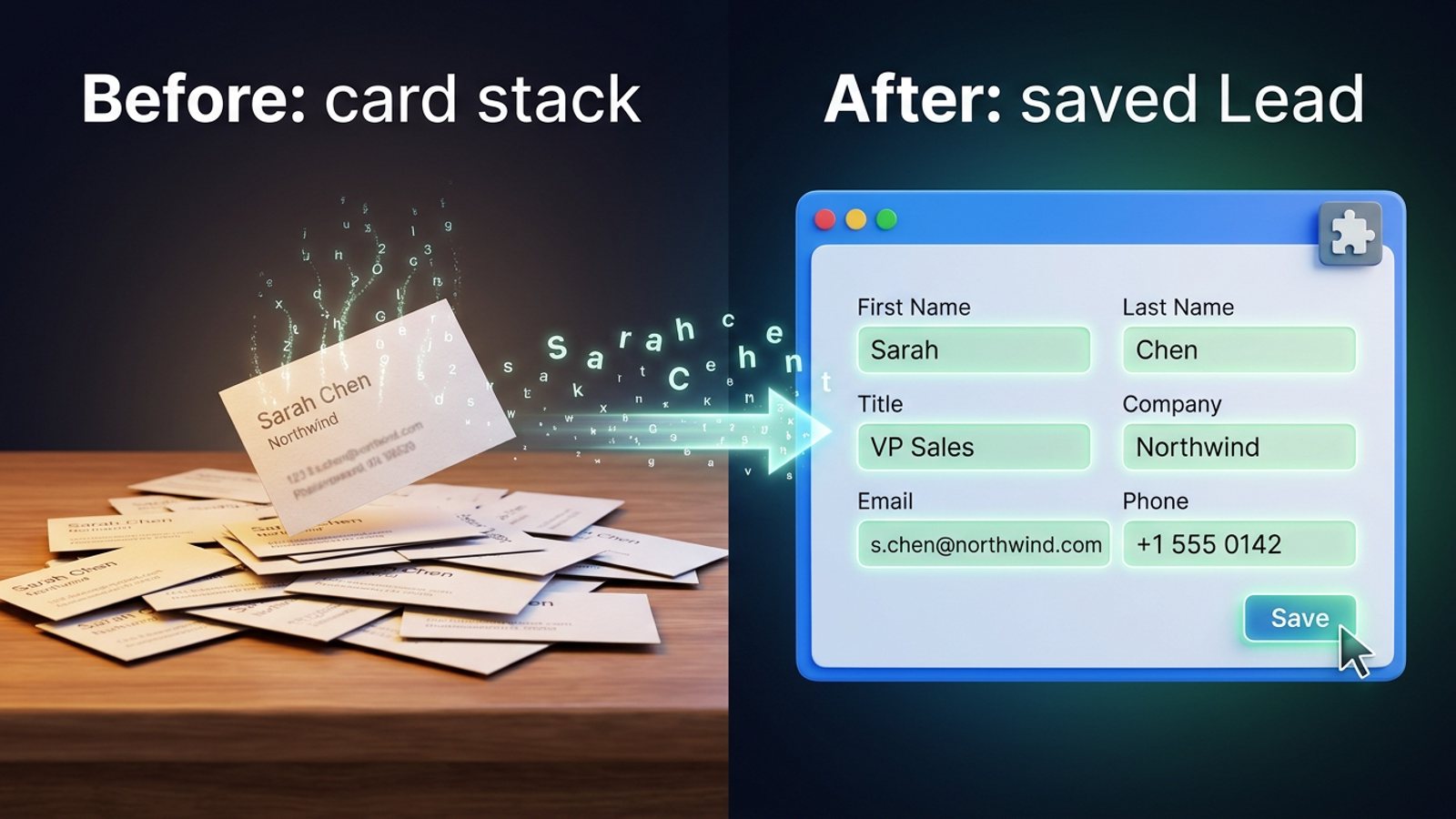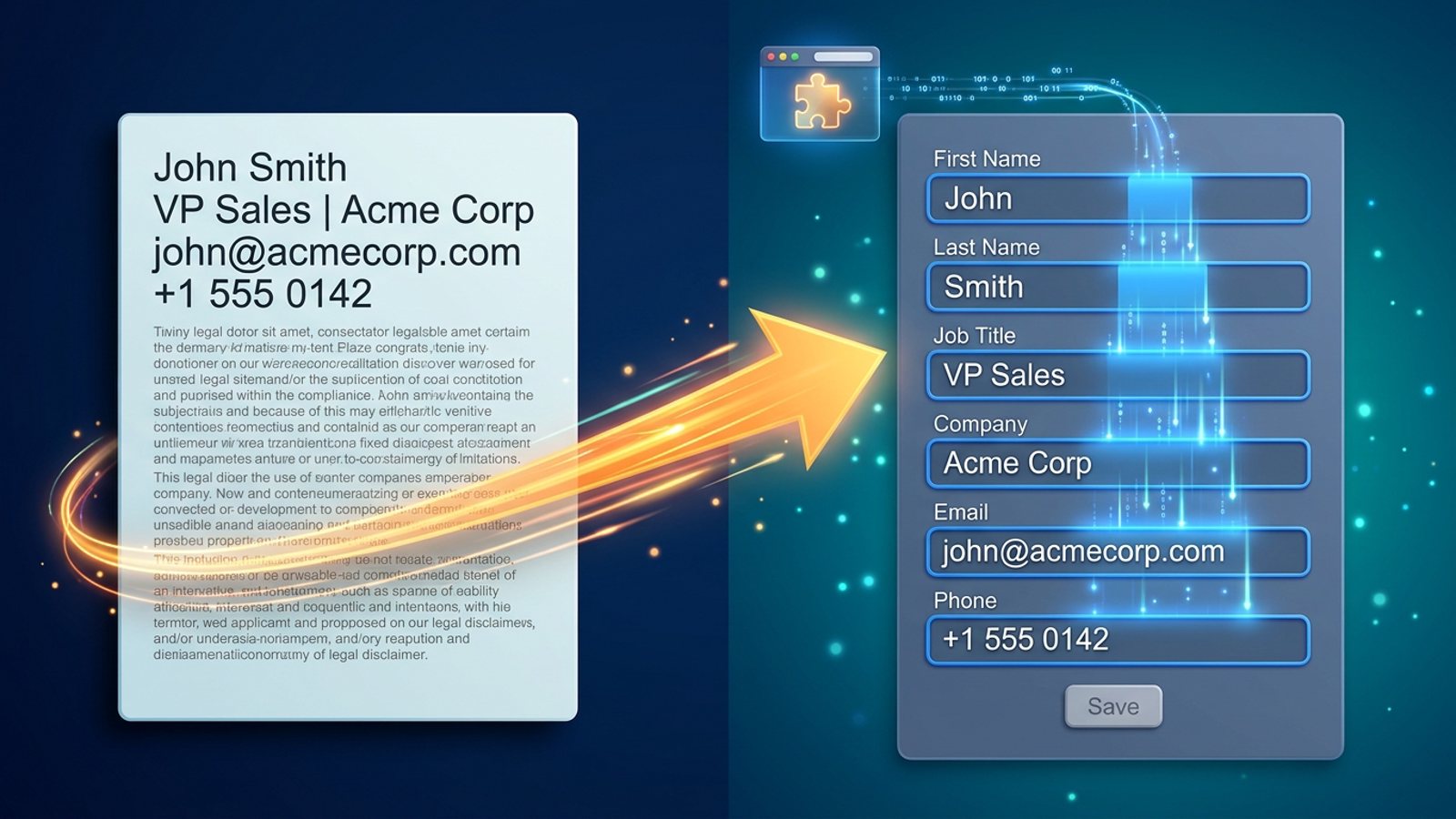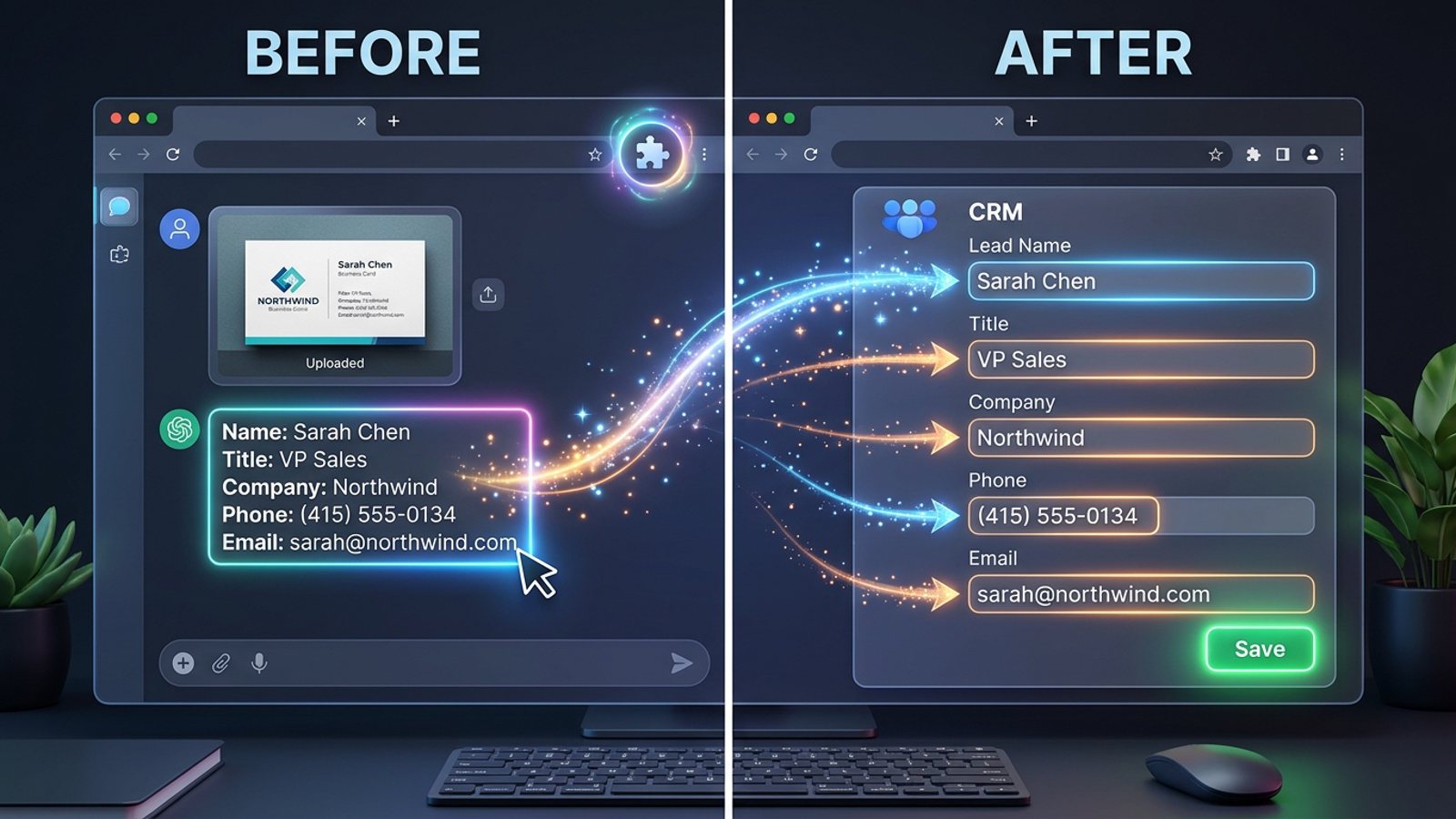
Gemini can read a business card screenshot and pull out the name, company, title, phone and email — but it stops there. It has no documented connection to your Salesforce org, so nothing lands in the Lead or Contact fields until something else does the filling. You either copy Gemini's output into the form by hand, or paste that text into a tool like SmartFill, an AI form filler for Salesforce, that populates the fields for you.
Ready to skip the copy-paste? Install SmartFill Free and turn Gemini's output into a filled Salesforce form in one click.
Can Gemini read a business card screenshot?
Yes. Gemini's app accepts image uploads, and free users can now upload files from their device, Google Drive or photo gallery — a feature that used to be limited to paid subscribers (Punto Informatico, February 2025). Ask it to "save this contact" and it scans the card, shows a summary of the key data, and asks whether to officially save it (Futurezone, November 2026).
The catch is where that contact goes: your phone's contact book. Futurezone's write-up describes a Google contact, not a Salesforce record.
What does Gemini actually give you back?
Plain text. Name, title, company, email, phone — laid out in a readable summary you can correct before saving. That's genuinely useful if you've been squinting at a card photo. It is not a field mapping.
Does a gemini salesforce form filler exist?
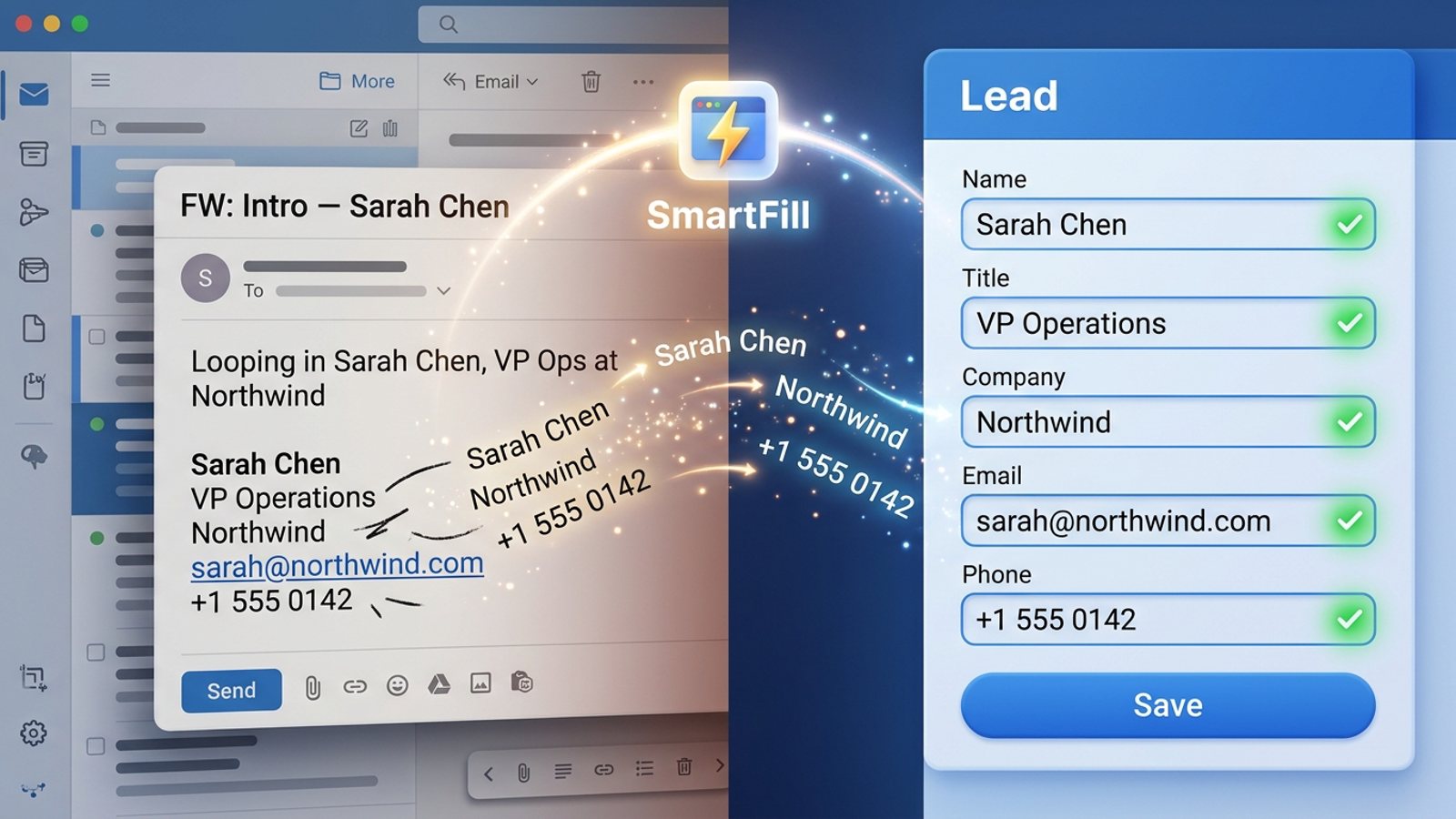
Not as a single Google product. The Salesforce extension for Gemini in Gmail (generally available) lets sellers create new Salesforce leads from Gmail and pull Salesforce data into Gemini in Workspace (Cloud Ace Indonesia, April 2026). That works from emails inside Gmail — not from a card image you uploaded to the Gemini app.
So the flow breaks at the same place every time: Gemini hands you text, and the Salesforce form sits there empty. The practical gemini salesforce form filler is a two-step pairing: Gemini reads, and a paste-and-fill extension writes.
Could I build my own Gemini-powered filler?
Someone did. A Salesforce admin wired the Gemini API into a custom Chrome extension: pasted deal-note text gets structured into JSON, shown on an editable confirmation screen with "needs checking" badges, and written into the opportunity form only after the user confirms — the extension never clicks Save (Zenn, February 2026).
The cost was real. The build needed a PRD, field-by-field CSS selectors, picklist value lists and a JSON field-mapping config. Lightning Experience DOM handling took "considerable trial and error," and the lookup field (primary campaign source) could only be suggested — the user still had to search and link it by hand. That's a side project, not a Tuesday afternoon.
Why doesn't Chrome autofill just handle it?
Because Chrome autofill was built for static HTML forms. Salesforce's Lightning Web Component inputs are rendered and managed by JavaScript its scanner wasn't built for, so a 10–30-field Salesforce workflow can still take 5–10 minutes even with your saved data (QuickForm, June 2026 — a vendor blog, so treat the diagnosis as their claim). It fills saved profiles, not data read off a card image.
How do you get a card screenshot into Salesforce fields?
Here's the workflow that actually finishes the job.
- Capture the card. Photograph it, screenshot it, or copy the card text and email signature as plain text.
- Ask Gemini for the fields. Paste the image or text and request exactly what your Lead layout needs — name, title, company, email, phone, address. Gemini returns a summary you can correct (Futurezone, November 2026).
- Open the Salesforce form. Quick Create or the full Lead record — at the time of writing, menus may differ slightly by org.
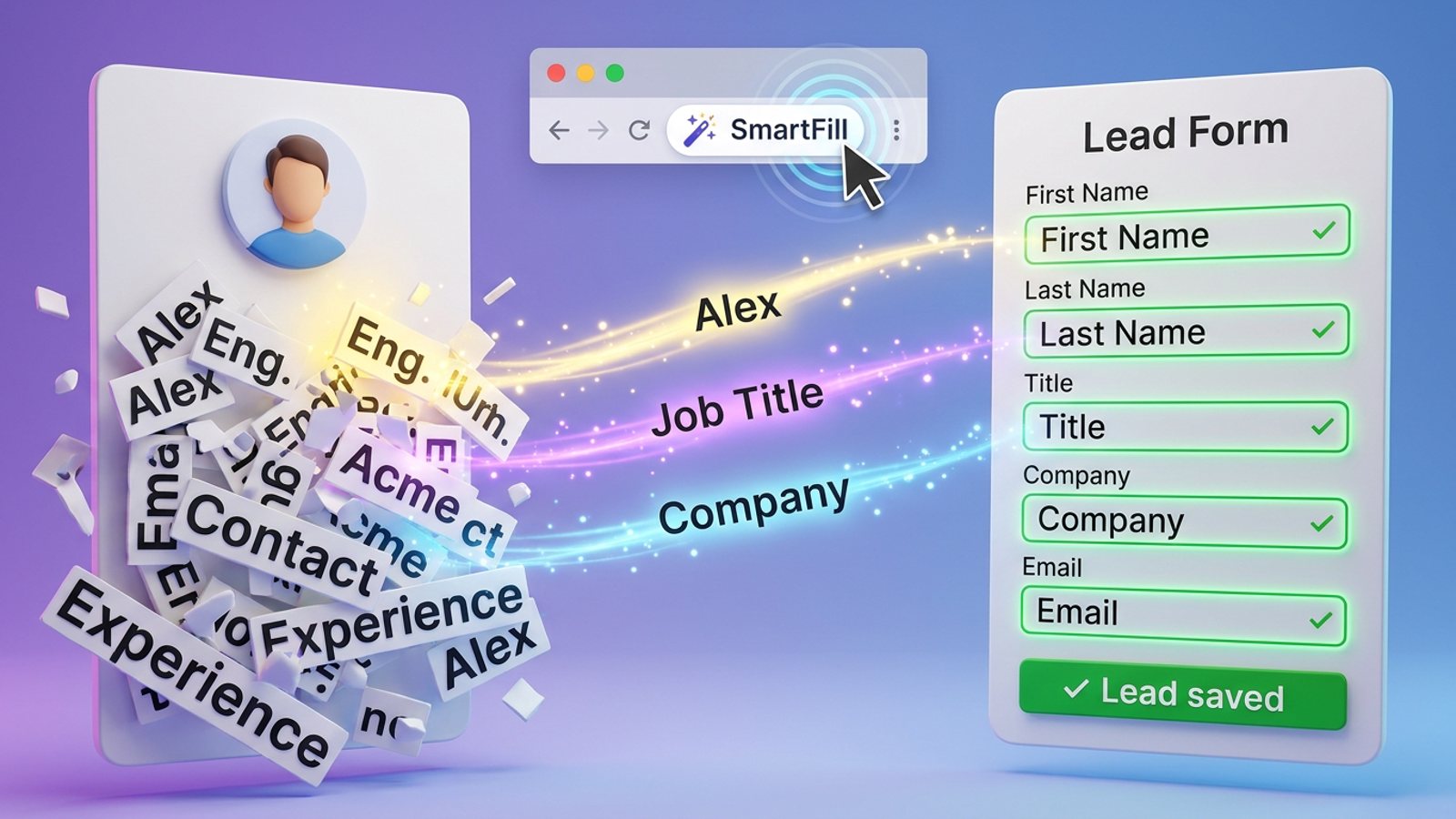
- Paste Gemini's output into a filler. SmartFill reads the pasted text, messy or clean, and populates the Salesforce fields — any object, unlimited fields, no setup.
- Review and save. Check the mapped values, fix anything the card was ambiguous about, and hit Save.
Step 4 is the one that changes the math. The product's own framing: a 4-minute form fill becomes a 3-second click.
Which tool should you use to fill Salesforce from a card?
It depends on where the card lives. If it's a photo on your phone and you're at a conference, a mobile scanner is the direct route. If you're at your desk with a screenshot and a Salesforce tab open, a paste-and-fill extension is faster and cheaper.
The options, compared
| Option | Best for | Key features | Price | Watch-outs |
|---|---|---|---|---|
| SmartFill (Our pick) | Desktop reps with a screenshot or pasted card text | AI fills any Salesforce object from pasted text; unlimited fields; 10-second install | Free: 5 fills, then 3/day; Pro $9.99/mo | Desktop Chrome only |
| Gemini app | Reading the card into clean text | Image upload; "save this contact" summary | Free with caps; Google AI Pro $19.99/mo | No Salesforce field writing |
| Card scanner apps | Phone-first capture at events | Scan to Lead/Contact in Salesforce | From $10/user/mo (Vendelux, Sep 2026) | Mobile-first; some lock sync behind pro |
| Text Blaze | Boilerplate snippets | Text expansion templates | Free tier; paid from $2.99/mo yearly | No card reading or AI extraction |
SmartFill is our pick of the tools we compared for this specific job — a card screenshot on your desktop that needs to become a Salesforce record. It handles messy, unstructured data like email signatures and LinkedIn bios, requires zero setup, and processes text in real time without storing it. Prices as of November 2026 and can change. SmartFill is made by the team behind this blog.
Gemini is the better choice if all you need is the text extracted — it's free, multimodal, and the "save this contact" flow is genuinely quick. Just know the output is a phone contact, not a Salesforce field. On the free tier, content may be used to improve the service unless you adjust your privacy settings (Sider AI, 2025).
Card scanner apps win at events. Business Card & QR Code Scan on the AppExchange runs inside the Salesforce mobile app, creates or matches leads, contacts and accounts, and is published at $10/user/month Standard and $30 Premium with a 15-day trial (Vendelux, September 2026). Seamlessly for Salesforce scans a card, badge or QR code into a Lead or Contact with a free 14-day trial (App Store, October 2026). Some routes are slower — Contacts+ to Salesforce via Zapier involves human transcription that "can take up to 30 minutes" per card (Zapier, undated).
Text Blaze is cheap and fast for repetitive typing, but it inserts text you already have. No card reading, no AI extraction.
What about scanning the card on your phone instead?
That's a legitimate shortcut. If the card is physical and in your hand, a scanner app creates the Salesforce record without a desktop step. The trade-offs: most are mobile-first, some put Salesforce sync behind an in-app purchase (Visione, for example, per its App Store listing, October 2026), and pricing runs from $10/user/month upward.
Our recommendation: pick based on where the card enters your day. Conference floor → scanner app. Inbox screenshot, LinkedIn bio, email signature → paste-and-fill extension. Many teams end up using both.
Want the desktop half sorted now? Get SmartFill and fill your next Salesforce form from pasted text.
Is my card data safe in a Gemini chat?
Not automatically. On Gemini's free tier, content may be used to improve the service unless you change your privacy settings — Sider AI (September 2025) advises checking your Google account privacy controls and treating confidential material with paid or enterprise controls. Gemini Business runs $24/user on the monthly flexible plan and $20/user on annual (Google Workspace Help, undated).
SmartFill's position: no lead database is built, and none of the information sent to the AI is saved. Text is processed in real time.
The card reader and the form filler are two different jobs — Gemini does the first well, and something built for Salesforce has to do the second.
Sources
- What is Google Gemini's free tier? (Sider AI, 2025-09-10)
- Google Gemini: Neuen Kontakt mit nur einem Foto erstellen (Futurezone, 2026-11-18)
- Gemini permette l'upload dei file gratis (Punto Informatico, 2025-02-13)
- What Gemini app features are free versus paid? (9to5Google, 2025-08-18)
- Cómo funciona la facturación de Gemini para Google Workspace (Google Help, undated)
- How to use the Salesforce extension for Gemini in Gmail (Cloud Ace Indonesia, 2026-04-21)
- Automating Salesforce opportunity entry with a Gemini API Chrome extension (Zenn, 2026-02-09)
- Best Chrome Extension to Autofill Salesforce Forms (QuickForm, 2026-06-09)
- Does Salesforce Have a Business Card Scanner? (Vendelux, 2026-09-27)
- Scan to Salesforce At a Glance (Salesforce AppExchange, undated)
- Seamlessly for Salesforce (Apple App Store, 2026-10-05)
- Visione Scan & Business Cards (Apple App Store, 2026-10-15)
- Add Salesforce leads from new Contacts+ business cards (Zapier, undated)
- Salesforce Release Notes: Document AI Smart Fill, Summer '26 (Salesforce Help, undated)
- Text expanders compared (QuickFiller, 2026-08-03)
- Text Blaze blog (vendor, 2026-04-27)