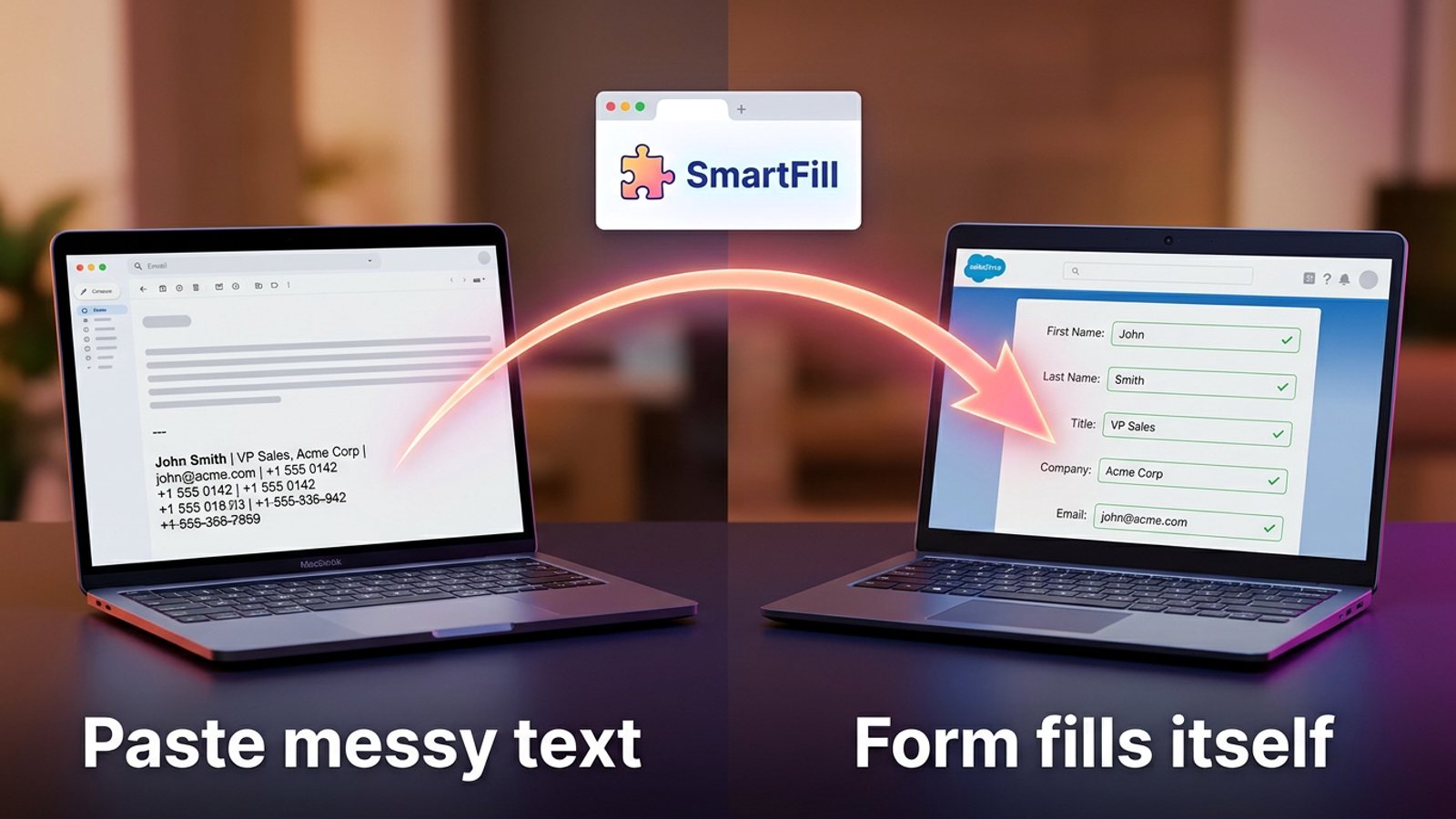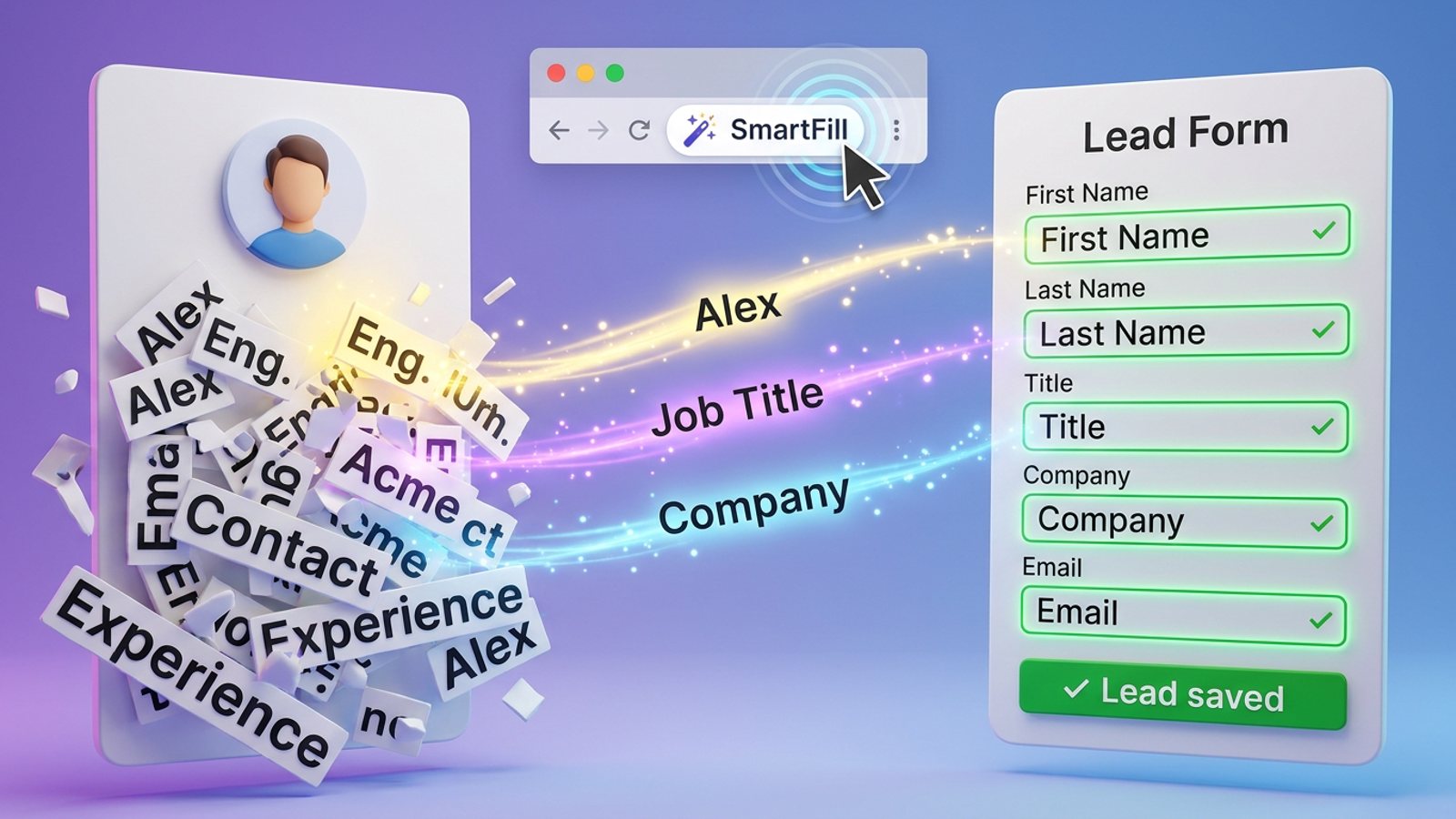
There's no single best Chrome extension for filling Salesforce contact fields — it depends on how your contact data arrives. If it comes as messy text (an email signature, a LinkedIn blurb, a paragraph), you need an AI parser built for Salesforce. If it's saved snippets you reuse, a text expander wins. For a salesforce contact form filler that turns pasted text into populated Contact fields with nothing stored, SmartFill is our pick of the tools we compared.
Install SmartFill Free and paste your next contact's signature straight into a new Contact record.
Why doesn't Chrome's own autofill work on Salesforce contact forms?
Because Salesforce contact fields in Lightning are rendered as Lightning Web Component inputs that need JavaScript events, not the direct DOM writes Chrome's autofill fires. A QuickForm post from June 2026 notes that a 10–30-field workflow can still take 5–10 minutes even with saved browser data. Salesforce's own help documentation (November 2024) confirms that autofill behaviour on its fields is controlled by the browser, not by Salesforce, and can appear on any field type including text, email and phone.
There's a second problem: Chrome autofill only knows your details. It has no idea who the new contact is. So even when it fires, it fills the wrong person.
What should a Salesforce contact form filler actually do?
It should take the contact information you already have — wherever it lives — and put it in the right fields without you typing field by field. That means four things: it reads unstructured text, it maps that text to the correct Contact fields, it handles however many fields your page layout shows, and it's honest about what happens to the data afterwards.
Our recommendation: judge any extension on those four points before you install it, not on how many sites it claims to support.
How do the options compare for filling contact fields?
Here's how the tools we compared stack up, with SmartFill first for the reasons in its row.
| Option | Best for | Key features | Price / free option | Watch-outs |
|---|---|---|---|---|
| SmartFill (Our pick) | Messy pasted text → Contact fields | AI parsing, any Salesforce object, no setup | Free: 5 fills, then 3/day; Pro $9.99/mo | Desktop Chrome only |
| Magical | Autofill from data open in another tab | 1-click Fill Form, text expansion | Free tier; paid price not reliably published | Broad data disclosure |
| Text Blaze | Reusable snippets and templates | Snippet library, Salesforce listed | Free forever, 20 snippets; Pro $2.99/mo yearly | Doesn't parse pasted text |
| Chrome autofill | Simple static HTML forms | No install, no cost | Free | Fails on Lightning; own details only |
| Salesforce Quick Create | Admins trimming required fields | Native, no extension | Included in subscription | Still manual typing |
SmartFill — Our pick for messy contact data
SmartFill is a Chrome extension that uses AI to fill Salesforce forms from any pasted text. You copy an email signature, a LinkedIn About section or a free-form note, click the extension icon, and the Contact fields populate. It separates Job Title from Company even when they're crammed on one line, and per the product facts it fills unlimited fields across any Salesforce object — Leads, Contacts, Cases and custom objects.
There's no setup: a 10-second install, no sign-up, no URL patterns or regex mapping to build first. Text is processed in real time and not stored, so no lead database is built. The free plan gives 5 fills to start, then 3 per day forever; Pro is unlimited fills for $9.99/month (as of November 2026; prices can change).
The honest limit: it's desktop only, because it's a Chrome extension.
Install SmartFill Free — one click, no card.
Magical — best if your contact data is already open in another tab
Magical is a text expander plus autofill app. Its own feature page markets a 1-click "Fill Form": with a form open in one tab and the contact info in another, a Magical box appears and populates the fields. Its Chrome Web Store listing (updated April 2026) names Salesforce among its integrations and shows a 3.1/5 rating from roughly 3.5K ratings.
The trade-off is disclosure. That same listing states Magical handles personally identifiable information, location, web history, user activity and website content (it declares data is not sold to third parties or used outside core functionality). Pricing is also hard to pin down — third-party sources range from about $6.50–$7.50/month to a historical ~$10/month or ~$120/year per seat, so check Magical's site directly.
If you mainly need autofill from a contact record already on screen plus outreach shortcuts, Magical is the more direct choice.
Text Blaze — best for reusable boilerplate, not parsing
Text Blaze is built around snippets and templates you trigger by typing a shortcut into a form field. Pricing is clear: free forever with 20 snippets for solo users, Pro at $2.99/month billed yearly ($3.49 monthly), Business at $6.99/user/month yearly ($8.39 monthly) — as of November 2026, prices can change. Salesforce is listed as an integration.
A third-party comparison notes Text Blaze does not do form autofill from contact or CRM data — it expands what you pre-write. That makes it excellent for a standard follow-up email and useless for a signature you've never seen before.
Chrome built-in autofill and Salesforce Quick Create — the free baselines
Chrome autofill costs nothing and needs no install, but as covered above it fails on Lightning inputs and only holds your own details. Salesforce admins can also build a minimal "Quick Lead"-style entry panel using third-party Avonni Dynamic Components, so reps type fewer fields — but it's still manual typing, field by field, and needs admin setup.
How do you fill a Salesforce Contact from an email signature?
Install the extension, copy the signature, open a new Contact, click the icon and paste. Here's the full sequence:
- Install the extension in Chrome — one click, no sign-up.
- Copy the messy source text — the signature, a LinkedIn bio, or a paragraph from a forwarded email.
- Open Salesforce and click New Contact (or Lead, Case, or a custom object).
- Click the SmartFill icon, paste the text, and let it fill.
- Review the populated fields, then save the record yourself.
Step 5 matters. A Salesforce admin writing on Zenn in February 2026 documented a paste-to-fill tool that shows a confirmation screen with "needs checking" badges and never clicks Save — a pattern worth preferring, because you stay in control of the record.
Does the extension store my lead data?
Check each publisher's Chrome Web Store privacy disclosure before you install — that's the only reliable answer. Chrome Web Store requires developers to disclose data collection, and a compliant publisher declares data is not sold to third parties and not used outside core functionality.
For comparison: SmartFill declares it handles personally identifiable information and that no lead database is built, with text processed in real time and not stored. Magical discloses PII, location, web history, user activity and website content. Some tools, like AutoFormAI, state that all data is stored locally on your device.
Security reviewers also flag extensions requesting broad host permissions (all websites) plus runtime code execution as medium-risk, citing script injection and data exposure surface — a Koidex report from June 2025 makes this point. Our recommendation: install only what you need, and prefer a tool scoped to the job.
How much time does a contact form filler actually save?
Salesforce's 2026 State of Sales report puts CRM data entry at 13% of a sales rep's working week, as cited by PortifyLead in September 2026. That's the size of the prize.
Say you're an SDR logging 20 new contacts a day from conference badges and email signatures. At a few minutes of typing each, that's most of an hour gone. Paste-to-fill turns each record into a copy, a click and a review. The product's stated framing is 4-minute form fills becoming 3-second clicks — treat that as the vendor's estimate, not a measured average.
The extension you choose matters less than whether it reads the text you actually have — messy, unstructured, straight from the real world.
Which extension should you pick?
Pick by input type. If your contact data arrives as pasted text that must be split into fields, use an AI form filler for Salesforce like SmartFill — it handles any Salesforce object, needs zero setup, and keeps no lead database. If you're reusing saved snippets, Text Blaze is cheaper and simpler. If your contact info is already open in another tab and you want one-click fill plus text expansion, Magical fits.
For the wider field of options beyond Contacts, see our guide to the best Salesforce form filler extension for Chrome, and if your source is a single signature line, this walkthrough on filling Salesforce from a messy email signature goes deeper.
Install SmartFill Free and fill your next Contact record in one paste.
Sources
- How to autofill Salesforce records and forms in Chrome (QuickForm, 2026-06-09)
- Disable Browser Autofill / Auto-Completion for Fields in Salesforce (Salesforce Help, 2024-11-13)
- Document AI SmartFill — Summer '26 Release Notes (Salesforce, undated)
- Build a Quick Lead entry form (Avonni Components, undated)
- SmartFill: The AI Form Filler for Salesforce — Chrome Web Store (updated 2026-10-19)
- Magical: Text Expander & Autofill — Chrome Web Store (updated 2026-04-04)
- Magical feature page: Auto Form Filler (GetMagical, undated)
- Magical review & pricing (MoreAI.tools, 2026-05-21)
- Magical AI Review 2026 (TheSynLab, undated)
- Clipboard History Pro vs Text Blaze vs Magical (Clipboard Extension, undated)
- Text Blaze plans page (Text Blaze, undated)
- Text Blaze vs TextExpander (TextExpander blog, 2026-03-02)
- Text expander Chrome comparison (Text Blaze vendor blog, 2026-04-27)
- AutoFormAI — Chrome Web Store (updated 2025-11-16)
- Koidex security report on FillApp (2025-06-04)
- CRM data entry (PortifyLead, 2026-09-20)
- Building a paste-to-fill Salesforce extension (Zenn, 2026-02-09)