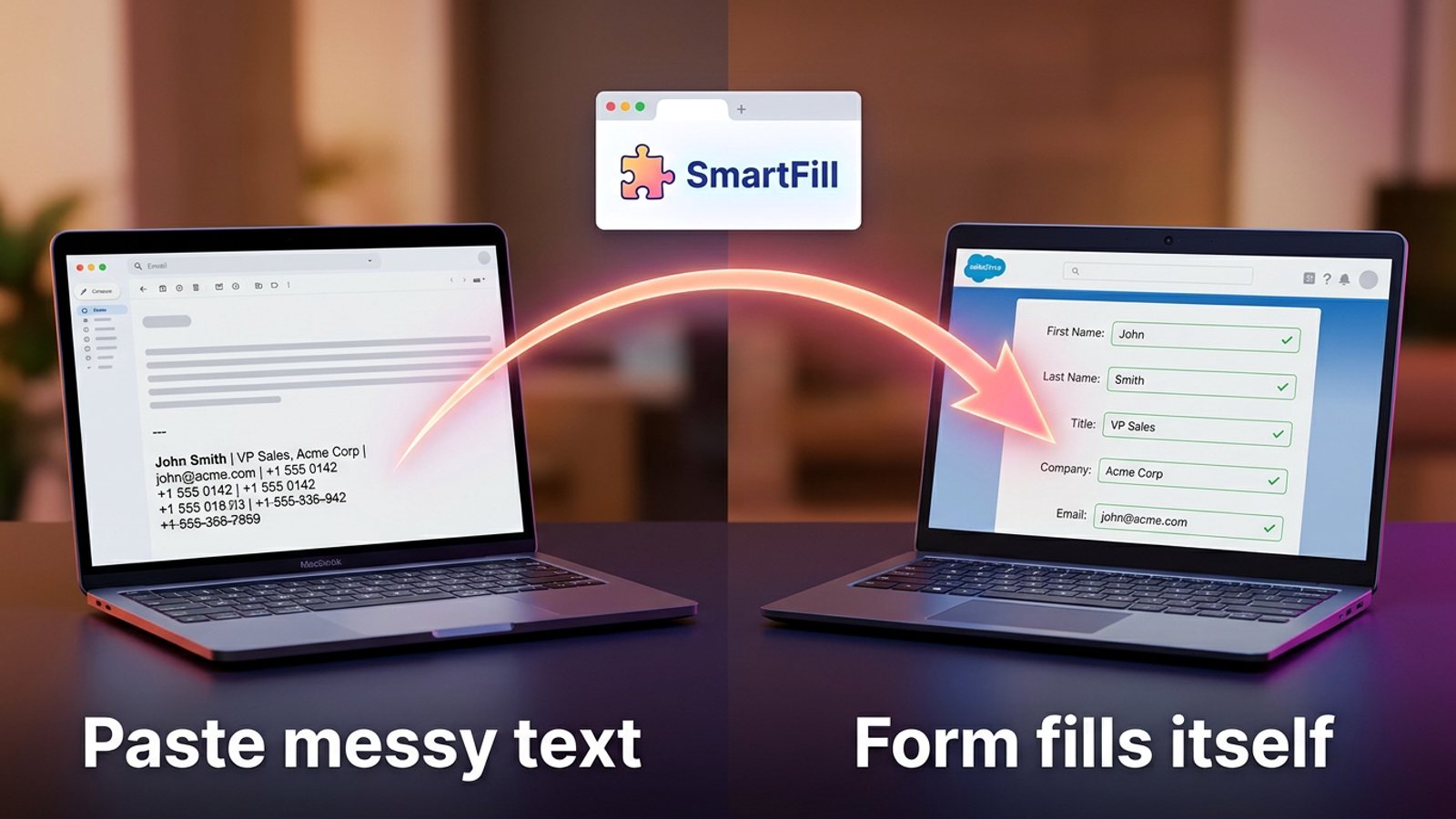
Yes — on desktop Chrome. A salesforce form filler extension desktop setup works on both Mac and Windows: SmartFill installs from the Chrome Web Store and fills any Salesforce form you open there, from Leads and Contacts to Cases and custom objects. There is no mobile app, so phone and tablet entry stays manual.
If you are checking compatibility before you pay for anything, the short version is that the laptop you already own is the right device — the browser is what matters.
Install SmartFill Free and test it on one real lead record before you decide anything.
Does a Salesforce form filler extension work on both Mac and Windows?
Yes. A Chrome extension is a browser add-on, not a desktop application, so the same install works on a MacBook and on a Windows laptop. SmartFill installs from the Chrome Web Store, and that listing is the only install channel Chrome allows on Windows and macOS for a CRX-style package, per Chrome for Developers.
One practical catch: Chrome shows an "external extension" confirmation dialog if an extension is installed outside the normal store flow on Windows or macOS. Installing from the store avoids that entirely — no admin ticket, no sideloading.
How does SmartFill actually fill a Salesforce form on a laptop?
You copy the raw lead text, open the record, and let the extension do the mapping. The flow, per the SmartFill Chrome Web Store listing (updated 19 October 2026):
- Install the extension from the Chrome Web Store in one click — no sign-up required.
- Copy the lead text — an email signature, a LinkedIn profile, or any block of text with their details.
- Open the Salesforce record you want to fill in a separate tab.
- Click the SmartFill icon, paste, and hit Auto-Fill. The form populates.
- Review the fields and save.
- Optional: add a Page Rule for that Salesforce page so the icon fills from your clipboard next time without the paste step.
That is the whole technique — the only real skill is grabbing the messiest version of the lead data you have, because the parsing handles the rest. The listing says SmartFill separates fields such as Job Title from Company Name even when they sit on the same line.
Why doesn't Chrome's own autofill do this already?
Because Chrome's autofill was built for static HTML forms, and Salesforce Lightning fields are rendered and managed by JavaScript it wasn't designed for. QuickForm (June 2026) reports that Lightning Web Component inputs need JavaScript events rather than the direct DOM writes Chrome fires, so autofill can simply fail on a Salesforce record.
There is a Salesforce-side wrinkle too. Third-party notes say the autocomplete attribute on lightning:input can be set to "off" to deactivate browser autofill, and ClosePlan's support guide (undated) calls the ignored autocomplete attribute a Salesforce bug it cannot fix at its side. QuickForm also notes a 10–30-field workflow can still take 5–10 minutes even with saved browser data.
Which is the best option for filling Salesforce forms on a laptop?
Of the tools we compared, SmartFill is our pick for one job: turning pasted, messy lead text into a filled Salesforce form in the browser you already use. Here is how the options stack up.
| Option | Best for | Key features | Price / free option | Watch-outs |
|---|---|---|---|---|
| SmartFill — Our pick | Pasting messy lead text into Salesforce on desktop Chrome | AI fill from any pasted text; Leads, Contacts, Cases, custom objects; zero setup | Free: 5 fills, then 3/day. Pro $9.99/mo | Desktop Chrome only |
| Manual copy-paste | Full control, zero install | Nothing to learn | Free | Slow on 10–30 field forms |
| Chrome built-in autofill | Saved addresses and passwords | Built into Chrome | Free | Struggles on Lightning fields |
| Chatbot in a separate tab | Flexible, general browser help | Reads tabs, answers questions | ChatGPT extension on every plan per press; dassi $10/mo | Copy-paste tax; no full action log |
| Magical | Teams already using text expanders | 1-click Fill Form; Salesforce integration | Free tier; paid plan around ~$10/mo per third party | Broad data disclosures |
| Text Blaze | Reusable snippets and templates | Snippets in Salesforce, Gmail, HubSpot | Free forever, 20 snippets; Pro $2.99/mo yearly | Templates, not free-text parsing |
SmartFill is made by the team behind this blog. Prices for other tools are as of November 2026 and can change.
SmartFill charges $9.99/month for unlimited fills as of November 2026 (prices can change), and the free plan gives 5 fills to start and then 3 AI fills per day forever. The listing says pasted text is parsed in real time to fill the form in front of you and is not retained — no lead database is built. Its honest limit: desktop Chrome only.
Manual copy-paste costs nothing and gives you field-by-field control. It is also the slowest route on long Lightning forms, and Salesforce does not support non-browser apps that embed a WebView to render Lightning content, per its help pages.
Chrome built-in autofill is free and already there. It is designed for static HTML, so Lightning fields can defeat it — see the section above.
A chatbot in a separate tab is the flexible option. ChatGPT's Chrome extension added "Work mode" in its October 2026 update, letting it control tabs and fill forms across Chrome, Edge, Brave and Opera, per Gadget Review — and it acts on sites where you are already signed in, including Salesforce, per Zephyr. The catch is the "copy-paste tax" dassi's own blog describes: you have to describe every field. Coverage also notes OpenAI keeps no complete record of actions taken in browser tabs, so "stop before submitting" is something you have to ask for. If you mainly need a general browser assistant, that route is the more direct choice.
Magical is a strong fit if your team already lives in text expanders. Its feature page markets 1-click "Fill Form" with the form on one tab and contact info on another, and it names Salesforce among its integrations. Its Chrome listing discloses handling of PII, location, web history, user activity and website content, and shows a 3.1/5 rating from roughly 3,500 ratings (updated April 2026). Third-party trackers disagree on its starting price ($6.50 vs $7.50 per month), so check before you buy.
Text Blaze suits people who want reusable snippets rather than parsing. Its pricing page lists a free-forever tier with 20 snippets for solo users, Pro at $2.99/month billed yearly and Business at $6.99/user/month yearly. A third-party comparison notes it does not do form autofill from contact or CRM data — if you mainly need templates, Text Blaze is the more direct choice.
Is there a mobile app for filling Salesforce forms?
No. SmartFill is a desktop Chrome extension, and that is the limit to plan around. If your day includes updating records from a phone between meetings, keep the laptop for the heavy entry and accept that this tool won't cover the phone.
What about Edge, Firefox, Safari and Salesforce Classic?
Salesforce's own Lightning Experience browser list includes Google Chrome, Microsoft Edge Chromium, Firefox and Safari, and Salesforce says other browsers or older versions aren't guaranteed to support all features (Salesforce Help, 2 January 2025). So Salesforce itself runs in several browsers.
The extension install route described here is Chrome. The owner confirms SmartFill works from any Chrome browser, which covers Salesforce Classic and Lightning alike, and that it can fill every Salesforce object.
How much does it cost, and is it worth it before you commit?
The free plan answers that for you. You get 5 fills on install with no signup or card, then 3 AI fills per day forever — enough to run it against your own lead sources for a week. Pro removes the cap at $9.99/month as of November 2026, and prices can change.
The real test of a form filler isn't the feature list — it's whether the messy text you actually receive lands in the right fields on the first click.
If you want the wider picture before choosing, our guide to the best Salesforce form filler extension for Chrome compares the field, and the best secure AI form filler for Salesforce lead data covers privacy in more depth. SDRs comparing tools for a team rollout can start with the best AI Salesforce form filler for SDRs.
Ready to try it on your own laptop? Install SmartFill Free — it takes about 10 seconds and needs no sign-up.
Sources
- Install extensions (Chrome for Developers, undated)
- SmartFill Chrome Web Store listing (SmartFill, updated 2026-10-19)
- Supported Browsers and Devices for Lightning Experience (Salesforce Help, 2025-01-02)
- Supported Browsers and Devices for Lightning Experience — Summer '23 (Salesforce Help, undated)
- Revision (Salesforce Stack Exchange, undated)
- Known Issues — Browser Autocomplete/AutoFill Issue (ClosePlan Guide, undated)
- How to autofill Salesforce records and forms in Chrome (QuickForm, 2026-06-09)
- ChatGPT Can Now Control Your Browser (Gadget Review, 2026-10-19)
- ChatGPT can now work your tabs (Zephyr, 2026-10-16)
- ChatGPT's Chrome Agent Acts in Logged-In Tabs Without a Full Log (ROI Benchmarks — THE D[AI]LY BRIEF, 2026-10-18)
- dassi for ChatGPT Users (dassi, 2026-03-01)
- The Problem with ChatGPT for Work Tasks (dassi blog, vendor, 2026-01-27)
- Magical feature page (Magical, undated)
- Clipboard Extension comparison (Clipboard Extension, undated)
- Magical tool page (MoreAI.tools, 2026-05-21)
- Magical tool page (TheSynLab, undated)
- Text Blaze pricing (Text Blaze, undated)
- Text Blaze vs TextExpander (TextExpander blog, vendor, 2026-03-02)
- Text expander Chrome (Text Blaze blog, vendor, 2026-04-27)
- Can you self-host company browser extensions? (Safeguard, 2026-10-18)