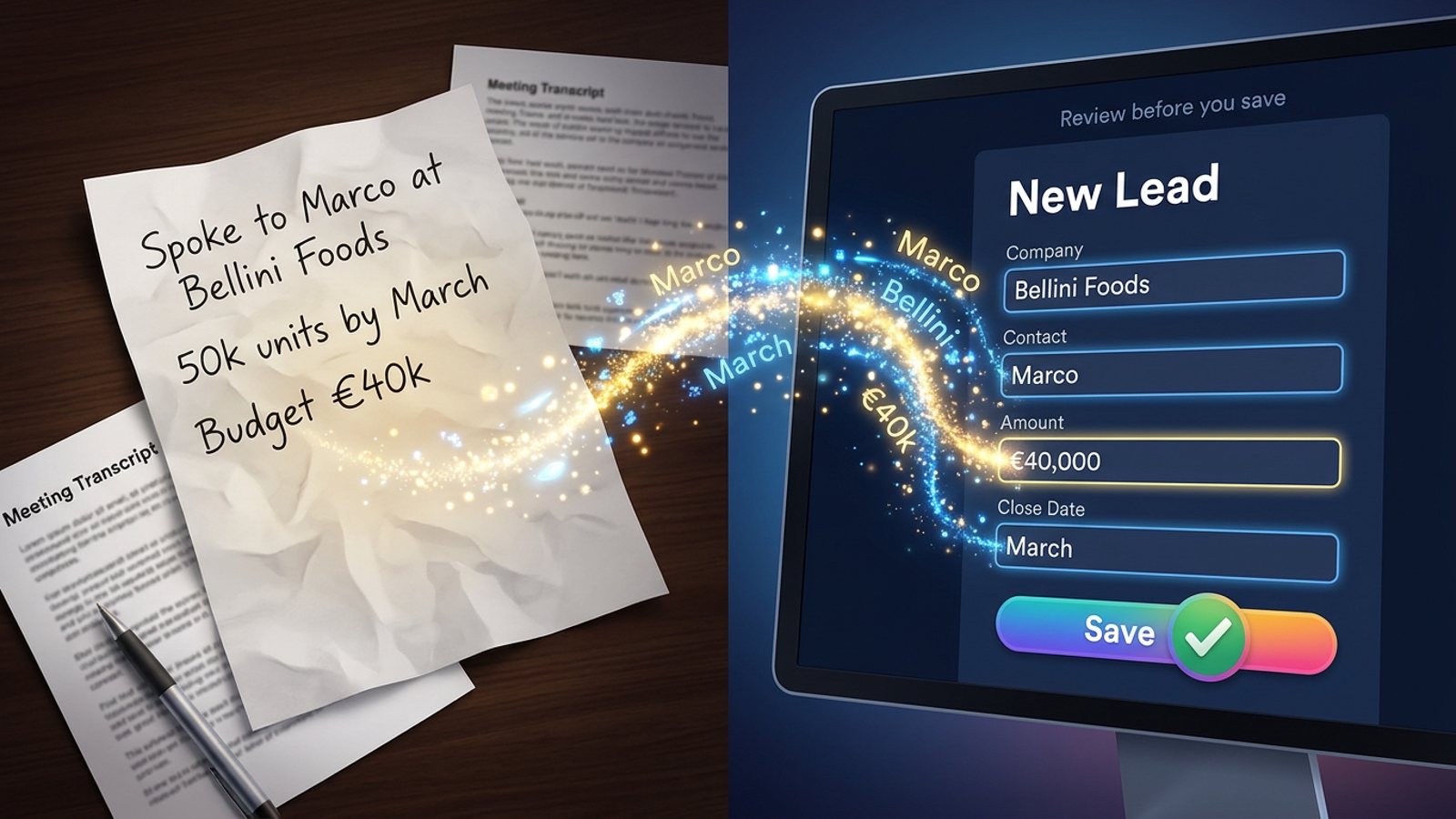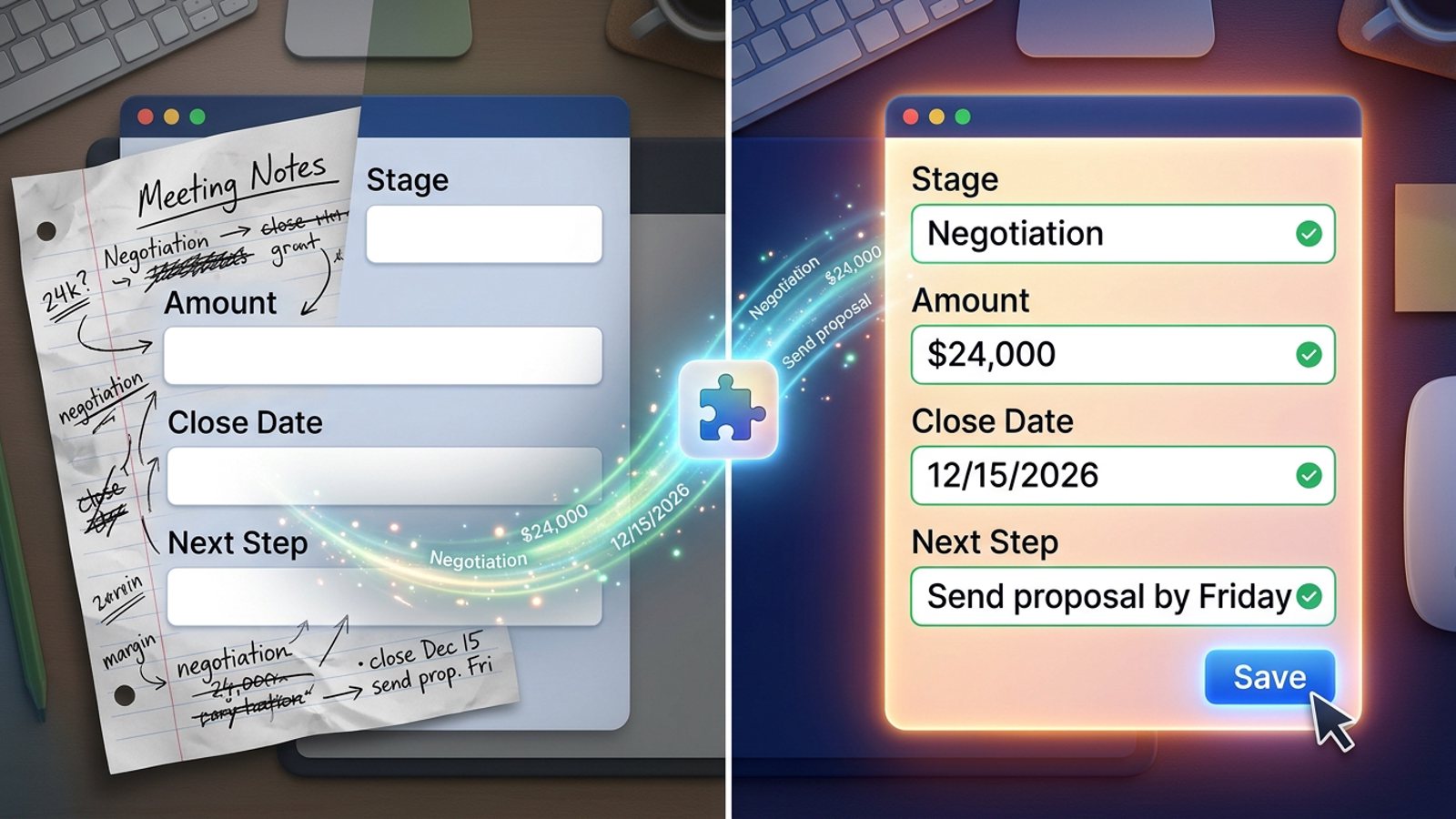
ChatGPT can read your meeting notes and suggest field values, but on its own it cannot write them into an open Salesforce record. Getting the data onto the record needs a connector (Salesforce Hosted MCP, a GPT Action, Zapier), a ChatGPT cloud-browser agent on a paid plan, or a person — or an AI form filler — filling the form on screen.
If you are an SDR or AE who just left a call with a page of rough notes, the gap between "ChatGPT wrote a nice summary" and "the opportunity is updated" is the whole problem. Here is what each route actually does, and how to close that gap in seconds.
Does ChatGPT have a native Salesforce integration?
No. ChatGPT does not ship with a built-in Salesforce connection. The routes Salesforce and OpenAI document are a Salesforce Hosted MCP server, a Custom GPT Action built on a Salesforce Connected App, or the Agentforce Sales app for ChatGPT.
Salesforce's Hosted MCP Servers give a compatible AI client — ChatGPT, Claude, Cursor or a custom agent — a governed way to reach an org over the Model Context Protocol using OAuth, configured once by an admin (Salesforce Developers). Salesforce also publishes setup steps for connecting ChatGPT to a hosted MCP server: Settings → Apps → Create App, name the connector, then enter the server URL (production https://api.salesforce.com/platform/mcp/v1/<SERVER-NAME>, or the /sandbox/ variant for sandboxes).
OpenAI's own (now archived) cookbook recipe shows the older route: a Custom GPT Action that pulls and updates case data through a Salesforce Connected App with OAuth and an OpenAPI schema.
Can ChatGPT write to the Salesforce record I already have open?
No. Even ChatGPT's cloud browser cannot touch the tab you are signed into. It gives ChatGPT its own browser on a separate cloud computer, with its own cookies, browser data and login sessions — it does not use your personal browser's tabs, history, saved passwords, cookies, extensions or existing logins (OpenAI Help Center).
That has three practical consequences:
- You sign in again. ChatGPT logs into Salesforce separately inside its remote browser.
- It is a paid-plan feature. Cloud browser is available in ChatGPT Work on paid ChatGPT plans only; Free and Go are excluded, and availability may depend on workspace permissions during rollout (OpenAI Help Center).
- It can stall. Sites can block automated browser agents even when they work in your own browser, ChatGPT pauses for confirmation before high-impact actions, and OpenAI's own FAQ says it can't complete every task or transaction (OpenAI Help Center).
What is ChatGPT genuinely good at here?
Turning messy notes into a clean, labelled field list. That is the half of the job worth automating with ChatGPT — the summary, the decisions, the action items, the changed details. The write is the half that needs a different tool.
A practical sequence that works whatever route you pick:
- Get a clean transcript or your own notes. A Teams or Otter summary works; so do typed notes.
- Structure the output first. Ask for action items, decisions, open questions, the next meeting date and any changed details — a 2026 vendor guide on pushing AI summaries into a CRM recommends exactly this, because the CRM mapping gets far easier (US Tech Automations, May 2026).
- Ask for a labelled field list — Stage, Next Step, Amount, Close Date. Salesforce's own guidance suggests drafting prompt templates in ChatGPT or Gemini first and adapting them, which is a time-saver if you later automate inside the org (Salesforce Success Navi, September 2026).
- Pick your write path — connector, cloud browser agent, no-code automation, or pasting into the open form.
- Review before saving. Every field, especially date and amount.
How do I actually get the notes onto the record? The four routes
Route 1: A real Salesforce connector
This is the governed route. A third-party MCP catalogue lists Salesforce write tools including create one record, update fields of one existing record, and create up to 200 records in one all-or-nothing call (anythingmcp catalogue, GitHub, November 2026 — a third-party list, so check it against Salesforce's own tool reference).
The catch is setup. It is an admin/developer job: a Connected App, OAuth scopes, an OpenAPI schema or MCP server activation (OpenAI cookbook, archived; Salesforce Developers). Orgs can also block logins from some locations (Salesforce Developers).
Best for teams that want ChatGPT to read and write real records properly, with Salesforce permissions governing it.
Route 2: ChatGPT's cloud browser agent
You tell ChatGPT to go and do it, and it clicks through Salesforce in its own remote browser. It can read pages, click buttons and enter information into forms, and it keeps working after you close the laptop (OpenAI Help Center).
Best for teams already paying for ChatGPT who want a hands-off task without building an integration. Watch-outs: separate logins, paid plans only, sites can block agents, and it pauses on high-impact actions.
Route 3: No-code automation (Zapier or Make)
Templated triggers and actions do the writing without anyone clicking. Zapier's Salesforce app has a "Create Record" action for a specified object, which templates can trigger off a meeting-tool event such as new AI notes in Notta (Zapier). Granola connects to Salesforce via Zapier to log summaries to Opportunities, create follow-up Tasks and update Contacts — Zapier is available to paid Granola users on the desktop app, and a Zapier account is required (Granola).
The cost is real. An independent playbook for the meeting-notes → CRM stack estimates about 12 hours to build, roughly 2 hours a month of maintenance, a minimum tool cost of about $50/month, and API access (Tyler Willis, June 2026).
Best for "when a new note appears, create or update the record" flows that should run with nobody watching.
Route 4: Fill the open form from the pasted notes
This is the shortest path when the record is already in front of you. You paste the notes into an AI form filler for Salesforce, it reads the messy text — email signatures, LinkedIn bios, rough call notes — and populates the fields in your own logged-in tab. You review and save.
That is what SmartFill does: a Chrome extension that fills Salesforce forms from any pasted text, with no setup, a 10-second install and no sign-up. It processes text in real time and does not store it. It does not sync records and it does not work outside the browser tab — it fills the form in front of you.
Which tool should I use for ChatGPT and Salesforce meeting notes?
It depends on whether you want a system that writes records on its own, or a fast finish to the record you already have open. Here are the options we compared, with SmartFill first because it is ours.
| Option | Best for | Key features | Price / free option | Watch-outs |
|---|---|---|---|---|
| SmartFill (Our pick) | Filling the open record from pasted notes | AI fills Salesforce forms from any text; all objects; unlimited fields | Free: 5 fills, then 3/day; Pro $9.99/mo | Desktop Chrome only |
| ChatGPT cloud browser | Hands-off clicking, no build | Reads pages, clicks, enters form data | Paid ChatGPT plans only | Own logins; sites can block agents |
| Salesforce Hosted MCP | Governed read/write access | OAuth connector; create and update tools | Admin-configured per org | Developer setup; location blocks |
| Zapier / Make | Automatic record creation | Templated triggers and actions | Free core features; 14-day trial | Rigid mapping; build time |
| Otter.ai | Recording and transcribing first | 300 free minutes/mo; AI summaries | Free Basic; paid tiers | Salesforce sync reported on Business tier |
SmartFill is made by the team behind this blog. Prices for other tools are as of November 2026 and can change.
Of the tools we compared, SmartFill is our pick for the specific job of getting a record filled right now: no connector, no admin ticket, no second login. It handles all types of Salesforce forms and every object — leads, contacts, accounts, opportunities — and there is no limit to how many fields it fills at once.
If you mainly need notes to land on records automatically while nobody is watching, Zapier or a Salesforce MCP connector is the more direct choice. If you mainly need the meeting recorded and transcribed first, Otter.ai is the better starting point.
Install SmartFill Free and fill your next call's record from the notes you already have.
Will the note land on the opportunity or just the contact?
It depends on how the note is attached, and this trips people up. Salesforce stores a logged call as an Activity hanging off two lookups — the person and the record it was about — so a note can save perfectly and still be invisible on the opportunity (Craqly, September 2026).
Whatever route you use, check two things after saving: the note is linked to both the person and the opportunity, and any follow-up task has an owner and a due date.
A CRM-hygiene guide makes the same point from the other direction: after a client meeting, four things should land in the CRM — a short summary on the right contact, each action item as a task with an owner and due date, the next meeting date, and any changed detail (lilAgents, September 2026). In most small firms nobody owns that job, and it gets typed from memory days later, if at all.
What if the values ChatGPT pulls from my notes are wrong?
Check every field before you save. Turning rough call notes into a clean CRM update saves typing, but a wrong date or amount in the CRM misleads everyone who reads it later — one review rates the risk medium, partly because call notes contain customer details (AI For Your Task, October 2026).
Our recommendation: treat every AI-extracted value as a draft. You are the last check before the record becomes the version of truth your team forecasts from.
How do I fill a Salesforce record from meeting notes in under a minute?
Paste the notes into the open form and let the filler do the typing. Here is the whole loop:
- Finish the call and grab your notes — a Teams or Otter summary, or your own rough lines.
- Ask ChatGPT for the summary plus a labelled field list if you want the structure.
- Open the Salesforce record in your own logged-in tab.
- Copy the notes, messy is fine.
- Click the SmartFill icon and watch the form fill.
- Review every field, especially date and amount, then save and check the activity is linked to the opportunity.
The product's own framing is a 3-second click replacing a roughly 4-minute fill. For a rep logging several calls a day, that is the difference between notes going in while they are fresh and notes going in never.
If you want to compare that against typing it all yourself, see whether a Salesforce form filler is worth it versus copy-pasting lead data. And if your notes come from a transcript rather than a notebook, filling Salesforce from a call transcript or meeting notes walks through that case.
Install SmartFill Free and turn your next meeting's notes into a saved record in seconds.
Sources
- Using cloud browser in ChatGPT (OpenAI Help Center)
- GPT Action for Salesforce (OpenAI Developers cookbook, archived)
- Salesforce Hosted MCP Servers overview (Salesforce Developers)
- Configure ChatGPT for Salesforce Hosted MCP (Salesforce Developers)
- Salesforce MCP connector catalogue (helpcode-ai/anythingmcp, GitHub, 2026-11-21)
- Salesforce の AI 機能による自動化(議事録や要約の作成)(Salesforce Success Navi, 2026-09-03)
- The #1 AI CRM Meets ChatGPT (Salesforce press release, 2026-01-06/07)
- Salesforce links CRM data directly into ChatGPT (IT Brief UK, 2026-01-06/07)
- Salesforce × Agentforce AI meeting-summary automation (Fuji Soft, 2025-12-15)
- Notta + Salesforce integration (Zapier)
- Granola + Salesforce (Granola)
- Meeting Notes → Action Items → CRM playbook (Tyler Willis, 2026-06-15)
- Otter.ai pricing (Otter.ai, updated 2026-10-27)
- AI Meeting Notes to CRM (Layer3Labs, 2026-07-15)
- How to Automate CRM Updates After Meetings (lilAgents, 2026-09-30)
- AI Summaries to CRM 2026 (US Tech Automations, 2026-05-31)
- How to share call notes with your CRM (Craqly, 2026-09-01)
- AI For Your Task (2026-10-23)