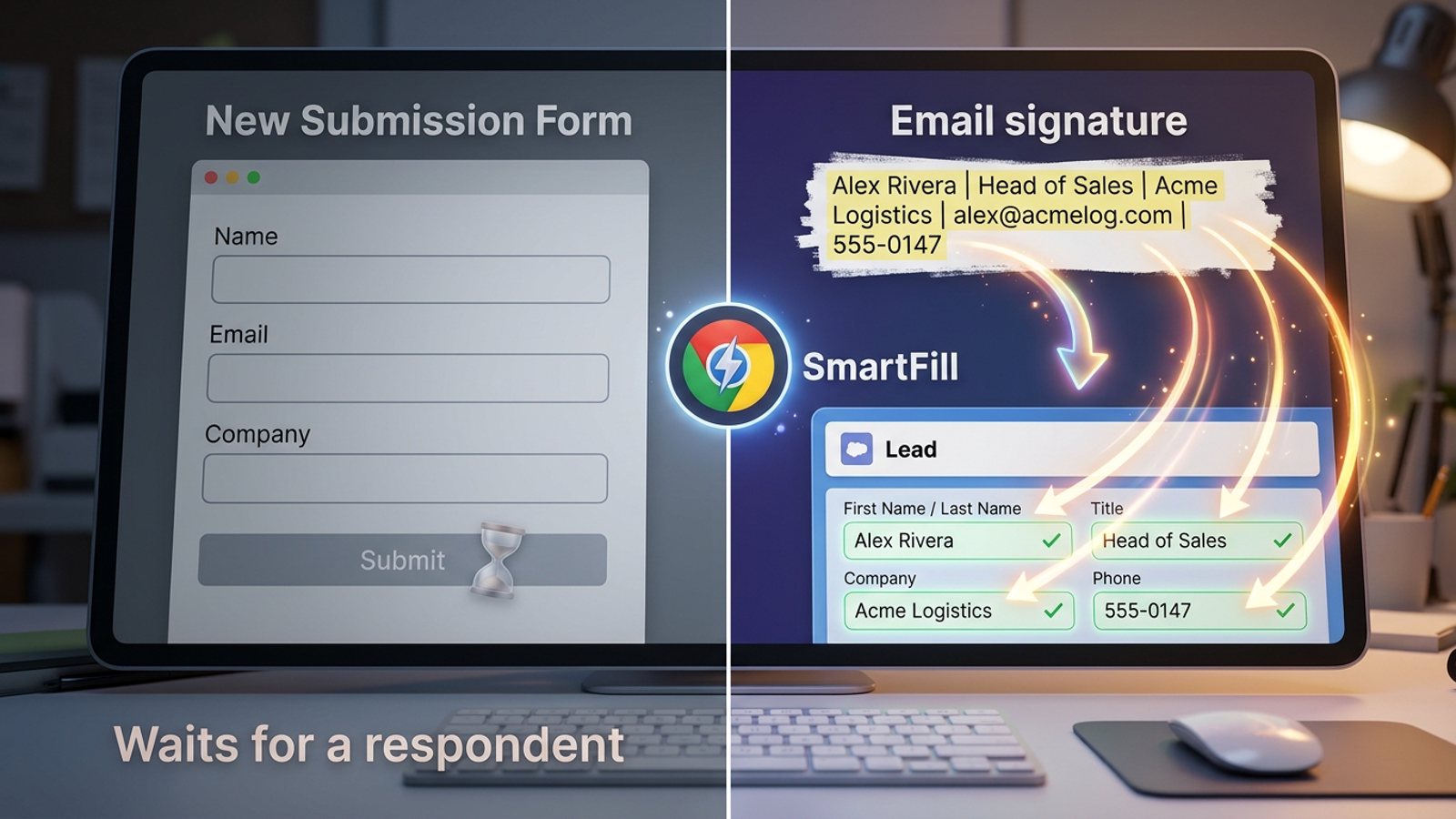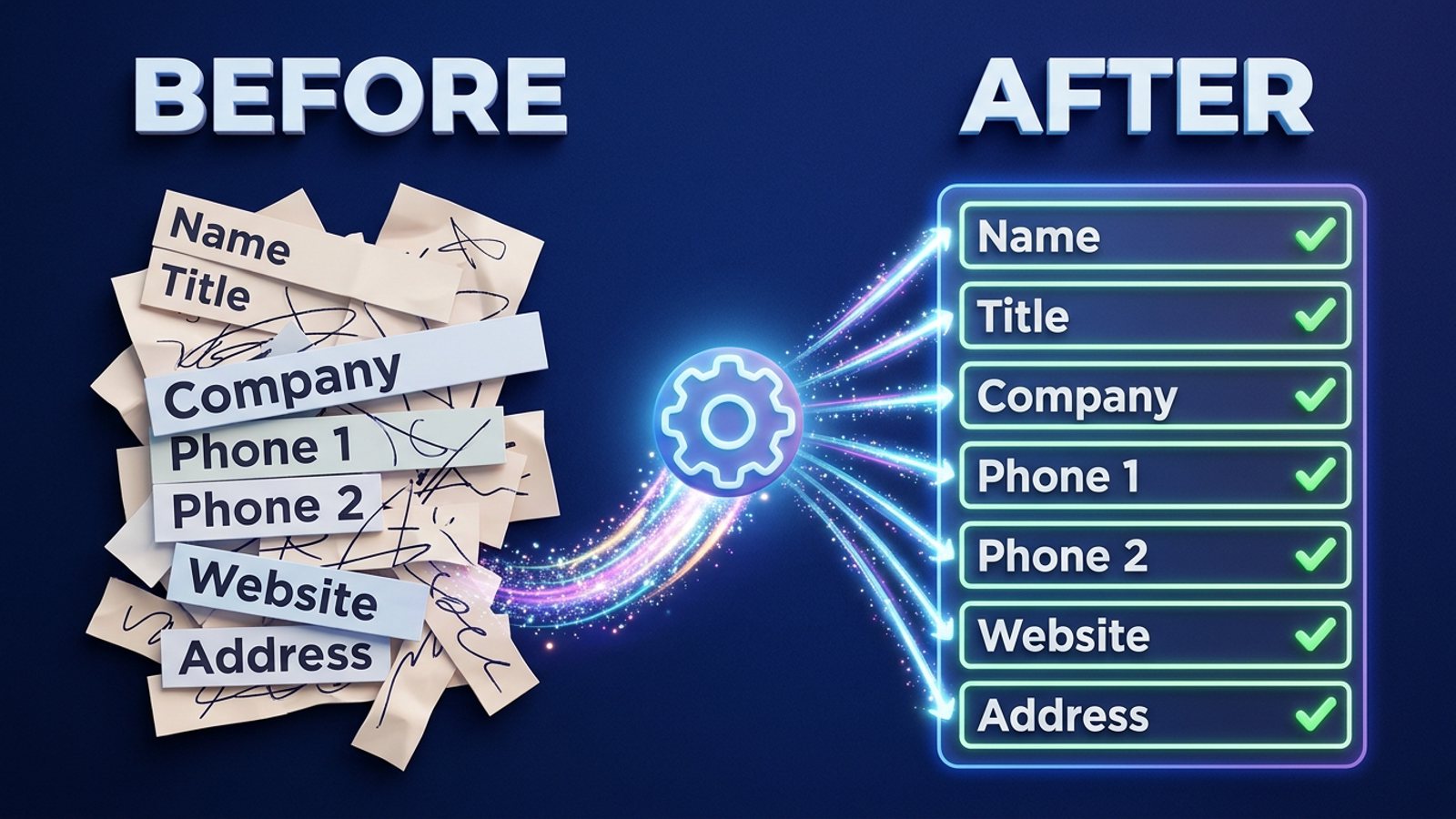
ChatGPT can turn a messy email signature or LinkedIn blurb into clean, labeled fields in seconds — but it can't see your Salesforce form or type into it. The honest way to automate salesforce data entry chatgpt is two steps: let ChatGPT clean the text, then finish with an AI form filler that writes the values into the form in your own logged-in browser.
What does automating Salesforce data entry with ChatGPT actually look like?
It's a two-step loop, and only the first step is ChatGPT's. You paste the raw lead text into ChatGPT and ask it to split it into Name, Title, Company, Email and Phone. Then you open Salesforce, click New Lead, and type or paste each value into the matching field yourself.
That second half is where the time goes. A vendor blog on ChatGPT for work tasks states the core limitation plainly: ChatGPT can't see your Salesforce record or the form you're on, so you have to tell it everything about the contact and describe every field (dassi blog, 2026-01-27). Every field you describe is a field you then hand-copy.
Say you're an SDR with a LinkedIn blurb and an email signature for the same prospect. ChatGPT hands you a tidy list in five seconds. Then you spend the next few minutes clicking between tabs and pasting. That's the gap worth closing.
If you want the whole loop handled in one click, you can install SmartFill free and skip the copy-paste step entirely.
Can ChatGPT fill a Salesforce form in my own logged-in browser?
Not by default. ChatGPT's cloud browser runs on a separate cloud computer, and it keeps its own cookies, browser data and login sessions — it does not use your personal browser's open tabs, history, saved passwords, cookies, extensions or existing logins, so you log in separately when prompted (OpenAI Help Center, date not given).
That's the part most people miss. Your Salesforce session lives in your Chrome profile. The cloud browser doesn't inherit it. You'd be signing in again inside a remote browser, and per OpenAI's own documentation, sites can block automated browser agents even when they work fine in your own browser.
The cloud browser is also limited by plan. OpenAI's help centre says it's available in ChatGPT work mode for paid plans only — Free and Go are excluded — and availability may vary during rollout or depend on workspace permissions (OpenAI Help Center, date not given).
What can't ChatGPT see when I'm logging a lead?
Your record, your form, and your field layout. It sees only the text you paste into the chat. It doesn't know that your org calls the field "Mobile" instead of "Phone", that a picklist only accepts certain values, or which fields your team marks required.
That's why the ChatGPT half produces a clean list, not a saved record. A Chinese tech-press piece (Sohu/IT之家, 2026-10-16) describes a ChatGPT Chrome extension in Work mode that can control tabs with permission to fill forms and reuse the browser's logged-in sessions, naming Salesforce as an example. That's a secondary report, not OpenAI's own documentation, so verify it in your own workspace rather than treating it as settled.
What's the fastest way to fill a Salesforce form from messy lead text?
Paste the messy text once and let an AI filler map it to the fields. SmartFill is a Chrome extension that uses AI to populate Salesforce forms from any pasted text — email signatures, LinkedIn bios, a paragraph from a call — with no setup or configuration.
Here's the loop, end to end:
- Copy the messy source. An email signature, a LinkedIn blurb, a paragraph of notes. Don't clean it up first.
- Open Salesforce and click New Lead, New Contact, New Case, or any custom object form.
- Click the SmartFill icon and paste the text.
- Let it fill. Fields populate automatically, including separating job title from company.
- Save the record and check for duplicates before you move on.
The owner confirms it handles everything — Lead, Contact, Account, Case and custom objects — and there's no limit to how many fields it fills at once. It works anywhere you run Salesforce in a Chrome browser. The honest limit: it's desktop only, since it's a Chrome extension.
On privacy, the text is processed in real time and not stored, and no lead database is built. That matters when the text you're pasting is a real prospect's details.
The realistic gain isn't a cleverer prompt — it's removing the second half of the job where a human retypes what the AI already worked out.
How do I automate Salesforce data entry from ChatGPT for bulk lists?
You don't — you switch tools. ChatGPT isn't built for hundreds of rows, and neither is any form filler. For volume, pre-clean a CSV and use Salesforce's Data Import Wizard.
Salesforce's help documentation describes the Import Wizard as the beginner-oriented tool for smaller volumes: create and update, matches fields by label name, supports Accounts, Contacts, Leads, Campaign Members, Solutions and custom objects, up to 50,000 records per batch, no install — but it can't export or delete (Salesforce Help, 2025-05-29). Data Loader is the large-volume tool aimed at system administrators.
The cleaning step is where ChatGPT genuinely earns its place. Salesforce's Trailhead guidance says to clean data before importing: meet validation requirements, remove duplicates, blanks and extra spaces, rename columns to match Salesforce field names, standardise formats (USA vs US vs United States), and spell-check. That's a perfect ChatGPT job — paste your column list, ask it to standardise the values, then import the result.
Two gotchas from Salesforce's own docs: the Record Type option won't appear in the wizard unless record types are assigned to your profile (Salesforce Help, 2026-10-09), and a vendor blog (Skyvia, 2025-04-29) lists no scheduling or automation options as a limitation of the wizard.
What are the best tools to automate Salesforce data entry?
Here's the honest comparison of the options we looked at. Only one of them writes into the form you already have open.
| Option | Best for | Key features | Price / free option | Watch-outs |
|---|---|---|---|---|
| SmartFill (Our pick) | One-off leads from messy text | AI fills any Salesforce form from pasted text | Free: 5 fills, then 3/day; Pro $9.99/mo | Desktop Chrome only |
| ChatGPT + manual paste | Cleaning text, drafting | Turns messy text into labeled fields | Cloud browser needs a paid plan | Can't see your form; you paste each value |
| Salesforce Web-to-Lead | Website visitors | Auto-creates leads from site forms | Salesforce Setup feature | Only captures what a visitor submits |
| Data Import Wizard | Bulk CSV lists | Up to 50,000 records per batch | Included with Salesforce | No scheduling; needs pre-cleaned CSV |
| Zapier + a parser | Inbound email leads | Auto-creates records from email | Pabbly: 100 free tasks for new users | Multiple accounts and setup |
SmartFill is our pick of the tools we compared for the SDR's daily loop, because it's the only one here that fills the form in front of you from unstructured text. SmartFill is made by the team behind this blog. The free plan gives you 5 fills to start, then 3 per day forever; Pro is unlimited fills at $9.99/month as of November 2026, and prices can change. If you'd rather not retype another lead, get SmartFill and fill your first form in seconds.
The others are honest choices for different jobs:
- ChatGPT plus manual copy-paste is the baseline. It's excellent at turning a messy blurb into labeled fields and at cleaning a CSV column before import. If you mainly need reasoning and drafting, ChatGPT is the more direct choice — just budget the paste time.
- Salesforce Web-to-Lead converts website visitors into leads automatically, with form HTML generated in Setup (Salesforce, date not given). It only captures what a visitor submits on your site. Adding a field means creating the Lead field first, then regenerating the HTML (Salesforce Help, 2026-09-21), and Microsoft's setup guide notes it doesn't support pre-filled picklists such as a Country/Region list (Microsoft Learn, 2025-05-27).
- Data Import Wizard is the right tool when you have a list, not a lead. Up to 50,000 records per batch, no install.
- Zapier plus a parser (Parseur, MailParser, Pabbly) suits hands-off inbound email. Parseur's own guide lists a Parseur account, a Salesforce account and a Zapier account as prerequisites (Parseur, 2025-04-28) — that's real setup, and it handles inbound documents rather than a lead you spotted on LinkedIn.
- General-purpose autofill and text expanders like Magical, AutoFormAI and FillGenius lean on a stored personal-info library or saved snippets. Magical's Edge listing claims 950,000 users at 100,000+ companies, says it needs no integrations or APIs, and lists Salesforce among supported apps (Microsoft Edge Add-ons, 2026-04-07). AutoFormAI builds a library from resumes and emails and stores data on-device (Chrome Web Store, 2025-11-15). These are strong for repeating your own details on any form; parsing arbitrary messy lead text into Salesforce-specific fields is a different job.
If you want a deeper head-to-head, see our roundup of the top AI form fillers for Salesforce lead records.
How do I keep duplicates out when I speed up lead entry?
Use Salesforce's own duplicate controls, not speed alone. Trailhead explains that matching rules and duplicate rules work together to stop reps saving duplicate records, and native merge handles small groups manually while third-party tools help with bulk (Trailhead, date not given; Xappex blog, 2025-05-29).
The cost of skipping this is real. A Salesforce Trail blog (2025-08-26) notes that duplicates waste reps' time and incomplete or outdated records undermine the CRM as a single source of truth.
Our recommendation: before you save, glance at the record's name and email against what's already there. SmartFill's duplicate detection is listed as coming soon rather than live, so that check is on you for now. If duplicates are your main headache, our post on filling Salesforce forms without typing covers the workflow in more depth.
Is it safe to paste lead data into an AI tool?
It depends on what the tool does with the text afterwards. OpenAI's guidance for its cloud browser is to never paste passwords or payment details into the chat, and to prefer a connected app where one exists (OpenAI Help Center, date not given). That's a sensible floor for any AI tool you feed prospect data.
For SmartFill specifically: the text is processed in real time, not stored, and no lead database is built. That's the design claim from the product facts — worth checking against your own company's data policy before you paste anything sensitive. This isn't legal advice, and data rules vary by place and by contract.
Sources
- Using cloud browser in ChatGPT (OpenAI Help Center, date not given)
- ChatGPT能替你操作Chrome了 (Sohu/IT之家, 2026-10-16)
- The Problem with ChatGPT for Work Tasks (dassi blog, vendor blog, 2026-01-27)
- Web-to-Lead in Salesforce (Salesforce, date not given)
- Adding a new field to a Web-to-Lead form (Salesforce Help, 2026-09-21)
- Lead management in Salesforce – Microsoft Marketplace (Microsoft Learn, 2025-05-27)
- Which data import tool should I use? (Salesforce Help, 2025-05-29)
- Unable to select a Record Type in Salesforce Data Import Wizard (Salesforce Help, 2026-10-09)
- Use the Data Import Wizard (Salesforce Trailhead, date not given)
- Salesforce Data Loaders: Tools, Tips & Best Practices (Skyvia blog, vendor, 2025-04-29)
- Email to Lead: creating Salesforce records from parsed emails (Parseur, 2025-04-28)
- Generate Salesforce Leads Directly from Emails Using Pabbly Connect (Pabbly blog, 2025-04-06)
- Magical: Text Expander & Autofill (Microsoft Edge Add-ons, 2026-04-07)
- AutoFormAI (Chrome Web Store, 2025-11-15)
- FillGenius: AI Autofill for CRM Forms (Chrome Web Store, date not given)
- Resolving and Preventing Duplicate Data in Salesforce (Trailhead, date not given)
- Salesforce Duplicate Management – A Complete Guide (Xappex blog, vendor, 2025-05-29)
- Ultimate Guide To Salesforce Data Quality Best Practices (Salesforce Trail, 2025-08-26)