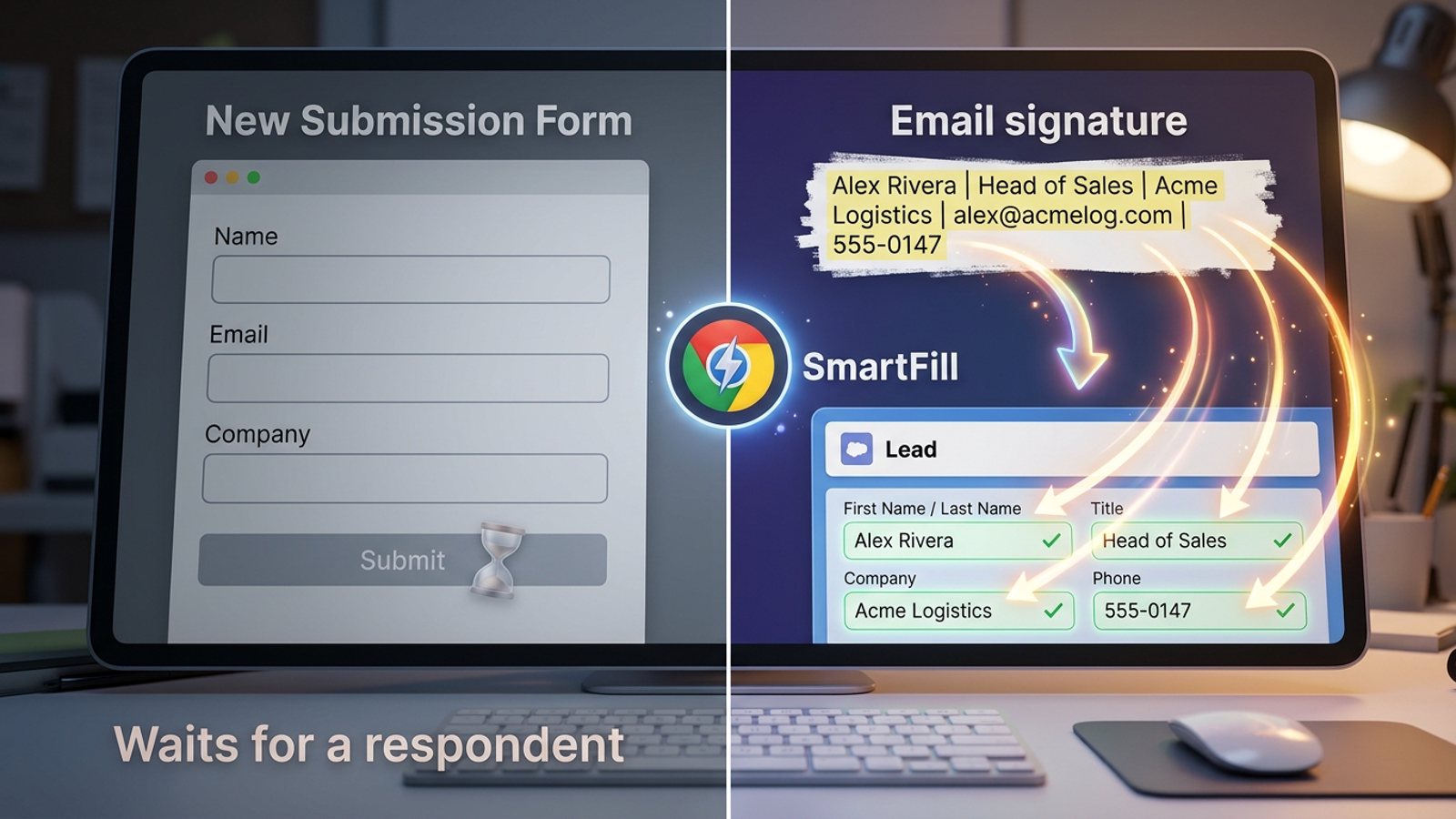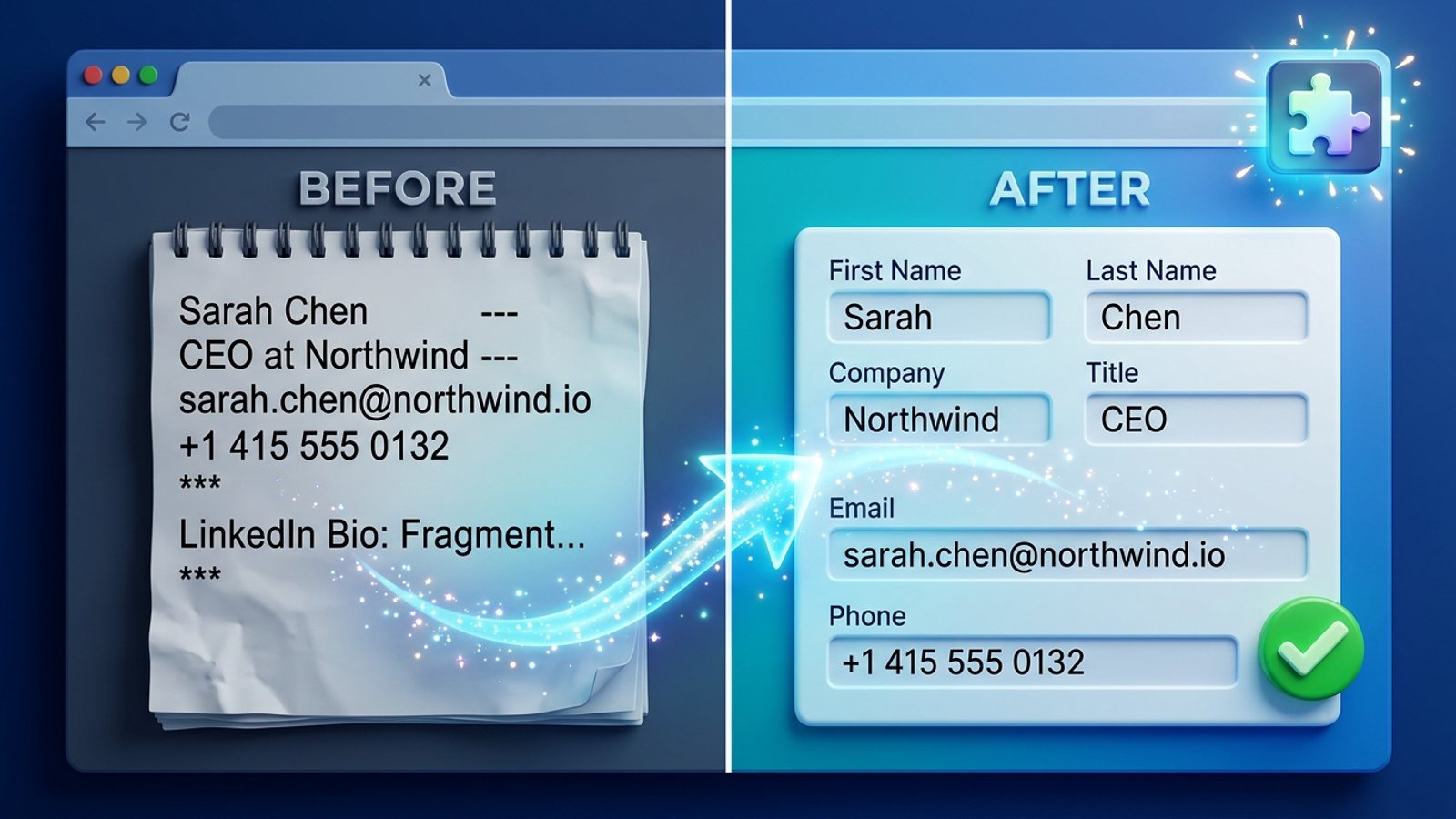
You automate Salesforce data entry with AI by matching the tool to the job: bulk files go through Data Import Wizard or Data Loader, website leads through Web-to-Lead, and the single lead in front of you goes through an AI form filler in your browser that reads pasted text and types it into the open record. Chatbots clean up text but can't touch the form.
If you're an SDR with 40 leads to log before lunch, you don't need a lecture on import architecture. Short version: install SmartFill free and turn a four-minute form fill into a three-second click. The rest of this article explains which AI path fits which job — and where each one stops.
Where does AI actually fit in Salesforce data entry?
AI fits best at the step native Salesforce tooling was never built for: turning unstructured text — an email signature, a LinkedIn bio, a call note — into values inside a record you already have open.
Salesforce's import tools are built for structured files. Trailhead describes Data Import Wizard as the route for up to 50,000 records with simple field mapping, and Data Loader as the client app for 50,000 to 150,000,000 records, with UI or command-line scheduling (Salesforce Trailhead, date not given). Both start from a CSV. Neither starts from "here's what the prospect's signature says."
Flow Builder has the same shape: it's built for rule-based record work — create a task when a deal closes, assign a queue — not for typing an email signature into a new Lead (Revenue Grid, 2026; Validity cheat sheet, date not given).
That leaves a gap that shows up dozens of times a day: one lead, one record, one clipboard.
The automation that saves a rep the most time isn't the one that moves 50,000 rows — it's the one that handles the row in front of them.
What's the difference between a chatbot and an AI form filler?
A chatbot turns messy text into clean, labelled values. An AI form filler writes those values into the Salesforce form. Only the second one removes the typing.
The limitation is structural. As dassi's vendor blog puts it (2026), ChatGPT can't see the Salesforce record or the form you're on — you have to describe every field you want filled and then paste every value in by hand. You've saved the parsing, not the data entry.
A browser-based filler works differently. Voice2Force, for example, adds a mic icon next to Salesforce fields on any record or object, works inside your existing session and permissions, and requires no login (Chrome Web Store, updated 2026-07-18). Parsing and typing happen in the same place.
- Chatbot: great at cleanup, useless at typing into Salesforce.
- Browser filler: does both, inside the record you're on.
For the deeper comparison, our breakdown of automating Salesforce data entry with ChatGPT covers where that route runs out of road.
How do you automate Salesforce data entry step by step?
Start by naming the job, then run the matching steps. Most reps only ever need the last set.
- Decide which job you have. Bulk import of a prepared file, new website capture, or one lead in front of you (Salesforce Trailhead, date not given).
- For bulk: prepare a CSV, choose Data Import Wizard (≤50,000 records, supported object) or Data Loader (>50,000, scheduled, complex mappings), map columns, and match lookups on external IDs (Salesforce Developers, date not given; Skyvia, 2026-08-20).
- For website capture: generate the Web-to-Lead HTML in Setup, add any new Lead fields first, regenerate the HTML, then style it with CSS (Salesforce Help, 2026-09-21; StoreConnect, 2026-10-08).
- For one lead at a time: copy the messy source text as-is — signature, LinkedIn section, call note.
- Open the Salesforce record in your own logged-in browser and let the AI filler map the pasted text to fields.
- Review before saving. Even AI tools that write into Salesforce give you an edit step (Voice2Force, 2026-07-18; Socket, 2026-10-24).
- Let Flow handle what follows. If a repetitive rule-based action should fire after the record exists, build it in Flow Builder and test it in a sandbox first (Revenue Grid, 2026-04-14).
Can AI fill any Salesforce object, or just Leads?
A browser-based AI filler can work across any object you can open in Salesforce — Leads, Contacts, Accounts, Cases, Opportunities, custom objects — because it operates on the form in front of you rather than through a fixed import template.
SmartFill confirms this directly: it fills everything, on anything that runs in a Chrome browser, with no cap on how many fields it fills at once. That matters because field count is where manual entry really hurts — a Lead might need six fields, but a Contact with a full address, title, source and notes can run to twenty.
Compare that with the native routes:
- Web-to-Lead writes to the Lead object only — not Contacts, Accounts, Cases, Opportunities or custom objects (FormAssembly vendor comparison, 2026-05-31).
- Data Import Wizard supports Accounts, Contacts, Leads, Campaign Members, Solutions and custom objects, but only from a prepared file (Salesforce Trailhead, date not given; Plauti, 2024-01-17).
What about the native Salesforce import tools?
They're excellent — for the job they were built for. Data Import Wizard handles manual imports up to 50,000 records with simple mapping and no client install. Data Loader handles 50,000 to 150,000,000 records, offers a Bulk API option for speed, can delete records, and can be scheduled from the command line (Salesforce Trailhead, date not given; Skyvia, 2025-05-06).
Their limits are just as clear: Plauti's 2024 guide lists a 50,000-record ceiling, limited object support, basic mapping and no scheduling for the wizard; Skyvia notes Data Loader upserts need parent external IDs (2026-08-20). Neither is a one-record-at-a-time tool.
Which tool should you use to automate Salesforce data entry?
For filling records one at a time from messy pasted text, SmartFill is our pick of the tools we compared — it's the only one here built specifically for that job on Salesforce, with no setup and unlimited fields.
Prices for other tools are as of November 2026 and can change.
| Option | Best for | Key features | Price / free option | Watch-outs |
|---|---|---|---|---|
| SmartFill (Our pick) | One-record fills from pasted text | Any Salesforce object, unlimited fields, no setup, text not stored | Free: 5 fills, then 3/day; Pro $9.99/mo | Desktop Chrome only |
| Salesforce Web-to-Lead | New website enquiries | Setup-generated HTML, writes to Lead | Free with Salesforce | Lead only, ~500/day per FormAssembly |
| Data Import Wizard | Manual bulk imports | Field mapping, no install | Free with Salesforce | 50,000-record ceiling, no scheduling |
| Data Loader | Large or scheduled loads | Bulk API, command line, deletes | Free Salesforce client app | Needs CSV with exact mappings |
| Voice2Force | Dictating values by voice | Mic on any Salesforce field, no login | Not shown on listing | Voice input, not pasted text |
SmartFill is made by the team behind this blog. It's built for the rep who has a LinkedIn profile in one tab and a blank Lead in the other: paste, click, review, save. Try it with the free AI form filler for Salesforce — five fills to start, then three a day forever, no sign-up.
The honest caveats. If you mainly need to dictate notes into fields while walking between meetings, Voice2Force is the more direct choice — it puts a mic next to any text, textarea or rich-text field on any object (Chrome Web Store, 2026-07-18). If you're loading a 20,000-row list from a conference, Data Loader is the right tool and no form filler replaces it. If your leads arrive through a website form, Web-to-Lead is free and reliable for simple capture (JW Digital, 2026-05-13) — just know it caps at around 500 submissions per 24 hours per FormAssembly's vendor comparison (2023) and can't deduplicate against existing records (CloudAmp guide, date not given).
FillGenius is another Chrome option that claims context-aware mapping to unseen forms across CRMs and support tickets (Chrome Web Store, 2026-06-09); its listing showed 280 users at the time of writing. AutoFormAI builds a personal-information library from resumes and notes and stores it on-device (Chrome Web Store, 2025-11-15) — useful for your own details, less so for a prospect's pasted bio, and an independent audit of version 1.0.3 flagged broad host and identity permissions as medium-risk findings (Koidex, 2024-11-13).
For a wider field, see our roundup of the best Salesforce data entry automation tools in 2026.
Is it safe to let a browser extension see your Salesforce session?
It depends entirely on what the extension asks for and what it does with your data — so check both before you install anything.
Two practical checks. First, permissions: an extension that requests access to all websites plus identity permissions has a wide reach, and Koidex's audit of one rival flagged exactly that combination as medium risk (2024-11-13). Second, retention: ask whether the text you paste is stored.
SmartFill's answer on retention is direct — none of the information sent to the AI is saved, and text is processed in real time. No lead database is built. That's the standard to hold every tool to.
Our recommendation: install fillers in your work Chrome profile only, and read the permission prompt before clicking Add.
Ready to stop typing? Install SmartFill Free and fill your next Lead from the text you already have on screen.
Sources
- Import Data (Salesforce Trailhead)
- When to Use Data Loader (Salesforce Developers)
- Salesforce Data Loader vs. Data Import Wizard (Plauti, 2024-01-17)
- Import CSV into Salesforce (Skyvia, 2026-08-20)
- Data Import Wizard vs Data Loader (Skyvia, 2025-05-06)
- Web-to-Lead guide (Salesforce)
- Adding a new field to Web-to-Lead (Salesforce Help, 2026-09-21)
- Web-to-Lead and Web-to-Case setup (StoreConnect, 2026-10-08)
- How to Build Salesforce Forms Without Code (FormAssembly, 2023-11-18)
- FormAssembly vs. Salesforce Web-to-Lead (FormAssembly, 2026-05-31)
- CloudAmp's Guide to Salesforce Web-to-Lead Forms (AppExchange PDF)
- Web-to-Lead vs a Custom Integration (JW Digital, 2026-05-13)
- Enrich Records from Documents with SmartFill (Salesforce Help, Summer '26)
- The problem with ChatGPT for work (dassi, 2026-01-27)
- AutoFormAI (Chrome Web Store, 2025-11-15)
- AutoFormAI security report (Koidex, 2024-11-13)
- FillGenius (Chrome Web Store, 2026-06-09)
- Voice2Force (Chrome Web Store, 2026-07-18)
- Salesforce Visit Sidebar (Socket, 2026-10-24)
- 4 Workflows You Should Automate in Salesforce (Validity PDF)
- Salesforce Flow vs Workflow Rules vs Process Builder (Revenue Grid, 2026-04-14)