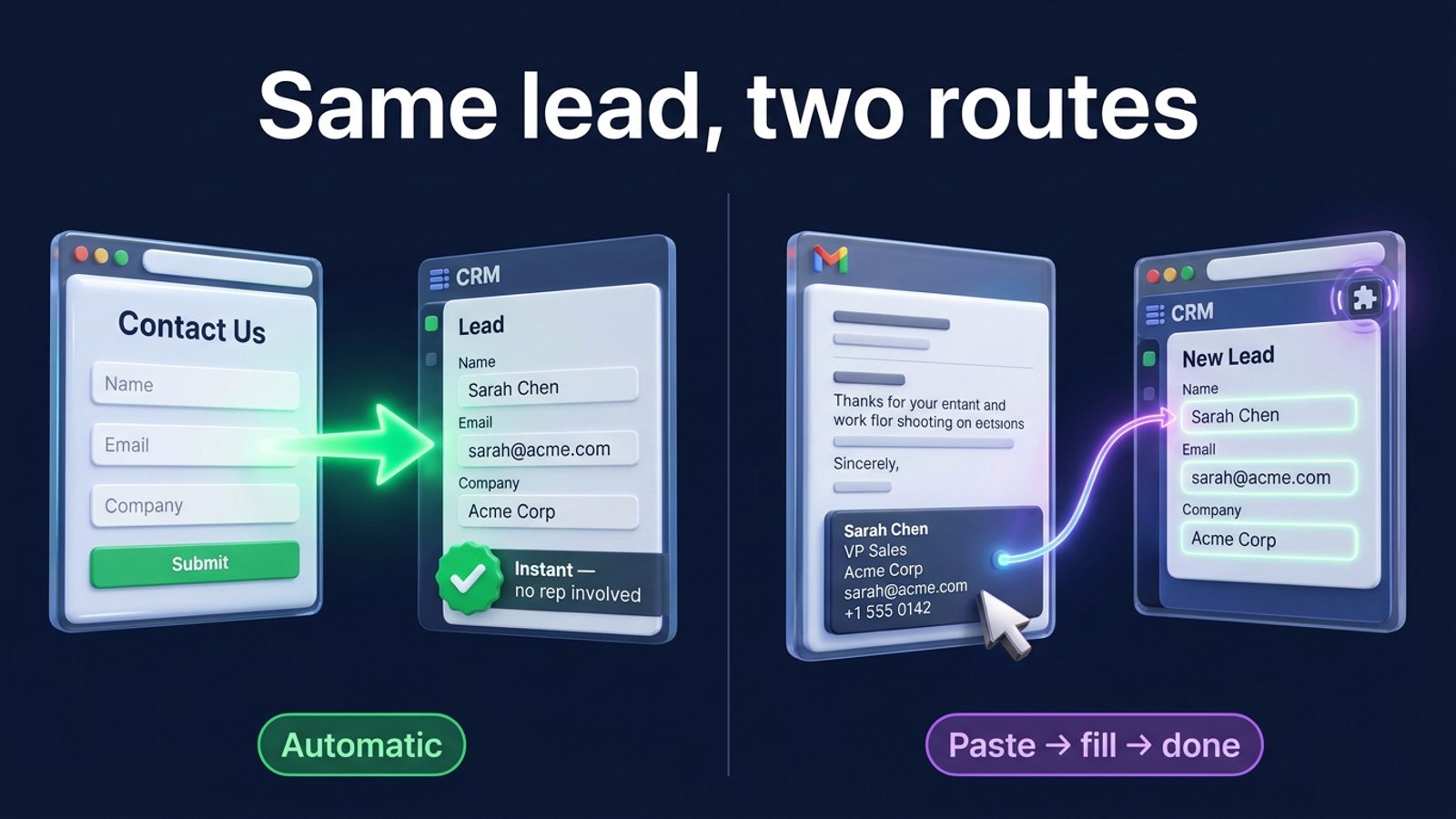
Neither interface is meaningfully faster to fill in by hand. The bottleneck is the typing and the copying from email, notes or spreadsheets — not the screen around it. Lightning is the current generation and gets all new Salesforce feature work, but its pages load component-by-component, so a heavy custom page can feel slower than Classic. A paste-to-fill extension works in both, because both run in Chrome.
If you are weighing up salesforce lightning vs classic for a rep who keys in leads, contacts and accounts all day, the honest answer is that the interface is the wrong thing to optimise. The faster route is to stop typing at all: paste the messy lead text and let an AI form filler for Salesforce map it into the fields. You can install SmartFill free and try it on whichever UI you're on.
Is Salesforce Lightning actually slower than Classic?
Sometimes — and Salesforce's own documentation explains why. In Classic, web pages are generated by the Salesforce server and then displayed in your browser. In Lightning Experience, the page loads progressively, component by component, on your device (Salesforce Trailhead, undated).
That architecture has consequences. Salesforce measures Lightning load with "Experienced Page Time" (EPT) — the time from page-load start to a point with no activity for at least two frames, roughly 33ms, plus two more frames to catch async activity and user interaction (Salesforce Trailhead, undated).
Four things hurt that number: network conditions and distance to the server, the user's device and browser, browser issues, and org configuration or page complexity — pages with many custom fields or custom components render more slowly (Salesforce Trailhead, undated). When users complain Lightning is slow, Salesforce says the root cause is typically network performance, browser performance, or page complexity and customizations — and often all three need fixing together (Salesforce Help, 2026-07-09).
So if your Lightning lead page is heavy with custom components, it can genuinely feel slower than Classic. On a clean page and a good connection, most reps won't notice a difference that matters. Either way, the page load is a few seconds — the typing is minutes.
Which UI is faster for filling a lead, contact or account form?
Neither, for a rep typing by hand. The form-filling time is dominated by reading the source — an email signature, a call note, a LinkedIn bio — and keying each value into the right field. That work is identical in both interfaces.
What does differ is layout. Classic page layouts show every field on every record page; users can see 200 fields when they need 15, and conditional visibility used to require record-type and page-layout workarounds (CRM Curator, 2026-03-14). Classic's UI was originally designed with data entry and record management in mind, while Lightning was built around actions and user productivity (Salesforce Trailhead, undated).
Lightning can close that gap with Dynamic Forms, which lets admins place fields directly on a Lightning record page in Lightning App Builder with per-field visibility rules instead of juggling multiple page layouts and record types (360 Degree Cloud, 2025-09-30; Salesforce Dictionary, 2026-05-15). A vendor blog and a Salesforce reference site both note that showing only the fields a given user or situation needs removes unnecessary fields and reduces scroll effort (Synergy Marketing, updated 2026-08-05; CRM Curator, 2026-03-14).
Fewer visible fields means less scrolling. It does not mean less typing. That's the distinction most "which is faster" comparisons miss.
Does Lightning or Classic take more clicks to create a record?
No source in the material measured clicks per lead or fields per minute for Lightning versus Classic lead, contact or account forms — so treat any specific click-count claim you read elsewhere with suspicion.
What the material does say: a Lightning record page built in App Builder controls the whole record page — Highlights panel, related lists, Activity components — while a page layout controls the fields, order, required/read-only settings, buttons and related lists rendered inside the Record Detail component (Salesforce Dictionary, 2026-06-15). In practice, the click count is set by how your admin configured those two things, not by which UI you're in.
How do you actually fill forms faster in either interface?
Cut the typing, not the interface. Here's the sequence that works in both Lightning and Classic:
- Identify which UI you're on — Lightning Experience and Salesforce Classic look and load differently, and your admin will need to know which one you mean.
- Check the field layout — on Lightning, ask about Dynamic Forms so only relevant fields show; on Classic, expect every field on the page.
- Isolate slowness before blaming the UI — check whether it's network, browser or page complexity first (Salesforce Help, 2026-07-09).
- Paste the raw lead text into a form filler that maps it into the Salesforce fields — this is the step that removes the typing entirely.
- Use Data Import Wizard or Data Loader for bulk loads of clean data, not for one lead from a messy email.
On step five: Salesforce's Data Import Wizard handles up to 50,000 records per import for Contacts, Leads, Accounts, Campaign Members and custom objects, and Data Loader handles 5,000 to 5,000,000 records for Enterprise and above (Fabian Warislohner, LinkedIn, 2026-03-10). Both need a clean, structured CSV — the opposite of pasted lead text.
The interface debate saves seconds; the copy-paste is what eats your afternoon.
Do browser extensions work in both Lightning and Classic?
Yes, because both are rendered in the browser. Salesforce documents considerations around third-party browser extensions and JavaScript libraries for Lightning Experience (Salesforce Release Notes, 2024-05-02), and Classic is a browser-rendered interface too.
Two things to know. First, Salesforce does not support non-browser apps that embed WebView or similar controls to render Lightning Experience content — examples given include Microsoft WebBrowser Control, Electron's embedded Chromium, and iOS or Android WebView (Salesforce Release Notes, 2024-05-02). Second, Chrome's Web Store user-data policy requires extensions that handle user data to post a privacy policy, handle it securely including encrypting transmissions, and disclose and obtain consent even when data is processed only locally (Chrome for Developers, undated; enforcement from 2019-10-15).
Which tools help you fill Salesforce forms faster?
Here's how the realistic options compare for a rep filling a single lead, contact or account record. SmartFill goes first because it's ours — and the disclosure line below says so.
| Option | Best for | Key features | Price / free option | Watch-outs |
|---|---|---|---|---|
| SmartFill (Our pick) | Pasting messy lead text into any Salesforce form | AI fills forms from any pasted text; no setup; no lead database built | Free: 5 fills, then 3/day forever; Pro $9.99/mo as of November 2026, prices can change | Desktop Chrome only; doesn't change Salesforce config |
| Manual typing in Lightning | Reps on a clean, well-configured record page | Dynamic Forms can hide irrelevant fields | Included in your Salesforce edition | Page load depends on network, device, browser, page complexity |
| Manual typing in Classic | Slow networks and older devices | Server-generated pages; layouts built for data entry | Included in your Salesforce edition | No new features; every field on every page |
| Data Import Wizard / Data Loader | Bulk loading clean CSV data | Up to 50,000 records per import; Data Loader 5,000–5,000,000 | Built into Salesforce | Needs clean structured data, not pasted text |
| Einstein Autofill | OmniScript forms in Industries clouds | AI suggestions from call and chat conversations | No standalone price; requires Enterprise/Unlimited Industries plus an add-on | Beta; Lightning-only; doesn't fill standard record pages |
Our pick, of the tools we compared, is SmartFill — because it's the only one on this list built for the exact job in the title: taking unstructured text and putting it into a Salesforce form, in either UI, with no configuration. Install it in about 10 seconds, no sign-up, and paste your first lead. Get SmartFill free.
If you mainly need to load thousands of clean records at once, Data Import Wizard is the more direct choice. If your org runs Industries clouds and fills OmniScripts from call transcripts, Einstein Autofill is built for that — it turns call and chat conversations into AI-driven form suggestions, requires Lightning Experience in Enterprise or Unlimited Industries editions plus the Industry Service Excellence Add-On, and is a Beta service under Salesforce's Beta Services Terms (Salesforce Spring '25 Release Notes, undated; Salesforce Help, updated 2026-10-22). It does not fill standard lead, contact or account record pages from pasted text.
SmartFill is made by the team behind this blog.
On cost, the pricing picture is lopsided. Manual typing is free but costs you the minutes. SmartFill's Pro plan is $9.99/month as of November 2026, and prices can change. Einstein Autofill has no standalone price in the material — it's bundled into specific Industries editions and an add-on.
What are the limits of each approach?
SmartFill runs in desktop Chrome only, doesn't change your Salesforce configuration, and isn't available outside a Chrome browser. It fills forms from any pasted text — email signatures, LinkedIn bios, call notes — with no setup, and the text is processed in real time and not stored.
Lightning gets all new Salesforce innovation; Classic does not. Salesforce's guidance is that Lightning isn't going away, Classic remains usable, users can switch between the two, and all new Salesforce innovation is delivered in Lightning Experience only (Salesforce Trailhead, undated; Salesforce Help, 2026-11-19). Lightning Experience is available in Essentials, Group, Professional, Enterprise, Performance, Unlimited and Developer editions (Salesforce Release Notes, 2024-05-02).
Classic is a dead end for new features, and its page layouts show every field on every record.
Einstein Autofill is Lightning-only and scoped to OmniScripts in Industries editions.
Data Import Wizard is a batch tool, not a way to fill the record page you're staring at.
Sources
- Compare Salesforce User Interfaces — Salesforce Trailhead, undated
- Optimize Lightning Experience Performance — Salesforce Trailhead, undated
- Optimize Lightning Experience Performance — Checklist and Troubleshooting Guide — Salesforce Help, 2026-07-09
- Transition from Salesforce Classic to Lightning Experience — Salesforce Help, 2026-11-19
- Prepare for Lightning Experience Transition — Salesforce Trailhead, undated
- Supported Browsers and Devices for Lightning Experience — Salesforce Release Notes, 2024-05-02
- Use Dynamic Forms to reduce the clutter from your Page Layouts — 360 Degree Cloud, 2025-09-30
- Dynamic Forms — Salesforce Dictionary, 2026-05-15
- Layout — Salesforce Dictionary, 2026-06-15
- Dynamic Forms Best Practices: Cleaner Record Pages — CRM Curator, 2026-03-14
- Salesforce動的フォームの設定手順とカスタマイズのコツ — Synergy Marketing, updated 2026-08-05
- How to Use Analyze Button to Improve Salesforce Lightning Load Speed? — 360 Degree Cloud, updated 2026-04-23
- Data Import/Data Loader limits — Fabian Warislohner, LinkedIn, 2026-03-10
- Einstein Autofill — Salesforce Spring '25 Release Notes, undated
- Einstein Autofill editions & permissions — Salesforce Help, updated 2026-10-22
- Einstein Autofill setup — Salesforce Dictionary, 2026-07-31
- Chrome Web Store User Data FAQ — Chrome for Developers, undated