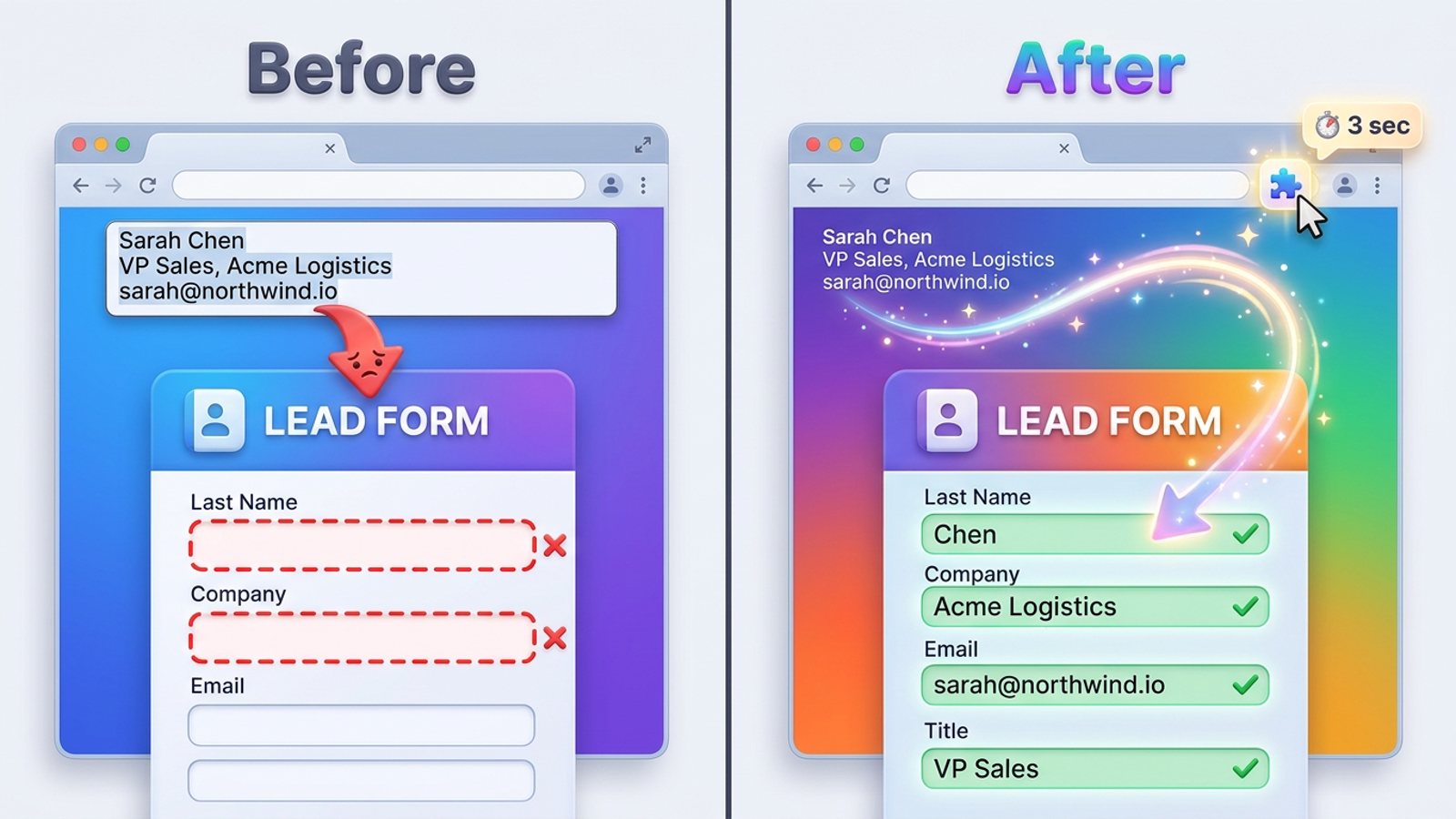
If you're an SDR pasting a messy email signature or LinkedIn bio into a Salesforce Lead, the most direct route is a paste-and-AI tool built for Salesforce — SmartFill is our pick. The other four routes (Salesforce Web-to-Lead, Magical, Chrome's built-in autofill, and manual copy-paste or Zapier-class automation) each solve a different slice. Match the tool to where your data comes from.
This is a forward-looking list built on facts checked as of November 2026. Salesforce changes its UI often, so menus may differ by the time you read this.
What should an SDR look for in a Salesforce form filler?
Speed per record, zero setup, and privacy come first. The best tool for an SDR is the one that turns a messy block of text into a saved Salesforce record in seconds — without asking the rep to learn a new system or hand over lead data to a database they don't control.
Here's what actually matters when you're filling 20–50 records a day:
- Speed per record. Every minute in a form is a minute not dialing. A filler that takes 5–10 minutes per 10–30-field workflow (QuickForm, 2026) isn't saving you anything.
- Tolerance for messy input. Real lead data arrives as an email signature, a LinkedIn About section, or a paragraph from a website — not clean CSV columns.
- Zero setup. URL patterns, regex rules, and workflow builders are fine for RevOps; they're friction for a rep who just wants the form filled.
- Privacy. You're pasting real prospect data. You need to know what gets stored and what doesn't.
The top 5 Salesforce form fillers for SDRs in 2027
Here's the shortlist, with the honest trade-offs. SmartFill goes first because it's the most direct fit for the SDR job of pasting messy text into a Salesforce record.
1. SmartFill — our pick
SmartFill is a Chrome extension that uses AI to fill Salesforce forms from any pasted text. You copy the messy lead data, click the icon, and the form populates. That's the whole workflow.
It's built for exactly the SDR scenario: an email signature, a LinkedIn bio, a paragraph from a company site. It handles unstructured data without manual parsing, requires no setup or configuration, and installs in about 10 seconds with no sign-up. Text is processed in real time and not stored — no lead database gets built.
It fills any Salesforce object — Leads, Contacts, Accounts, Cases, custom objects — and works on anything that runs in a Chrome browser, including Salesforce Classic and Lightning. Field count is unlimited.
Honest limits: desktop Chrome only, no integrations beyond Salesforce, and duplicate detection is listed as coming soon, so check for duplicates before you save.
Price: Free plan gives 5 fills to start, then 3 per day forever. Pro is $9.99/month for unlimited fills — as of November 2026, prices can change.
2. Salesforce Web-to-Lead — best for website forms
Web-to-Lead turns a website form into a Salesforce Lead record with no extra software, and it supports custom Lead fields (Salesforce Help, 2026). It's the right tool when a prospect fills out a form on your site.
It's not a rep tool. It writes to the Lead object only, needs the Customize Application permission to set up, and has a hard cap of 500 leads per 24 hours per org — raising it means opening a Salesforce Support case (Salesforce Help, 2026; Opibility, 2026). When the cap is hit, further requests sit in a pending queue. Duplicate rules set to "Allow and Alert" can also block a submission outright (Salesforce Help, 2026).
Price: included in Salesforce.
3. Magical — best for text expansion across apps
Magical is a Chrome text expander and autofill app that states it works on 10,000,000+ apps including Salesforce, HubSpot and Zoho, with no integrations or workflow builders needed (Magical, date not given). If your reps repeatedly paste the same saved values, it's a strong fit.
The catch: it's text expansion and autofill, not semantic parsing of messy pasted text — a vendor comparison argues simple text-expansion tools struggle as forms get more complex (Aiformfills, 2026). Its Chrome Web Store listing shows a 3.1 rating across 3.5K ratings, and its privacy disclosure covers PII, location, web history, user activity and website content (Magical, date not given).
Price: listings conflict — one aggregator shows Free $0 / Pro $10/mo, another shows Free $0 / Solo $6.50 / Team $10, and a third says no free plan (AICompareNet, date not given; MoreAI.tools, 2026; ClickUp, 2025). Check Magical's own pricing page before you budget.
4. Chrome built-in autofill — best for simple static forms
Chrome's autofill is free and already in your browser. For static HTML forms and simple contact fields it works fine.
Salesforce is a different story. It's built on Lightning Web Components, where fields are rendered and managed by JavaScript that Chrome's scanner wasn't built to handle — so fields fail to populate (QuickForm, 2026). The same source reports a 10–30-field Salesforce workflow still takes 5–10 minutes even with saved Chrome autofill data.
Price: free with Chrome.
5. Manual copy-paste (or Zapier-class automation) — best for full control or hands-off creation
Manual copy-paste costs nothing in money and works with any field. It also makes your reps data-entry clerks instead of closers — the exact thing SDR workflow advice tells teams to stop paying for (Lead Onion, 2026). Duplicates enter Salesforce through manual entry alongside web forms and imports, and reps end up calling the same lead twice (Plauti, 2025).
At the other end, workflow automation like Pabbly Connect can automate "new email → create Salesforce Lead" without code, and its free account is listed at 100 automation tasks per month (Pabbly, 2025). It's hands-off lead creation — not a rep filling a form.
Price: copy-paste is free; Pabbly's free tier is listed as above. Zapier's current plans weren't in this week's material, so we're not quoting them.
SmartFill is made by the team behind this blog.
How do the five options compare?
Here's the side-by-side. The explanations are in the text below it.
| Option | Best for | Key features | Price / free option | Watch-outs |
|---|---|---|---|---|
| SmartFill (Our pick) | Pasting messy text into any Salesforce form | AI paste fill, no setup, real-time | Free: 3/day; Pro $9.99/mo | Desktop Chrome only |
| Web-to-Lead | Website lead forms | Native, custom Lead fields | Included in Salesforce | 500/day cap; Lead only |
| Magical | Text expansion across apps | Snippets, autofill, 10M+ apps | Tiers conflict; check site | Text expansion, not parsing |
| Chrome autofill | Simple static forms | Free, built in | Free | Often fails on Lightning |
| Copy-paste / automation | Full control or hands-off | Any field; no-code flows | Free; Pabbly free tier | Slow; setup work |
The pattern is clear: the tools that are fast on messy pasted text are purpose-built for it, and the tools that are free or built-in weren't designed for Lightning.
Why doesn't Chrome autofill work on Salesforce Lightning?
Because Chrome's autofill was designed for static HTML forms, and Salesforce Lightning renders fields with JavaScript. Chrome's scanner fires direct DOM writes that Lightning's inputs don't respond to, so fields stay empty (QuickForm, 2026).
That's the single biggest reason SDRs give up on browser autofill. If you've ever clicked into a Salesforce field, watched Chrome offer a saved address, and then seen nothing appear — that's the mechanism.
How many leads can Web-to-Lead create per day?
500 per 24-hour period per org, and that's an org-level limit (Salesforce Help, 2026; Opibility, 2026). When the cap is hit, the Default Lead Creator gets an email with the extra lead details, and further requests sit in a pending queue until the limit refreshes (Salesforce Help, 2026).
Salesforce does confirm leads aren't lost if submitted during a scheduled downtime (Salesforce Help, 2026). But for an SDR team entering records rep by rep, Web-to-Lead isn't the tool — it's for website capture.
Is it safe to paste lead data into an AI extension?
It depends entirely on what the extension does with the data. Chrome's Web Store rules require extensions to collect only what their disclosed single purpose needs, and to transmit data over secure connections with a privacy policy posted (Chrome for Developers, enforced since 2019).
With SmartFill, none of the information sent to the AI is saved — text is processed in real time and not stored, so no lead database gets built. That's the standard to hold any filler to.
Can a form filler dedupe or block duplicate leads?
Not as a dedicated feature in most fillers. Salesforce's own matching and duplicate rules are what warn reps before a record saves (Trailhead, date not given), and Web-to-Lead submissions can be blocked by duplicate rules set to "Allow and Alert" (Salesforce Help, 2026).
SmartFill's duplicate detection is listed as coming soon, so don't count on it yet. Our recommendation: check the record before you hit save, and let Salesforce's rules catch what you miss.
Does a filler work on Contacts, Cases and custom objects — or only Leads?
It depends on the tool. Web-to-Lead writes to the Lead object only. SmartFill fills any Salesforce object — Leads, Contacts, Accounts, Cases and custom objects — and its field count is unlimited.
That matters more than it sounds. An SDR who can only fill Leads still has to hand-type Contact records after a conversion, and Case notes after a support handoff. A filler that covers every object removes the whole copy-paste habit, not just part of it.
How do you set this up in practice?
Here's the actual workflow for a paste-based filler. It takes about a minute the first time.
- Install the extension. One click, roughly 10 seconds, no sign-up.
- Open Salesforce and your source text in separate tabs — the New Lead, Contact, Case or custom-object form on one side, the signature or bio on the other.
- Copy the messy text. Don't clean it up.
- Click the SmartFill icon. The Salesforce form fills automatically.
- Review the fields, check for duplicates, save.
If you want to skip the copy step, save a Page Rule for that Salesforce page so the fill runs from your clipboard on one click.
If you want the fastest route to a filled record, install SmartFill free and try it on your messiest lead text first.
Sources
- SmartFill Chrome Web Store listing (SmartFill, updated 2026-10-19)
- Web-to-Case and Web-to-Lead Daily Limits Exceeded (Salesforce Help, 2026-04-01)
- Salesforce Web-to-Lead 500-a-Day Cap (Opibility, 2026-10-07)
- How can I be sure that leads aren't lost? (Salesforce Help, 2026-11-09)
- Web-to-Lead duplicate rules block (Salesforce Help, 2026-06-19)
- Web-to-Lead custom fields (Salesforce Help, 2026-09-21)
- Magical Auto Form Filler (Magical, date not given)
- Magical pricing (AICompareNet, date not given)
- Magical pricing (MoreAI.tools, 2026-05-21)
- Best Chrome AI extensions (ClickUp, 2025-10-23)
- Autofill Salesforce records in Chrome (QuickForm, 2026-06-09)
- AI Form Fills vs Magical (Aiformfills, 2026-09-01)
- Chrome Web Store user data FAQ (Chrome for Developers, enforced since 2019-10-15)
- Duplicate management unit (Trailhead, date not given)
- How to deduplicate in Salesforce (Plauti, 2025-09-21)
- Automate Sales Grunt Work (Lead Onion, 2026-01-25)
- Pabbly Connect pricing (Pabbly, 2025-05-11)