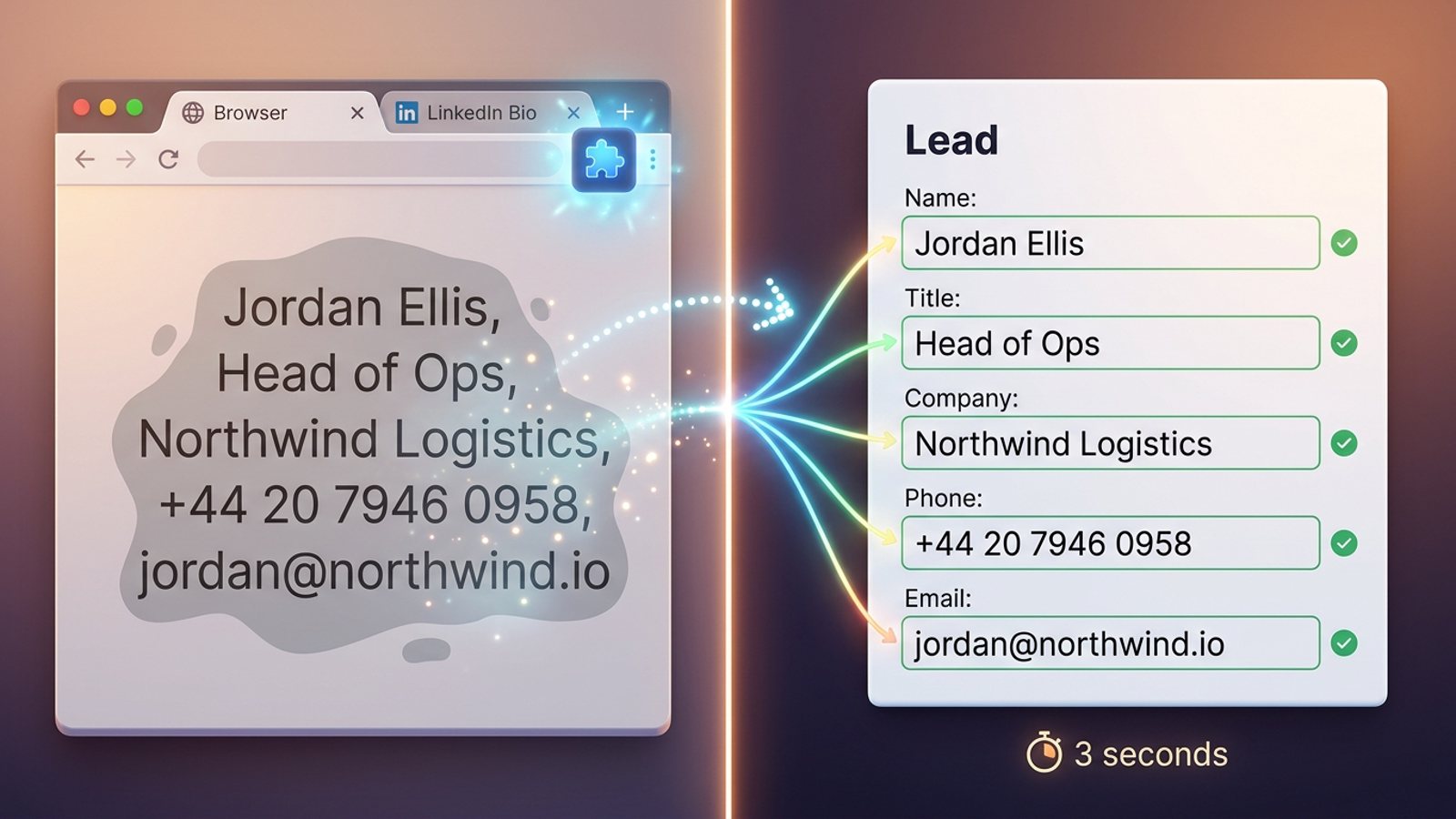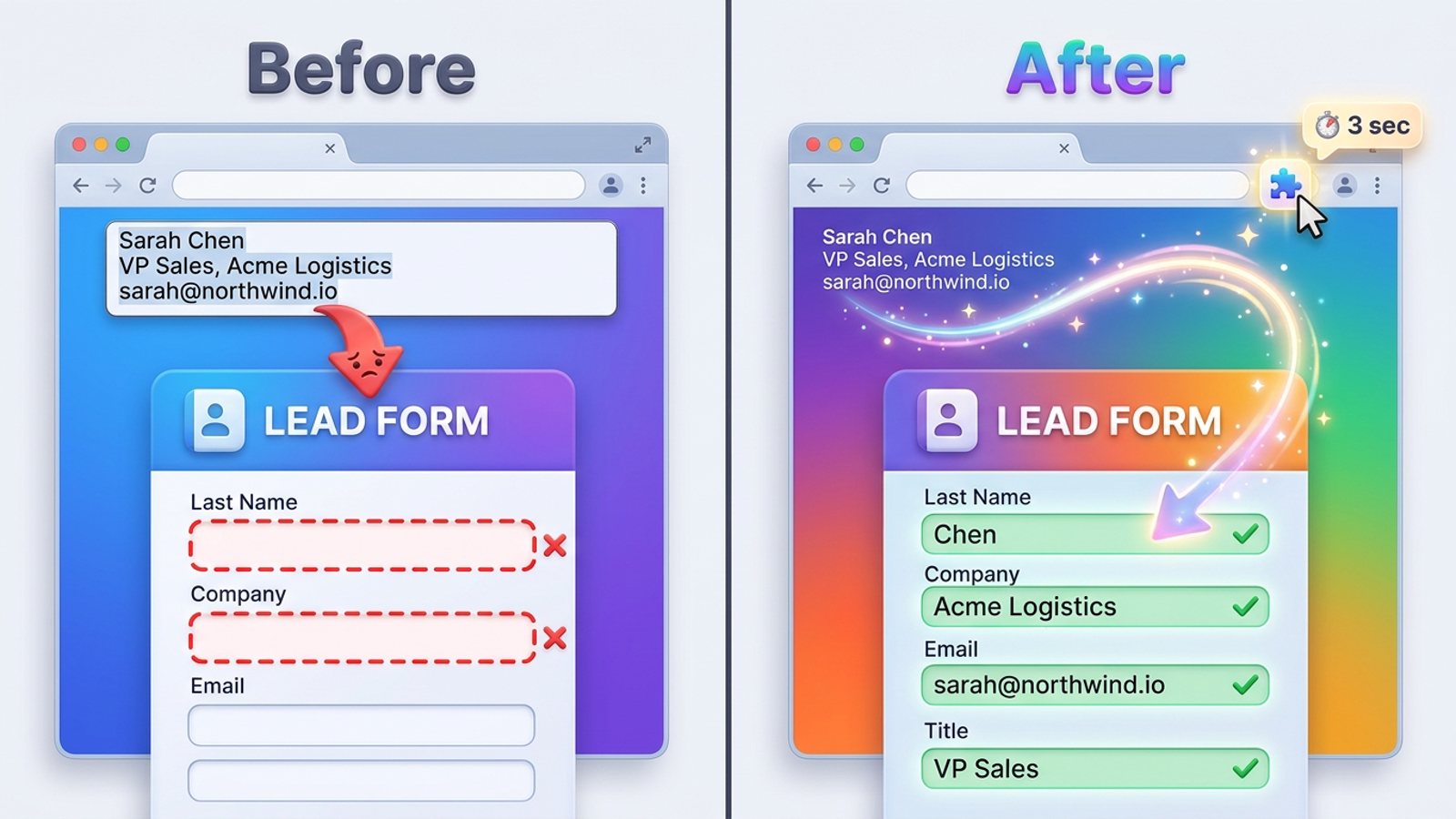
For an SDR pasting LinkedIn bios into Salesforce, the best AI form filler for SDR LinkedIn leads is SmartFill: copy the profile text, click once, and it maps name, title, company, email and phone into the Lead fields. It is a Chrome extension built for Salesforce forms, with a free plan and no setup.
If you spend your morning in LinkedIn tabs and your afternoon typing the same five fields into Salesforce, this is the comparison you need. It ranks the realistic options on one job: turning an unstructured bio into a clean lead record.
Install SmartFill Free and fill your next lead in the time it takes to paste.
Can an AI form filler turn a LinkedIn bio into a Salesforce lead?
Yes — if it is built to read unstructured text and write it into Salesforce fields. A LinkedIn profile is not a form. It is a headline, an About paragraph, a list of roles, maybe a contact line buried at the bottom.
The right tool reads that block of text and works out which words are the name, which are the title, and which are the company. Then it puts each one in the correct Salesforce field. The wrong tool asks you to do that thinking yourself, which is exactly the copy-paste chore you are trying to escape.
SmartFill's Chrome Web Store listing describes the manual version of this job plainly: open Salesforce, click "New Lead," then copy-paste First Name, Last Name, Email, Phone, Title and Company one field at a time. That is the routine an AI form filler for SDR LinkedIn leads is meant to kill.
How should an SDR log a LinkedIn lead in Salesforce?
The dependable routine is four steps, and it works with any tool on this page.
- Copy the profile text. Open the LinkedIn profile and copy the headline, About section and current role — messy is fine.
- Open a new Lead in Salesforce. Click "New Lead" as usual.
- Let the filler map the fields. With SmartFill installed, click the extension icon and watch Name, Title, Company, Email and Phone populate.
- Check and save. Skim the mapped fields for anything the bio did not contain, then save.
The step people skip is step four. A bio that never states an email will not produce one, so a quick glance before saving is worth the two seconds.
What is the best AI form filler for SDRs logging LinkedIn leads?
SmartFill is our pick of the tools we compared, because it is built for exactly this job: Salesforce forms, filled from pasted text, with nothing to configure.
Here is what that looks like in practice. Say you are working a list of 40 marketing directors. You open a profile, copy the About section, click SmartFill, and the Lead form fills. You save and move to the next profile. No tab-switching gymnastics, no retyping a company name you just read.
The product facts behind that pick:
- It fills Salesforce forms from any copied text using AI, including messy sources like email signatures and LinkedIn bios.
- It works on Salesforce objects broadly — the owner confirms it fills leads, contacts, accounts and custom objects, with no limit on how many fields it can fill at once.
- It installs in about 10 seconds with no sign-up, and there is no setup or learning curve.
- Text is processed in real time and not stored, and no lead database is built.
- Free plan: 5 fills to start, then 3 per day forever. Pro is unlimited fills for $9.99/month as of November 2026, and prices can change.
- Honest limit: it is desktop only, as a Chrome extension.
One thing to be clear about: SmartFill is not a LinkedIn integration. You copy the bio text yourself. That is the design — it keeps the tool focused on the Salesforce form rather than on scraping a site whose rules change.
The fastest honest route from a LinkedIn bio to a clean Salesforce lead is paste, click, save — not a bulk sync you have to configure first.
How do the alternatives compare?
Each option below is genuinely good at something. The question is whether that something is your job.
| Option | Best for | Key features | Price / free option | Watch-outs |
|---|---|---|---|---|
| SmartFill (Our pick) | One pasted bio → one clean Lead | AI field mapping, any Salesforce object, no setup | Free: 3 fills/day; Pro $9.99/mo | Desktop Chrome only |
| Sales Navigator CRM sync | Bulk account and contact sync | Embedded profiles, writes activity back to CRM | Advanced Plus tier only | Admin setup; not per-bio |
| Zapier / Pabbly automation | Auto-logging Lead Ad submissions | Trigger → Create Lead, field mapping | Pabbly: 2,000+ apps | Form leads only; needs setup |
| Generic autofill extensions | Filling your own saved details | Saved profile, one-click fill | Some free, some BYOK | Not built for prospect bios |
SmartFill is first because it matches the exact motion an SDR repeats all day: copy a profile, fill a form. It handles messy, unstructured data without manual parsing, and it needs zero setup. If you mainly need to sync whole lists of connections into Salesforce in bulk, Sales Navigator CRM sync is the more direct choice — but note it is only available to Sales Navigator Advanced Plus users, and setup means installing the Sales Navigator app package in your CRM, adding Embedded Profiles, then enabling CRM sync, per LinkedIn Help.
Zapier or Pabbly automations are the right answer for a different problem: leads arriving from LinkedIn Lead Ads. Pabbly documents a workflow that triggers on a LinkedIn lead notification and creates a Salesforce Lead with mapped First Name, Last Name, Email and Phone, and says Connect supports 2,000+ apps. It triggers on form submissions, not on a profile you are reading manually — and Gilzor notes that only leads submitted after you connect are captured.
Generic Chrome autofill extensions like SmartForm AI, AI Auto Form Filler and FillGenius are built around your own saved profile — name, email, address — for filling sign-up and checkout forms across the web. SmartForm AI's listing describes exactly that. They are not designed to parse a prospect's bio into Salesforce fields. AI Auto Form Filler is free to install and uses a bring-your-own-key model with Google's Gemma 3 27B via Google AI Studio, per its listing (2026-09-26).
SmartFill is made by the team behind this blog.
Ready to test it against your own lead list? Install SmartFill Free — five fills is enough to know.
Why not just use LinkedIn's own Salesforce sync?
Because it solves a bulk problem, not a per-profile one. Sales Navigator CRM sync imports accounts and contacts affiliated with your connections, and can optionally copy Sales Navigator data and activity back to the CRM, according to LinkedIn Help. That is powerful for account mapping. It is not a way to turn the one profile you are reading into one lead.
Salesforce's own integrations page positions LinkedIn for Salesforce around Sales Navigator and states it requires Professional edition or above (page dated 2025-07-29). Setup is an admin job, not a two-minute install.
There is also a duplicate trap worth knowing about. A Trailblazer community answer citing Salesforce help (2026-09-07) notes the native LinkedIn Lead Gen Forms integration always creates a new Lead record and does not check existing Contacts first. If your team runs both inbound forms and manual prospecting, that is how the same person ends up in Salesforce twice.
If you want the deeper walkthrough of pasting a profile and filling the record, see Can AI fill Salesforce forms from a LinkedIn profile I paste in?.
What should you check before you buy any AI form filler?
Four things, in this order.
- Does it target Salesforce specifically? A tool built for Salesforce understands Lead, Contact and Account fields. A general-purpose filler does not.
- Can it read messy text? Your source is a bio, not a spreadsheet. Test it with a real profile before committing.
- What happens to the data? Look for a plain statement that text is processed in real time and not stored. SmartFill states that no information sent to the AI is saved.
- What does it cost at your volume? A per-fill cap matters if you log 30 leads a day. Run the maths on the free tier first.
Our recommendation: test any candidate on five real profiles from your own pipeline, not on a demo. The bios you actually see — with a missing email, a company name that is also a common word, a title that runs three lines — are the real test.
Sources
- SmartFill — The AI Form Filler for Salesforce (Chrome Web Store, date not given)
- LeadCRM: CRM Sync & Lead Finder (Chrome Web Store, updated 2026-11-17)
- AI Cowork for Salesforce (Chrome Web Store, updated 2026-06-09)
- AI Auto Form Filler — Autofill, Free & Private (Chrome Web Store, 2026-09-26)
- SmartForm AI (Chrome Web Store, date not given)
- FillGenius (Chrome Web Store, date not given)
- LinkedIn Lead Enricher (Chrome Web Store, date not given)
- Integration between Sales Navigator and your CRM (LinkedIn Help, ~5 months ago)
- Salesforce + LinkedIn Integration (Salesforce, 2025-07-29)
- Salesforce/LinkedIn Lead Gen form help (Trailhead community, 2026-09-07)
- LinkedIn Salesforce Integration: 2026 Guide (Gilzor, 2026-10-20)
- Integrating LinkedIn Lead Ads with Salesforce Using Pabbly Connect (Pabbly, 2025-08-27)
- Is FillApp safe? security report (Koidex, 2025-06-04)
- 7 best autofill extensions (Thunderbit, vendor blog, 2026-05-12)