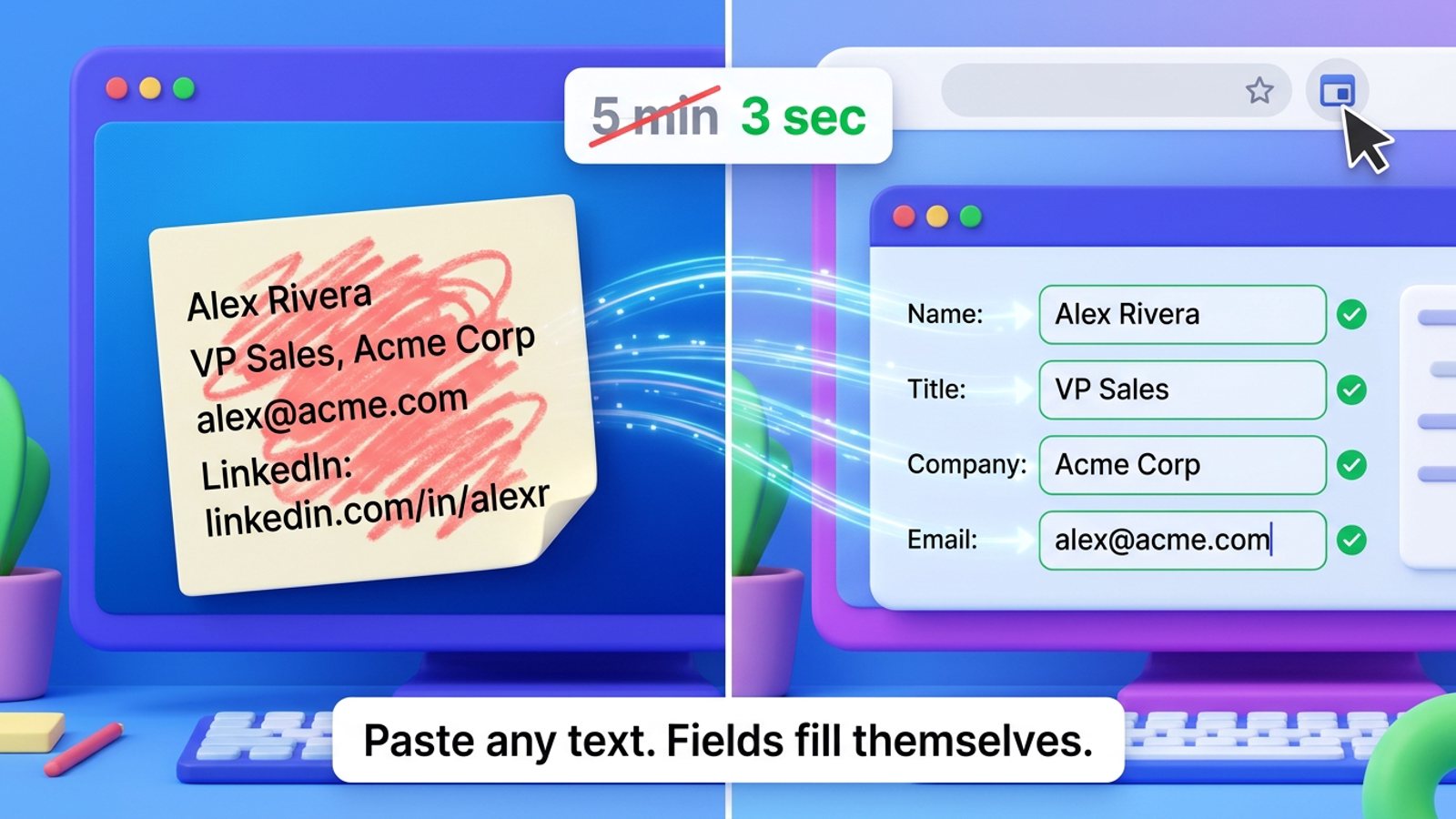
For a team whose reps paste half-formatted emails, signatures and bios all day, the best salesforce form filler messy data tool reads unstructured text and fills the record already open on screen. Of the tools we compared, SmartFill is our pick: paste the text, click once, and it fills Leads, Contacts, Cases and custom objects on desktop Chrome.
Install SmartFill free and fill your next messy lead record in about three seconds instead of four minutes.
Why is messy lead data such a problem in Salesforce?
Because Salesforce has no convenient built-in way to capture lead data from an incoming email. According to Nanonets (vendor blog, 2023), users typically update leads manually or extract data by hand before bulk-importing, and email data is unstructured with no standard schema.
That gap shows up in the CRM. mailparse.ai (vendor blog, 2026) notes that retyping causes real data loss — a phone number dropped into the Description field, a misspelled company, a blank Lead Source — which then corrupts reports. SourceForge Articles (2026) describes admins struggling with dirty data arriving through list uploads and unvalidated form submissions.
So the question for a team lead isn't "which tool has the most features." It's "which tool reads the mess my reps actually paste." That is the whole job.
How should you judge a Salesforce form filler for messy data?
Judge it on four things, in this order: parsing, where it fills, setup, and what happens to the text.
- Parsing. Does it read unstructured text — a signature block, a bio, a forwarded email — and map values to fields? Bullhorn's Amplify Enrich from Notes (knowledge base, date not given) is a useful benchmark: it takes pasted notes with no required format and suggests values, and it only suggests fields explicitly mentioned rather than guessing.
- Where it fills. Does it fill the record form the rep already has open, or only a fixed template or a saved snippet? The messy-data case is one-off text, so the tool must work on whatever form is on screen.
- Setup. Can a rep use it on day one, or does an admin need to configure variables, record IDs and lookups first?
- Text handling. What happens to the pasted lead text after the fill? Check the extension's data disclosure before you paste anything real.
The tool that wins is the one that reads the mess your reps actually paste, not the one with the longest feature list.
Which Salesforce form filler is best for messy lead data in 2026?
SmartFill is our pick of the tools we compared, because it is built around the paste-then-fill case rather than around templates or website forms. It is a Chrome extension that uses AI to fill Salesforce forms from any pasted text.
What that looks like in practice: a rep copies an email signature or a LinkedIn bio, clicks the SmartFill icon, and the open Salesforce form fills automatically. The product facts say it turns roughly 4-minute form fills into about 3-second clicks, handles messy unstructured data like email signatures and LinkedIn bios without manual parsing, and needs zero setup or learning curve.
It fills everything — Leads, Contacts, Cases and custom objects — and works on anything that runs in a Chrome browser, including Salesforce Classic and Lightning. The owner confirms there is no limit to how many fields it can fill at once.
On privacy: the product facts state that text is processed in real time and not stored, so no lead database is built. That matters for a team pasting real prospect details. SmartFill is desktop Chrome only, which is the honest limit to plan around.
Pricing, as of November 2026 and prices can change: a free plan with 5 fills to start, then 3 per day forever, and Pro at $9.99/month for unlimited fills. Installing SmartFill free takes about 10 seconds and needs no sign-up.
What are the alternatives, and who does each suit better?
Here is how the options compare for a team pasting messy lead text. Prices for other tools are as of November 2026 and can change.
| Option | Best for | Key features | Price / free option | Watch-outs |
|---|---|---|---|---|
| SmartFill — Our pick | Pasting messy text into the open record | AI fill from any pasted text; all objects; no setup | Free: 5 fills, then 3/day. Pro $9.99/mo | Desktop Chrome only |
| Salesforce Web-to-Lead | Website form capture | Native; writes to Lead | Free native feature | 500/24h cap; no dedup |
| Salesforce Flow | Admin-built guided screens | Prefill via variables | Native to Salesforce | Admin configuration needed |
| Magical | Text expansion and tab-to-tab transfer | Shortcuts; AI drafting | Vendor trackers disagree | Not built for parsing pasted text |
| Chrome autofill | Simple static HTML forms | Built into Chrome | Free | Struggles on Lightning fields |
SmartFill is made by the team behind this blog.
Salesforce Web-to-Lead and Flow
These are the right answer if your problem is a website form, not a rep's inbox. Web-to-Lead is a free native Salesforce feature (Rackwave Technologies, 2026) that captures website submissions straight into the Lead object with no integration. Flow lets admins build guided screens and prefill fields via variables (Salesforce Stack Exchange, 2017).
The limits are well documented. FormAssembly (vendor blog, 2023) notes Web-to-Lead caps at 500 submissions per 24 hours, has no field validation and no deduplication, and only writes to the Lead object. Neither tool parses a rep's pasted email or signature into fields — they are form- and admin-configured tools. If you mainly need website capture, Web-to-Lead is the more direct choice.
Magical
Magical is a strong text expander: type a shortcut, get the full text, plus AI message drafting and one-click data transfer between browser tabs such as LinkedIn into Salesforce or Google Sheets (Tooloso, 2026). It works on any website with no integrations.
What it does is replay data you already saved or move it tab to tab. It is not described as parsing a pasted email or signature paragraph into whichever Salesforce fields are on screen (Tooloso, 2026). If your reps mostly reuse the same snippets all day, Magical suits them better. Its pricing is reported inconsistently across vendor trackers, so check its own site before budgeting.
Chrome autofill and Salesforce Lightning's built-in autofill
Chrome autofill was designed for static HTML forms. Salesforce is built on Lightning Web Components that render fields via JavaScript the autofill scanner was never built to handle, so a 10–30-field workflow still takes 5–10 minutes even with saved data (QuickForm, vendor blog, 2026). Salesforce also suppresses standard browser autocomplete on text inputs in internal record layouts as a data-integrity choice (Salesforce Help, 2026).
Lightning's Einstein Autofill (Beta) turns call and chat conversations into form suggestions, per Salesforce's Spring '25 release notes. It applies to Lightning Experience in Enterprise and Unlimited editions of several Industries clouds, and being a beta, beta terms apply. It needs generative AI set up plus a Setup toggle and permission list assigned to reps (Salesforce Dictionary, updated 2026). Note that Salesforce's similarly named "SmartFill" Document AI works by uploading documents, not pasted text (Summer '26 release notes).
Can Salesforce pull lead data out of a messy email automatically?
Not natively. Nanonets (vendor blog, 2023) notes that Salesforce has no convenient built-in way to capture lead data from incoming emails, and that email data is unstructured with no standard schema, so teams update records manually or extract data by hand before bulk-importing.
Admins do build around this. CloudGofer (2025) describes extraction tools configured to pull specific fields — first name, last name, company, email, phone, lead source — from semi-structured emails using named fields or regex. That works, but it is per-template engineering, and it breaks the moment a prospect writes something unexpected.
A general-purpose AI filler sidesteps the template problem: it reads whatever the rep pasted. That is the case SmartFill is built for.
How do you fill a Salesforce record from a messy email in practice?
Five steps, and the review step is not optional.
- Copy the source text — the email, signature, bio or LinkedIn text, with no reformatting. Bullhorn's notes-based extraction (knowledge base, date not given) works on exactly this principle: paste first, no required format.
- Open the Salesforce record — the Lead, Contact, Case or custom object form you want filled.
- Paste and trigger the filler. With SmartFill, that's clicking the extension icon; the form fills automatically.
- Review the suggested values before saving. Bullhorn's implementation suggests values and leaves the edit to you — treat any AI fill the same way.
- Save with validation and duplicate rules on to guard data integrity.
What should you check before letting a team paste lead text into an extension?
Check the extension's data disclosure and its permissions before anyone pastes a real prospect's details.
Chrome requires extensions to collect and use only the data needed for their disclosed single purpose, and collecting browsing activity outside a prominently disclosed feature is prohibited (Chrome for Developers, Limited Use policy). Chrome's activeTab permission gives temporary access to the current tab only when the user invokes the extension, which is less invasive than broad host permissions (Chrome for Developers).
The risk is real. A security researcher's investigation, reported by Panda Security (2026), found 287 Chrome extensions with 37.4 million combined installs leaking user data to more than 30 third-party companies. As a concrete example of what to look for, the FillGenius listing (Chrome Web Store, updated 2026) discloses handling of authentication information and states data is not sold to third parties.
For SmartFill specifically, the product facts state that text is processed in real time and not stored, and that no lead database is built. This is general guidance, not legal advice — data-protection rules vary by place, so check them for your region.
Ready to stop retyping signatures? Get SmartFill and fill your next messy lead record from one paste.
Sources
- Email to Lead Workflow in Salesforce (Nanonets, vendor blog, 2023-07-04)
- Email to Lead Salesforce (mailparse.ai, vendor blog, 2026-10-13)
- Are you leaving the front door of your CRM open? (SourceForge Articles, 2026-09-23)
- Lead management in Sales Cloud (Prezi transcript, 2025-04-25)
- Amplify Enrich From Notes (Bullhorn Knowledge Base, date not given)
- Salesforce Web-to-Lead (Rackwave Technologies, 2026-04-03)
- How to Build Salesforce Forms Without Code (FormAssembly, vendor blog, 2023-11-18)
- CloudAmp's Ultimate Guide to Salesforce Web-to-Lead Forms (Salesforce AppExchange PDF, date not given)
- Visual Flow field prefill question (Salesforce Stack Exchange, 2017-02-17)
- Magical Tooloso (2026-10-19)
- Autofill Salesforce Chrome Extension (QuickForm, vendor blog, 2026-06-09)
- Salesforce Help — browser autocomplete suppression (2026-01-28/29)
- Salesforce Einstein Autofill Beta release notes (Spring '25, date not given)
- Einstein Autofill setup (Salesforce Dictionary, updated 2026-07-31)
- Salesforce Summer '26 Document AI "SmartFill" release notes (date not given)
- Email2LeadPro Regular Expression Guide (CloudGofer, 2025-10-23)
- Chrome Web Store Limited Use policy (Chrome for Developers, date not given)
- Chrome extension user privacy guidance (Chrome for Developers, date not given)
- Chrome extensions spying report (Panda Security, 2026-02-26)
- FillGenius Chrome Web Store listing (updated 2026-06-10)