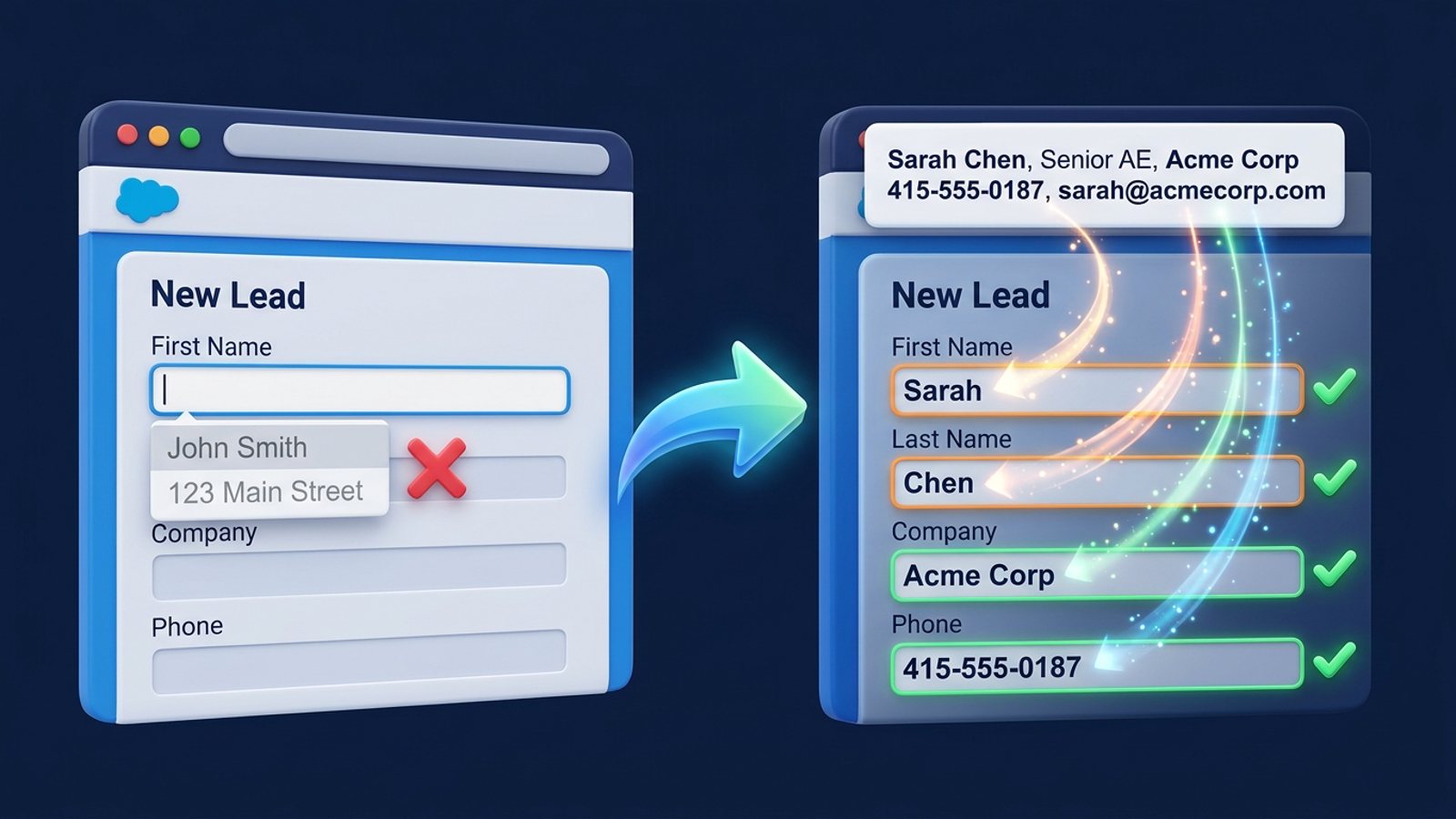
Generic browser autofill is worth it for your own details — name, email, address — and not worth it for a lead's. Chrome's autofill only knows one person: you. For browser autofill worth it salesforce lead entry, the answer flips entirely: you need a tool that carries someone else's data from a messy email signature into the Lead record.
Install SmartFill Free and see it fill a Lead record from a pasted signature in one click.
Why doesn't Chrome autofill work on Salesforce lead forms?
Because Chrome autofill fills forms with your saved information, not a stranger's. Google describes it as filling forms using your saved names, passwords, addresses and payment details, plus your name and email from your Google Account and data from Google Wallet.
That's the whole design. A Chrome extension listing puts it bluntly: if your job is filling forms with someone else's information, "your browser's autofill is useless to you. It only knows one person: you."
So when you open a new Lead in Salesforce and paste in a signature from a prospect, Chrome has nothing to offer. The lead's first name, company and phone number aren't in your saved addresses — and they never will be.
When is browser autofill actually worth it?
For your own details, it's a clear yes. Saving your contact info once in Chrome settings → Autofill and passwords → Addresses and more means every form that asks for your name, email or shipping address gets filled without typing.
Your own data is the one case where generic autofill wins outright: it's free, it's already installed, and it syncs across your signed-in devices.
The moment the form asks about someone else, the value drops to zero. That's the dividing line this whole question hangs on.
Can browser autofill fill a lead's name and company from an email signature?
No. A pasted email signature is unstructured text — a name, a title, a company, a phone number, sometimes a logo and a legal disclaimer — and Chrome autofill has no mechanism to parse it into Salesforce fields.
This is the exact job sales reps do dozens of times a day. You copy a signature, open Salesforce, click New Lead, then type the first name, last name, company, title, email and phone across six or more fields.
Salesforce itself says the average seller spends 60% of time on non-selling activities like manually updating CRM systems (Salesforce, November 2026). And a 2023 Salesforce blog reported that one in four reps would rather wait in line at the post office than manually enter customer information — an older survey, but the sentiment hasn't aged.
What's the difference between Chrome autofill, a text expander, and an AI form filler?
Each one handles a different kind of data. Here's the short version:
- Chrome autofill — fills forms with your own saved details. Free, built in, zero learning curve.
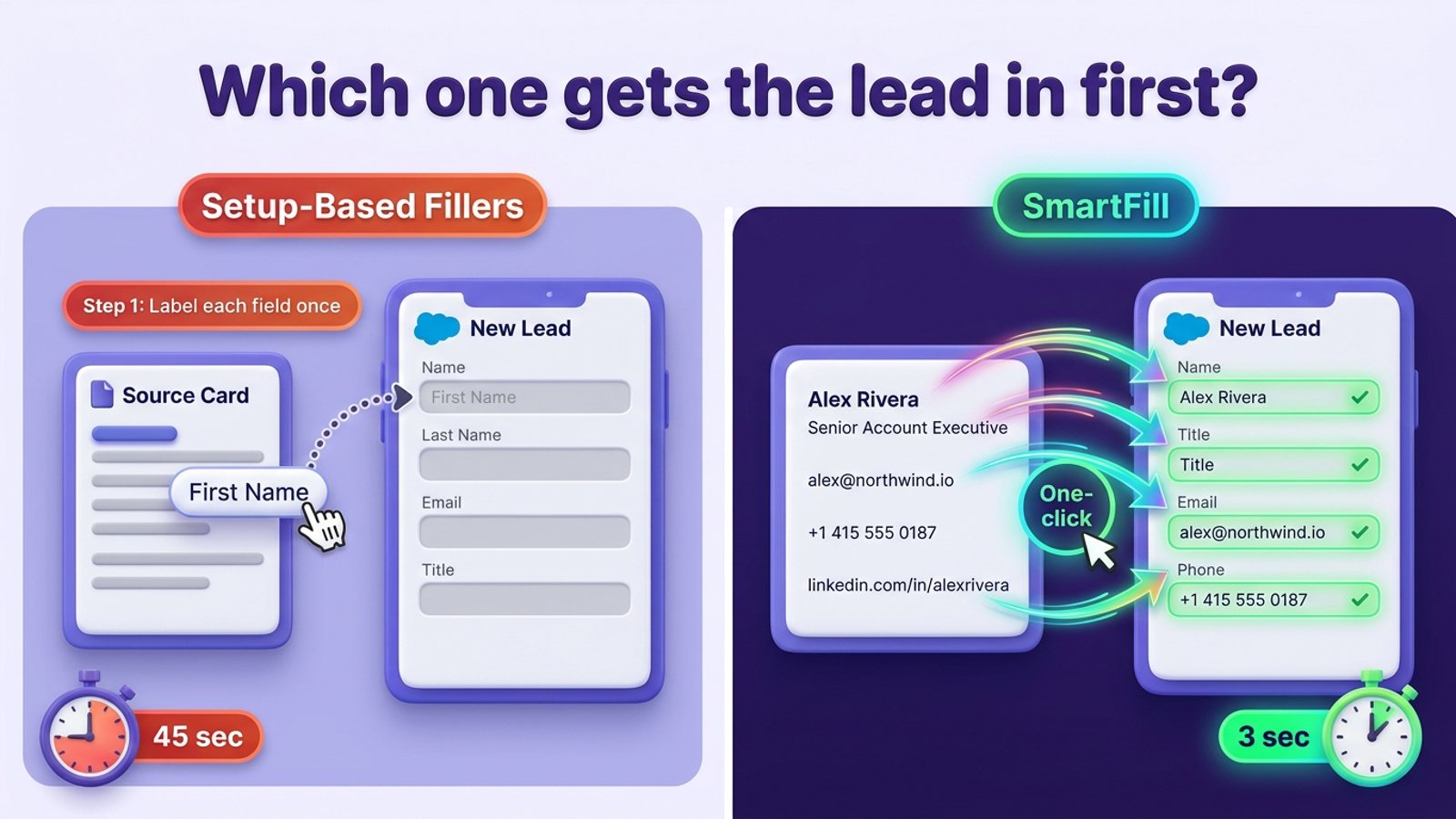
- Text expander (e.g. Magical) — stores snippets and "transfers" data between tabs. You label each field once, then reuse it. Good for repeatable, structured transfers.
- AI form filler (e.g. SmartFill) — reads any pasted text, even messy, and works out which piece goes in which Salesforce field. No labelling, no setup.
The key difference is who does the parsing. With a text expander, you map the fields. With an AI filler, the tool reads the text and maps them for you.
Which tool is best for filling Salesforce lead forms? Our pick
Of the tools we compared, SmartFill is our pick for lead entry specifically, because it's built for the job: paste any text — an email signature, a LinkedIn bio, a forwarded thread — and it fills the Salesforce form for you.
It works with messy, unstructured data, needs no setup or configuration, and installs in about 10 seconds with no sign-up. It fills any Salesforce object, and the number of fields it can fill at once is unlimited. Text is processed in real time and not stored, so no lead database is built.
On price: the free plan gives 5 fills to start, then 3 per day forever. Pro is $9.99/month for unlimited fills, as of November 2026 — prices can change. It's desktop Chrome only.
SmartFill is made by the team behind this blog.
Install SmartFill Free — it takes about 10 seconds and needs no sign-up.
How the options compare
| Option | Best for | Key features | Price / free option | Watch-outs |
|---|---|---|---|---|
| SmartFill (Our pick) | Lead data from pasted text | AI fills any Salesforce object from messy text | Free: 5 fills, then 3/day; Pro $9.99/mo | Desktop Chrome only |
| Chrome autofill | Your own details | Saved names, addresses, payment, passwords | Free, built in | Only knows you; no lead parsing |
| Magical | Repeatable tab-to-tab transfers | Text expansion plus "Transfers" | Free tier for individuals | You label each field once |
| FillApp | AI filling of web forms and PDFs | Snippets, prompts, Agent Mode | Free tier: 20 credits | Credit-metered per fill |
| Typing by hand | Total control | No tool to trust | Included in your licence | Slow, error-prone |
A few notes on the others. Magical lists Salesforce among its supported apps and is a solid choice if you want text expansion and autofill in one extension — but its help centre (October 2024) says you must label each field once before it can transfer data. Third-party trackers put Solo at roughly $6.50/user/month and Team at roughly $10/user/month as of November 2026; treat those as approximate, since Magical's own pricing page wasn't in our material.
FillApp is a general browser agent that fills web forms and PDFs from snippets or prompts, with an Agent Mode for multi-step tasks. Its free tier gives 20 credits, then Starter is $14.99/month for 150 credits and Pro $29.99/month for 300, with top-ups at $0.10/credit (as of November 2026). Because each fill consumes credits, per-lead cost scales with volume — worth checking against your lead count.
If you mainly need a general-purpose agent that also handles PDFs, FillApp is the more direct choice. If you mainly need snippet expansion across apps, Magical fits better.
Is browser autofill safe for customer data?
Chrome's own autofill has documented trade-offs, and they matter more when you're handling customer data. Google says Chrome sends information about form fields to Google to generate suggestions — the form's basic structure, field names and a hashed version of the site's domain — and on submit sends the types of data submitted (generic labels like "first name", not the literal value) to improve predictions.
Google also says Chrome never shares your info without your permission. But an ExpressVPN blog post from April 2026 flags a practical risk: if someone gains access to your unlocked device or signed-in browser profile, they may be able to use autofill to reach certain saved data, and autofill may trigger on deceptive or lookalike pages.
For lead data specifically, the question is different: does the tool store the prospect's details anywhere? SmartFill's answer, per the product facts, is that text is processed in real time and not stored — no lead database is built.
Do I still need to know Salesforce's required fields?
Yes — a filler fills, it doesn't decide what your org requires. At minimum, Salesforce needs Lead Status, Lead Name (Last Name) and Company to save a Lead record, per The Salesforce Trainers (September 2026), and admins can add more required fields.
So if a pasted signature has no company name, no tool can save the record until you supply one. Knowing your org's required fields is the difference between a fill that saves cleanly and one that stalls.
What should I check before buying any autofill tool?
Four things, in this order:
- Test with messy text. Paste a real signature, not a clean sample. Can it find the company when it's buried under a job title?
- Check the per-fill cost. Credit-metered tools get expensive at volume; flat monthly pricing doesn't. Compare against your actual lead count.
- Ask where the data goes. Does the tool store what you paste? For how long? Who can see it?
- Confirm your Salesforce setup. SmartFill is a Chrome extension, so it works anywhere you use Salesforce in a Chrome browser, and it fills any object — leads, contacts, accounts, custom objects.
If you're weighing a dedicated filler against doing it by hand, our breakdown of whether a Salesforce form filler is worth it vs copy-pasting lead data goes deeper on the trade-offs. And if you want to see how the dedicated fillers stack up against each other, the top 5 AI form fillers for Salesforce lead records is the side-by-side.
The honest split is simple: generic browser autofill earns its keep on your own details and stops earning it the moment the form belongs to someone else.
The fastest way to settle the question for your own workflow is to try it on one real lead. Install SmartFill Free and paste a signature into a Salesforce Lead form — you'll know within a minute whether it's worth it for you.
Sources
- Fill out forms automatically in Chrome (Google Help)
- How Chrome protects your autofill and password data (Google Help)
- How to manage Chrome autofill settings (ExpressVPN blog, 2026-04-26)
- Onceentered extension listing (Socket.dev, 2026-08-22)
- Your Reps Aren't Selling 66% of the Time (Salesforce blog, 2023-05-10)
- How AI agents improve CRM data accuracy (Salesforce, 2026-11-09)
- Magical Chrome listing (Chrome Web Store, 2026-04-04)
- Autofill forms, web apps and databases (Magical Help Center, 2024-10-20)
- Magical pricing (MoreAI.tools, 2026-05-21)
- Magical (lunarlist.ai, 2025-11-17)
- FillApp (official site)
- FillApp pricing (iTechFAQs)
- FillApp (cAImpare, 2025-11-29)
- Launchpad lesson 11: Lead setup (The Salesforce Trainers, 2026-09-20)