No — not without you retyping or copy-pasting between windows. ChatGPT works one conversation at a time: you paste a lead's text, it returns parsed output, and you still move the values into Salesforce field by field. For bulk salesforce lead entry, the honest options are a per-form filler that writes each record in seconds, a CSV import from clean data, or Einstein Autofill if your org qualifies.
Install SmartFill Free and fill each lead's form from the messy text you already have.
Can ChatGPT fill 50 Salesforce leads in a row without me retyping?
No — not without you retyping or copy-pasting between windows. ChatGPT works one conversation at a time, and the material on how it handles work tasks describes exactly that loop: you copy the email thread in, explain the context, copy the output back, and to fill a form you'd have to describe every field (dassi, vendor blog, 2026).
That's a parsing loop, not a fill loop. ChatGPT can turn a signature block into clean name, title, company and phone values. It cannot, in the material reviewed, walk 50 Salesforce record pages one after another and write each one for you.
What changed with ChatGPT's Chrome integration?
On 15 October 2026, OpenAI expanded ChatGPT's Chrome integration so the assistant can read open tabs and, through Work mode, interact with pages to perform tasks including filling out forms, sending messages and downloading files (TechRepublic, 2026-10-20).
So the capability exists. What the material doesn't show is a per-lead, record-by-record fill loop across 50 records without you in the middle. Reading pages and comparing content is available to all users including free-plan users; letting the AI operate the browser involves Work mode and its own eligibility (Liberty Times 3C, 2026-10-17).
What does ChatGPT ask before it touches a page?
By default ChatGPT asks for confirmation before touching a new site, with options to allow once, always allow that site, always allow all sites (flagged higher-risk) or deny. Browsing history and file upload/download need separate authorisation (C114 citing IT之家, 2026-10-16).
Why does filling 50 leads feel so slow in the first place?
Because you're doing two jobs at once: reading messy source text and translating it into 20-plus Salesforce fields. The parsing is the easy part. The typing is what eats the afternoon.
Say you run a two-person SDR team working a list of 50 leads pulled from conference badges and LinkedIn. Each lead's source text is a signature block, a bio, a half-filled spreadsheet row. You know the values. You still have to put each one in its box.
Then there's the paste problem. Salesforce's own help page documents that pasting from formatted sources such as Word or a website can trigger "You can't use more than X characters" errors, because hidden HTML formatting inflates the real character count — and the fix is to paste from a plain-text editor (Salesforce Help, 2026-06-21). That error page is an official acknowledgement that manual paste into fields gets fragile at volume.
The bottleneck in bulk Salesforce lead entry is not the thinking — it's the 50 separate trips between your source text and 50 separate record pages.
What are the honest ways to fill 50 Salesforce leads?
There are three real routes, and they solve different problems.
- A per-form filler. You open each lead's record page and the tool writes the fields from pasted text. Best when your source data is messy and each lead arrives as a block of text.
- A CSV import. You prepare a clean file, map columns, and Salesforce loads all 50 at once. Best when your data is already structured.
- A native AI feature inside Salesforce. Einstein Autofill suggests form values from conversations, but only inside specific editions and only for OmniScripts.
Picking the wrong route is why people think the job is impossible. A CSV import can't rescue an email signature. A per-form filler can't replace a 5,000-row migration.
How do you fill each lead's form in seconds instead of minutes?
You paste the messy text once and let a filler write the form. That's the whole technique.
The manual version, if you want to see the gap: open the lead's source text, open Salesforce, click New Lead, then work down the field list — first name, last name, title, company, email, phone, website, source, description — tabbing between each one and re-reading the source text every time you lose your place.
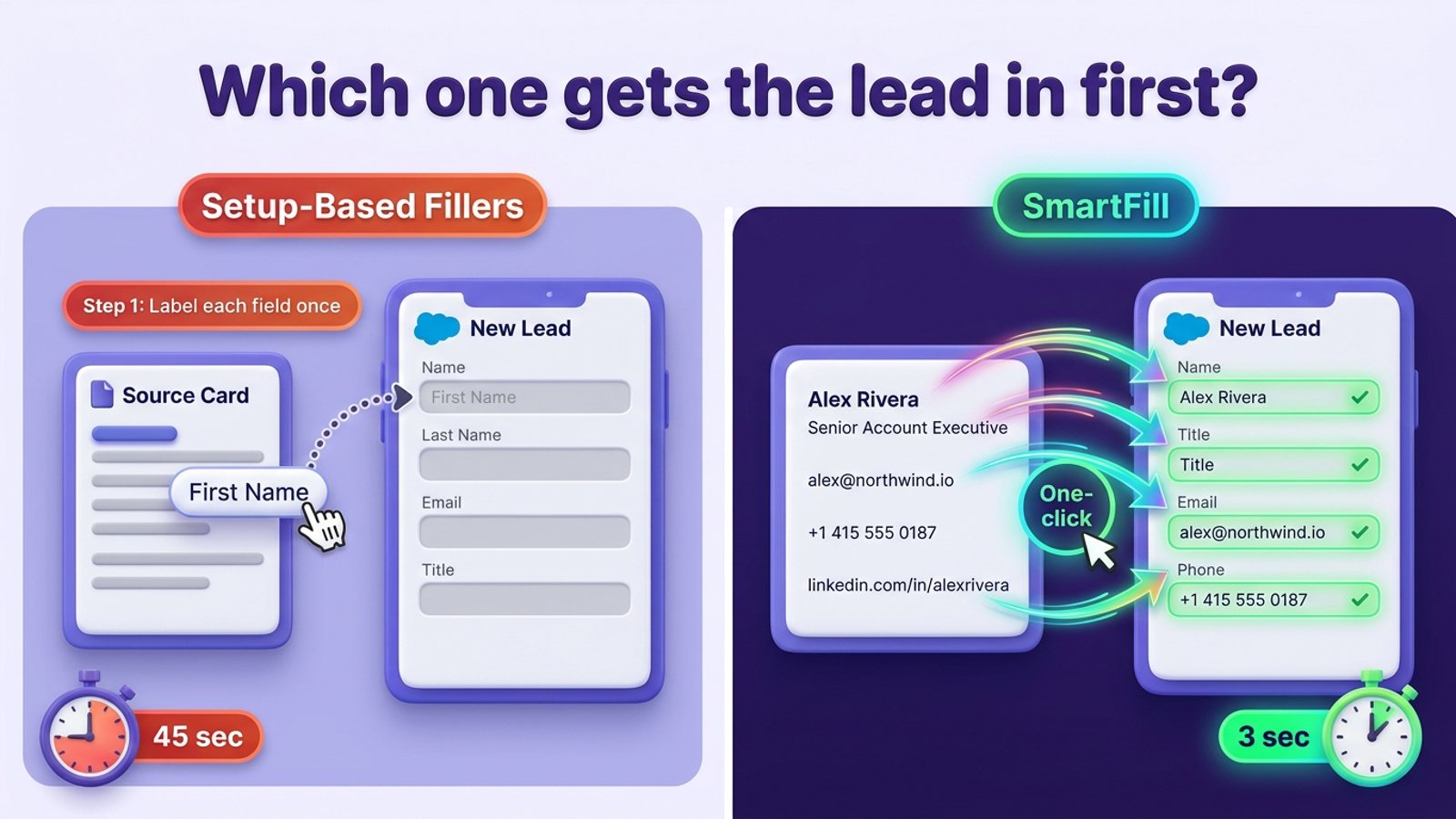
The assisted version with SmartFill, an AI form filler for Salesforce:
- Install the extension. One click, 10-second install, no sign-up required.
- Copy the lead's text. An email signature, a LinkedIn bio, a messy block — any format.
- Open the Salesforce record. New Lead, Contact, Account, Case, custom object — the product facts confirm it fills all Salesforce objects and unlimited fields at once.
- Click the SmartFill icon. The form populates automatically from what you pasted.
- Save and move on. Next lead, next paste.
The owner's stated framing is that a 4-minute form fill becomes a 3-second click. Across 50 leads, that's the difference between an afternoon of typing and a coffee's worth of work.
Do I need a CSV import instead of a form filler?
Only if your data is already clean and column-shaped. The two routes are not competitors — they're for different days.
When the Data Import Wizard is the right call
Salesforce's Data Import Wizard lives in Setup and imports accounts, contacts, leads, solutions, campaign members, person accounts and custom objects, up to 50,000 records per import, with a simple field-mapping interface (Salesforce Developers accessibility docs, undated).
Salesforce's import limits page states Leads can be imported 50,000 at a time and requires the "Import Leads" permission; files can be up to 100 MB but each record can't exceed 400 KB, about 4,000 characters (Salesforce Help, 2026-11-19).
The catch is preparation. Skyvia's vendor blog names the most common import failures as poor CSV formatting, unmapped required fields and other data issues (Skyvia, 2025-05-06) — and notes the Wizard won't take assets, cases, campaigns, contracts, documents, opportunities or products, sending you to Data Loader for those (Skyvia, 2026-08-20).
When a per-form filler wins
When the 50 leads arrive as 50 blobs of text. A CSV needs one column per Salesforce field before it's useful; a signature block has none. You'd be doing the parsing by hand anyway — which is the job you were trying to avoid.
Which tool should you use for bulk Salesforce lead entry?
Here's how the options compare for a 50-lead push, as of November 2026.
| Option | Best for | Key features | Price / free option | Watch-outs |
|---|---|---|---|---|
| SmartFill (Our pick) | Messy text, one lead at a time | AI fill from pasted text, all objects, unlimited fields | Free: 5 fills, then 3/day; Pro $9.99/mo | Desktop Chrome only |
| ChatGPT + Chrome | One-off parsing and drafting | Reads tabs, Work mode acts on pages | Free tier for reading pages | One conversation at a time |
| Data Import Wizard | Clean CSV, under 50,000 leads | Field mapping, Setup-native | Built into Salesforce | Clean columns required |
| Data Loader | Objects the Wizard won't take | Saved and scheduled import tasks | Salesforce Developers tool | Multi-step CSV workflow |
| Einstein Autofill (Beta) | OmniScripts in Industries clouds | AI suggestions from conversations | Requires add-on | Beta, narrow editions |
SmartFill is our pick of the tools we compared for this specific job — 50 leads arriving as messy text, one record page at a time. It fills Salesforce forms from any copied text using AI, handles unstructured data like email signatures and LinkedIn bios, needs no setup or configuration, and processes text in real time without storing it. The free plan gives you 5 fills to start, then 3 per day forever; Pro is unlimited fills for $9.99/month as of November 2026, and prices can change. Its honest limit: it's desktop only, a Chrome extension.
ChatGPT with the Chrome integration is the right choice if you mainly need to parse, summarise or draft from text you copy in (dassi, vendor blog, 2026). Work mode can act on pages with per-site permission prompts (TechRepublic, 2026). What the material doesn't show is a 50-record unattended fill loop, and the permissions requested are broad.
Salesforce Data Import Wizard is the more direct choice if your 50 leads are already a clean spreadsheet. It's free inside Salesforce, handles 50,000 Leads per import, and needs no install (Salesforce Developers, undated; Salesforce Help, 2026-11-19). It fails on poor formatting and unmapped required fields, and Salesforce's own guidance is to stay with it while under 50,000 records, the object is supported and the mapping is simple (Skyvia, 2026-08-20).
Salesforce Data Loader suits objects the Wizard won't take and imports you want to schedule or reuse: each task stores the connection, object, field mappings and options so it can be saved, run or scheduled (Salesforce Developers, undated). It's still a CSV task workflow, not something a rep reaches for mid-prospecting.
Einstein Autofill (Beta) is native and turns call and chat conversations into AI-driven form suggestions, integrating with OmniScripts (Salesforce Spring '25 Release Notes). It applies to Lightning Experience in Enterprise and Unlimited editions of multiple Industries clouds, needs the Industry Service Excellence Add-On plus permission sets for Salesforce Voice, Service Cloud Messaging Session, Einstein Prompt Builder and Omnistudio (Salesforce Help, updated 2026-10-22), and is a pilot/beta service under Salesforce's Beta Services Terms.
SmartFill is made by the team behind this blog.
Install SmartFill Free and fill your next lead's form from the text you already have.
What about ChatGPT writing to Salesforce through MCP or plugins?
Reportedly possible, and still not a form-filling loop. A July 2026 vendor write-up describes two routes: Salesforce's Agentforce Sales plugin in ChatGPT's plugin directory (open beta, requires the Agentforce for Sales add-on or Agentforce 1 Edition), or adding Salesforce's hosted MCP server — reported GA 29 April 2026 — as a custom MCP app exposing SObject CRUD plus Flows, Apex actions and queries under field-level security and sharing rules (Carly, vendor blog, 2026-07-15; secondary source).
That's app-to-app automation, not a rep filling a record page. Make's integration pages describe the same shape: a visual scenario builder that connects ChatGPT outputs to Salesforce actions — enrich company data, create leads, notify Slack (Make, vendor, undated). Zapier documents similar workflows (Zapier, vendor blog, 2025-05-18).
A November 2026 vendor post argues the agent-via-MCP route is workable for a one-time move of around 200 contacts you can review record by record, but unsuitable for large migrations needing a consistent delta (ClonePartner, vendor blog, 2026-11-12). For 50 leads you're working by hand, a filler is the shorter path.
How do you avoid the mistakes that make 50 leads take all day?
Three mistakes account for most of the lost time.
Mistake one: pasting formatted text. Covered above — use a plain-text editor first (Salesforce Help, 2026-06-21).
Mistake two: treating a CSV import as a parser. A CSV upload fails on validation rules and object configuration if the sheet doesn't respect them (Chili Piper Help, 2026-07-12). Garbage columns in, failed import out.
Mistake three: batching the thinking. If you parse all 50 leads in one ChatGPT session and then start filling, you've created 50 outputs to scroll back through. Fill as you go: one lead, one paste, one save.
Sources
- OpenAI expands ChatGPT's Chrome integration (TechRepublic, 2026-10-20) — https://www.techrepublic.com/es/article/news-openai-chatgpt-chrome-browser-integration-privacy/#1
- Chrome integration availability and eligibility (Liberty Times 3C, 2026-10-17) — https://3c.ltn.com.tw/news/67965
- ChatGPT Chrome permission prompts (C114 citing IT之家, 2026-10-16) — https://www.c114.net.cn/industry/134400.html
- The problem with ChatGPT for work tasks (dassi, vendor blog, 2026-01-27) — https://www.dassi.ai/blog/the-problem-with-chatgpt-for-work/
- Import data — Salesforce Developers accessibility docs (undated) — https://developer.salesforce.com/files/accessibility/lex_implementation_data_management/lex_implementation_data_import/index.html
- Import Limits (Salesforce Help, 2026-11-19) — https://help.salesforce.com/s/articleView?id=xcloud.import_limits.htm&type=5
- Import CSV into Salesforce: 3 Methods, Limits and Lookups (Skyvia, vendor blog, 2026-08-20) — https://skyvia.com/blog/import-csv-into-salesforce/
- Salesforce Data Import Wizard vs Data Loader (Skyvia, vendor blog, 2025-05-06) — https://skyvia.com/blog/salesforce-data-import-wizard-vs-data-loader/#Conclusion
- Importing Data into Salesforce — Data Loader guide (Salesforce Developers, undated) — https://developer.salesforce.com/docs/platform/dataloader/guide/import-data.html
- Einstein Autofill (Beta) — Spring '25 Release Notes (Salesforce, undated) — https://help.salesforce.com/s/articleView?id=release-notes.rn_einstein_autofill.htm&release=254&type=5
- Einstein Autofill editions and permissions (Salesforce Help, updated 2026-10-22) — https://help.salesforce.com/s/articleView?id=ind.einstein_autofill_editions_permissions.htm&type=5
- Field character-limit error (Salesforce Help, 2026-06-21) — https://help.salesforce.com/s/articleView?id=000384318&type=1
- OpenAI & Salesforce integration (Make, vendor, undated) — https://www.make.com/integrations/openai-gpt-3/salesforce
- ChatGPT Work + Salesforce: what it can and can't do (Carly, vendor blog, 2026-07-15) — https://www.usecarly.com/blog/chatgpt-work-salesforce-integration/
- Can Claude or ChatGPT migrate your CRM? (ClonePartner, vendor blog, 2026-11-12) — https://clonepartner.com/blog/can-claude-or-chatgpt-migrate-your-crm-mcp-limits-explained#1
- Distro Batch Upload (Chili Piper Help, 2026-07-12) — https://help.chilipiper.com/hc/en-us/articles/26927870918547-Distro-Batch-Upload
- Zapier Salesforce + ChatGPT workflows (Zapier, vendor blog, 2025-05-18) — https://zapier.com/blog/integrate-salesforce-with-chatgpt/#1