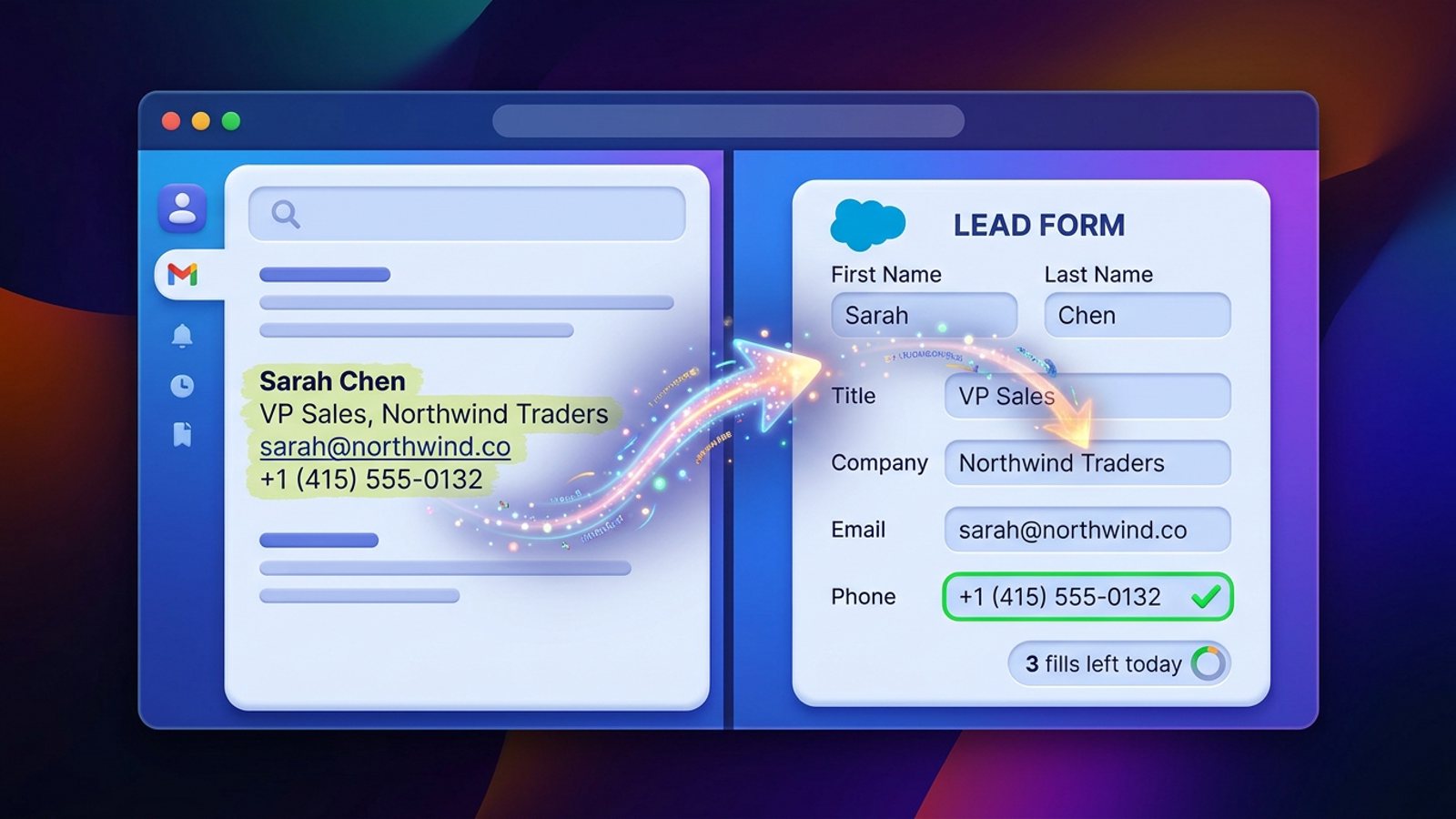
Yes. If your job is getting Salesforce fields filled from lead data, SmartFill's free plan does it: 5 fills to start, then 3 per day forever, no sign-up and no card. Salesforce's own Web-to-Lead and Flow cost nothing but need an admin. Chrome autofill is free but struggles on Salesforce Lightning.
Install SmartFill Free and fill your first Salesforce lead from a messy email signature in under a minute.
What does a free FillApp alternative for Salesforce actually need to do?
It needs to take the lead data you already have — an email signature, a LinkedIn blurb, a pasted call note — and put it into Salesforce fields without you typing. That's the whole job.
FillApp is described by a third-party review site as an AI agent for filling web and PDF forms with saved data or custom instructions, and it names Salesforce among supported platforms (Position Is Everything, no date). So the bar for an alternative is clear: fill Salesforce records from text you paste, for free or close to it.
Here's the catch most reps hit. Fill Salesforce forms free sounds simple until you read the pricing pages. Third-party sources conflict on FillApp's free tier — one review says a free plan is listed by the maker, another states "Free plan: No" with a 7-day trial (Position Is Everything, no date; Rotten WiFi, no date). A third, citing FillApp's own pricing page checked 4 October 2026, mentions both a free plan and a seven-day trial (Everything Xiaomi, no date).
That's the gap SmartFill fills. Free installs get 5 fills, then 3 per day forever, with no sign-up. Pro is $9.99/month as of November 2026, and prices can change.
The free plan question isn't "which tool is cheapest" — it's "which tool still works for free next month."
How does SmartFill's free plan work?
Five fills to start, then three per day, forever, with no account to create. That's the entire free tier — no credit card, no trial countdown.
The install takes about 10 seconds from the Chrome Web Store. Then you open Salesforce and your source text in separate tabs, copy the lead details even if they're messy, click the SmartFill icon, and watch the form fill.
AI Salesforce filler behaviour matters here: SmartFill works with unstructured data like email signatures and LinkedIn bios, so you don't have to clean the text first. It fills Salesforce Lead, Contact, Case and custom-object forms, and there's no field limit — it fills as many fields as the record has.
What 3 fills a day actually covers
Three fills a day is roughly 60 a month. For a founder doing their own prospecting, or an AE logging a handful of inbound leads, that's often enough on its own.
Say you run a small agency and get four inbound enquiries a day. You'd use three free fills on the first three and type the fourth by hand — or upgrade. That's the honest trade-off.
When does Pro at $9.99/month make sense?
When the daily cap costs you more than ten dollars a month in time. An SDR entering 15 leads a day needs about 330 fills a month. At 3 free per day, they're typing the other 12 by hand.
$9.99/month for unlimited fills is the step up. Compare that to the FillApp figures third-party sources report — Starter at $14.99/month with 150 credits, Pro at $29.99/month with 300 credits (Rotten WiFi, no date; Everything Xiaomi, no date). A credit system means you're counting tasks; SmartFill Pro just removes the cap.
Which free options actually fill Salesforce forms?
Four honest options, and they do different jobs. Here's how they compare for Salesforce work.
| Option | Best for | Key features | Price / free option | Watch-outs |
|---|---|---|---|---|
| SmartFill — Our pick | Reps pasting messy lead text | AI fills any Salesforce object; no setup | Free: 5 fills, then 3/day. Pro $9.99/mo | Desktop Chrome only |
| Salesforce Web-to-Lead | Website lead capture | Admin picks fields; auto-response rules | Included with Salesforce | Needs a developer; daily cap |
| Salesforce Screen Flow | Guided internal forms | Branching, validation, multi-record | Included with Salesforce | A build project |
| Chrome built-in autofill | Simple static HTML forms | Free, built in, no install | Free | Fails on Lightning components |
| Magical | Snippet-heavy teams | Text expansion; CRM autofill | Free tier exists; Advanced quote-only | Field labelling per form |
SmartFill — Our pick of the tools we compared
SmartFill is the only option in this table built specifically to take unstructured text and put it into Salesforce fields. No field labelling, no snippets to build, no admin ticket. Text is processed in real time and not stored, and no lead database is built — which matters if your prospects' details are the thing you're most careful about.
The limits are real: it's a desktop Chrome extension, so no mobile, and it's Salesforce-first with other forms as a secondary use.
SmartFill is made by the team behind this blog.
Salesforce Web-to-Lead and Screen Flow — free but not self-serve
Both come with your Salesforce licence at no extra cost. Web-to-Lead is right when you need one plain form on your website, have a developer to style it, and volume sits under the daily submission cap (SalesSign, 2026-09-29). Screen Flow is a multi-step wizard builder with branching and validation, usable on public Experience Cloud pages (Arrify, 2025-09-10).
Neither solves the rep's problem. You can't paste a LinkedIn bio into Web-to-Lead and have a Lead appear — that flow starts with the prospect filling in a form. If you mainly need website lead capture, Web-to-Lead is the more direct choice.
Chrome built-in autofill — free, but not for Lightning
Chrome's autofill costs nothing and needs no install. But a Chrome-extension review blog argues it was built for static HTML forms and fails on Salesforce Lightning Web Components, whose inputs need JavaScript events — so a 10–30-field workflow still takes 5–10 minutes (QuickForm blog, 2026-06-09).
Salesforce's own help docs note that browser autofill behaviour in Salesforce fields is controlled by the browser, not Salesforce (Salesforce Help, 2024-11-13). A vendor bug note adds that lightning:input components ignore the autocomplete attribute (Atlassian wiki, no date). If you mainly need free autofill for simple web forms, Chrome is the more direct choice.
Magical — snippets first, autofill second
Magical has a free tier, and its documented CRM autofill flow works: open the tab with the source info, click the pencil icon, label each field once, then reuse those labels (Magical Help Center, 2024-10-20).
The Advanced plan is quote-only with no published self-serve price as of October 2026, and Core is individual-only with no added members (Magical Help Center, 2026-02-03; Clipboard History Pro comparison, no date). If you mainly need text expansion across many apps, Magical is the more direct choice.
Is FillApp free for Salesforce forms?
Third-party sources disagree, so treat any free FillApp access as temporary. One review says a free plan is listed by the maker; a price-comparison article states "Free plan: No" with a 7-day free trial of 20 credits (Position Is Everything, no date; Rotten WiFi, no date). A tools directory describes a 7-day trial with 50 credits and no credit card (AI Tools FYI, updated 2026-07-17).
What's consistent across sources is the paid structure: Starter at $14.99/month with 150 credits, Pro at $29.99/month with 300 credits, and top-up credits at $0.10 each (Rotten WiFi, no date; Everything Xiaomi, no date). One review puts Starter's 150 credits at roughly 80 tasks or about an hour of work per month (Position Is Everything, no date).
FillApp does list Salesforce among 120+ supported platforms, with PDF and image analysis, reusable data snippets and on-screen action tracing (cAImpare, last updated 2025-11-29). It's a capable tool. The question here is narrower: can you rely on it being free? The sources don't support that.
Source: Rotten WiFi / Everything Xiaomi (no date) and SmartFill product facts (Nov 2026)
How do you set up free Salesforce form filling in 5 steps?
Install, paste, click. That's the short version; here's the real sequence.
- Install the extension. Add SmartFill from the Chrome Web Store — about 10 seconds, no sign-up.
- Open two tabs. One with Salesforce on the record you want to create, one with the source text.
- Copy the messy text. The email signature, the LinkedIn bio, the call notes — don't clean it up.
- Click the SmartFill icon. The Salesforce form fills automatically.
- Check the fields and save. Then decide whether the free daily allowance covers your volume.
If you're past 3 fills a day, the next step is Pro at $9.99/month as of November 2026 (prices can change). For website lead capture, ask your admin to enable Web-to-Lead and have a developer paste the HTML (SalesSign, 2026-09-29). For guided internal forms, build a Screen Flow with validation and branching (Arrify, 2025-09-10).
What are the most common mistakes with free Salesforce form fillers?
The biggest one is assuming a free trial is a free plan. A 7-day trial ends; a permanent allowance doesn't.
The second is expecting Chrome autofill to handle Lightning. It was designed for static HTML, and Lightning Web Components need JavaScript events Chrome doesn't fire (QuickForm blog, 2026-06-09). When Chrome fills some forms but skips others, the usual causes are autofill turned off for that info type, an incomplete saved address, another extension interfering, or a form Chrome can't recognise — and that last case you can't fix from your side (tidyleaf.github.io, no date).
The third is treating Web-to-Lead as a rep tool. It's a website capture form that needs a developer to place and style, and changes go through a ticket (SalesSign, 2026-09-29).
The fourth is counting credits instead of leads. Credit-based pricing means every task has a cost you have to track. If your volume is unpredictable, a flat unlimited plan is easier to budget.
Install SmartFill Free and stop typing lead data into Salesforce by hand.
Sources
- FillApp is in your browser (FillApp, no date)
- FillApp: review, pricing and alternatives (Position Is Everything, no date)
- FillApp in 2026: Pricing, Plans and Alternatives (Rotten WiFi, no date)
- FillApp in 2026: Pricing, Plans and Alternatives (Everything Xiaomi, no date)
- FillApp (formerly Fill) Pricing, Reviews, Alternatives (AI Tools FYI, updated 2026-07-17)
- FillApp (cAImpare, updated 2025-11-29)
- Disable Browser Autofill / Auto-Completion for Fields in Salesforce (Salesforce Help, 2024-11-13)
- Salesforce Forms That Write to Leads (2026 Guide) (SalesSign, 2026-09-29)
- Salesforce Forms: Every Option, Compared (Arrify, 2025-09-10)
- Best Chrome Extension to Autofill Salesforce Forms (QuickForm blog, 2026-06-09)
- Chrome Autofill Not Working on Some Forms? How to Fix It (tidyleaf.github.io, no date)
- Browser Autocomplete / AutoFill Issue (Atlassian wiki / Closeplan, no date)
- Core plan: everything you need to know (Magical Help Center, 2026-02-03)
- Autofill forms, web apps and databases (Magical Help Center, 2024-10-20)
- Clipboard History Pro vs Text Blaze vs Magical (Clipboard History Pro comparison, no date)
- Text Blaze blog (Text Blaze, 2026-04-27)
- SmartFill: The AI Form Filler for Salesforce (SmartFill Chrome Web Store, 2026-10-19)