There's no single best tool — it depends on what you mean by "log." If you're creating a new Lead from the notes you just took, the fastest path is a Chrome extension that fills the Salesforce form from pasted text (that's SmartFill's job). If you're adding a note to an existing record, Salesforce's built-in Log a Call is the direct choice.
You just hung up. The notes are in one tab — half a sentence about budget, a company name, an email you scribbled down — and Salesforce is in the other, waiting for you to retype all of it. That gap is where deals go cold.
Install SmartFill Free and the new-lead job takes about three seconds.
What does "log lead salesforce after call" actually mean?
It means one of two things, and most comparison articles blur them together. Either you're creating a new Lead record from what you learned on the call, or you're attaching a call note to a record that's already in Salesforce.
Salesforce's own Log a Call action handles the second job. Open the Lead, Contact or Opportunity, find the Activity panel in Lightning, click Log a Call, write your notes and save. Claap's 2024 guide notes it works on any record with an activity timeline and saves the note your rep writes, with no audio.
The first job — a brand-new lead from a call with someone who isn't in your CRM yet — is where the copy-paste pain lives. You have to populate the Lead fields yourself, and get the required ones right or Salesforce won't save.
Why is logging a lead after a call such a time sink?
Because it's the task that gets pushed to the end of the day, and by then the details have gone fuzzy. Salesforce reports that the average seller spends 60% of their time on non-selling activities like manually updating CRM systems (Salesforce, 2026), and notes that relying on reps to enter data manually leaves deal context "late, untrustworthy, or missing altogether."
That's the real cost. Not the four minutes of typing — the fact that the note you write at 6pm is thinner and less accurate than the one you'd have written at 10:02am.
A contractor post on LinkedIn claims average reps lose 5.4 hours a week to manual data entry and that automation can reclaim 200+ hours per person per year (Fabian Warislohner, 2026 — a vendor/contractor claim, not independently verified). Treat the numbers as directional, but the pattern matches what most sales teams describe.
The fastest CRM entry is the kind you do in the thirty seconds after the call, while the details are still sharp.
How do you log a lead from call notes in under a minute?
The technique is the same whichever tool you use: keep your notes as free text, then map them to Salesforce fields in one pass rather than field by field.
- Take notes as plain text. Don't format them for Salesforce while you're on the call — just capture names, company, email, phone, what they said and what happens next.
- Open Salesforce in a second tab and start a new Lead.
- Check the required fields first. Lead Status, Last Name and Company by default (The Salesforce Trainers, 2026).
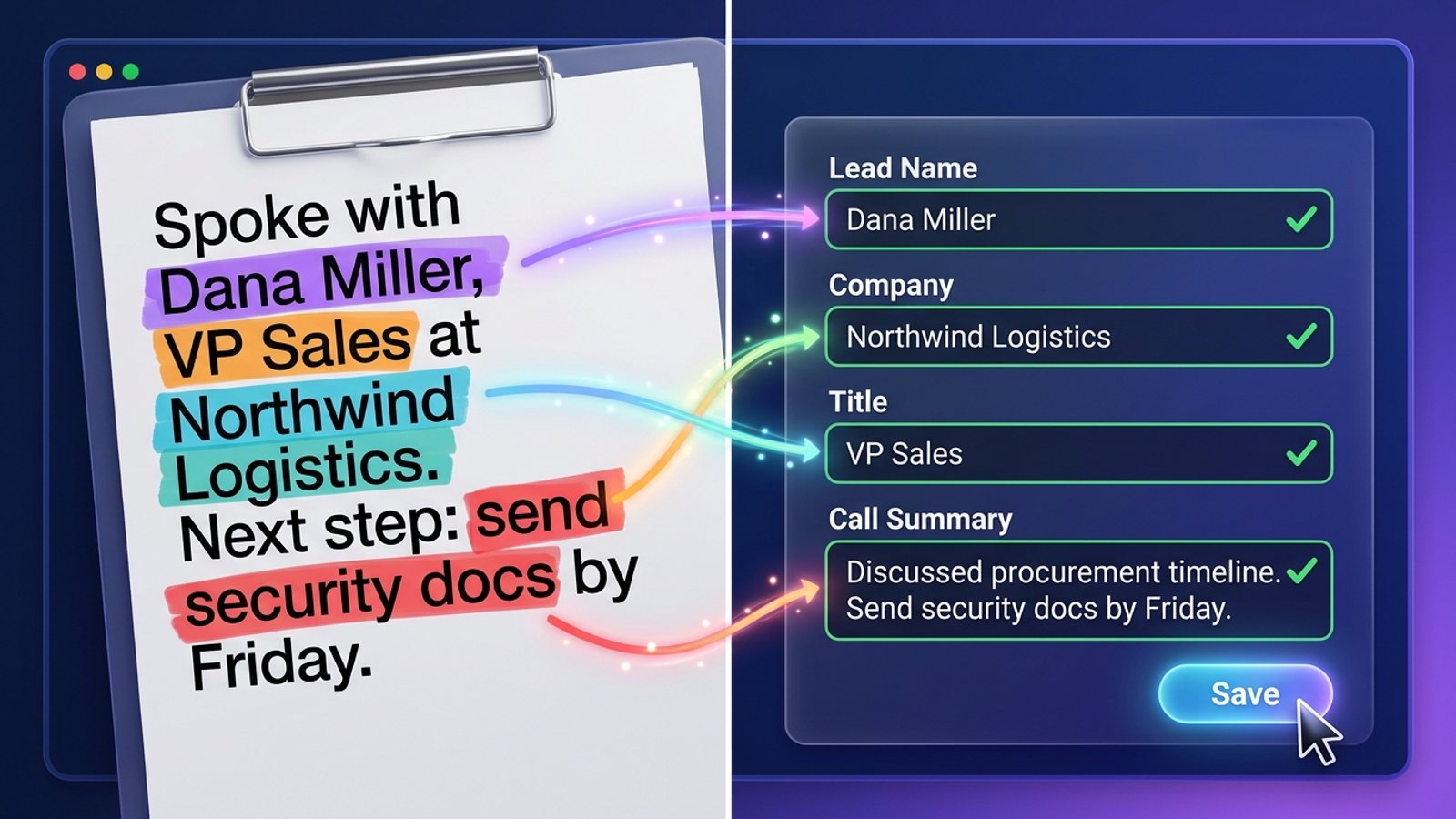
- Fill the form from your notes — either by typing, or by pasting the notes into a filler that maps them to the fields for you.
- Save, then log the call on the new record using the Activity panel if you want the note attached too.
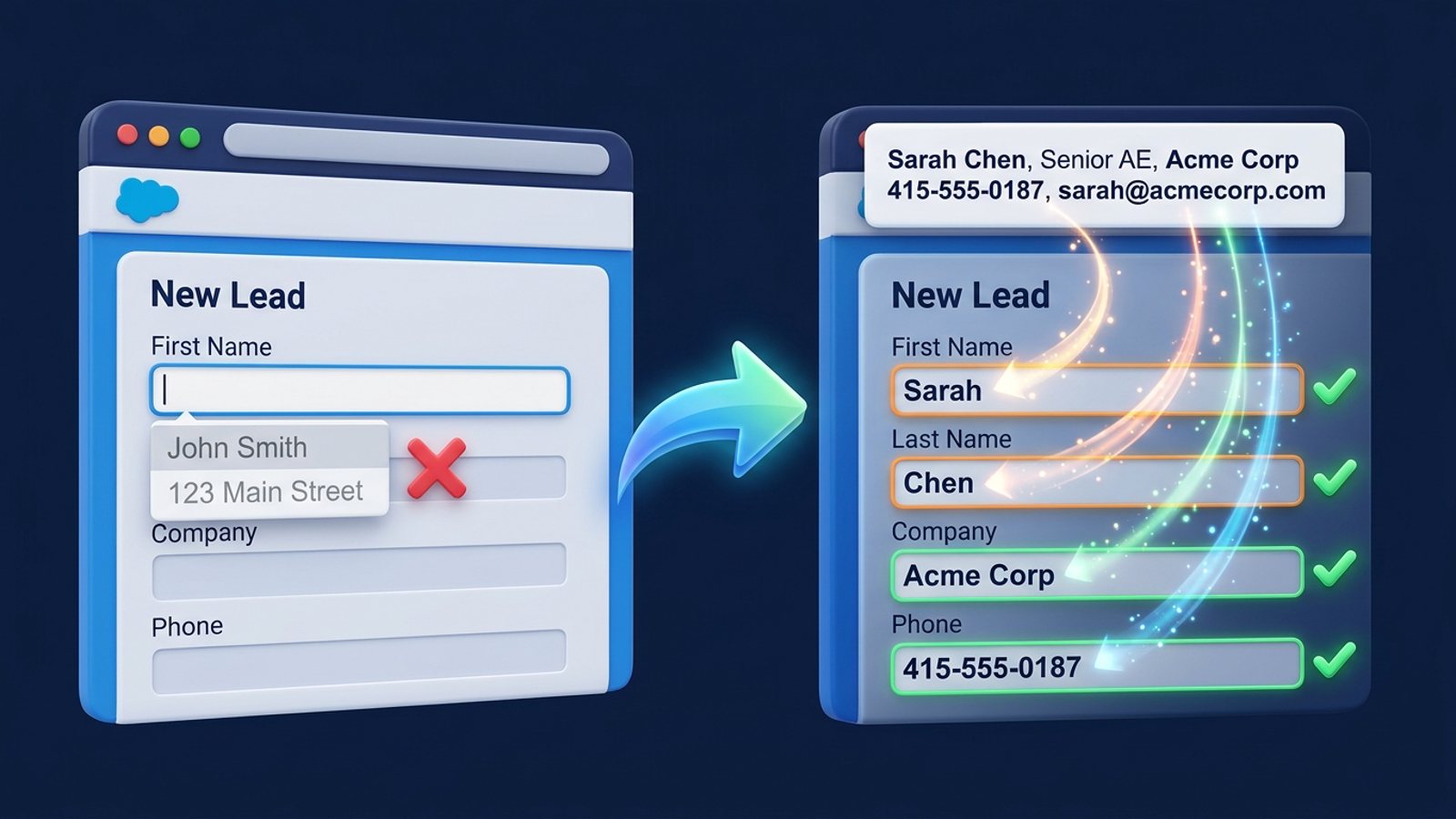
Step 4 is the one that eats the time. Typing a name, company, email, phone, title, source and a description from scratch is where typos and duplicates creep in — Thunderbit's 2026 vendor blog describes manual entry as error-prone for exactly those reasons.
Our recommendation: write your call notes as if you were texting a colleague. Unstructured is fine — the messier the input, the more a filler earns its keep.
Which tool is best for logging a lead in Salesforce after a call?
For creating a new Lead from pasted call notes, SmartFill is our pick of the tools we compared, because it's the only one in this list built specifically to fill Salesforce forms from messy text. For adding a note to an existing record, Salesforce's built-in Log a Call is the direct answer.
Here's the comparison. Prices for other tools are as of November 2026 and can change.
| Option | Best for | Key features | Price / free option | Watch-outs |
|---|---|---|---|---|
| SmartFill — Our pick | New Lead from pasted notes | AI fills Salesforce forms from any text; all objects; no setup | Free: 5 fills, then 3/day; Pro $9.99/mo | Desktop Chrome only |
| Salesforce Log a Call | Notes on an existing record | Built-in; saves instantly | Included in your Salesforce licence | Doesn't create a new lead |
| Chrome built-in autofill | Your own name and address | Saves personal details | Free in Chrome | Can't read call notes |
| Call recording tools (e.g. Groove OmniDialer) | Teams with call volume | Auto-logs calls to Salesforce tasks | Not stated in our sources | Needs admin setup and their dialer |
| Zapier | Structured triggers to records | App events create Salesforce records | Not stated in our sources | Free-text notes aren't a reliable trigger |
SmartFill — Our pick
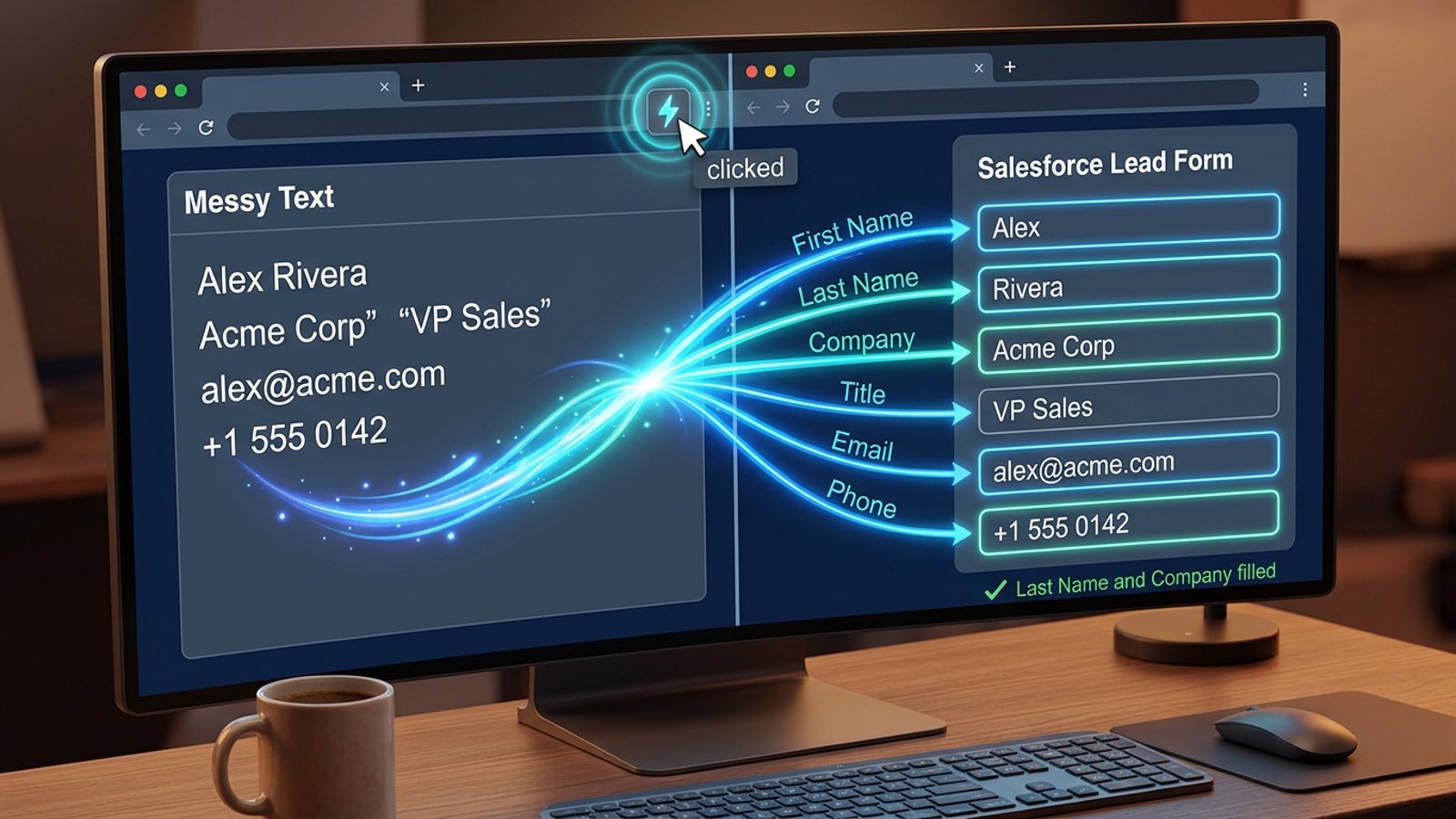
SmartFill is a Chrome extension that uses AI to populate Salesforce forms from any pasted text. You copy your call notes — even the messy version — click the SmartFill icon, and the form fills itself.
It works with unstructured input like email signatures and LinkedIn bios, needs no setup or configuration, and installs in about ten seconds with no sign-up. It fills any Salesforce object and has no limit on how many fields it can fill at once, per the owner. Text is processed in real time and not stored, and no lead database is built.
The honest limit: it's desktop only, as a Chrome extension. If you work from a phone between calls, it won't help you there.
Pricing as of November 2026: free plan gives 5 fills to start, then 3 per day forever. Pro is $9.99/month for unlimited fills. Prices can change.
Install SmartFill Free — it's the difference between a four-minute form and a three-second click.
SmartFill is made by the team behind this blog.
Salesforce's built-in Log a Call
If the lead already exists and you just need the conversation on the record, use what you already pay for. Claap's 2024 guide walks through it: open the record, find the Activity panel in Lightning, click Log a Call, write the subject and notes, save.
The limitation is scope. It saves the note your rep writes — no audio — and it doesn't create a new lead. If only "New Task" and "New Event" appear in your Activity panel, an admin has to add the Log a Call action to the page layout (Claap, 2024).
If you mainly need a note attached to an existing record, this is the more direct choice.
Chrome built-in autofill
Free and already in your browser, Chrome's autofill saves personal details such as name, email and address and fills them on websites (Chrome Web Store listing, 2026).
It's the wrong tool here for one simple reason: it only knows data you saved earlier. It can't read a page of call notes and work out which line is the company name. A third-party filler listing goes further, claiming default browser autofill "isn't accurate most of the time" (SimpleFill listing, 2025).
Call recording and transcription tools
Tools like Groove OmniDialer pitch that calls get logged to Salesforce without reps manually logging each call or copy-pasting call notes (Salesloft, 2025). For teams running high call volume, that's genuinely useful.
Two caveats. The auto-log only works if an admin has switched it on (Salesloft, 2025), and it requires the call to run through their dialer (42Voice, 2026). These tools log completed calls to existing records — they don't create a new lead from your notes.
If you mainly need every dialled call attached to a record automatically, a dialer is the more direct choice.
Zapier and workflow automation
Zapier turns a structured trigger — a form submission, a new spreadsheet row, an app event — into a Salesforce record without copy-paste (NetHunt CRM, 2026). Zapier's own vendor blog describes a customer case recovering around $1M in revenue and near-300 working days a year (Zapier, 2025 — vendor-reported).
The gap for this job: free-text call notes aren't a structured trigger. You'd need mapping work to turn a paragraph into fields. If your leads already arrive through a form or a sheet, Zapier is the more direct choice.
What about general-purpose AI form fillers?
They exist, and some are decent — but they're built for any web form, not for Salesforce specifically. That matters when your form has required fields and picklists.
AI Auto Form Filler, for example, lets you paste plain text, click Fill Form, and uses AI to match fields on any page with a form (Chrome Web Store, 2026). SimpleFill is free with paid plans that only raise item limits, keeps data in the browser, and shows 8,000 users and 3.6/5 from 90 ratings on its listing (Chrome Web Store, 2025). Auto Fill Input Form stores data locally and lists 127 users (Chrome Web Store, 2026).
These are general-purpose fillers, not Salesforce-specific. If your work is mostly Salesforce, a filler built for it will map Lead and Contact fields more reliably than a tool designed for newsletter signups.
How do you pick between them in practice?
Match the tool to the moment you're actually in, not to a feature list.
Say you're a founder who just got off a 20-minute discovery call. The person isn't in Salesforce yet. You have a paragraph of notes. That's a new-Lead job — paste the notes, fill the form, save, done.
Say you're an SDR on your fourth call of the morning. The lead already exists and you need the conversation on the timeline. Use Log a Call — it's already open in front of you.
Say you're an AE with 40 dials a day through a dialer. You want every call attached without touching anything. That's the dialer's job, with admin setup.
Say your leads all arrive through a website form. Zapier or Web-to-Lead handles it before you ever see it — though Web-to-Lead caps at 500 submissions per 24 hours according to a 2023 FormAssembly guide, so confirm the current limit with Salesforce.
What mistakes should you avoid?
The most common one is logging the call but never creating the lead, so the conversation lives in a task attached to nothing. The second is retyping from memory hours later, which is where bad data starts.
A few more worth knowing:
- Skipping the required fields. Salesforce won't save without Lead Status, Last Name and Company by default — and admins can add more.
- Assuming the Log a Call button exists. If it's missing, it's a page layout setting, not a bug (Claap, 2024).
- Trusting browser autofill on a CRM form. It fills what you saved before, not what's in your notes.
- Letting the note go stale. Salesforce's own point stands: manual entry leaves context late, untrustworthy or missing (Salesforce, 2026).
Our recommendation: log the lead before you open your next tab. The thirty-second version beats the polished version you never write.
For a closer look at how fillers handle different record types, see how to fill all Salesforce fields from pasted text and whether a Salesforce form filler is worth it versus copy-pasting. If call notes specifically are your input, filling Salesforce from call notes goes deeper.
Sources
- New Data Shows Sales Agents Are Rescuing the Sales Cycle — Salesforce, 2026-11-09
- Launchpad Lesson 11 – Lead Setup — The Salesforce Trainers, 2026-09-20
- How to log calls in Salesforce (and link them) — Claap, 2024-05-27
- Migrate Salesforce Call Logging to VoiceCall — 42Voice, 2026-10-07
- Logging Calls with Groove OmniDialer — Salesloft, 2025-11-25
- How to measure speed to lead — operelio.com, 2026-10-20
- The hidden cost of manual CRM updates — Fabian Warislohner, 2026-04-06
- SimpleFill: AI Text Expander & Autofill — Chrome Web Store, 2025-06-11
- Auto Fill Input Form — Chrome Web Store, 2026-08-05
- AI Auto Form Filler — Chrome Web Store, 2026-10-25
- How to set up a Salesforce Web-to-Lead integration form — Thunderbit, 2026-07-12
- How to Build Salesforce Forms Without Code — FormAssembly, 2023-11-18
- The Hidden Cost of Manual Work in SaaS Sales Teams — NetHunt CRM, 2026-04-01
- How Vendasta recovered $1M with Zapier and AI — Zapier, 2025-04-22