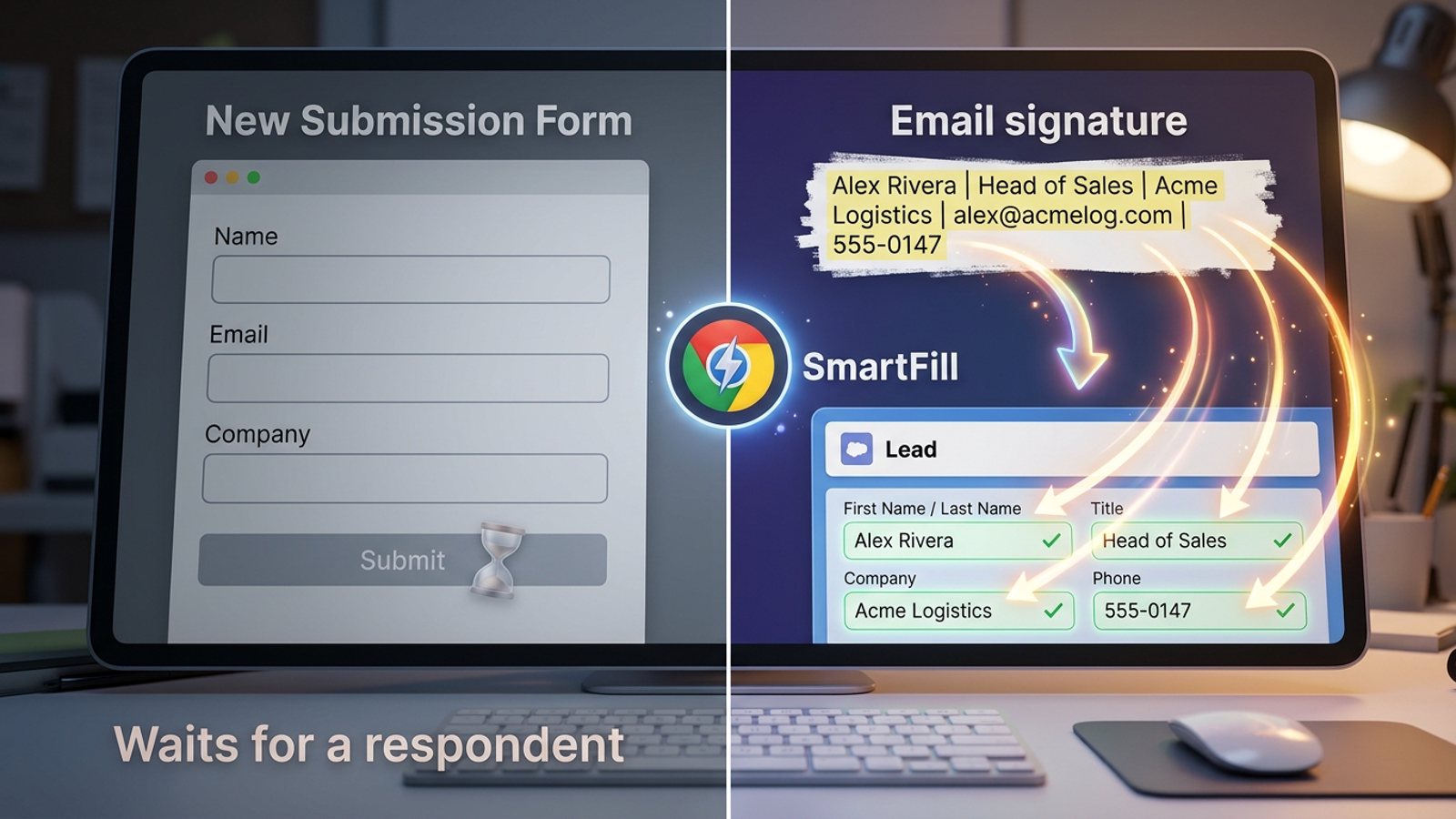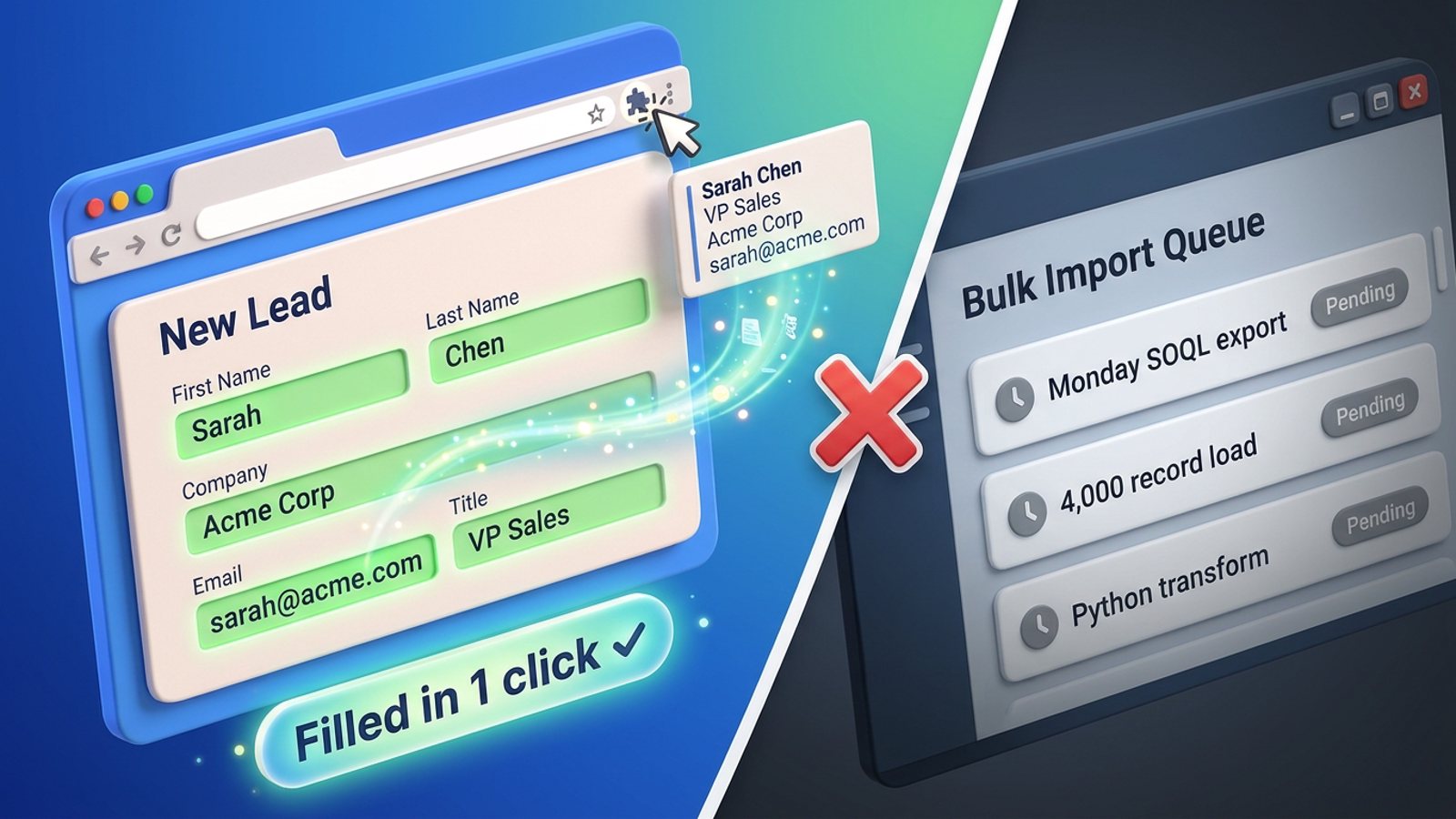
For getting lead data into a Salesforce record you already have open, a salesforce browser extension is the better fit: it installs in a click, needs no sign-up, and acts on the page inside your logged-in session. A desktop data-entry app only wins when you need scheduled bulk jobs, local files or several systems in one pipeline. The honest trade-off: the extension route is desktop Chrome only.
If your job is "paste an email signature into a new Lead and move on", stop reading spec sheets and install the extension. If your job is "every Monday, pull 4,000 records, transform them and load them", you want the desktop app. Most sales teams are the first case.
Try the first case for free: Install SmartFill Free and fill your next Salesforce form from pasted text.
How much effort does each option take to install?
A Chrome extension installs from the Chrome Web Store in a click and shows up in your browser; a desktop app is downloaded, installed and updated on each machine, and every teammate needs it on their own computer. That difference compounds across a team of eight SDRs.
The DEV Community explainer from August 2026 puts it plainly: a browser extension runs inside the browser and handles what happens on web pages, is lightweight, and usually needs no separate app window. A desktop app is its own program with its own updates.
What about sign-up before first value?
Check what each tool demands before you get anything useful. SmartFill's first 5 fills need no signup and no card, then 3 free fills per day forever — that is from its Chrome Web Store listing, updated October 2026.
Other tools differ. Valorx Wave's Chrome listing (updated November 2026) says it is "up and running in seconds, free forever", but connecting to your Salesforce account is step 2 of setup. QueryFlow, a Mac desktop app, offers a 14-day free trial with no card.
Where does the data actually live?
This is the question most comparison posts skip, and it decides your security review. Ask each vendor one thing: does the tool hold a separate copy of your lead data, or does it act on the record inside Salesforce?
Answers vary by vendor, which is why you read the policy yourself:
- SmartFill states that no lead database is built and pasted text is parsed in real time and not retained (Chrome Web Store listing, October 2026).
- Valorx Wave says "CRM data never leaves Salesforce" and honours Salesforce viewing/editing permissions and sharing rules (Chrome Web Store listing, November 2026).
- Skipper for Salesforce says there is no backend for its palette or AI features, traffic goes only to your org and the AI provider you configure, and storage is local in
chrome.storage.local(privacy policy on GitHub, October 2026). - Salesforce Debug Pro, a Firefox add-on, states it sends no data to external servers and makes no external network requests (Firefox Add-ons privacy page, February 2026).
- Flow Explorer for Salesforce says it talks only to the org you are signed into, has no servers of its own, and collects no analytics (GitHub privacy policy, November 2026).
What does the browser itself know?
Chrome's built-in autofill is not the same thing as a Salesforce extension. A QuickForm vendor blog post from June 2026 says Chrome's autofill was built for static HTML forms, while Salesforce Lightning renders fields with JavaScript (Lightning Web Components), so Chrome's scanner never handles them — and that a 10–30 field workflow still takes 5–10 minutes even with details already saved in Chrome. That is a vendor claim, so test it on your own org.
What can each option actually fill?
A browser extension fills the form in front of you. A desktop data-entry app works on data in bulk, on a schedule, outside the page.
SmartFill fills Salesforce forms from any copied text — messy email signatures and LinkedIn bios included — across Lead, Contact, Case and custom objects, with no field limit, per the product facts. It works in anything that runs in a Chrome browser, whether that is Salesforce Classic or Lightning.
A desktop app like QueryFlow is built for scheduled SOQL, exports to files or a warehouse, bulk loads, Python transforms and multi-system pipelines (QueryFlow vendor page, October 2026). It is not designed for typing into the form you have open.
Which tools should you compare before deciding?
Of the tools we compared, an extension that fills the open Salesforce form from pasted text is the most direct route for a sales rep. Here is how the realistic options stack up.
| Option | Best for | Key features | Price / free option | Watch-outs |
|---|---|---|---|---|
| SmartFill — Our pick | Filling an open Salesforce form from pasted text | AI fill from messy text, any object, no setup | 5 free fills, then 3/day; Pro $9.99/mo | Desktop Chrome only |
| Valorx Wave | Bulk edits in a spreadsheet view | Excel-like grid over Salesforce, drag-and-fill | Free forever, per listing | Connect step; Edge listing showed a browser-version error |
| FillGenius | Filling generic web forms | Store data once, fill any form | Not stated in sources | Not Salesforce-specific |
| QueryFlow | Scheduled and bulk query work | SOQL scheduling, Python, pipelines | 14-day trial; Studio $9.99/mo | Mac desktop app only |
SmartFill's Pro plan is $9.99/month as of November 2026, and prices can change. SmartFill is made by the team behind this blog.
A word on the others, honestly. If you mainly need to edit hundreds of records in a grid, Valorx Wave is the more direct choice — its listing positions it as replacing Scratchpad, Weflow, Dooly AI and Salesforce Inspector. One caution: an Edge Add-ons listing for Valorx Wave from October 2026 showed 85 users and a message that the extension was incompatible with the browser version. If you mainly need scheduled exports and Python transforms, QueryFlow is the more direct choice. FillGenius is a general autofill tool — its Chrome listing from June 2026 shows 3.4 stars from 5 ratings and 280 users — and it is not built around Salesforce objects.
If you want the extension route, start here: Install SmartFill Free — one click, no sign-up, and your first five fills cost nothing.
Is it safe to install a Salesforce Chrome extension?
Yes, if you read the privacy policy and limit permissions — the same test you would apply to a desktop installer. The extension policies quoted above (Skipper, Debug Pro, Flow Explorer) all state their data access and destinations in plain terms; that is the standard to hold vendors to.
Two practical checks. First, does the tool read your Salesforce session cookie? Skipper's policy says it reads the sid cookie to call the org's REST and Tooling APIs, and that the value never leaves the browser except as the Authorization header to that same org. Second, if you are in the EU or public sector, the ePrivacy Directive Article 5(3) requires consent to store or access information on a device unless strictly necessary for a requested service — per a Grokipedia article from November 2026, EDPB Guidelines 2/2023 extend this beyond cookies to software that stores information on a device. This is not legal advice; rules vary by place, so check with your own counsel.
What about mobile, Safari and Firefox users?
They are outside the extension route, and you should plan for it. Salesforce Classic does not support mobile browsers; Salesforce recommends its mobile app on mobile devices (Salesforce Help, release notes dated May 2024). A Chrome extension lives in desktop Chrome, so a rep working from the Salesforce mobile app between meetings has no extension to click.
That is the honest limit of this comparison. If half your team works on iPads, a desktop-Chrome-only tool covers half your team. Decide whether the other half gets a different process — or whether you standardise on laptops for data entry.
How do you decide in one afternoon?
Run this sequence and you will have your answer by the end of it.
- List the jobs, not the tools. Write down every way lead data reaches Salesforce this month: pasted signatures, web forms, list imports, scheduled syncs.
- Match each job to a route. Existing record from pasted text → an extension that fills the open form. New submissions → Salesforce Web-to-Lead or a form builder. Bulk or scheduled loads → Data Import Wizard or a desktop app.
- Check the browser reality. If your team uses Salesforce in Chrome on desktop, the extension route is open. If people work on mobile, in Safari or Firefox, verify before standardising.
- Read one privacy policy per tool. Look for where the data goes and whether a copy is kept.
- Trial on a sandbox org. Fill ten real records with ten real messy signatures and see what lands in the wrong field.
The pattern usually falls out fast: sales reps want the extension, RevOps wants the desktop app, and both are right for their own job. The mistake is buying one and expecting it to do the other's work.
If step 2 pointed at the extension, finish the afternoon with a free install: Install SmartFill Free.
For a closer look at how the extension route stacks up against specific tools, see our comparison of Magical vs FillApp for Salesforce lead entry and our guide to the best Salesforce form filler extension for Chrome.
Sources
- Supported Browsers — Salesforce Help, release notes dated 2024-05-02
- How to autofill Salesforce records and forms in Chrome — QuickForm vendor blog, 2026-06-09
- Valorx Wave for Salesforce — Chrome Web Store, updated 2026-11-21
- Valorx Wave for Salesforce — Microsoft Edge Add-ons, 2026-10-30
- Privacy Policy — Skipper for Salesforce, GitHub, updated 2026-10-05
- Privacy Policy — Salesforce Debug Pro, Firefox Add-ons, 2026-02-02
- Privacy Policy — Flow Explorer for Salesforce, GitHub, 2026-11-07
- Salesforce Inspector alternative for Mac — QueryFlow vendor page, 2026-10-07
- Browser Extensions vs Standalone Apps — DEV Community, 2026-08-27
- Password manager browser extensions — Privacy Guides Community forum, 2025-06-16
- Form filler (software) — Grokipedia, 2026-11-12
- FillGenius — Chrome Web Store, 2026-06-09
- SmartFill: The AI Form Filler for Salesforce — Chrome Web Store, updated 2026-10-19