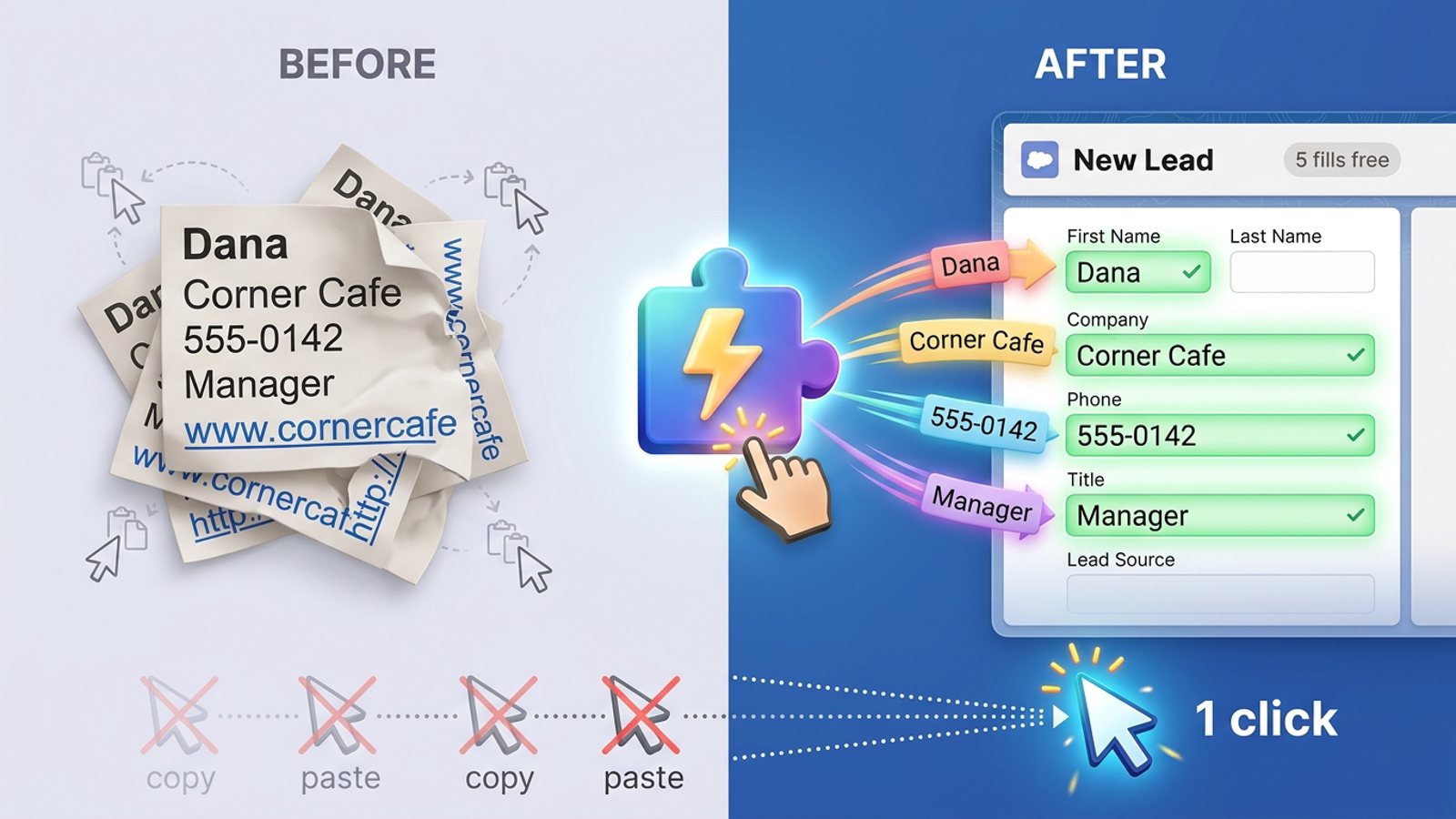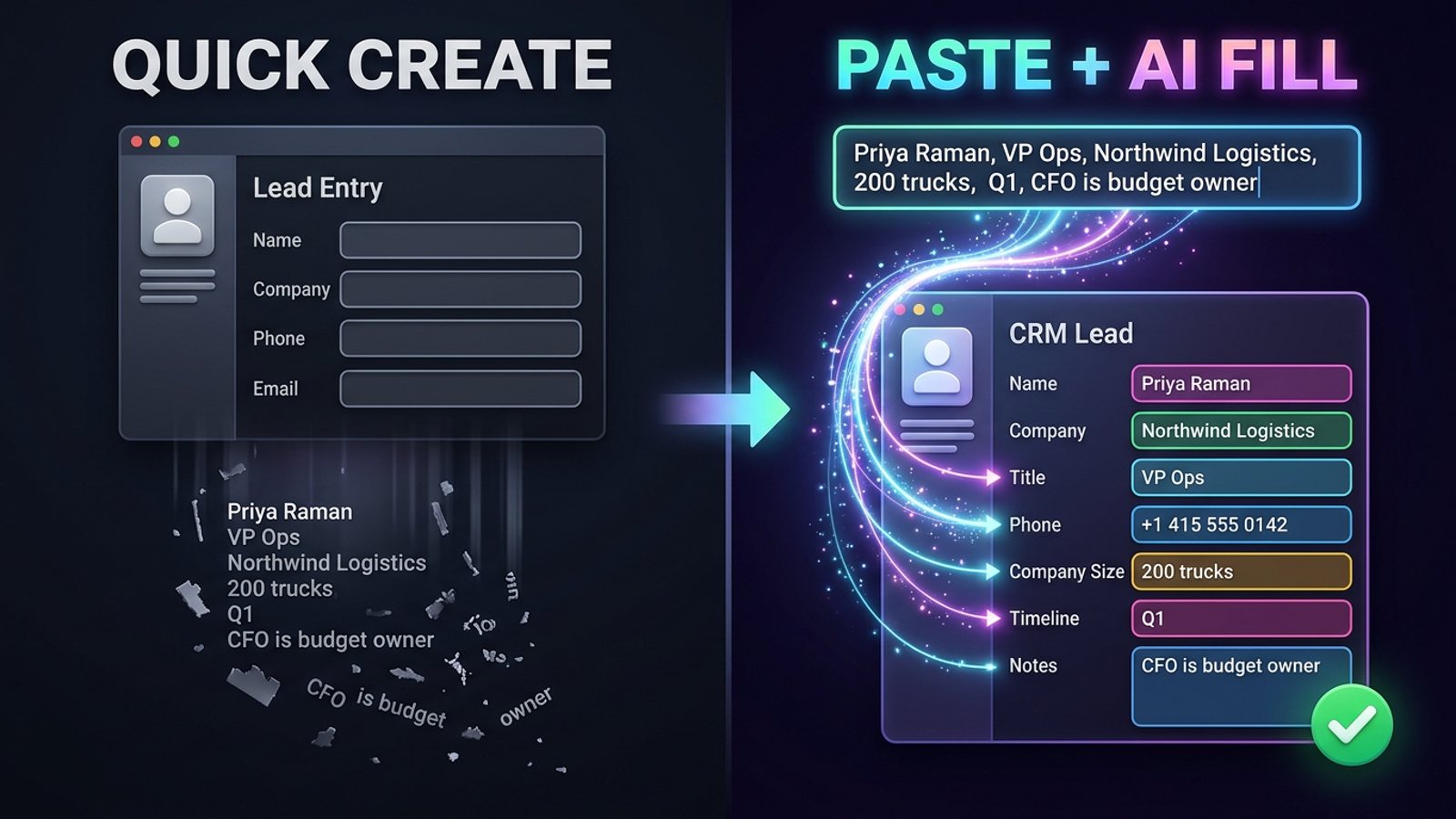
Pasting the whole lead text into an AI form filler wins when your source is messy and you need many fields filled. Salesforce Quick Create wins when the lead is already clean and you only need a handful of fields. Quick Create is a short, admin-configured form; it can't take a whole email signature or LinkedIn bio in one go.
If you're weighing up the two routes, the fastest way to see the paste route in action is to install SmartFill free and try one messy lead.
What is Salesforce Quick Create and when should you use it?
Quick Create is a short record-creation form that lets you create a record on the spot from your inbox, calendar or elsewhere in Salesforce. Admins configure the buttons for any Salesforce object, and the default buttons for Lead, Contact, Opportunity and Case are defined by Field Sets (Clari, Salesforce ISV docs, 2025).
That design tells you exactly who it's for: the rep who already knows the five facts that matter and just wants the record to exist. Where possible, Quick Create pre-populates fields like name, email, phone, website and Account, and it pulls in Salesforce default values (Clari, 2025). It's free with Salesforce — no separate charge.
Why does Quick Create block my save?
Because the field list is fixed by your admin and validation runs on save. First, required fields: Salesforce rejects a record create without required fields and returns REQUIRED_FIELD_MISSING — commonly because a field was made required or a required field wasn't filled (Revenue.io support, 2025). On the Lead object, LastName and Company are required on create; fields like Title (128 characters) and Street (255 characters) are optional (WinActor sample docs).
Second, custom validation rules. A rule can block a Lead save even when the field isn't marked required — for example, a rule that insists on an Industry value (Volcengine, 2026).
The bigger structural point: users cannot add fields to the Quick Create form themselves. Only an admin can change it, through Object Manager → [Object] → Field Sets (Clari, 2025). So the pane can't adapt to a messy source — it shows the same short list every time.
How does pasting the whole lead text compare?
Pasting wins on completeness. You copy the entire messy block — signature, bio, call notes — and the AI reads it and populates the fields for you. Nothing gets lost because it didn't fit a pre-set list.
Say a rep gets this from a prospect:
"Thanks for the call — Priya Raman, VP Ops at Northwind Logistics, priya@northwind.example, +1 415 555 0142. We're 200 trucks, evaluating in Q1, budget owner is our CFO."
Quick Create gives you a name, a company and maybe a phone number, then asks you to go back and fill the rest by hand. The paste route can take that same paragraph and fill title, email, phone, company size, buying timeline and notes in one pass.
What counts as messy, unstructured lead data?
The stuff that never fits a tidy form: email signatures with job titles buried mid-line, LinkedIn bios written in the third person, a paragraph of notes after a discovery call, a forwarded intro email. Manual parsing of that text is the slow part — deciding what goes where, field by field.
That's the job the AI Salesforce filler is built for: it reads the text and works out which value belongs in which field, so you review instead of retype.
How many fields can you fill at once?
With the paste route, there's no practical ceiling on fields — SmartFill's owner confirms unlimited fields per fill. Quick Create's ceiling is whatever your admin put in the Field Set.
Which is faster — Quick Create or pasting the whole lead?
Quick Create is faster only when the lead is clean and the field count is small. The moment you're parsing an email signature by hand, the paste route overtakes it, because the parsing is the work.
Think about where the time actually goes. Quick Create's speed comes from a short form. But if the lead needs ten fields and the pane shows four, you're filling the record twice: once in Quick Create, then again in the full record page. That's the hidden cost.
The paste route inverts it. You copy once, paste once, review the populated fields, save. The product facts put a typical fill at a 3-second click rather than a 4-minute form fill — that's the vendor's own estimate, not an independent benchmark.
The real question isn't which form is shorter. It's whether the parsing happens in your head or in the tool.
What are the options, and which suits you?
Here's how the main routes compare, with the tools we looked at. SmartFill goes first because it's the one this blog is built around.
| Option | Best for | Key features | Price / free option | Watch-outs |
|---|---|---|---|---|
| SmartFill (Our pick) | Messy lead text, many fields | AI fills Salesforce forms from pasted text; any object; unlimited fields | Free: 5 fills, then 3/day. Pro $9.99/mo (as of Nov 2026) | Desktop Chrome only |
| Salesforce Quick Create | Clean leads, few fields | Short admin-configured form; pre-fills where possible | Included with Salesforce | Field list fixed by admin |
| Manual copy-paste | One-off records, any device | Full control over every field | Free, time cost only | Slow, error-prone at volume |
| Salesforce Data Import Wizard | Bulk CSV imports | Batch import; custom fields; assignment rules | Included with Salesforce | Built for batches, not single records |
| Magical | Repeated identical transfers | Templates triggered by // across many sites | Self-serve pricing not shown publicly (checked Oct 2026) | Templates must be built upfront |
SmartFill is made by the team behind this blog.
Why SmartFill is our pick of the tools we compared: it's the only one in this list built specifically to take unstructured text and populate a Salesforce form from it. No setup, no templates to build, a 10-second install with no sign-up, and it works on any Salesforce object — leads, contacts, accounts, whatever the form. Text is processed in real time and not stored, and no lead database is built. It's a desktop Chrome extension, so it won't help you on mobile. You can get SmartFill and fill your first lead free.
Salesforce Quick Create is the right choice if your admin has set up a Field Set that matches how your team works and your leads arrive clean. It's free and native. If you mainly need a handful of fields captured instantly from your inbox, Quick Create is the more direct choice.
Manual copy-paste stays honest: it works anywhere you can reach Salesforce, on any device, with total control. It just doesn't scale, and it's the slowest option here for repeated fills.
Salesforce Data Import Wizard is the tool for the job when you have a file, not a lead. It handles bulk imports of leads and lets you decide custom fields and assignment rules in advance (Automation Champion guide). See our comparison of Salesforce web-to-lead vs typing leads in by hand for the inbound side of the same question.
Magical is a strong text-expander: templates triggered by // shortcuts across a very large number of sites, Salesforce included (Chrome Web Store, 2026; Magical Help Center, 2024). If you repeatedly transfer the same set of values, it's excellent. Its limit for this job is that it relies on templates you build upfront rather than reading unstructured text. A third-party blog reported in October 2026 that its pricing page shows "Book a demo" / "Contact Sales" rather than a self-serve plan, and forum users report the AI assistant isn't on the free plan (Alura forum, 2026) — anecdotal, and worth checking on getmagical.com yourself.
How do you do each one? Step by step
The Quick Create route
- Check your Field Set. Ask your admin which fields appear for Lead or Contact — that's the whole form you'll get.
- Open Quick Create from the object or the "New Lead" button.
- Fill the visible fields and let the pre-populated defaults stand where they're right.
- Save. If a validation rule fires, fix the flagged field and save again.
The paste route
- Copy the full lead text — signature, bio, notes, all of it. Don't tidy it first.
- Open the Salesforce record form you want to fill.
- Paste the text into the AI filler.
- Review the populated fields and correct anything the source was ambiguous about.
- Save.
Is pasting lead data into an extension safe?
It depends on the extension's permissions, and it's worth thirty seconds of checking. Security researchers flag browser extensions that request broad host permissions, because those enable interaction with all sites and increase the risk of data exposure (Koidex reports on Form Copier, 2025, and PasteIt, 2025). Chrome's activeTab permission is narrower — it grants temporary page access only after a user action and ends when the tab navigates away (MEFMobile, 2026).
Google's own guidance is that permission warnings don't mean an app is dangerous, just that it can be (Google Help, Chrome Web Store). So read them.
On SmartFill specifically: the owner confirms nothing sent to the AI is saved, so lead data isn't retained, and no lead database is built. That's the vendor's statement — our recommendation is to check any extension's permissions against your own data policy before your team rolls it out. For a deeper look, read what makes a secure AI form filler for Salesforce lead data.
What about a whole spreadsheet of leads?
Use Salesforce's own import tools. The Data Import Wizard handles bulk lead imports and lets you settle custom fields and assignment rules before you run it (Automation Champion guide). Third-party data tools exist too — one, SFDC Police, documents a Data Loader feature that maps spreadsheet columns to fields and runs batches up to 200 (SFDC Police docs, updated November 2026); note that's a third-party product, not Salesforce's official Data Loader.
Neither Quick Create nor a paste-based filler is the right instrument for 500 rows. Our recommendation: pick the tool by the shape of the source — one messy lead, paste it; one clean lead, Quick Create it; a file, import it.
Ready to stop parsing email signatures by hand? Install SmartFill free — 5 fills to start, then 3 a day forever, with unlimited fills on Pro at $9.99/month as of November 2026 (prices can change).
Sources
- Configuring Omnibar Quick Create Buttons (Clari, 2025-01-12)
- Creating a New Inline Create Button for Custom Objects (Clari, 2025-01-12)
- Salesforce Lead object data sample (WinActor, date not given)
- Required Field Missing (Revenue.io, 2025-04-14)
- FIELD_CUSTOM_VALIDATION_EXCEPTION guide (Volcengine, 2026-07-19)
- Salesforce Lead Management Implementation Guide (Automation Champion, date not given)
- Data Loader docs (SFDC Police, updated 2026-11-09)
- Koidex report: Form Copier (2025-05-31)
- Koidex report: PasteIt (2025-08-31)
- Are browser extensions safe (MEFMobile, 2026-10-04)
- Chrome Web Store permission warnings (Google Help)
- Magical Chrome Web Store listing (2026-04-04)
- Magical Help Center: creating templates (2024-10-20)
- Magical alternative pricing note (Clipboard History Pro blog, checked 2026-10-23)
- Alura forum thread on Magical AI plan (2026-06-01)